- Most USB hub failures are due to power limitations, poor hub quality, or mixed standards (USB 2.0, 3.0, USB-C, Thunderbolt).
- Choosing between an active or passive hub and checking current capacity is key if you connect hard drives, mechanical keyboards, cameras, or several peripherals at once.
- Drivers, BIOS, and Windows power settings can aggravate or resolve many detection problems, disconnections, and overconsumption messages.
- Analyzing real-world cases similar to yours helps you choose a hub compatible with your equipment and avoid lag, interruptions, and transfer errors.
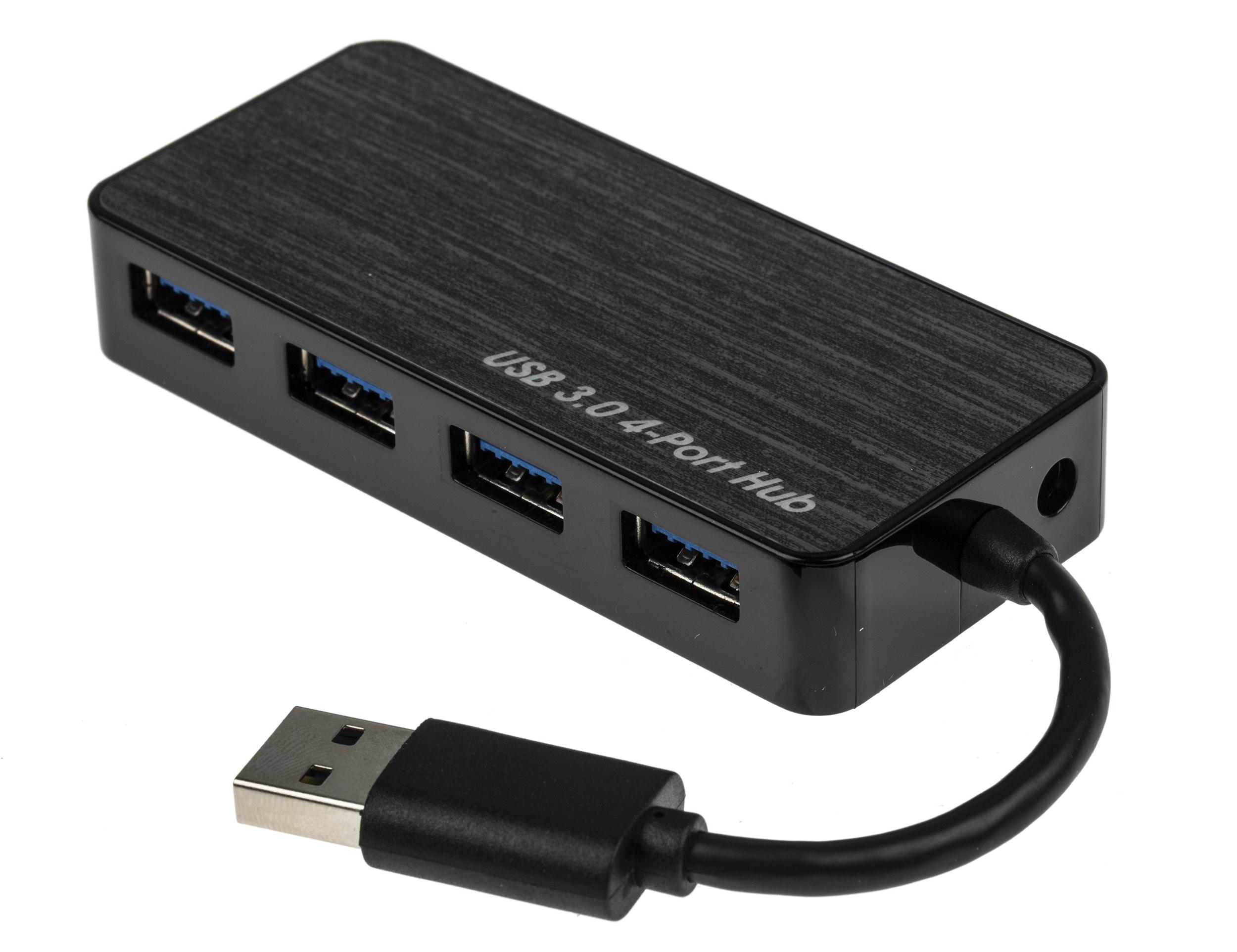
If you use multiple peripherals simultaneously—mouse, keyboard, external hard drives, webcam, capture card, etc.—it's only a matter of time before you encounter strange problems when connecting everything through a USB hub . Connection drops, drives that won't mount, devices that load incredibly slowly or stop working for no apparent reason… and the worst part: it often only happens “sometimes.”
This article provides a comprehensive guide to understanding why USB hubs fail, the different types available, common mistakes people make, and how to fix them step by step. You'll also see real-world examples (desktop PCs, laptops with USB-C hubs, MacBooks with M1, Dell equipment, astronomical mounts, etc.) to help you identify your specific situation and choose the right hub for your needs.
Common mistakes when using a USB hub
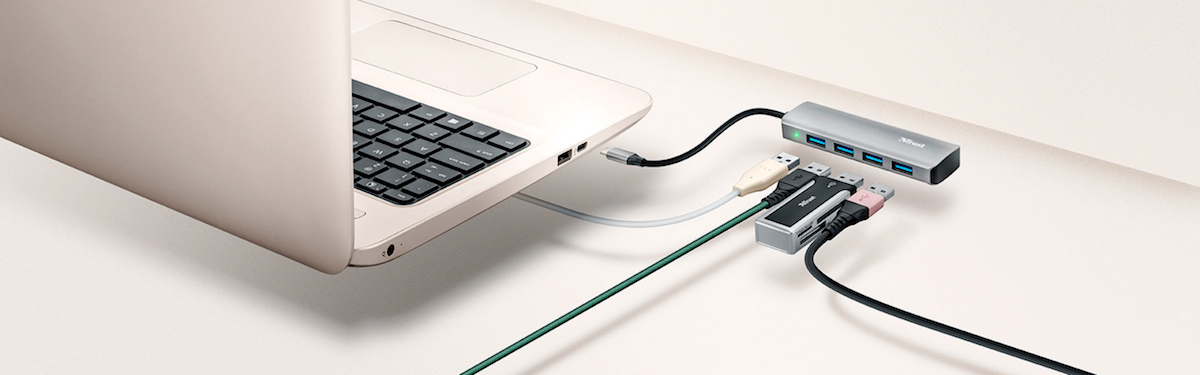
Hub problems often seem random, but they almost always follow a few patterns. It's helpful to know these patterns because most can be fixed without changing your computer , simply by adjusting how and what you connect.
USB hub not recognized by the system
One of the most frustrating issues is when you connect the hub and the computer acts as if it doesn't exist . No connection sound, no error message, no trace of it in the system.
In many cases, the cause is as simple as a loose cable , a faulty port, or a driver conflict . The first step is always to check the cable connecting the hub to the PC (especially if it's detachable) and try a different USB port on the computer, preferably a rear port on desktops because they usually connect directly to the motherboard.
If the hub is active, meaning it has its own external power supply (as is the case with many 7-port models or docking hubs), it's crucial to verify that the power adapter is properly connected and functioning. Without power, some hubs won't even be able to communicate correctly with the system.
When the hardware seems fine, the next suspect is the software. An outdated or corrupted USB driver can prevent the hub from being detected . In Windows, the usual approach is to check Device Manager, uninstall the USB controllers, and restart so the system reinstalls the drivers. For brand-name laptops and desktops (Dell, Asus, etc.), it's a good idea to use the official update tools or the manufacturer's website.
Devices that do not charge or charge very slowly
Another classic problem: you connect your phone to the hub to charge and the battery barely increases, or doesn't even budge. The cause here is almost always that you're using a hub designed only for data or with a limited current capacity.
Many USB 3.0 hubs , especially small and inexpensive ones, share power from the single port they're connected to . This means that even if they have four or seven physical ports, the total available power is the same as a single computer port. Under these conditions, charging a modern phone or tablet while using external hard drives is asking too much of them.
To charge multiple devices simultaneously with any degree of efficiency, you need a hub with an external power supply and dedicated charging ports , which are usually labeled with terms like “BC 1.2,” “Charging,” or “5V/3A.” Even then, it's important to understand that a hub isn't a dedicated fast charger: it's fine for keeping devices charged, but not always for charging them at maximum speed.
Don't forget the cables. A simple faulty or poor-quality USB cable can drastically limit charging or cause the device to disconnect. Trying a short cable with a good gauge is one of the quickest and cheapest checks.
Storage devices that are not recognized or are disconnected
A very typical pattern: USB mouse or keyboard receivers work perfectly with the hub , but an external SSD, hard drive, or card reader either doesn't work or doesn't appear at all. In many cases, if you connect that same SSD with a simple extension cable (without a hub), everything works fine.
This usually indicates a problem with power consumption or signal quality . Mouse and keyboard receivers consume very little power and use very little bandwidth. However, an external SSD requires significant power to boot and a stable data flow. If the hub or the cable powering it isn't up to the task, the system will disconnect it or not even mount it.
The specification can also be a factor: trying to use a high-performance USB 3.0 drive in an old or very cheap hub , especially if it internally uses USB 2.0, increases the chances of crashes, interruptions, and transfer errors.
When a card reader or SSD intermittently disconnects through the hub but works fine when connected directly, it's almost always due to a physical limitation of the hub (insufficient power, poor design, or faulty electronics) . In that case, the practical solution is usually to replace the hub or connect the most critical storage devices directly.
Power limitations and types of USB hubs
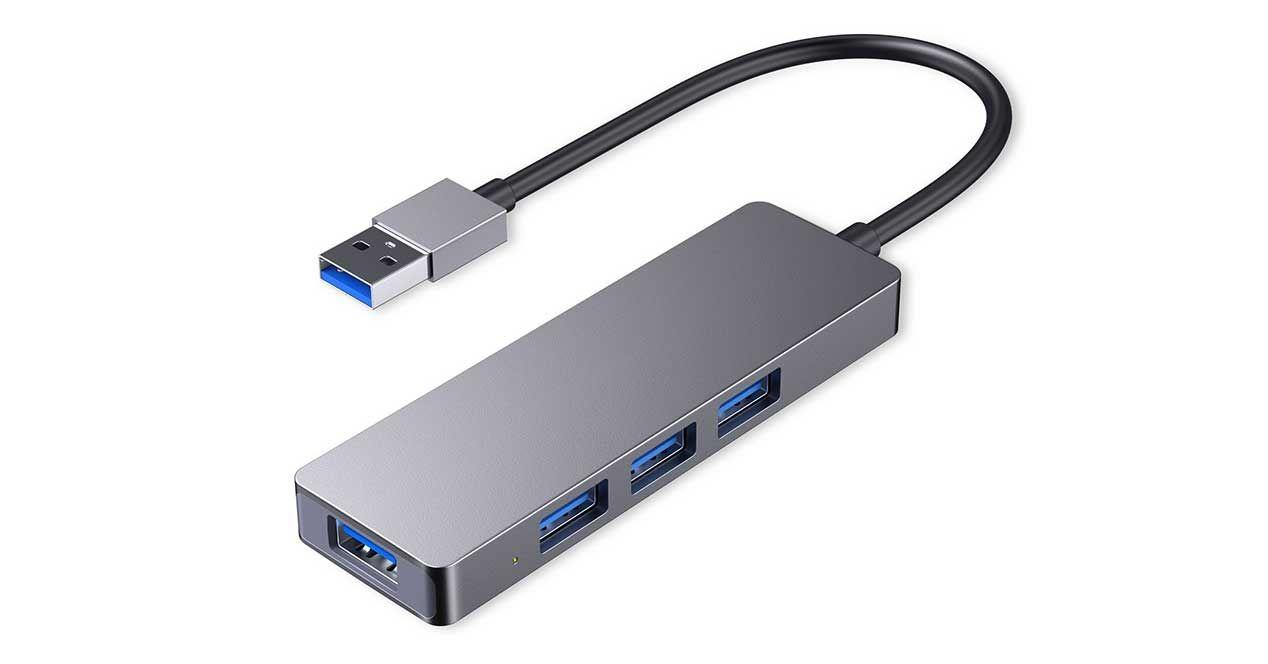
Many problems with USB hubs stem from a lack of understanding of how power is distributed and the difference between an active and a passive hub . The USB standard sets current limits per port, and exceeding these limits will lead to disconnections, lag, and overconsumption warnings.
Passive hubs: practical, but with clear limits
A passive hub is one that does not have its own power supply . All the power it provides to its ports comes directly from the port it is connected to on the computer. This means that the available power is limited and is shared among all connected devices.
In practice, this means that a passive hub is perfect for low-power devices : mice, keyboards, wireless receivers, small dongles, maybe the occasional USB flash drive. But when you start plugging in mechanical hard drives, cameras, audio interfaces, or multiple devices at once, the capacity quickly runs out.
When a passive hub is running low on power, it manifests itself in many different ways: devices disconnecting on their own, keyboard lag, a mouse freezing for a few seconds , lights blinking or not turning on, errors when transferring files, etc.
Active hubs: own source and more room to maneuver
Active hubs, on the other hand, include a power adapter that allows them to deliver significantly more stable power to all ports. They are usually the recommended option when setting up an all-in-one device: monitor, Ethernet, multiple USB ports, SD card reader, etc.
A good active hub (or docking station) can power external hard drives, backlit mechanical keyboards, interfaces, and various peripherals with ease . Some even have dedicated ports specifically for charging mobile phones or tablets, with 5V/3A output or fast charging modes.
However, just because it's active doesn't mean it's indestructible. If you plug in more devices than it can handle, or if the power supply isn't high quality, you may still experience power outages and overload warnings. It's always a good idea to check the maximum current specifications for each port and the hub's total current.
How to avoid overloads and excessive consumption warnings
On systems like macOS, it's relatively common to see messages like "Your USB device is drawing too much power ." This is a clear sign that whatever you've connected is demanding more power than the port or hub can supply.
To prevent these situations, it's helpful to adopt some guidelines:
- Always consult the hub's technical specifications.: how many amps it delivers, which ports are for data only and which are also intended for charging.
- Avoid connecting too many demanding devices at the same time. in a passive hub (disks, cameras, game controllers, etc.).
- If you use a laptop, Make sure it's plugged in. when you intend to power a demanding active hub and several peripherals at the same time.
- Unplug anything you're not using; Opening ports reduces power consumption and rare errors.
In critical cases, it can be worthwhile to power some equipment separately. For example, a hard drive with its own power adapter or a separate charging hub for mobile devices, reserving the hub for data.
Compatibility and conflicts between devices
Besides power, there's another major problem area: compatibility between USB standards, drivers, and operating systems . Not all hubs work equally well with all devices and computers.
Mixed USB standards: 2.0, 3.0, 3.1, USB-C and Thunderbolt
Today, we see a mix of traditional USB-A ports, USB-C ports (versions 2.0, 3.0, 3.1, and 3.2, with and without Thunderbolt), and USB-C ports. While they are physically compatible in many cases, the specific combination of chipset in the hub, cable, and device can make all the difference between a stable connection and complete chaos.
For example, a USB 2.0 hub can recognize a USB 3.0 camera or SSD , but it will limit the speed and may cause problems if the device expected more bandwidth. Conversely, a modern USB 3.0 hub usually works well with 2.0 drives, but may not work well with very old equipment whose USB drivers are not up to date.
In the world of USB-C and Thunderbolt, things get even more complicated: not all USB-C ports offer video, charging, or the same power. A laptop might have several USB-C ports, but only one could handle a complete dock with a monitor, network, and multiple USB ports . If you connect your hub to the "wrong" port, it will appear not to work or will only work partially.
Real-life examples: strange outages, lags, and devices that only sometimes fail
There are situations that can baffle anyone. For example, users who connect a USB-C hub to a laptop without Ethernet to use a mouse, keyboard, monitor, and network with a single cable, and then, when pairing Bluetooth headphones, see the mouse and keyboard freeze for a few seconds… except when they're in a game, where everything works perfectly.
This type of behavior points to internal resource conflicts, aggressive power management, or problematic drivers . On the desktop (game launcher), the system might be disabling or changing the power mode of some USB or Bluetooth controllers; in the game, "high-performance mode" keeps everything active, and the experience becomes stable.
Another very illustrative example is that of an advanced mechanical keyboard connected to a MacBook M1 via a hub . The user experiences lag, missing letters, keys transposing… until the system issues a power consumption warning. When the keyboard is connected directly to the laptop, everything works perfectly. The problem isn't with the keyboard or the Mac, but with the hub, which can't handle the continuous power demand.
In more specialized environments, such as amateur astronomy, similar patterns are also observed: main camera, guide camera, mount, and joystick all connected to the same hub . Everything works fine until the last port is occupied by the joystick; from then on, the camera disconnects randomly. Even using a USB-to-Ethernet converter, the guide camera is visible, but displays a completely black image, likely due to a bandwidth bottleneck or the use of a USB 2.0 adapter with a USB 3.0 camera.
How to choose a hub that's truly compatible with your computer
To minimize surprises, when buying a hub it's worth looking at more than just the number of ports. Some useful criteria:
- External powerIf you're going to use hard drives, mechanical keyboards, audio interfaces, or several peripherals at the same time, an active hub with a power supply is best.
- Type of port for connection to the computerIf your laptop has USB-C with DisplayPort and charging, consider a USB-C dock or Thunderbolt that can output video, network and USB through a single cable.
- operating system compatibilityNot all hubs work equally well on Windows, macOS, or Linux. It's a good idea to check the specifications and user reviews of systems similar to yours.
- USB versionIf you use high-performance USB 3.0/3.1 cameras or SSDs, avoid 2.0 hubs and opt for 3.x models with a good controller.
Finally, it is very useful to review real experiences: user comments that mention outages, overheating or excessive power consumption warnings with specific models and equipment similar to yours (same laptop range, same operating system, similar uses).
System configuration, BIOS and drivers: the other half of the problem
Once you've ruled out cables, power supply, and hub quality, you can look inside the system. Many persistent USB problems can be solved by adjusting BIOS, drivers, and power settings , especially in Windows.
USB-related BIOS settings
On some PCs, enabling USB boot options can cause crashes or unusual behavior upon restart if a USB hub is connected. The computer may attempt to boot from the USB hub, detect it as an external drive, and freeze.
The solution in these cases involves entering the BIOS/UEFI and disabling USB booting or placing it after the main drive in the boot order. While you're at it, it's worth checking that the USB ports aren't disabled in the BIOS itself and restoring the default settings if you've changed them.
Drivers, power management, and Windows 11
On modern Windows computers, especially those from brands like Dell, manufacturers recommend following a relatively systematic diagnostic sequence to rule out software problems before concluding that the failure is physical.
The key points are usually:
- Update BIOS, chipset, and USB controllers using official tools (SupportAssist, manufacturer update utilities, etc.).
- Check that the USB ports are enabled in the BIOS and that there are no advanced settings out of adjustment.
- In the energy plan, turn off the USB selective suspend and prevent Windows from turning off the ports to save power.
- In Device Manager, uninstall the problematic USB controllers (marked with warning icons) so that they are reinstalled cleanly upon restart.
If all that isn't enough, you can still go further: use the Windows hardware troubleshooter and follow a guide to troubleshoot Windows 11 errors , boot into Safe Mode to see if the problem disappears (which would indicate a conflict with some third-party software), use a System Restore point from before the problem appeared, or, as a last resort, reset Windows to factory settings after making a backup.
If even after these steps a port or hub still does not work correctly , the most reasonable thing to do is to assume a physical problem and consider repairing or replacing the equipment or the hub itself.
As you can see, problems with USB hubs usually stem from insufficient power, limited hardware, mixed standards, and less-than-ideal system configurations . Understanding how power is distributed, what each device expects, and what the operating system does "behind the scenes" makes it much easier to identify the weak link and choose a hub that truly fits your workflow, minimizing the interruptions, lag, and disconnections that cause so many headaches.
