- A USB-C hub allows you to multiply the single port of the mobile phone into several USB, HDMI, card readers and Ethernet to use it as a mini computer.
- USB OTG and Power Delivery compatibility is key to connecting multiple peripherals and charging your mobile phone simultaneously without losing performance.
- With a good hub you can manage disks and cards, output video to a monitor, use a keyboard and mouse, and achieve a stable wired network connection.
- Choosing a quality hub, with the right ports and video output support, makes all the difference in getting the most out of an Android device.
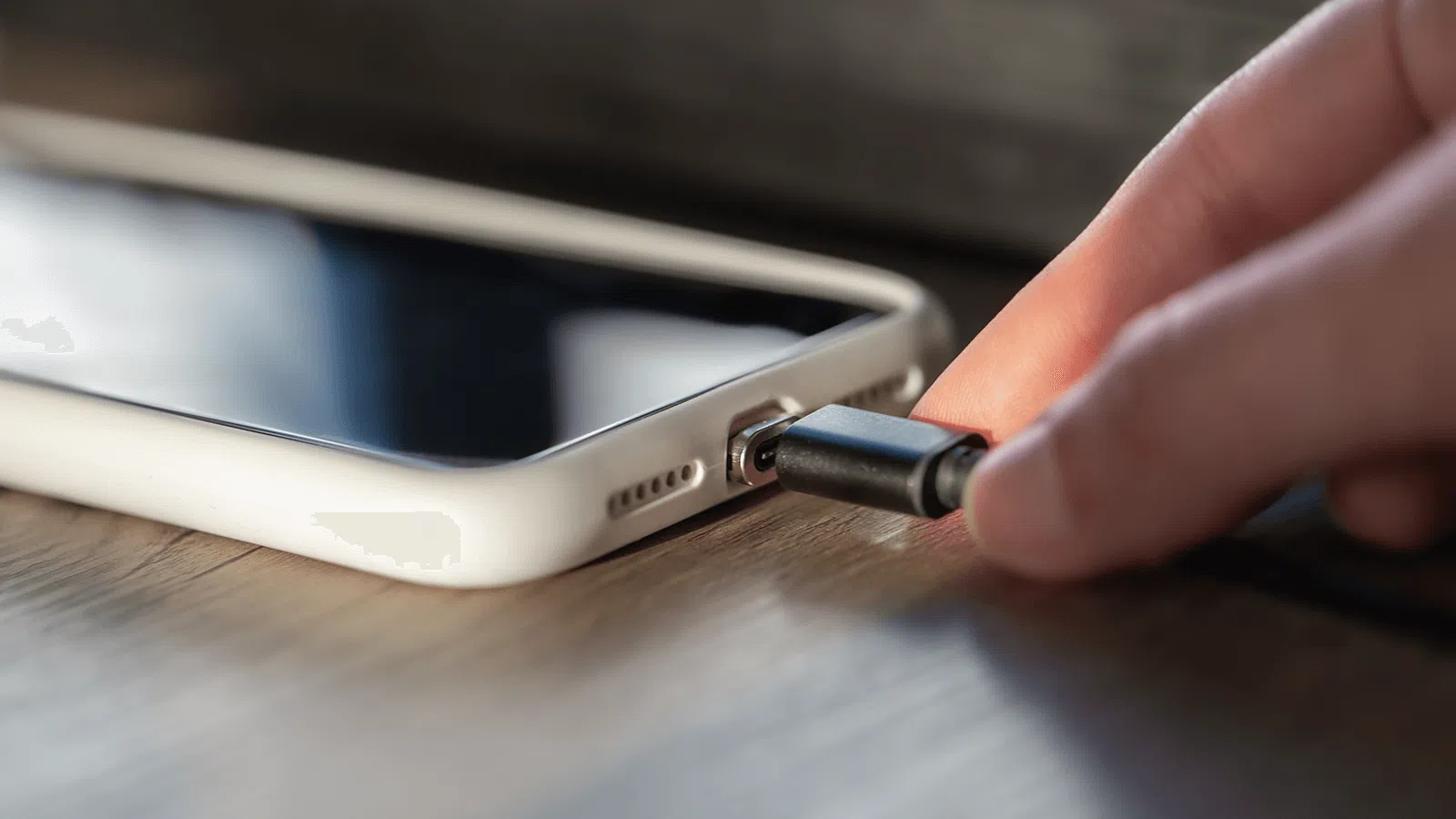
An Android phone with only one USB-C port seems, at first glance, like a limited device. But as soon as you connect a multi-port USB-C hub , the phone becomes something very different: a media center, a mini-computer, an advanced file manager, and even a backup solution for your camera—all in your pocket.
With a relatively inexpensive accessory, you can connect flash drives, hard drives, SD cards, a monitor, a mouse, a keyboard, a wired network connection, and more to your smartphone. In practice, that single USB-C port transforms into a "digital power strip" that multiplies the phone's capabilities and brings it much closer to the experience of using a laptop.
What is a USB-C hub and what does your Android phone gain from it?
A USB-C hub is an adapter that connects to your phone's USB-C port and distributes it across multiple additional ports , sharing both data and power. In other words, it converts a single port into multiple USB-A ports, an extra USB-C port, HDMI, a card reader, an Ethernet port, or other ports, depending on the model you buy.
Most current Android phones can natively recognize USB devices connected via OTG (USB On-The-Go) through a hub. The phone acts as a "host," just like a laptop, and manages all peripherals plugged into the hub simultaneously.
In practice, it's like giving your mobile phone "superpowers": suddenly you can use it like a small computer with multiple ports , to which you can connect external memory, input peripherals, external screens or even a stable wired network for gaming or work.
A typical USB-C hub designed for use with mobile phones and laptops includes two or three USB-A ports, a USB-C port with Power Delivery, an HDMI output, an SD and microSD card reader, and an Ethernet port . With something like this, your smartphone goes from having a single port to having half a dozen useful connections.
Types of ports you can find on a USB-C hub
Depending on the hub model you buy, you'll have different types of ports , but in general the most common ones are those that will allow you to maximize the connectivity of your Android phone.
USB-A ports : These are the standard USB ports. You can use them to plug in flash drives, external hard drives, mice, keyboards, printers, or wireless receivers for older peripherals. They remain essential if you use accessories that haven't yet made the switch to USB-C.
Additional USB-C ports : Some hubs offer one or more USB-C data ports and, very importantly, a USB-C port marked as PD (Power Delivery) for charging the main device. These are the modern standard for mobile phones, tablets, laptops, and many accessories.
SD and microSD card reader : ideal if you work with cameras, drones, GoPros, or regularly record video. Simply connect the card to the hub's reader, and your phone can read and copy all the content directly , for example, to transfer photos from your phone to the microSD card , without needing a computer.
HDMI or DisplayPort video output : This allows you to send the phone's image to a TV or external monitor; see the differences between USB-C and HDMI to connect your monitor. On phones that support USB-C video output, you can use a desktop mode like Samsung DeX, Motorola Ready For, or the native Android desktop , essentially turning your phone into a computer.
Ethernet port (RJ-45) : With a hub that includes LAN, you can connect your mobile device directly to the router via cable. This is perfect for reducing latency and ensuring a stable connection when playing cloud games, streaming high-quality video, or uploading large files without interruption.
How to connect multiple USB devices to your Android phone using a USB-C hub
The physical process is very simple, but it's helpful to understand a few details to ensure everything works smoothly and without damaging anything . The basic idea is that the mobile device acts as the host and the hub as the port distributor.
First, make sure your Android phone supports USB OTG (On-The-Go) . Most recent models do, but you can check the manufacturer's specifications or use dedicated apps that detect whether your system is compatible with external USB devices.
Next, connect the hub to your phone's USB-C port using the built-in cable or the short cable that comes with the hub. Some hubs are compact and cableless, plugging directly into the bottom of your smartphone , while others have a more flexible cable.
Once the hub is plugged in, start connecting your devices: USB drives, hard drives, mouse, keyboard, card reader, HDMI cable, Ethernet cable , etc. The phone will detect each accessory, and as long as the system and apps are compatible, you can use them simultaneously.
If your hub has a USB-C PD port, plug the charger into that connector so the hub can power both your phone and connected peripherals . This is crucial if you're going to be using hard drives, an external monitor, or multiple accessories simultaneously for an extended period.
Power Delivery (PD) on the USB-C hub: how charging works while using your mobile phone
Many hubs include a USB-C port labeled PD or Power Delivery . This connector is designed so you can connect your charger and the hub will handle powering your phone and, in some cases, other connected devices as well.
USB Power Delivery is a fast-charging standard that allows the charger, cable, and device to negotiate the appropriate voltage and current . Thanks to this information exchange, the system can safely deliver more power, reaching figures such as 60W, 87W, or even 100W, depending on the charger and hub.
If you plug a PD-compatible charger into the hub's PD port, the hub will be able to supply power to your phone at the maximum speed that both the charger and phone can handle. In other words, to take advantage of PD fast charging, you need a PD-compatible charger and phone.
However, if your charger isn't PD-compatible, it will usually still charge your phone, just at lower speeds . In most cases, current will still flow, but it won't be able to negotiate advanced fast charging profiles. The same applies if your phone isn't compatible with PD but is compatible with other systems like Quick Charge or proprietary technologies.
It's important to note that each mobile phone manufacturer may use its own fast charging standard (Quick Charge, Dash Charge, SuperCharge, etc.). If your smartphone doesn't support PD, the hub will still allow charging, but the speed may be limited to standard mode , without reaching the faster charging times.
Practical uses: from mini media center to portable office
One of the most powerful uses of a USB-C hub with an Android phone is file management. You can connect multiple flash drives and external hard drives at once and use an advanced file manager to copy, move, or back up data between them without needing a computer.
For example, if you're a photographer or videographer, you can connect an SD or CFexpress card reader and a USB hard drive to the hub. The phone will act as an intermediary to copy the card's contents to the drive, so you can empty the card in the field and continue working without relying on a laptop.
You can also set up a kind of "portable office." Connect the hub to your phone, plug in a USB mouse and keyboard, connect the HDMI output to a monitor or hotel TV, and if your phone supports desktop mode, you'll have an interface very similar to a desktop computer with windows and more convenient multitasking.
Another very useful scenario is that of a multimedia center: the mobile phone connected by HDMI to the TV serves to play movies, series, music or games on a big screen , while the hub allows you to have at the same time a hard drive with your files, a USB controller or even an Ethernet connection so that the streaming is smoother.
If you play cloud gaming services like Xbox Game Pass or Nvidia GeForce Now, a hub with Ethernet and HDMI is pure gold: you connect your phone to the TV via HDMI, plug it into the router with a cable to minimize latency, and, if you want, add a USB or Bluetooth controller for a console-like experience.
Turn your mobile phone into a laptop with desktop mode
Some manufacturers include special modes when you connect the mobile to an external monitor, such as Samsung DeX, Motorola Ready For, or Android's native desktop mode.
With a suitable USB-C hub and a compatible mobile phone, you can connect an external monitor, keyboard, and mouse and use your phone as a lightweight workstation . Email, office applications, web browsing, file management, and video calls become much more convenient.
In these scenarios, it's even more important that the hub has Power Delivery pass-through . HDMI video, the Ethernet connection, and various peripherals consume a significant amount of power, so you need to keep your phone charging while performing all these tasks.
The typical setup would be: hub connected to the phone, USB-C charger to the hub's PD port, HDMI cable from the hub to the screen, keyboard and mouse to the USB-A ports, and, if needed, a flash drive or hard drive to store documents . All with a single accessory hanging from the phone.
If your hub is compact, wireless, and attaches directly to the base of your phone, you'll have a small, portable dock . If you prefer to reduce the strain on your phone's USB-C port, hubs with short cables or magnetic ones that attach to the back of the device distribute the weight better.
USB-C hubs according to user type and design
Not all USB-C hubs are created equal. Depending on how you use your phone and what accessories you typically connect, you'll be more interested in one type of hub or another. The key is to find the right balance between the number of ports, size, weight, and convenience.
Compact wireless hubs plug directly into your phone's USB-C port. They're lightweight and convenient when you want something discreet, without dangling cables, and you usually only connect a few devices at a time . However, if you plug in something heavy, like a large hard drive, they can put too much strain on the phone's port.
Hubs with short cables are more versatile: they allow you to leave the hub on the table and, at the same time, reduce the strain on your phone's USB-C connector . They're a good option if you often connect multiple peripherals and don't want all the weight dangling from your phone.
There are also magnetic hubs designed for phones with integrated magnetic systems or compatible cases. These attach to the back of the phone and connect via a short, flexible cable. This reduces stress on the USB-C port and makes the setup more comfortable to hold and use.
Finally, there are the larger docking stations, with dozens of ports, designed primarily for laptops but also compatible with many phones. They offer a multitude of connectors (USB-A, USB-C, HDMI, DisplayPort, audio, network, card readers, etc.) and usually support high PD power outputs, but they sacrifice portability.
Connect external storage and cards: copy and back up files
One of the most common reasons for using a USB-C hub with a mobile phone is managing external storage. Android phones can detect USB flash drives, SSDs, and hard drives connected via USB, provided the operating system and drive format are compatible.
If you work with photography or video, a hub with an SD or microSD card reader is a perfect ally: you insert the camera card, open your gallery app or file manager, and copy the content to internal storage or an external hard drive without much hassle.
For on-the-go backup solutions, many users opt for an inexpensive Android phone, a USB-C hub, a professional-grade card reader (such as CFexpress for advanced cameras), and a multi-terabyte hard drive. The idea is to set up a cost-effective backup system without a laptop.
In practice, it's important to keep in mind that some low-end phones may have limitations when recognizing multiple storage devices simultaneously . For example, a 5TB hard drive and a CFexpress reader might not work on certain models or with some hubs.
If you encounter recognition problems, try different hubs, change the connection order of the devices, check if the drive requires additional power, and verify that your phone fully supports OTG and advanced file systems . In some cases, the limitation lies with the phone's hardware or software, and the only solution is to use a more powerful device.
Use the USB-C hub for networking, audio, and other peripherals
In addition to storage and video, your hub can serve as a true Swiss Army knife of connections: many models include an Ethernet port, audio jack and other extras that make your Android phone much more versatile.
With an Ethernet port integrated into the hub, you can say goodbye to most of your WiFi problems. A direct network cable to the router offers greater stability, better sustained speed, and lower latency , which is especially noticeable in online gaming or high-quality video streaming.
Some hubs also include a 3,5 mm audio output, allowing you to connect wired headphones, microphones, or external speakers directly to the hub. This is ideal if you're going to use your phone for video conferencing, audio recording, or multimedia consumption and don't want to rely on Bluetooth.
Beyond flash drives and hard drives, the additional USB-A ports can be used to plug in mice, keyboards, printers, game controllers, additional Wi-Fi adapters, or wireless peripheral receivers . Ultimately, your phone becomes the "brain" to which you connect almost anything.
Think of the USB-C hub as a miniature docking station: it simplifies cable management, groups all connections in one place, and lets you switch from using your mobile phone in laptop mode to having a desktop setup with a single gesture, by connecting or disconnecting the hub.
Choosing a good USB-C hub for your Android phone
When buying a USB-C hub for your phone, it's worth considering more than just the price. It's important to check the type and number of ports, Power Delivery support, build quality, and compatibility with Android and video output.
If you're going to use your phone as a work or entertainment hub, it's highly recommended to choose a model with an external power supply or, at the very least, a PD port capable of delivering sufficient power . This will prevent your phone from running out of battery while you have multiple devices connected.
Also check the speed of the USB ports: modern hubs usually offer USB 3.0 or higher for data, making it easy to transfer large files, RAW photos, and 4K videos without endless waits. For external hard drives or SSDs, this makes a huge difference.
Regarding video compatibility, not all Android phones with USB-C support video output through that port. Before buying a hub to connect your phone to a TV or monitor, check the manufacturer's specifications to see if your model supports DisplayPort Alt Mode or another form of USB-C video output .
Finally, pay attention to the brand and materials. A well-built hub, with a solid casing, good heat dissipation, and a durable cable, will reduce the risk of failures, disconnections, and long-term reliability issues . It's not the accessory where you should skimp if you're going to use it daily.
With all this in mind, a good USB-C hub can completely transform the way you use your Android phone: from being just a phone, it becomes a device capable of working with multiple drives and cards at the same time, connecting to the Internet via cable, outputting video to an external screen, and handling a keyboard, mouse, and other peripherals as if it were a computer, all thanks to a small adapter that expands the capabilities of that single USB-C port.

Table of Contents
- 1 What is a USB-C hub and what does your Android phone gain from it?
- 2 Types of ports you can find on a USB-C hub
- 3 How to connect multiple USB devices to your Android phone using a USB-C hub
- 4 Power Delivery (PD) on the USB-C hub: how charging works while using your mobile phone
- 5 Practical uses: from mini media center to portable office
- 6 Turn your mobile phone into a laptop with desktop mode
- 7 USB-C hubs according to user type and design
- 8 Connect external storage and cards: copy and back up files
- 9 Use the USB-C hub for networking, audio, and other peripherals
- 10 Choosing a good USB-C hub for your Android phone