- Identify the port and its version (USB, HDMI, DP, Thunderbolt) to ensure resolution, Hz and functions.
- USB-C/Thunderbolt unifies data, video, and power; HDMI shines on TVs and DP on multi-monitor PCs.
- For networking, choose the Ethernet cable category carefully; in Windows 11, monitor listening ports with netstat.
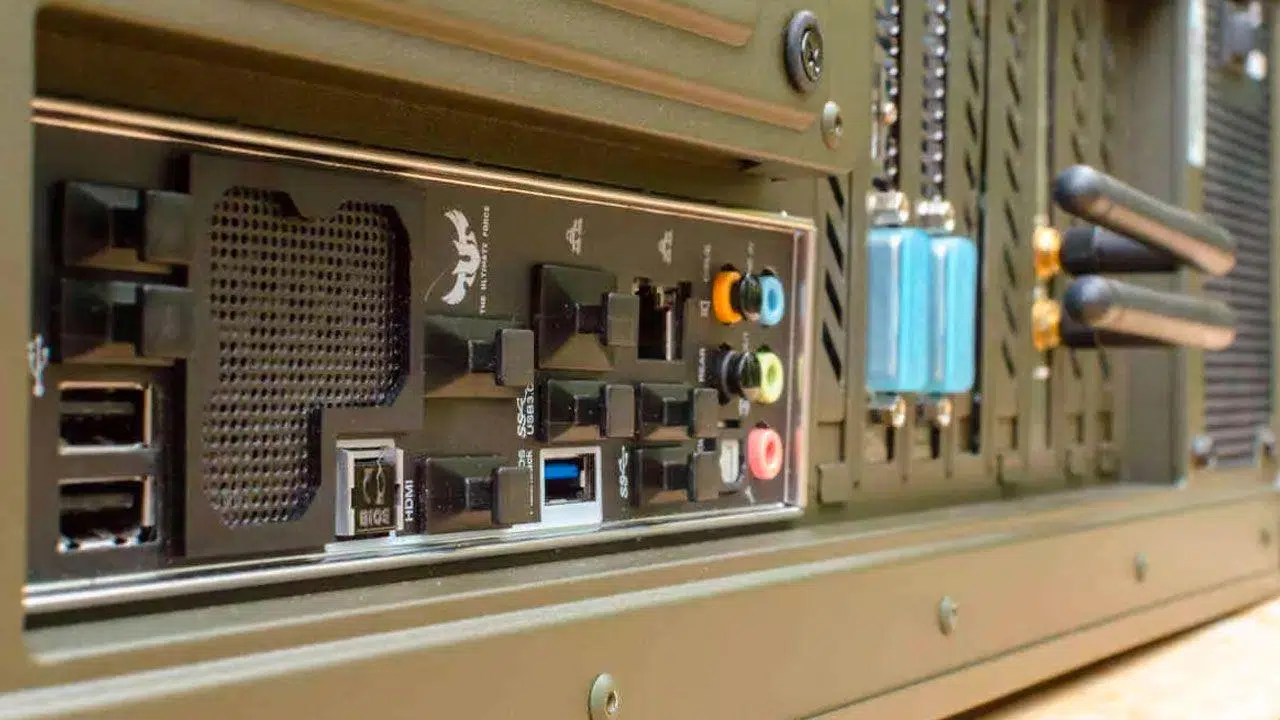
Computers are full of small connectors that, from the front, look like mere slots or plugs, but they are the key to everything we connect to the computer. In this guide, you will learn about all the types of PC ports , what each one does, their performance, what cables they require, and when it's best to use them.
In addition to reviewing the classics (VGA, DVI, PS/2, and printer parallel), we'll cover modern standards like USB-C, USB4, Thunderbolt, and DisplayPort , and we'll see how to check for open network ports in Windows 11 and what risks they pose. The goal is that, by the end, you'll be able to identify the correct port and cable using clear and up-to-date criteria.
What is a computer port and how does it work?
A computer port is the physical point of connection between a PC and an external device or internal module. Technically, it's an interface that combines signals and communication rules to allow two endpoints to understand each other. Electrically or logically, it typically involves three elements: a clock signal (timing) that sets the transfer rate, data pins/lines (for sending and receiving), and, depending on the standard, auxiliary control or power lines.
Depending on how they move bits, we distinguish between serial ports (which transmit a few bits per cycle, typically one per line and direction) and parallel ports (which transmit several bits per cycle across multiple lines). The fact that something is serial doesn't automatically make it slow: with the same architecture, increasing the frequency and improving the protocol more than compensates. USB, PCI Express, and DisplayPort are high-speed serial ports.
Many ports support half-duplex or full-duplex (simultaneous sending and receiving), and some provide power (USB-PD, Thunderbolt, HDMI with eARC) to reduce the number of chargers and cables. This feature, along with the connector form factor, determines the port's actual usability and ergonomics.
Ports vs. Expansion Slots (PCIe, M.2): What's the Difference?
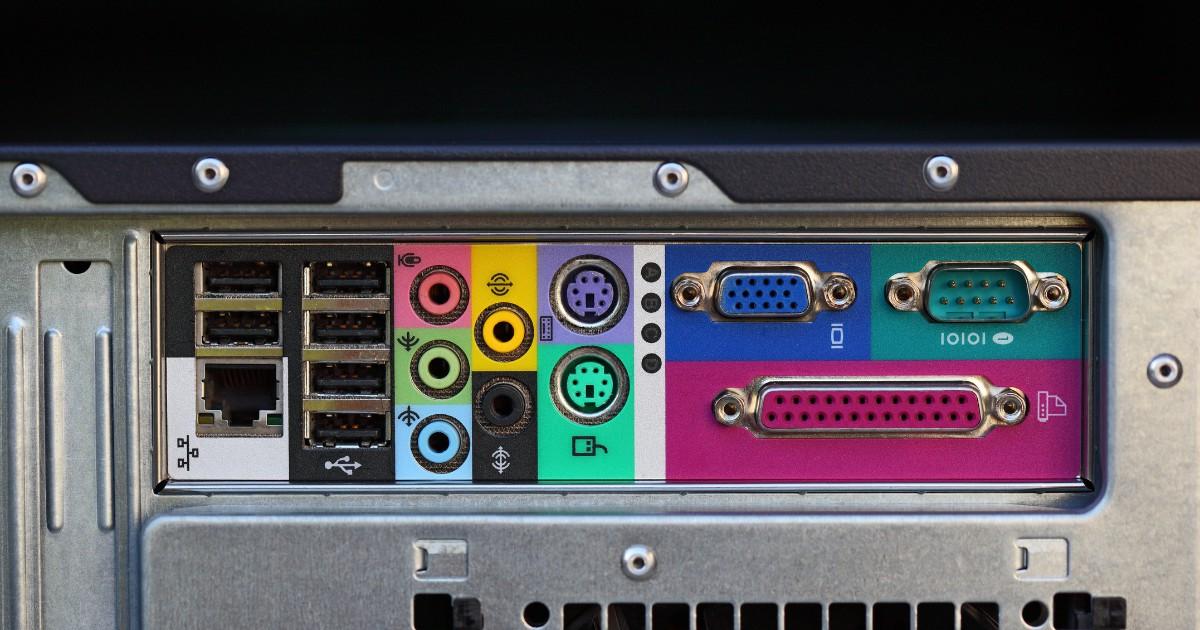
Although sometimes confused, a backpanel I/O port is not the same as an expansion slot . Slots (PCIe x1/x4/x16, M.2 for SSDs, etc.) are located on the motherboard and are used to add high-performance cards or drives: graphics cards, controllers, advanced NICs, or NVMe SSDs.
Today's standard is PCI Express , which is based on high-speed serial lanes and point-to-point links. Each card uses its own lanes, so bandwidth isn't shared as it was in older parallel buses. M.2 is simply a compact form factor that exposes PCIe (or SATA) lanes for SSDs and, sometimes, network cards.
The back panel ports are designed for external peripherals (keyboards, monitors, USB drives, wired network connections, etc.). While some, like USB-C or Thunderbolt, offer enormous bandwidth, their primary purpose is connectivity and versatility, whereas PCIe provides the low latency and internal throughput required by critical components.
General purpose ports: USB and Thunderbolt
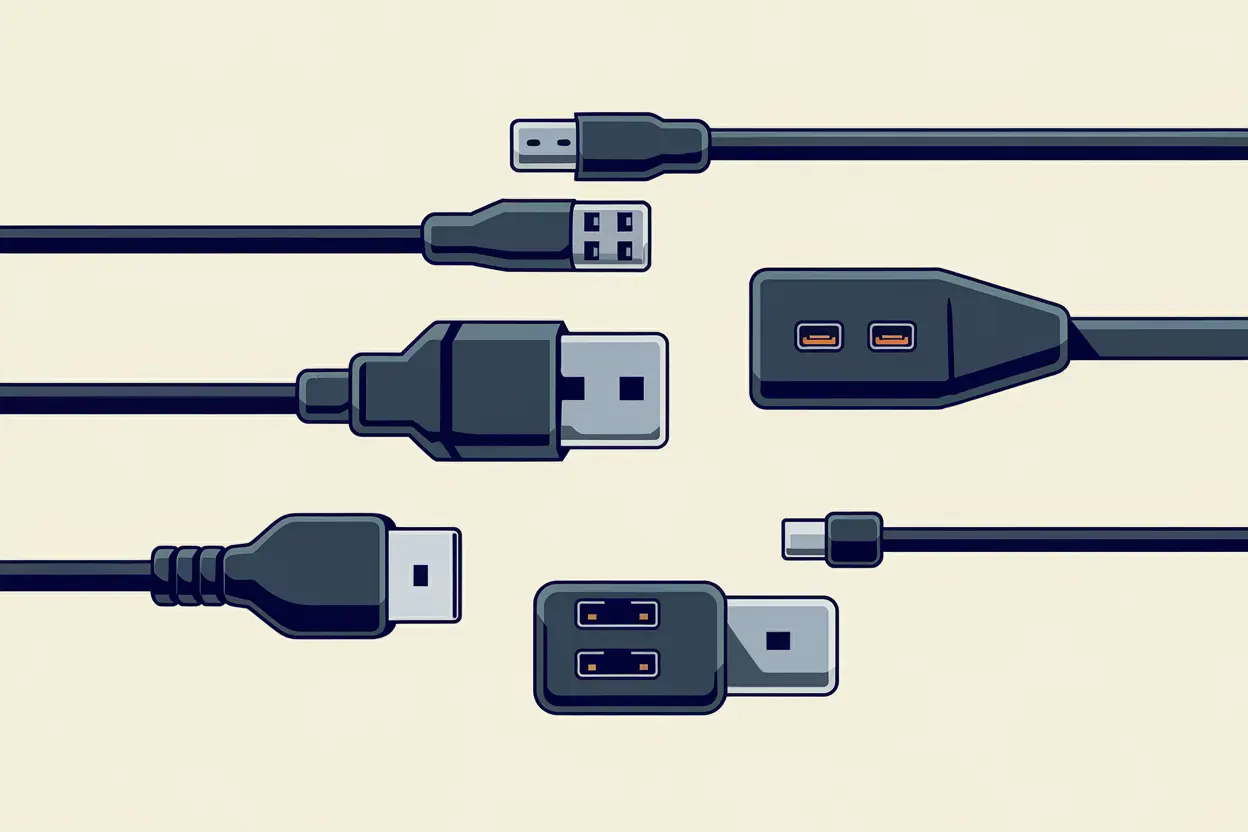
USB was created to unify connectivity, and it succeeded: it replaced serial, parallel, PS/2, FireWire, and even video ports in some applications, thanks to alternative modes and its charging power. Several physical formats coexisted: Type A (classic rectangular), Type B (square for printers and docks), Mini/Micro (older cameras and mobile phones), and today, USB-C , reversible and slim.
USB versions and speeds
- USB 1.1 (Full Speed): up to 12 Mbps; this was the massive launch of the standard.
- USB 2.0 (High Speed): up to 480 Mbps; popularized flash drives and many peripherals.
- USB 3.x (SuperSpeed): 5 Gbps (3.0/3.2 Gen 1), 10 Gbps (3.1/3.2 Gen 2) and 20 Gbps (3.2 Gen 2×2). Blue or teal color in many ports.
- USB4: up to 40 Gbps, integrates tunnels for DisplayPort and PCIe and always use USB‑C. With USB4 v2 it reaches 80 Gbps.
With USB Power Delivery (USB-PD) , the ports can power devices from 4,5–18 W in early profiles to 35–100 W and even 140–240 W in modern implementations. This allows laptops, tablets, and monitors to be charged with a single cable, making USB-C the "wildcard" connector of today's ecosystem.
A helpful detail: many manufacturers use colors to identify the generation . Black is usually associated with 2.0, blue/teal with 3.x, and red/yellow indicates ports with standby charging. It's not a universal standard, but it helps.
Thunderbolt (TB3, TB4 and TB5)
Thunderbolt is the high-performance interface created by Intel that now uses a USB-C connector. It delivers data, video, and power over a single link and allows for daisy-chaining. TB3/TB4 delivers up to 40 Gbps, and TB5 increases the effective bandwidth to 80–120 Gbps , supporting multiple 4K/8K displays, external graphics cards, ultrafast storage, and professional hubs.
Since USB4, the convergence has been clear: the ecosystem is moving towards a "universal" USB-C that encapsulates protocols (DisplayPort, PCIe, USB, Ethernet) and power, simplifying cabling. Backward compatibility is generally well handled, although maximum performance depends on the controller or chipset and the cable.
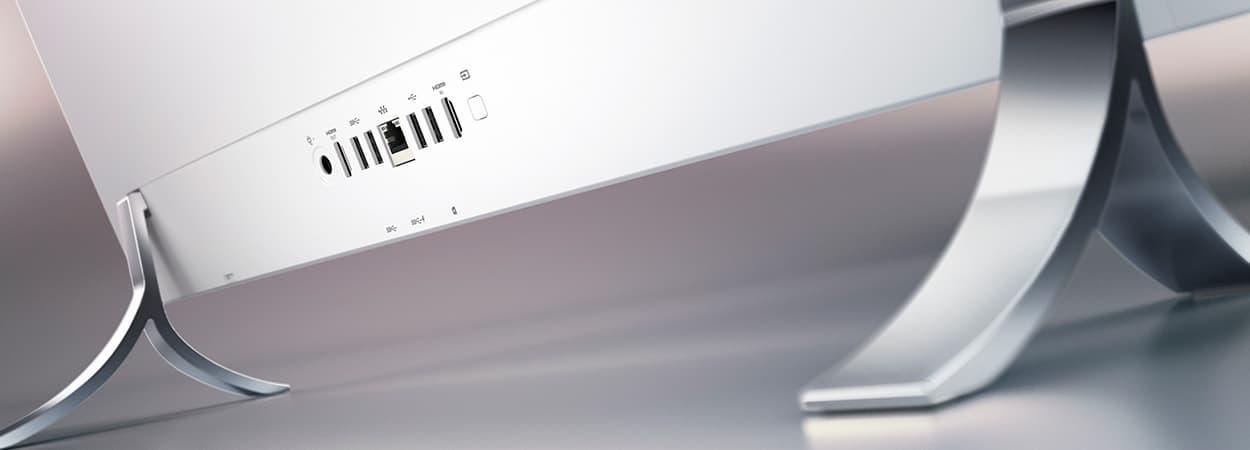
Video and audio ports: HDMI, DisplayPort, DVI, VGA and company
For displays, the two major standards currently used are HDMI and DisplayPort . DVI and VGA still exist in older computers and monitors, and there were other standards like S-Video or component video, which are now obsolete in PCs.
HDMI
It's the dominant standard in TVs and very common in PCs. It transmits digital video and audio with content protection (HDCP) and features like CEC (control with the TV remote) and eARC (extended audio return channel). Version 2.1 reaches speeds of up to 48 Gbps , supporting high-bitrate 4K, 8K, and technologies such as VRR (variable refresh rate) and ALLM.
DisplayPort
Designed for the PC market, DisplayPort prioritizes high resolutions/refresh rates and multi-monitor setups . With Multi-Screen Display (MST), it allows you to daisy-chain displays and manage multiple monitors through a single port. DisplayPort 1.4 already handles high-Hz 4K resolution with DSC compression, and DisplayPort 2.0/2.1 raises the bar even higher for 8K and professional environments. It also operates via USB-C in alternate mode.
DVI and VGA (legacy)
DVI was the bridge from analog to digital (DVI-I/D/A variants, dual-link for greater bandwidth). It does not carry audio and is now declining. VGA (DE-15, analog) dominated the CRT era, but with LCD/LED panels, it suffers from quality loss due to conversion and signal limitations. It remains in some equipment for compatibility.
Other “vintage” video connectors
S-Video (mini-DIN) separated luminance and chrominance to improve upon composite video (RCA), but it became obsolete with the advent of digital. Component video (YPbPr via RCA) was also common in players and consoles, though less so in modern PCs.
Audio: 3,5 mm minijack and S/PDIF
The 3,5 mm minijack connector is the standard for analog audio in consumer devices. On PCs, you'll find stereo TRS (two rings) and TRRS (three rings) connectors for headphones and microphones. Motherboards may offer color-coded ports (green output, pink microphone, blue line). For home theater or multichannel digital audio, S/PDIF (coaxial or optical) transmits the signal digitally, reducing interference and cabling.
Network and communication ports
RJ45 (Ethernet) is the quintessential wired network connector. The interface has scaled from 100 Mbps to 1 Gbps, 2.5/5 Gbps, and 10 Gbps in consumer equipment. A common bottleneck is not the port, but the cable : the categories (Cat5e, Cat6, Cat6a, Cat7, Cat8) determine the supported speed and distance.
The old RJ11 port was used for telephone lines and analog/ADSL modems; today it has a residual presence in PCs. Among the "museum" ports are RS-232/DB9 (classic serial for modems, terminals, or industrial equipment), parallel/Centronics (printers), and PS/2 (mouse and keyboard with purple/green mini-DIN connectors). These are still seen on certain motherboards for compatibility or in professional environments.
There was also FireWire IEEE-1394 (400/800 Mbps), very popular in digital video and in the Mac ecosystem before USB 2.0 and 3.x displaced it due to cost and universality.
Storage and other useful ports
eSATA brought SATA to the outside for connecting drives at native speed ; today it has been surpassed in versatility by USB 3.x/USB4 and Thunderbolt. Even so, you can still find it in older computers.
Built-in SD and microSD card readers make it easy to import photos and videos and expand storage on laptops without using a USB port. microSD cards are commonly found in action cameras, mobile phones, and IoT devices.
For power, desktop PCs often use the IEC C14/C13 connector (female on the power supply, male on the cable), standardized by the IEC for alternating current. It's the classic "PC cable" connector.
Older laptops featured PCMCIA/CardBus for expanding connectivity (modems, NICs, storage); it was replaced first by ExpressCard and then by USB-C/Thunderbolt , which concentrate data, video and power.
Cables, connectors, interfaces and protocols: not all the same
It's important to distinguish between these concepts to avoid mistakes when buying accessories. A cable is the physical medium that carries the signal. The connector is the piece at the end of the cable (USB-C, HDMI, DP). The port is the device's receptacle. The interface describes the electrical/signal characteristics (for example, Thunderbolt 4 over USB-C), and the protocol refers to the rules that govern the communication through that interface (DisplayPort, HDMI, PCIe, USB).
A single connector can support multiple protocols: one USB-C with alternate mode might carry DisplayPort , another might support Thunderbolt, and yet another might only support USB. Therefore, regardless of the shape, always check which version and interface the specific port/cable supports.
Choosing the Right Port and Cable: Scenarios and Steps
If your priority is movies/TV or consoles, HDMI 2.1 is the perfect choice: broad compatibility, integrated audio, eARC, and gaming features (VRR, ALLM). For advanced productivity and multi-monitor setups on PCs, DisplayPort stands out for its MST, high data rates, and support for professional resolutions.
In editing, data science, or "one-cable" work environments, Thunderbolt/USB-C consolidates video, data, networking, and charging into a single connector. It enables docks that power the laptop and connect multiple displays, Ethernet, and storage simultaneously.
Practical steps to get it right
- Identify the ports of the source equipment and the destination screen (or device). Review symbols, silkscreens, and manual.
- Validate if you need adapter (e.g., USB‑C → HDMI/DP, DP → HDMI). Direct cables are preferred when possible.
- Ensures that the set supports resolution and rate desired (4K120, 1440p240, 8K…), and technologies such as HDR/VRR.
- Keep in mind length and quality Cable: For long runs, consider active/fiber cables or certified specifications.
- For network, choose the cable category adequate (Cat6a/7/8 if you are looking for 10G at reasonable distances).
Check for open network ports in Windows 11 and risks
If you want to see which network ports are listening on your PC (not to be confused with physical ports), in Windows 11 open PowerShell as administrator and run netstat -ab . It takes a few minutes, and then you can check which processes have open ports and in which directions.
This helps detect unnecessary or suspicious services. If something seems suspicious, stop the service , uninstall the software, or adjust your firewall . Keeping your system up to date and limiting exposure reduces your attack surface.
Dangers of exposing ports
- Malware and unauthorized access: Open services can be a gateway for Trojans or backdoors, especially if there are unpatched flaws.
- Enumeration/vulnerabilitiesBots scan the internet for common ports; if they respond, they may attempt exploits to steal data or exploit the system.
- DDoS and denials: Saturating an exposed port can bring down service and render equipment inoperable while the attack lasts.
When to open ports (router/PC)
Only when necessary and using the principle of least privilege . Typical examples include specific online games, sharing files on the local network, hosting a web/test server, or video conferencing that requires specific ports. Document what you open, to which IP address, and for how long, and always use strong passwords and keep them updated.
USB-C as video output, port colors, and lock/unlock
Thanks to alternative modes , USB-C can output video (usually DisplayPort Alt Mode), allowing you to connect monitors with a simple USB-C to USB-C/DP/HDMI cable. However, this doesn't mean all USB-C ports on your device support this feature; many are only for data/charging. Check your specific model's specifications .
Remember the color-coded USB ports (blue/teal for 3.x, red/yellow for charging), and that in corporate or educational environments it's common to disable ports via BIOS/UEFI or company policies to prevent data leaks. If a port "isn't working," first check the BIOS and Device Manager.
The vintage showcase: RS‑232, parallel, PS/2, S‑Video…
A quick list of historical ports that you may still encounter on current computers or motherboards for compatibility:
- RS‑232 (DB9/DB25): Classic serial port for modems, terminals, or industrial machinery. It's often used with USB → RS‑232 converters today.
- Parallel/Centronics (LPT): printer veteran, now obsolete due to USB/network.
- PS / 2: mini-DIN connectors for keyboard (purple) and mouse (green). Still appreciated by some enthusiasts for low latency.
- IEEE‑1394 FireWire: 400/800 Mbps; fell into disuse in favor of USB 2.0/3.x.
- VGA/S-Video: analog, relegated by DVI/HDMI/DP.
Brief timeline of video cables
Decades ago , coaxial and RCA connectors (NTSC/PAL) dominated . Then came S-Video and the D-Sub connector (VGA), which reigned supreme with CRTs. With digitization came DVI (DDWG under the VESA umbrella), and shortly after, HDMI (HDMI LA consortium), which conquered consumer electronics due to its ease of use and compatibility.
In the PC world, VESA championed DisplayPort for advanced needs (multi-monitor setups, high refresh rates). Later, USB and Thunderbolt brought video to a general-purpose connector, adding data and power. Today, the focus is on DP 2.1, HDMI 2.1, and Thunderbolt 5 , with USB4 v2 serving as a shared foundation for numerous data streams.
Final tips for wiring and mounting
Before buying, decide what you want to achieve (resolution, Hz, HDR, multichannel, charging). Look for the most direct route: use a native cable rather than an adapter , and only use an active adapter when absolutely necessary. For long runs (walls/ceilings), consider certified cables or active/optical solutions.
In modern workspaces, a good USB-C/Thunderbolt dock simplifies daily tasks: one cable to the laptop and you're good to go. Just make sure the dock and your computer support the necessary charging power and the number and type of displays you plan to connect.
Understanding what's behind each connector prevents frustration and incorrect purchases. With the information in this article, you'll be able to choose the right port, the correct cable, and the optimal configuration for your needs, taking advantage of both legacy compatibility and current features.
