- The chipset coordinates the CPU, RAM, PCIe, USB, and storage; it defines compatibility.
- From the classic northbridge/southbridge scheme we moved to IMC in CPU and PCH.
- Impacts expansion, number of lanes, ports, and overclocking options.
- Identify it by motherboard model or in Windows and choose according to your use.
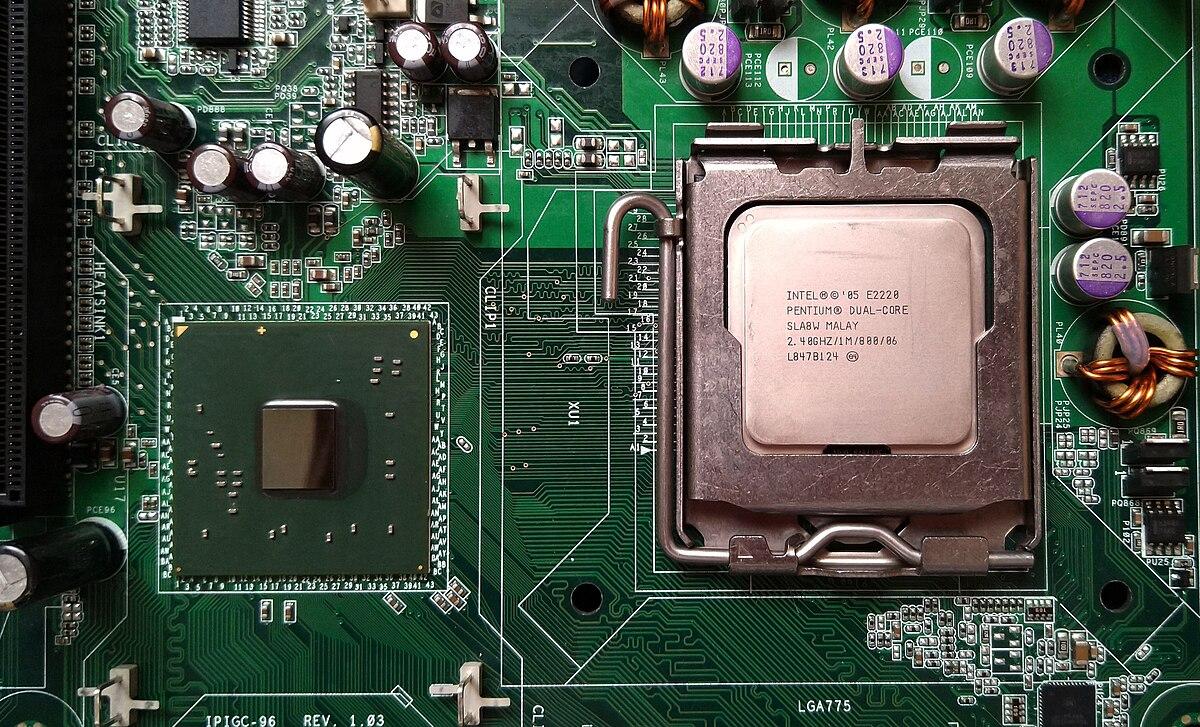
If you've ever heard about the chipset when building a PC or reading a computer's specifications, it might have seemed like a cryptic term. Actually, it's simpler than it sounds: the chipset is the "command center" that allows all the components to communicate with each other. Without a suitable chipset, the computer won't perform or scale as it should , no matter how powerful your CPU or graphics card is.
In the following lines, we'll explain in detail what a motherboard is, what it's used for, how it has evolved, its functions, its location, how to identify the model your computer has, and what you should consider to make the right choice. The goal is for you to finish this article knowing exactly what to look for on your motherboard and why.
What is a chipset?
A chipset is a set of integrated circuits (literally, a "set of chips") that manages the flow of data between the CPU, memory, storage, graphics card, and peripherals. You can think of it as a traffic controller: it organizes, prioritizes, and routes data so that nothing clashes and everything arrives on time.
This chipset resides on the motherboard and acts as its communications hub. That's why it's often called the "glue" of the motherboard: it connects and coordinates all the connected components , from USB ports and PCIe slots to SATA drives and the network.
Beyond simply moving data, the chipset determines compatibility: if a CPU or memory module cannot "speak the same language" as the chipset, communication will be impossible , and those components will either not work or will only function with limitations. This is why the chipset is crucial when planning a computer system.
Chipset, motherboard and CPU: they are not the same
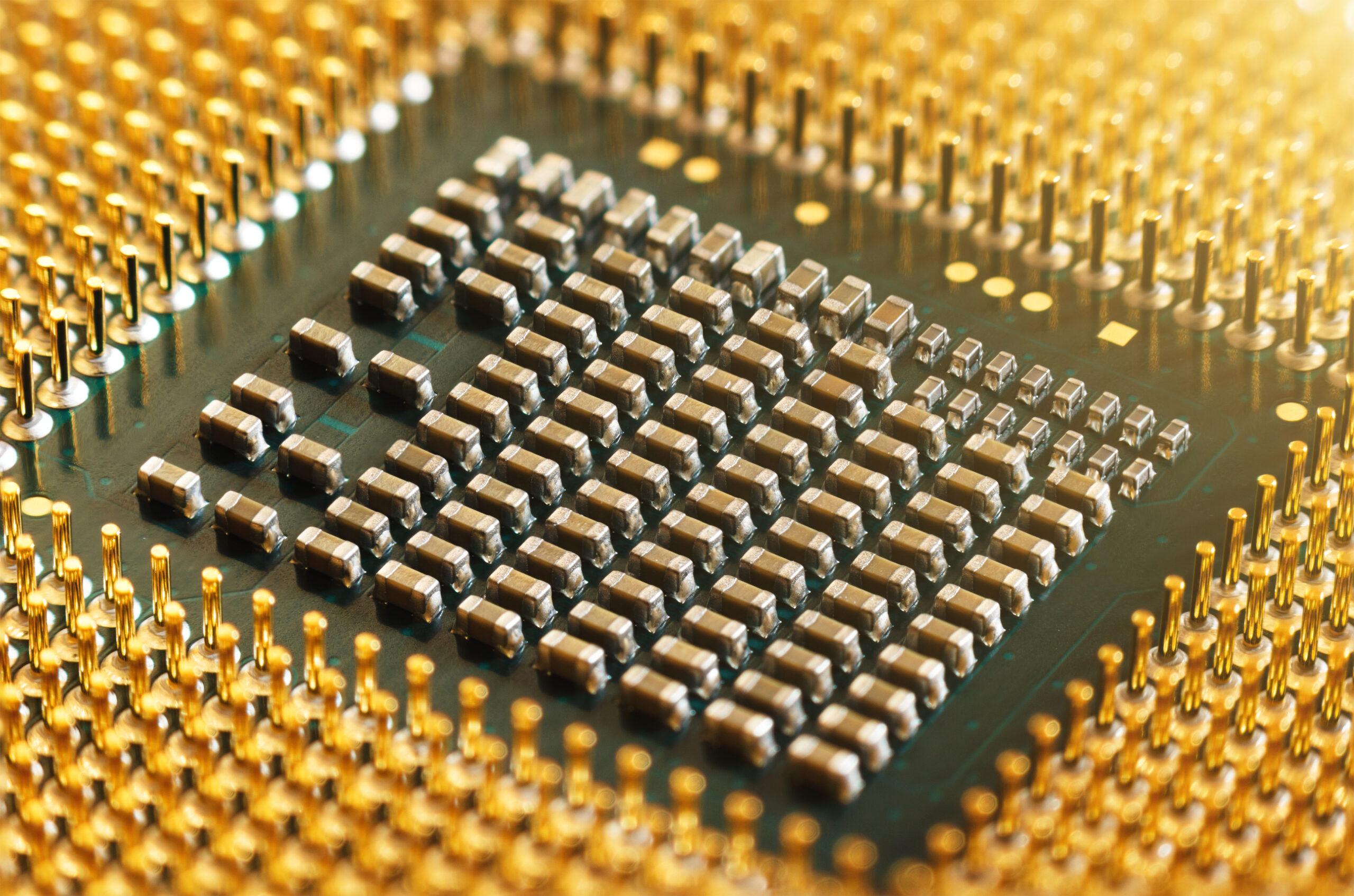
It's common to confuse chipset with motherboard, but they are not equivalent. The motherboard is the physical platform that integrates traces, slots, connectors, and regulators, while the chipset is the coordinating brain within it. The chipset is part of the motherboard, but it is not "the motherboard . "
The chipset should also not be confused with the CPU. The CPU executes instructions and performs calculations; the chipset, on the other hand, coordinates communication and I/O between the various devices, including the CPU itself. If the CPU is the brain, the chipset would be the nervous system that distributes signals throughout the system.
This distinction is important when buying: a motherboard's chipset isn't upgradeable on its own and defines which CPU you can install, which PCIe standards it supports, and which memory modules you can use. Choosing the right chipset will determine the present and future of your PC.
Historical evolution of the chipset
From the earliest microprocessors, supporting chips were already considered. In fact, the Intel 4004 was accompanied by other integrated circuits (4001, 4002, 4003) that completed a computing system. With 8-bit and 16-bit home computers (such as Commodore and Atari), the term "chipset" became popular for those blocks of specialized chips that lightened the workload of the CPU (graphics, sound, memory).
In the 90s, the concept took hold: platforms like the Amiga and the Atari ST stood out for their auxiliary "chip sets." In the PC world, IBM initially focused on general-purpose chips, and over time the industry integrated more and more functions to save space and costs, especially with the arrival of PCI and the ATX form factor.
Historically, PC architecture was divided into two main blocks: the northbridge and the southbridge . Over time, the market evolved to integrate the memory controller and some of the logic into the CPU, and consolidate the rest into a platform hub (PCH in Intel). Today, the classic "northbridge" no longer exists as a separate chip.
Among the long-standing PC chipset manufacturers are Intel, AMD (and its successor ATI), NVIDIA, VIA, and SiS . In other electronics sectors, "chipset" is also used to refer to System-on-a-Chip (SoC) components, or IC assemblies dedicated to a specific device.
Classical architecture: northbridge and southbridge
For years, the motherboard housed two main chips. The northbridge (MCH or GMCH) linked directly to the CPU and managed critical resources such as RAM, the graphics port (AGP at the time, later PCIe x16), and communication with the southbridge.
The southbridge (ICH) handled the remaining I/O: IDE/SATA controllers, USB, FireWire, RAID, audio, LAN, PCI/PCIe x1, auxiliary expansion slots, infrared ports, floppy disk drive, and much more. Initially, some PCI control was located in the northbridge, but over time it was moved to the southbridge.
- Northbridge/MCH/GMCH: CPU, RAM, graphics bus, link to southbridge.
- Southbridge/ICH: disks, USB, network, audio, PCI/PCIe x1, BIOS and peripherals.
This separation allowed for scaling functions, but added latency and power consumption. Therefore, with the maturity of the PCIe bus and integrated controllers, the industry migrated to more compact and integrated designs.
Current architecture: memory controller on the CPU and PCH
Today, much of what the old northbridge did is integrated into the processor: memory controller (IMC), high-speed PCIe lanes , and, in many cases, integrated graphics. The remaining functions (USB, SATA, audio, networking, and some additional PCIe) are grouped onto a single chip called the Platform Controller Hub (PCH) in Intel's nomenclature.
This consolidation brings clear advantages: lower latency to the RAM and GPU, improved energy efficiency, and a simpler motherboard design. The PCH, as the successor to the southbridge, centralizes input/output and communicates with the CPU via a high-speed link (for example, DMI on Intel platforms).
In practice, when you think about what your motherboard "can" or "can't" do, you're thinking about what its chipset/PCH allows and the PCIe lanes offered by the CPU and the chipset itself . This will determine how many M.2 NVMe drives you can use, how many high-speed USB ports you'll have, or whether you can distribute PCIe x16 across multiple slots.
Key chipset features and their impact
The core function of the chipset is to manage data traffic . If the orchestrator is slow or overloaded, the entire system will freeze. If it's capable and properly sized, the system will respond quickly even with multiple simultaneous loads.
In addition, the chipset defines compatibilities and features : PCIe standards (e.g., 4.0 or 5.0), USB types and speed, number of SATA ports, RAID support, network options, overclocking capability (depending on the platform), and power management functions.
PCIe expansion and lanes
Each platform has a finite number of PCIe lanes, distributed between the CPU and the chipset. As a guideline, chipsets can provide anywhere from 8 to 40 lanes depending on the model and generation, and each device can use several (a dedicated GPU typically requires up to 16).
If you plan to expand with more M.2 NVMe drives, capture cards, controllers, or a second GPU, you need to check how many lanes your CPU and chipset offer and how they are shared among slots and sockets . Some motherboards disable ports if you overload others; consulting the manufacturer's specifications will prevent surprises.
Present and future compatibility
The chipset determines compatibility with CPU families and memory types . It also affects PCIe versions (for example, motherboards that only support PCIe 3.0 won't fully utilize an NVMe PCIe 4.0) and certain RAM profiles. Before buying or upgrading, consult your motherboard's QVL (Qualified Vendor List) and CPU compatibility table.
This compatibility limits future expansions . An entry-level chipset can handle office applications and multimedia without issue, but it will restrict additional features (fewer fast USB ports, fewer M.2 slots, no overclocking on certain platforms). Mid-range and high-end systems offer more flexibility.
Overclocking: possibilities and cautions
Overclocking involves increasing frequencies to boost performance. Not all chipsets support it, and where it is allowed, it may void warranties or require specific BIOS updates . If you're considering overclocking, choose a platform that officially supports it and a motherboard with a suitable VRM and cooling system.
If your chipset doesn't support these features, it doesn't matter if your CPU is capable: the option won't appear or will be locked. Research this before investing if your goal is to overclock the CPU or the memory.
Where is the chipset on the motherboard?
On most motherboards, the chipset is located in the center or lower area, often covered by a small heatsink (sometimes with a fan in hot chipsets). It's usually near the PCIe slots and, when viewed as a whole, below the CPU heatsink/fan.
That heatsink isn't just for show: the chipset handles a huge number of transactions and gets very hot. Proper ventilation and the heatsink itself prevent overheating, which could cause instability or degradation over time.
How to identify your PC's chipset
There are two quick ways. The first is to look at the motherboard's brand name: after the brand and series, you'll usually find the chipset code (for example, "B650", "Z790"...). That string tells you the range and generation at a glance.
The second option is to use Device Manager in Windows to locate the system drivers. You can look for entries associated with Intel, AMD, NVIDIA, VIA, or SiS within "System devices" and view their identifiers.
- Opens the Start menu and type “Device Manager”.
- Expand “System devices”.
- Finds manufacturer entries (Intel®, AMD, etc.) and review details.
In some cases, motherboard manufacturers publish their own tools or compatibility lists , where you can cross-reference your model and see exactly which chipset it integrates and what it supports.
Chipset types by manufacturer (current examples)
Intel chipsets within the same generation range from entry-level to mid-range to high-end. For example: H610 (entry-level), B760 (mid-range), and Z790 (enthusiast) . A step up typically means more lanes, more USB ports, and features like overclocking.
AMD has a similar structure: A620 (entry-level), B650 (mid-range), and X670 (high-end) . As you move up the range, you get more PCIe 4.0/5.0 connectivity, more M.2 slots, more high-speed ports, and better fine-tuning capabilities.
It's worth remembering other historical players in PC chipsets such as NVIDIA, VIA, and SiS , in addition to AMD itself (which absorbed ATI's product line). In consumer electronics and embedded devices, the term "chipset" is also used for specific SoCs and IC assemblies that are not interchangeable.
Chipsets beyond the PC
The idea of a “chipset” applies to a multitude of devices: smartphones (SoC), household appliances, consoles, advanced mice… In all cases, its mission is similar: to interconnect and coordinate subsystems such as sensors, memory, radios, screens or storage.
In these environments, integration is even greater: the SoC typically incorporates the CPU, GPU, memory controllers, and I/O controllers onto a single chip. The philosophy, however, remains the same : that the components "talk" to each other without bottlenecks.
How the chipset influences purchasing or upgrading
If you're building a PC or upgrading an existing one, first consider its intended use. For office work, studying, and browsing, a basic chipset is usually more than enough. If your needs include gaming, content creation, or intensive programming, a mid-range/high-end chipset will give you more connectivity and headroom (more M.2 drives, faster USB ports, advanced Wi-Fi/Bluetooth, etc.).
In pre-built systems from manufacturers, the CPU and chipset combination is already set. Even so, check the product specifications to see how many M.2 slots, what PCIe version , and what ports it includes. This will tell you if you can upgrade without any problems.
If you plan to upgrade in the future, make sure the chipset you choose supports the standards you need (for example, PCIe 4.0/5.0 for fast NVMe drives) and that the motherboard doesn't disable connectors when you add others. The fine print on the motherboard is just as important, if not more so, than the chipset name.
Chipset Care and Maintenance
It requires no direct maintenance beyond keeping the inside of the PC clean and ensuring good airflow. The chipset heatsink should be dust-free and securely fastened with screws. Avoid airflow blockages with misrouted cables and check temperatures if you notice any instability.
On high-power chipsets (or compact motherboards), you'll see small fans on the heatsink itself. If they make strange noises or stop, you should check them, because overheating can cause throttling or intermittent errors that are difficult to diagnose.
Historical note: who did what
For those curious, names like Jay Miner are linked to the chipsets of the 8-bit Atari and Amiga computers, which offloaded tasks such as graphics, sound, and memory from the CPU. Apple, for its part, used combinations of its own and third-party chips, while IBM PCs started with general-purpose chips and later integrated functionalities to save space and costs.
With the standardization of buses (AGP first, PCIe later ), the industry converged towards designs where the CPU handled the critical functions (memory, main PCIe) and a single chip managed I/O. That, broadly speaking, is the current model of the PCs you use today.
The chipset is the unseen but essential conductor of your computer: it sets the pace, defines your system's scalability, and ensures its stability . Understanding its role allows you to make informed choices, avoid bottlenecks, and truly get the most out of your hardware.
