- The default gateway is the device that connects your local network to other networks and acts as the default route for non-local traffic.
- It is usually the router's private IP address on your LAN, while the router itself uses a different public IP address to communicate with the Internet.
- Correct configuration of IP, mask, and gateway is essential on PCs, routers, managed switches, and serial-to-Ethernet converters.
- Choosing .1 or .254 as the gateway is a convention; the most important thing is to maintain a consistent and well-documented scheme.
The default gateway is one of those networking concepts that everyone has heard of, but many people don't fully understand. However, it's key for browsing the internet, accessing other devices, or properly configuring your router , PC, or even industrial Internet of Things (IoT) devices.
In this article, we'll calmly break down what a default gateway is, its purpose, and how to configure it in different scenarios: from a typical home network with an ISP-provided router to managed switches or serial-to-Ethernet converters in industrial environments. You'll see practical examples with real IP addresses, we'll answer common questions (like why it almost always ends in .1), and we'll review some frequent problems and how to solve them.
What exactly is a default gateway?
In IP networks, a gateway is the device that acts as a connection point between two different networks, receiving packets and forwarding them to their destination. It functions as a translator and messenger that connects your local network to larger networks, typically the internet.
When we talk about the default gateway, we're referring to the device to which your computer, mobile phone, switch, or industrial converter sends all traffic destined for addresses outside its own local network. Simply put, it's the "default path" that traffic takes when the device doesn't know which specific route to send it to.
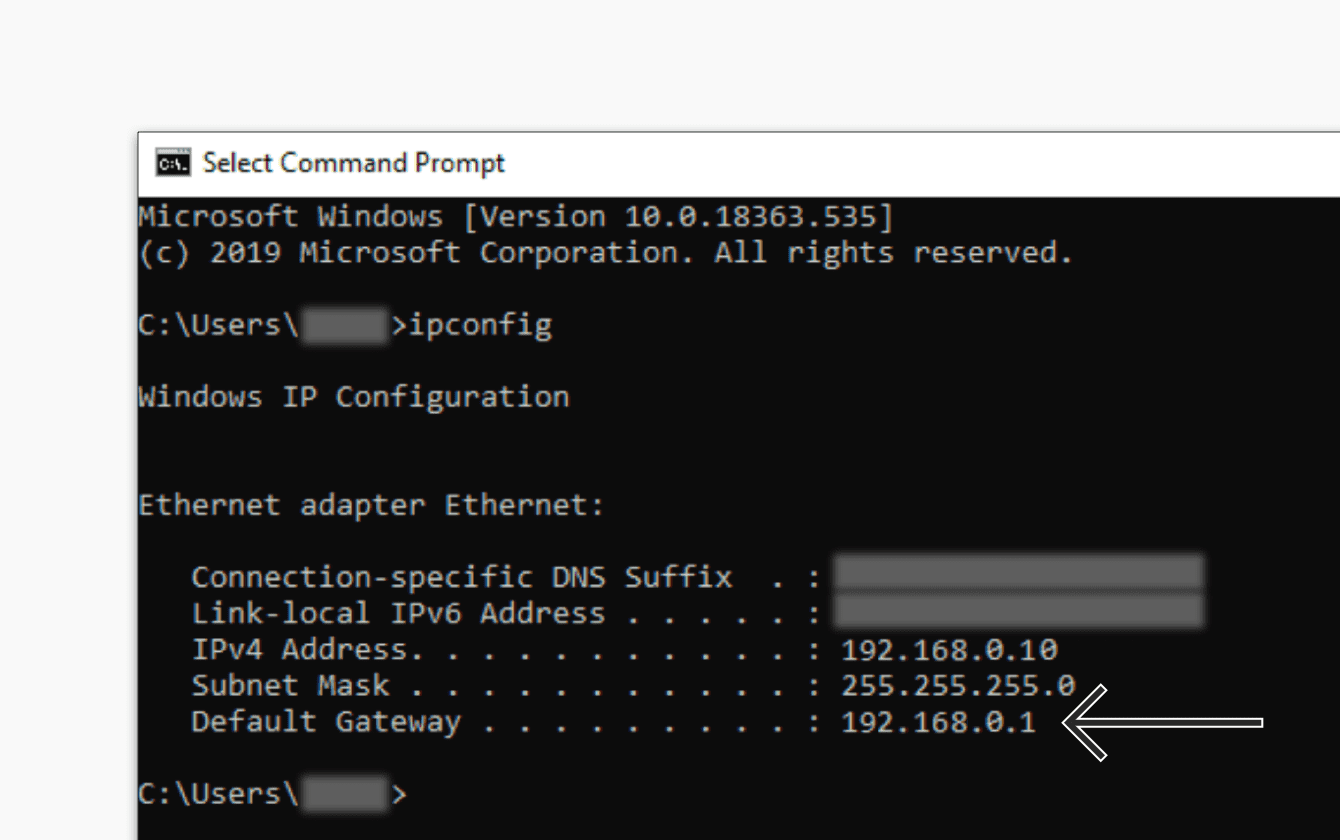
In an IP network, the default gateway is almost always the router's IP address within the same subnet as your device. If your PC is on 192.168.1.50 with a subnet mask of 255.255.255.0, the default gateway is usually something like 192.168.1.1 or 192.168.1.254, which corresponds to the router's local IP address.

This concept applies to both very simple home networks and complex business infrastructures , where the gateway is usually a dedicated router, a firewall, or a layer 3 device that routes between several VLANs or subnets.
Private IP address, public IP address, and the role of the gateway
In any IP-based network, it is essential to differentiate between private and public IP addresses . A router acting as a gateway typically has at least two IP addresses: one on the local network and one "outside" the network.
On one hand, the router has a private IP address to identify itself within your LAN (local network). It's an IP address like 192.168.xx, 10.xxx, or 172.16.xx-172.31.xx. That's the IP address you use to access its administration panel from your computer or mobile device.
On the other hand, the same device has a public IP address , visible on the internet, which allows the rest of the global network to know how to reach you. This IP address is usually assigned by your internet service provider (ISP) via DHCP or PPPoE, or it can be static if you subscribe to a static IP service.
The router is responsible for translating and routing traffic between your private and public IP addresses using techniques like Network Address Translation (NAT) . For your internal devices, it acts as the default gateway, while for external devices, it's simply another IP address on the internet that points to your connection.
In homes and small offices, this role is usually played by routers with integrated modems (cable modems, DSL modems, or all-in-one devices), which connect your local network (LAN) to the operator's network and, from there, to the Internet (WAN).
Practical example of a local network with a default gateway
To see all this in concrete terms, imagine a simple network consisting of a router and several devices connected to it, such as computers and printers. They all share the same subnet 192.168.4.0/24.
The IP addresses of the computers could be, for example: 192.168.4.3 (PC 1), 192.168.4.4 (PC 2), 192.168.4.5 (PC 3), 192.168.4.6 (PC 4), 192.168.4.7 (PC 5), and 192.168.4.8 (PC 6). Each one has its own unique IP address within the same network, so they can communicate with each other without problems.
In this case, the router would have a private IP address assigned within the LAN, for example, 192.168.4.1 , which you would configure as the default gateway on each device on the network. That same machine also has a public IP address on its WAN interface, provided by your ISP, which doesn't necessarily have to be in the 192.168.4.x range.
The subnet mask for all devices could be 255.255.255.0 , which means that valid host addresses range from 192.168.4.1 to 192.168.4.254. These are the addresses that can be assigned to devices; on this specific network, you shouldn't use either 192.168.4.0 or 192.168.4.255 for end devices.
The IP address 192.168.4.0 is reserved to identify the network itself (network address), and 192.168.4.255 is the broadcast address , used when sending packets to all devices on the subnet simultaneously. That's why you'll always see these two addresses excluded when manually assigning IP addresses.
Default route and relationship to gateway
The default gateway is closely related to a basic routing concept: the default route . This route is a special entry in a device's routing table that indicates where packets whose destination does not match any more specific route should be sent.
A typical default route consists of a destination 0.0.0.0 , a subnet mask 0.0.0.0, and the next-hop IP address, which is the default gateway. The meaning of 0.0.0.0/0 is "any IP address that has not been paired with any other routes."
Think of the routing table as a list of rules: if a destination IP address is within your own subnet, the device sends traffic directly to that host. When there's no explicit rule for the IP address in question, the default route comes into play , which essentially says, "If you don't know where to go, send it to this router."
For example, if your PC has 172.31.48.1 configured as its default gateway , it will automatically create a route 0.0.0.0/0 with that router as the next hop. All traffic going to the internet that is not destined for your local LAN will go through that route.
In more advanced devices, such as layer 3 switches or professional routers , instead of a simple gateway field, a static route is directly configured with destination 0.0.0.0, mask 0.0.0.0 and the appropriate next hop, but the end effect is exactly the same.
Default gateway on home routers and static IP
In home installations, it's very common for the router to obtain its internet connection via PPPoE or DHCP from the internet service provider. In these cases, you simply enter your PPPoE username and password (if required), and the remaining parameters (WAN IP address, subnet mask, ISP gateway, and DNS) are provided automatically by your provider.
When you subscribe to a static public IP address with your ISP, the situation changes slightly. Many routers allow you to select "static IP" as the WAN connection type, and you then have to manually enter the IP address, subnet mask, gateway (from the ISP's side), and DNS servers. If these values are incorrect, the connection will not work.
It's common for people to mistakenly try to use the router's local IP address (for example, 192.168.1.1) as the gateway in the WAN configuration, which is incorrect, for example, when connecting two routers on the same network . That address is valid as a gateway for devices on your internal network, but the gateway your router requests in the WAN section must be the one your ISP has defined for their network, usually within the same range as your public IP address.
If you enter an incorrect mask (for example, 255.255.255.0 just because your IP "looks like Class C") or an incorrect gateway, the router may display error messages such as that the IP address and gateway do not belong to the same subnet, or simply fail to establish a session.
If you have any doubts of this kind, you should always refer to your Internet provider , as they are the ones who know your network topology and should provide you with your public IP address, subnet mask, WAN gateway, and, if applicable, the DNS server to use.
Default gateway on smart and managed switches
Managed switches also often need a default gateway to access resources outside their own subnet, for example to connect to the Internet, an update server, or a centralized management system.
In the case of so-called smart switches (for example, TP-Link's T1500 and T1500G series), these devices do not perform advanced IP routing. They only require the default gateway IP address to be specified so they can send management traffic outwards.
In the web administration interface, you usually go to something like "System Information > System IP" and there you enter the IP address of the router that provides internet access, for example 172.31.48.1 , applying the changes so that the switch knows who to forward non-local traffic to.
In contrast, fully managed or Layer 3 switches (for example, T1600G and T2600G series) do support IP routing. These switches typically don't have a simple "default gateway" field; instead, they explicitly configure a static route 0.0.0.0/0 with the corresponding next hop.
The typical configuration would involve navigating to a menu like “L3 FEATURES > Static Routing > IPv4 Static Routing”, creating an entry with a destination of 0.0.0.0 , a subnet mask of 0.0.0.0, and the IP address of the router connecting to the internet as the next hop. Once saved, the switch will forward all traffic to that address whose destination does not belong to any other internal route.
It is important to remember that on many of these devices you have to save the configuration manually with options like “Save” in the web interface or using commands like “copy running-config startup-config” in CLI, or the gateway will be lost when you turn off the device.
Default gateway in serial-to-Ethernet (IIoT) converters
In Industrial Internet of Things (IIoT) environments, serial-to-Ethernet converters allow the integration of legacy equipment with RS-232/485 ports into modern IP networks. These devices act as translators between the serial and Ethernet worlds.
The converter connects to traditional equipment via its serial port on one side and to the IP network on the other. It takes the data received through the serial port, encapsulates it in IP packets, and sends it over the network. To communicate with devices outside its subnet, it needs to have its default gateway properly configured.
The operation is similar to that of a PC: when the converter wants to reach a destination outside its own network, it forwards that traffic to the IP address configured as its gateway. This will typically be the address of a router or a Layer 3 switch with routing capabilities to other networks.
The gateway configuration on these devices is usually done through a web-based administration panel or management tool , where you enter the converter's IP address, subnet mask, and default gateway. The network administrator assigns these values based on the overall system topology.
If the gateway is misconfigured (for example, an IP address outside the converter's subnet or a non-existent address), the device may still communicate with hosts on its own local network but communication with remote networks will fail , causing data outages or inability to access from external monitoring systems.
Some modern converters even support dynamic gateway configuration , allowing them to automatically adapt this parameter when certain aspects of the network change, which is useful in large and changing deployments.
How to find your default gateway and your private IP address
It is very useful to know how to locate both your computer's private IP address and the router's default gateway, especially when you need to open ports, troubleshoot a connection problem, or access the router's settings.
When you connect to the internet from home or the office, your router automatically assigns you a private IP address using DHCP. This IP address will be different for each device connected to the same network, so the router can distinguish between them and manage their traffic individually.
Your private IP address is not the same as your public IP address . The public IP address is what the outside world sees when you visit websites, while the private IP address only matters within your local network. For configuration purposes, you'll usually be interested in your private IP address, and secondarily, your gateway IP address.
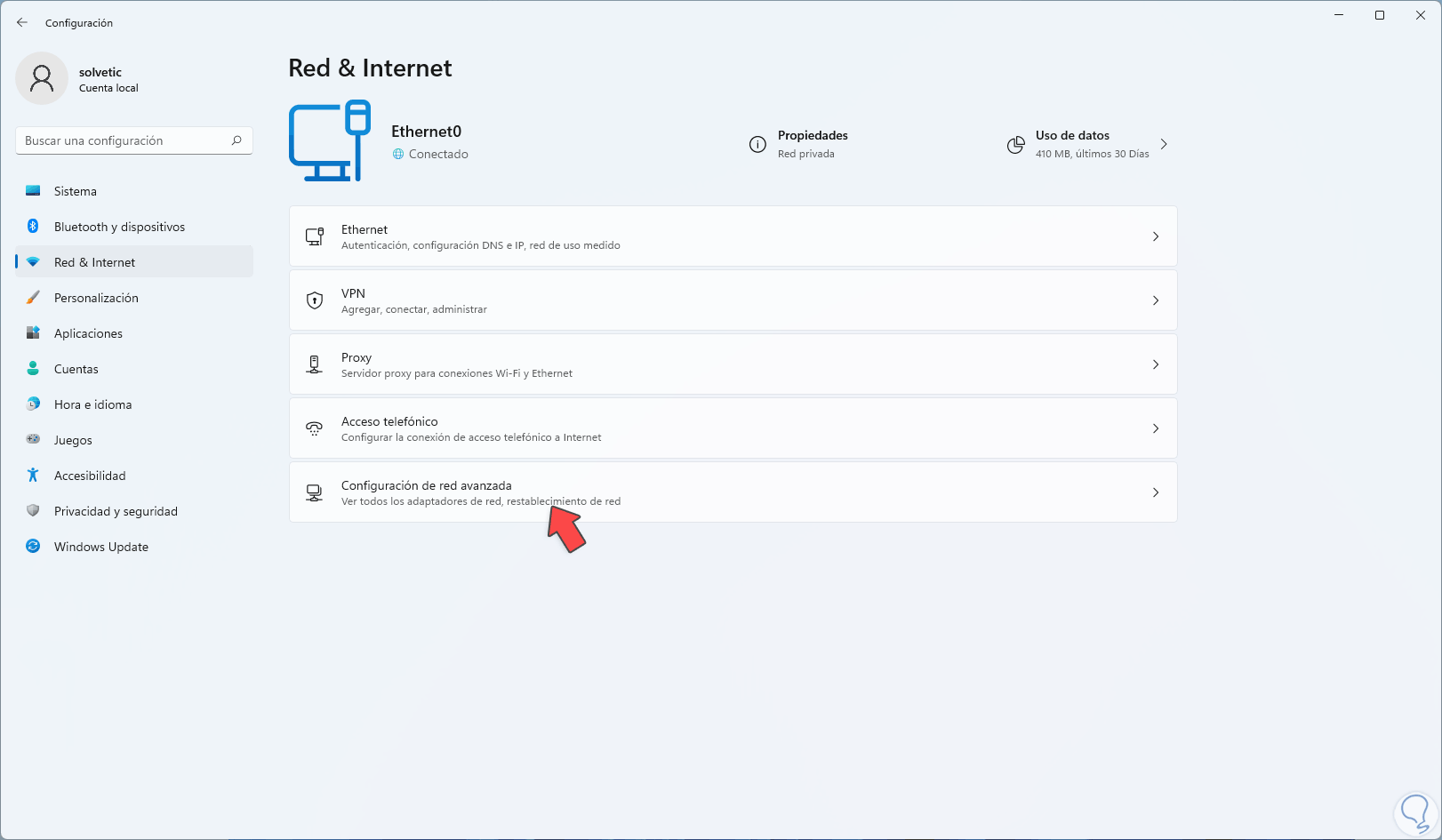
Finding this information depends on your operating system, but in all cases it's usually listed in the network settings as "Default Gateway," "Router," or "Default Gateway." Once you have it, you can enter it into your web browser to access your router's administration panel (provided you have a username and password, of course).
On mobile devices, both iOS and Android, the gateway value usually appears within the details of the Wi-Fi network you are connected to, along with your internal IP, mask, and assigned DNS.
Typical gateway problems and how to deal with them
One of the most common gateway-related problems is that the computer fails to connect to the internet despite appearing to be connected to the local network. This can be due to incorrect manual configurations, outdated drivers, or network conflicts.
In a Windows environment, one of the first things to check is the Internet Protocol version 4 (TCP/IPv4) configuration . In many cases, simply ensuring that the "Obtain an IP address automatically" and "Obtain DNS server address automatically" options are enabled allows the router to assign the IP address and gateway using DHCP.
It's also relatively common for IPv6 to cause conflicts in networks that don't use it correctly. Temporarily disabling TCP/IPv6 in the network adapter properties, leaving only IPv4, can help rule out problems.
Another classic strategy in Windows is to use the command console as administrator and run commands such as ipconfig /release to release the current IP, ipconfig /flushdns to empty the DNS cache and ipconfig /registerdns to register it again, then restarting the computer.
If the problem persists after all that, it's a good idea to reinstall or update your network adapter drivers (both wired and Wi-Fi) from the official website of your PC manufacturer or the adapter itself. A corrupted or outdated driver can cause the gateway to become unresponsive or even fail to assign a correct IP address.
In some cases, the problem arises because the device stores multiple saved Wi-Fi networks and experiences conflicts when trying to connect. Removing old networks from the "Network and Sharing Center" and reconnecting to the correct network from scratch usually prevents it from connecting to the wrong or misconfigured network.
Gateway IP Choice: .1 or .254?
A fairly common question when designing a network is whether there is a valid reason for the gateway to end in .1 (for example, 192.168.1.1) or .254 (192.168.1.254) in a /24 subnet. In practice, as long as the IP address belongs to the subnet and is not reserved, both options are valid.
Many organizations prefer to reserve the first available address (xxx1) for the main router or firewall, purely for convention and ease of memorization. It's easy to remember that "the router is .1" and avoids confusion with other devices.
Others, however, choose to use the last usable IP (xxx254) for the gateway, leaving space at the beginning of the subnet for servers, network equipment or important devices that they want to number in an orderly fashion (for example, 192.168.1.10 for server A, 192.168.1.20 for server B and so on).
There is no mandatory rule in the standards requiring the use of one or the other; it is more a matter of style and internal organization . Educational networks typically teach that both are perfectly acceptable, and that the key is to be consistent and document the choice.
In large corporate environments, internal policies and automation also play a role: scripts, configuration templates, or management systems that assume the gateway will be the first or last IP address in the range. The important thing is not to mix criteria indiscriminately, because that greatly complicates maintenance.
Differences between gateway problems and Wi-Fi problems
It's easy to mistake wireless connectivity issues for problems with the default gateway, when in reality they aren't always directly related. Sometimes the PC automatically connects to the "first network" it sees (perhaps an older network with a different password or configuration), and the user assumes the gateway is at fault.
Before blaming the router, it's worth checking which exact Wi-Fi network the device is using, its encryption type (e.g., WEP, WPA2, or WPA3), and whether that network actually has internet access. There are scenarios where you connect to a network that only provides local access but not WAN connectivity, or through a misconfigured Wi-Fi repeater .
Many systems have a list of known networks where you can delete saved connections that are no longer in use. Deleting them and reconnecting to the correct network, using the correct password, usually prevents the computer from automatically choosing an incorrect option.
Another thing to check is whether the adapter is configured to obtain an IP address automatically, or if someone previously assigned a static IP address and gateway that no longer match the current network. If your network now uses 192.168.1.x, but the device is still using something like 192.168.0.x, for example, it won't be able to see the correct router.
When the network list is cleared, TCP/IPv4 settings are reset to automatic, and the active Wi-Fi is verified to be the correct one, actual gateway problems are greatly reduced, and it becomes easier to diagnose whether the router or the provider has an issue.
As you've seen, the default gateway handles traffic leaving your local network, whether at home with a simple router, in a business with managed switches and static routes, or in industrial settings with serial-to-Ethernet converters. Understanding what it is, how it relates to the default route, how to locate it on your equipment, and what common configuration mistakes are made will give you peace of mind when setting up networks, opening ports, or troubleshooting without getting overwhelmed.