- A WiFi repeater extends the router's coverage and solves dead zones in the home if placed at a suitable intermediate point.
- Choosing a model with good speed, WPS compatibility, and WPA2/WPA3 security makes a difference in performance and protection.
- Synchronization can be done via WPS or a web assistant, and it's crucial to test the coverage and adjust the location afterwards.
- Updating the firmware and changing default passwords helps keep the extended network stable and secure in the long term.
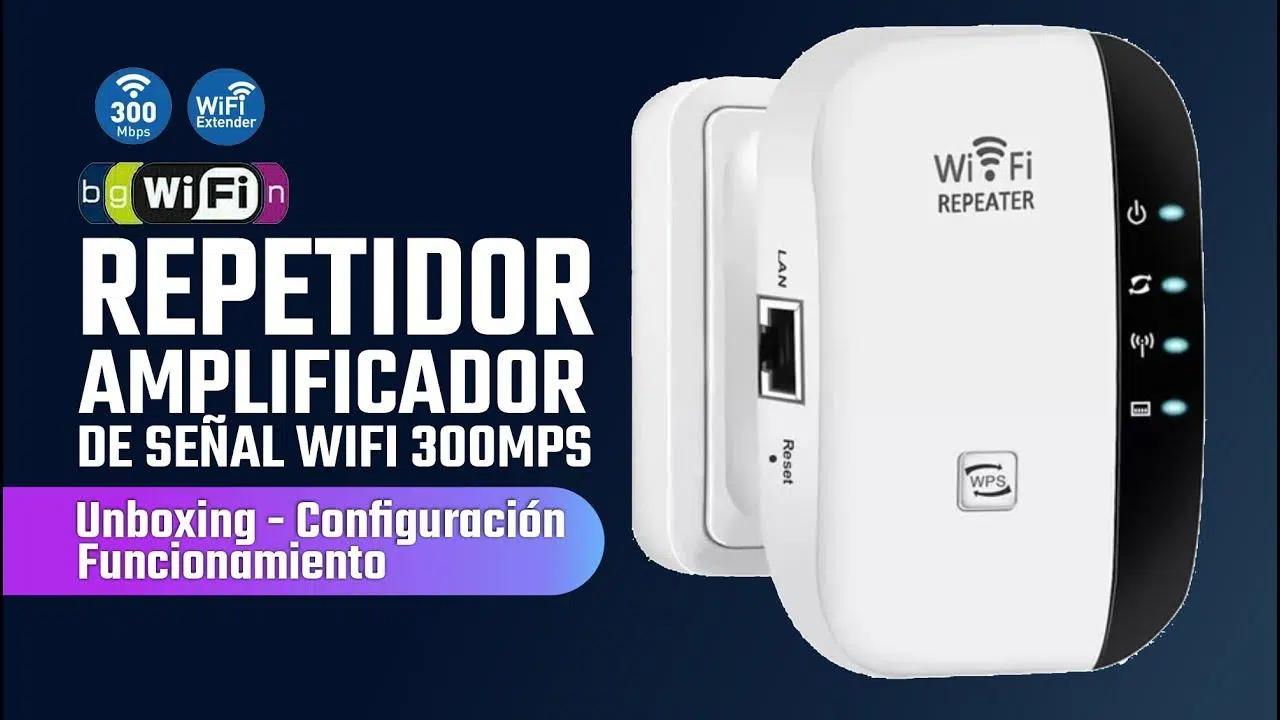
If you have a large house or one with many walls, it's very likely that there are corners where the router signal simply disappears. Suddenly, everything works perfectly in the living room, but upon entering the bedroom, the connection drops or videos get stuck buffering. In these situations, setting up a Wi-Fi repeater is the most convenient way to extend coverage without the hassle of running network cables throughout half your home.
A WiFi repeater (or WiFi amplifier ) acts like a "speaker" for the wireless signal: it receives the network from the router and rebroadcasts it so it reaches further. Although it might seem daunting at first, setting up a WiFi repeater is quite simple if you know which buttons to press , where to place the device, and which settings to check to avoid compromising security or speed.
What is a WiFi repeater and how does it differ from other devices?
A Wi-Fi repeater is a small device that plugs directly into a power outlet. Its purpose is to capture the wireless signal from your router and rebroadcast it, extending coverage to areas where it previously had little to no signal. It's ideal for eliminating "dead zones" in your home, caused by the building's structure, thick walls, columns, bulky furniture, or interference from other electronic devices.
Unlike a PLC or a WiFi Mesh system, a repeater doesn't use electrical wiring or create a complex mesh network ; it simply extends the existing network. It's a simpler and usually much cheaper solution, perfect for apartments or houses where only a few meters of range are needed to cover specific rooms.
There's a huge variety of models on the market, with different speeds, frequency bands (2,4 GHz, 5 GHz, even WiFi 6 and WiFi 7), and extra features. Many users opt for WiFi repeaters from brands like TP-Link because they're usually affordable, easy to set up, and widely available, with models costing around or even less than €20. Check out our router and access point review guide if you want to compare models.
Before rushing out to buy the first one you see, keep in mind that not all repeaters offer the same performance or configuration options . Choosing wisely from the start will save you a lot of headaches when it comes time to install it.
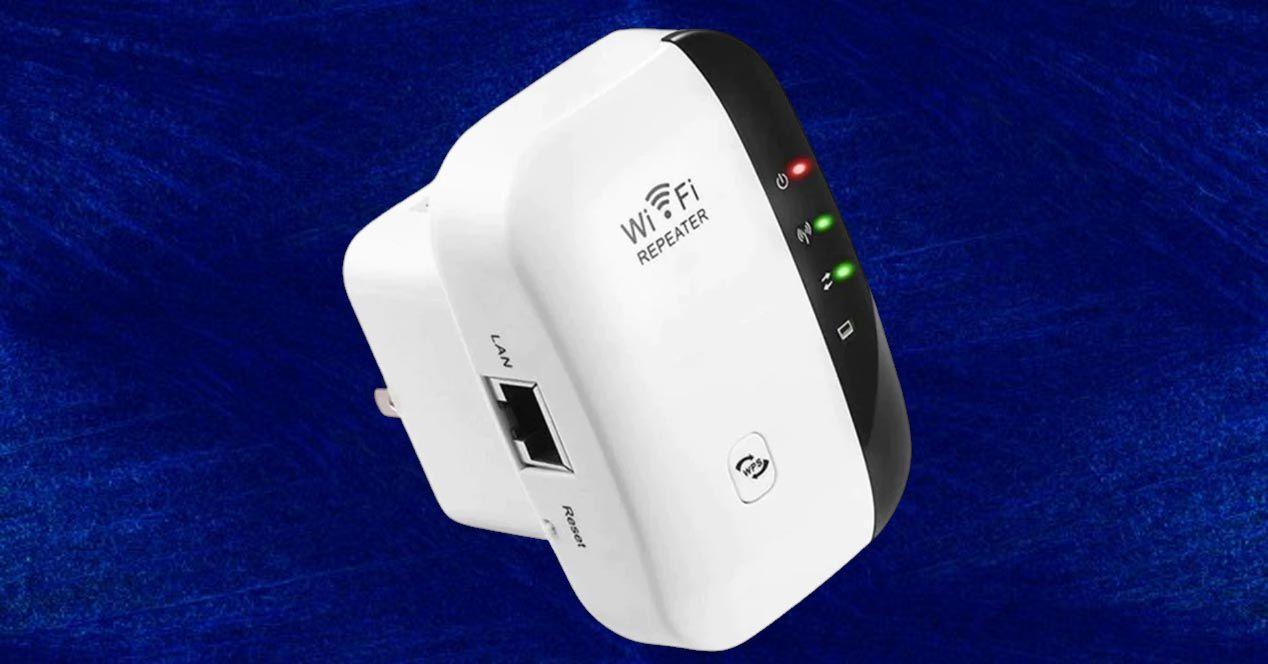
How to choose a good WiFi repeater for your home
For the device to truly work, it's crucial to choose the right WiFi repeater model that best suits your router and your home . It's not just about price; it's about considering technical features that make a real difference in everyday use.
One of the key points is the maximum speed it supports. Although manufacturers' figures are theoretical, it's best if the repeater supports at least the same WiFi speed as your router , or, if possible, slightly higher to avoid creating a bottleneck. If you have a 300 Mbps fiber optic connection or higher, it's a good idea to look at AC (WiFi 5) or AX (WiFi 6) repeaters, or models compatible with WiFi 6 or WiFi 7.
It's also very useful that the repeater supports WPS (Wi-Fi Protected Setup) . This feature, found on most modern routers, allows you to pair the router and repeater with the push of a button, without having to enter the Wi-Fi password. It's not essential, but it greatly facilitates a quick and easy setup for any user, even those who aren't particularly tech-savvy.
Another important feature to consider is that the repeater has RJ45 Ethernet ports for connecting wired devices such as televisions, game consoles, or desktop computers. This way, even if the signal reaches the repeater via Wi-Fi, these devices can enjoy a more stable connection.
Finally, it's a good idea to look at details like signal strength LEDs, WPA2 or WPA3 compatibility, or even the existence of a management app. All of this makes it easier to place the repeater in the optimal location and keep your network secure and up-to-date for longer. You can also find more router setup tips to help with this task.
Ideal location for the WiFi repeater inside the home
Choosing the right device is only half the battle; the other half is finding the right outlet to plug it into . A bad location can render the repeater practically useless, no matter how good the model is.
The general rule is simple: the repeater should be placed halfway between the router and the area where the signal is weak . It shouldn't be placed right next to the router (because you wouldn't gain coverage in distant areas) nor in a spot where the signal is already too weak (because you'd only be repeating a poor signal).
Whenever possible, avoid plugging it in near very thick walls, concrete pillars, large metal furniture, or appliances such as microwaves, refrigerators, or cordless phone bases. All of these can cause interference that significantly reduces the quality of the WiFi signal received and transmitted by the repeater.
If your repeater has LED signal strength indicators, use them: move the repeater a few meters up or down the hallway or room until the lights indicate adequate signal strength. It's better to place it in a mid-range spot where it receives a decent signal from the router so it can rebroadcast it with good quality , rather than in the furthest corner where it can barely see the original network.
Another practical tip is to avoid power strips or extension cords whenever possible. Many manufacturers recommend connecting the repeater directly to a wall socket , as some power strips can introduce electrical noise or minor issues that affect performance.
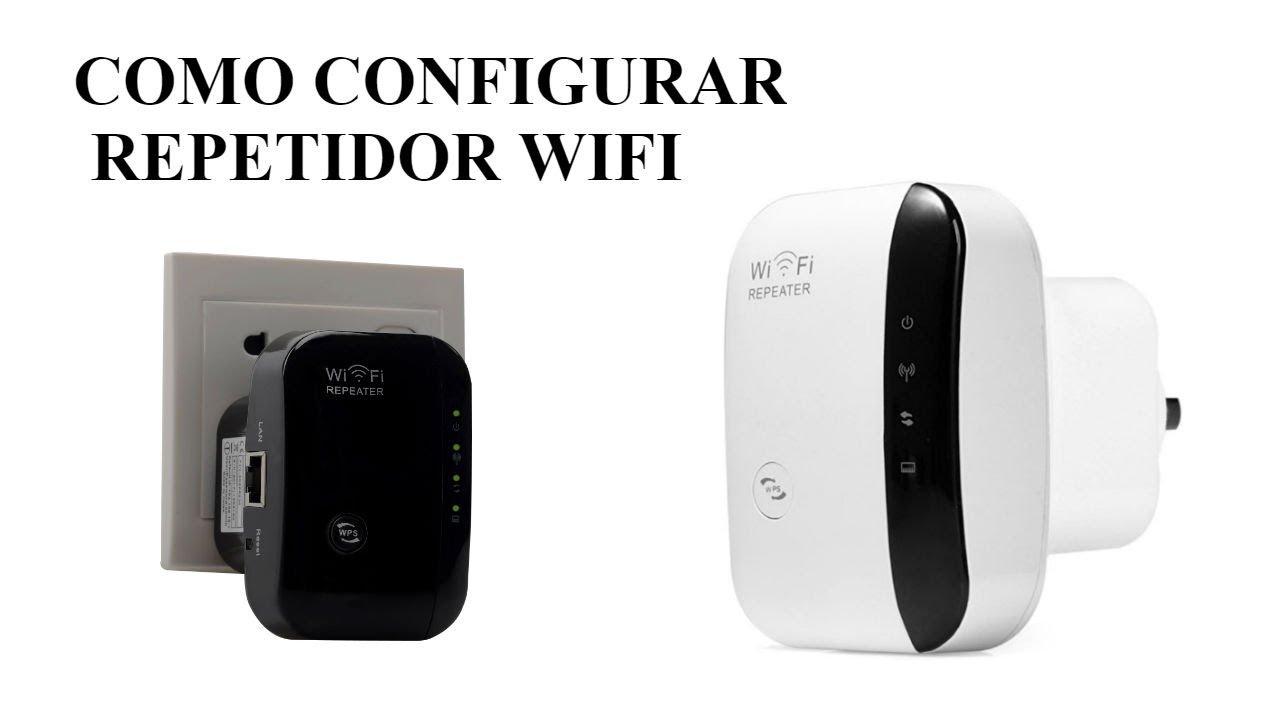
Setting up a WiFi repeater with a router that has a WPS button
If your router is relatively modern, it most likely includes a WPS button on the front or back . On many models, it's identified by the letters "WPS" or an icon of two circular arrows. Thanks to this button, pairing the repeater is very quick and you don't need to navigate through complicated menus.
First, plug the repeater into a power outlet near the router , even if you plan to move it to another part of the house later. It's important that both devices have a very strong signal during the pairing process to avoid configuration errors or disconnections.
Once connected, wait a few seconds until the repeater's lights begin to flash or indicate that it's ready for setup. Each model has its own LED patterns, but generally, you'll see a specific light flash to indicate that the repeater is in standby mode and ready for WPS connection.
The next step is to press the WPS button on your ISP's router for a few seconds. In most cases, you have about two minutes to also press the WPS button on the repeater , holding it down for the time specified in the manual (often 5-10 seconds). During this time, both devices automatically exchange the necessary information.
After a few moments, the lights on the router and repeater should change state to indicate that pairing is complete. It's normal for the process to take two to three minutes to stabilize. Once the corresponding light is solid or flashes as indicated by the manufacturer, your repeater will be connected to your router's Wi-Fi network with the current password.
At this point, you can carefully unplug the repeater and move it to the outlet where you actually want to use it, preferably in a central location in your home with a good signal. If, when you place it in the outlet, you see the lights turn red or indicate low power, try moving it a little closer to the router until you find the optimal location for both coverage and speed.
Setting up a WiFi repeater when the router doesn't have a WPS button
If your router is older or heavily restricted by your internet service provider, it might not have a WPS button . Don't worry: setting up the repeater is still quite simple; you'll just need to follow a short wizard in your web browser instead of an automatic button.
The first step is the same: plug the repeater into a power outlet near the router, because a strong and stable signal is important during setup . Wait until the lights indicate that the device is powered on and operational.
Next, on your mobile phone, tablet, or computer, open the list of available Wi-Fi networks. You'll see a new network broadcast by the repeater appear, usually with a name related to the brand or model. Connect to this temporary repeater network ; in some cases, it won't have a password, and in others, it will be indicated on the device's sticker.
Once connected to the repeater's network, open your usual web browser (Chrome, Firefox, Edge, etc.) and try to access any page. Most likely, instead of opening the website, the repeater's setup wizard (captive portal) will open automatically . If it doesn't open automatically, you can enter your router's IP address, which is listed in the device's manual, into the address bar . This address will be something like 192.168.0.254 or similar.
When the setup wizard appears, simply follow the steps displayed on the repeater's screen . The process typically involves scanning for nearby Wi-Fi networks, selecting your main router's network, and entering your current Wi-Fi password. It's essential to have this password handy, as the repeater will need it to connect to the original network.
In one of the final steps, the system will ask if you want to create a new name (SSID) and password for the extended network or if you prefer to use the same name and password as your router . The most convenient option for most users is to keep the same name and password, so that devices can connect to either the router or the repeater without you having to change anything.
After saving the changes, the repeater will restart and begin broadcasting the new extended network. When the lights indicate normal operation, you can unplug it from the original power outlet and move it to its final location in your home, making sure that it still receives a reasonably strong Wi-Fi signal from the router there.
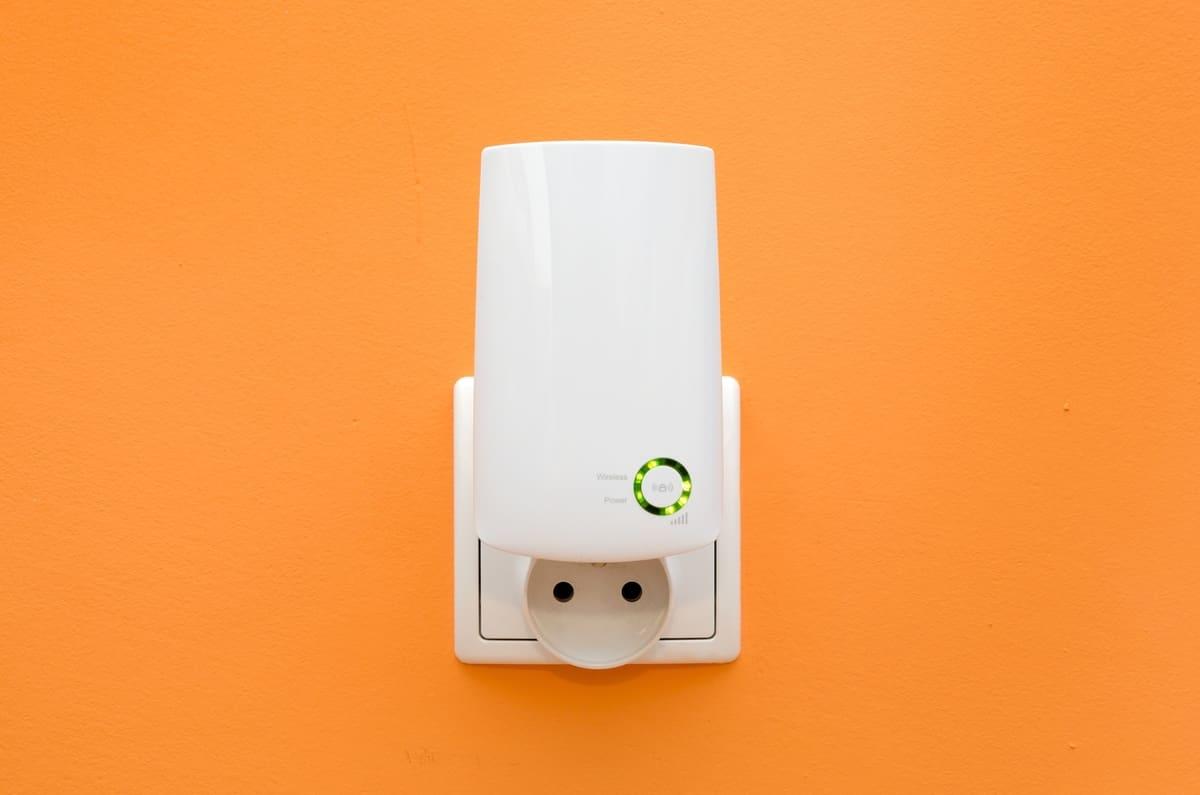
Syncing the repeater: WPS vs. manual setup
In practice, you have two main ways to sync the repeater with your existing Wi-Fi network : using the WPS button (if your router has one) or performing a manual setup through a web browser. Both methods achieve the same result, but each has its advantages.
The WPS method is the fastest and simplest: simply press the WPS button on your router, and within the specified time, press the WPS button on the repeater . If both devices are compatible and close together, the connection will be established without you needing to enter your Wi-Fi password. It's perfect for users who don't want to deal with IP addresses or technical menus.
Manual configuration, on the other hand, gives you more control. Some repeaters allow you to connect them to your router or modem via Ethernet RJ45 cable during the initial setup . This way, the first time you access their administration panel through your web browser, log in with a default username and password, and from there select the Wi-Fi network you want to extend, choose the name for the extended network, and adjust security settings.
This manual process typically involves very guided steps: choosing your language, setting an administrator password for the repeater itself, searching for available networks, entering your main Wi-Fi password, and confirming whether you want the extended network to have a different name or the same name as the original . Although it takes a couple of minutes longer than WPS, it's still a procedure anyone can do.
Regardless of the method, it's good practice to write down your repeater access credentials and the exact name of the network(s) you create in a safe place. This way, if you want to change the password, update the firmware, or modify the location in the future, you can access the settings without wasting time.
Check coverage, adjust position, and optimize performance
Once the repeater is connected to the router and broadcasting the extended network, the next step is to test whether coverage has improved where you needed it . It's not enough for the repeater to simply turn on: you need to ensure that its performance is sufficient for browsing, streaming, or working without interruptions.
To do this, move around to the rooms where you previously had poor signal and run simple tests with your mobile phone, laptop, or tablet. You can open some web pages, stream videos, or even use dedicated Wi-Fi analysis apps. If you notice that the signal is still weak or the speed drops significantly , try slightly repositioning the repeater.
Many models have LEDs that change color depending on the signal strength received from the router. If the LED turns red or indicates a weak signal, it means the repeater is too far from the router or has too many obstacles in between. In that case, move it closer to the router until the indicators show an acceptable signal , even if this means sacrificing some range to the furthest area.
At the same time, it's a good idea to check that your home devices are connecting to the most convenient Wi-Fi hotspot. Sometimes, a mobile device can get stuck on the router even when it's closer to the repeater. If you notice slow performance right next to the repeater, turn the device's Wi-Fi off and then back on so it reconnects to the nearest available network.
Another important part of optimization is updating the software. Repeater manufacturers release new firmware versions that fix problems, improve stability, or add compatibility with new features . It's advisable to periodically visit the support page for your specific model, verify that you've selected the correct hardware version (V1, V2, V3, etc.), and consult the router's manuals and technical specifications to see the latest available improvements.
Extended network security and best practices
Extending your Wi-Fi with a repeater not only amplifies the signal but also expands the area where your network is visible . That's why it's crucial not to neglect security and to take a moment to review some basic settings after installation.
First, always change the default password for accessing the repeater's interface . Many models come with generic passwords like "admin/admin," which anyone can find online. On your first login, create a strong administrator password to prevent anyone from modifying the settings from your own network.
Regarding the Wi-Fi network emitted by the repeater, make sure it uses the latest security protocols compatible with your router and devices , preferably WPA2 or WPA3 if available. Avoid leaving the network unsecured or using outdated systems like WEP, as these are very easy to compromise.
If you decide to have the repeater create a network with a different name, you can take the opportunity to choose an SSID that doesn't reveal personal information (such as your name or the floor you live on). If, for convenience, you use the same username and password as the router, still double-check that this combination is secure, with a long and difficult-to-guess password.
Finally, keep in mind that extending the coverage area also extends the potential outdoor range, especially if you live in an apartment building. If you think too many neighbors are detecting your network, you can slightly reduce the repeater's transmission power in its advanced settings, provided the model allows it, to focus the signal inside your home.
Repeater models and availability by region
In the catalog of manufacturers like TP-Link there are dozens of WiFi repeater models with different features : from very basic options aimed at slightly extending the signal, to WiFi 6 or WiFi 7 devices designed to support many connected devices and high speeds.
Common models in the consumer market include references such as RE200, RE220, RE300, RE305, RE365, RE450, RE650, RE715X, and RE765X , as well as newer models like RE603X, RE605X, RE705X, RE780X, RE653BE, and RE403BE, to name a few. Each model differs in the WiFi standard it supports, the number of antennas, the combined speed, dual-band or tri-band support, and the number of available network ports.
There are also models specific to certain regions or different hardware versions (V1, V2, V3, V4…), so it's important to consult the specifications for your specific device before downloading firmware or manuals . Recent updates may add features such as access point mode, improvements to WPS, compatibility with the manufacturer's own WiFi Mesh, or additional security settings.
It's important to keep in mind that not all models are available in every country . The catalog varies depending on the region and sales channel, whether it's a physical store, online retailer, or authorized distributor. Therefore, it's always best to check the manufacturer's official website, select the appropriate country or region, and search for the exact model to ensure that the features and updates you see match the device you own.
In any case, whether you opt for a very simple model or an advanced one, the essential thing is that the repeater configuration adapts to the network you already have and the distribution of your home , applying all the recommendations for location, synchronization, security and performance tests discussed throughout this guide.
With all this in mind, it's clear that installing and configuring a WiFi repeater is an accessible process for virtually any user : simply choose a suitable model, place it in a central location with good signal strength, connect it to the router using WPS or a web wizard, and spend a few minutes checking coverage, security, and positioning. With a little patience, you'll no longer have dead zones in your home and you'll be able to work, watch shows, or play online from any room with a much more stable connection.
