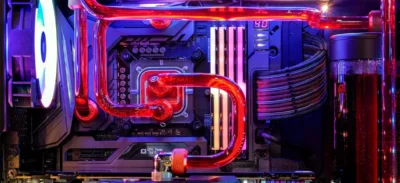
- Use of specialized software to monitor CPU and GPU temperature due to the lack of native tools in Windows.
- Identifying safe thermal ranges to avoid thermal throttling and preventive system shutdown.
- Implementation of preventive measures such as physical maintenance, thermal paste renewal and airflow optimization.

When we live in places where the temperature soars, our electronic devices suffer more than we usually imagine. Heat is, basically, the worst enemy of hardware , whether you use a laptop for work or a powerful desktop computer for gaming, as high ambient temperatures can cause the system to overheat.
Actively monitoring the temperature your computer reaches is vital to avoid problems. While it's always advisable, during the summer months it becomes essential to prevent performance from plummeting or your computer from suddenly shutting down to protect itself from irreversible damage.
Why is it so important to monitor CPU temperature?

Keeping the temperature under control isn't just a technical obsession; it's essential to ensure the long-term health of the components. If the processor gets too hot, the system activates thermal throttling, which reduces its cooling speed, causing games to stutter or applications to take longer to load.
Furthermore, constant monitoring allows us to optimize performance and resolve problems before they become critical. Knowing that the normal range for everyday tasks is usually between 40 and 65 °C serves as a guide to determine if our cooling system is working properly or if adjustments are needed.
Recommended tools for Windows 10 and 11
The curious thing is that Microsoft, for reasons known only to them, hasn't included a complete native tool in Task Manager to view CPU temperature (although it does allow you to view GPU temperature). Therefore, we have to resort to third-party software , which is where we actually find useful, real-time information.
- HWINFO: It's probably the most comprehensive option. It not only measures temperature, but also analyzes voltages, fan speeds, and energy consumption with a very detailed sensor mode.
- CoreTemp: For those looking for something lightweight and uncomplicated. It focuses exclusively on the CPU, displaying the performance of each core individually in the taskbar.
- HWMonitor: A classic and well-balanced tool, ideal for both novices and experts who want a quick overview of the main components.
- OpenHardwareMonitor: A free and open-source alternative that allows monitoring the workload and temperatures of various components.
If you're a gamer and want to monitor your stats while playing, the best option is MSI Afterburner with the RivaTurner Statistics Server plugin. This allows the information to be overlaid on the screen , letting you react instantly if you notice the temperature rising too high during an intense game.

Temperature guide: When should we worry?
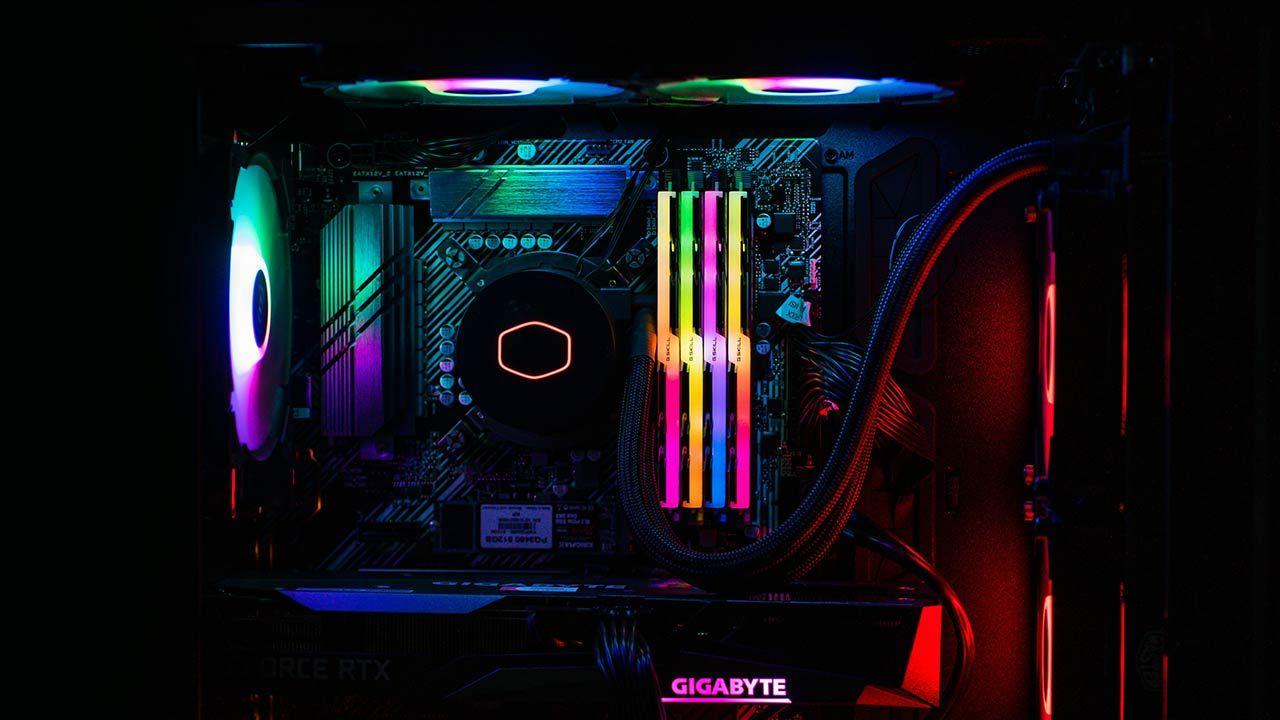
Not all processors are the same, but there are some general rules that can help us sleep soundly. If your PC is idle or performing light tasks, it should ideally stay below 60°C . If you're gaming or editing video, it's normal for it to rise to between 60 and 80°C.
The problem begins when we enter the danger zone. Between 80 and 90 °C is a warning sign indicating that we need to improve chassis ventilation . If the system repeatedly exceeds 90-95 °C, we are facing a dangerous situation where it is imperative to shut down the equipment and immediately investigate the cooling system fault.
For AMD Ryzen users, it's important to know that there are two readings: Tdie and Tctl. To determine the actual heat generated by the CPU cores , you should always look at the Tdie value, as Tctl is simply a control value for managing fan speed.
Tips and solutions for lowering the temperature
If you've noticed your computer is running hot, there are several things you can do. The first and easiest is to clean the accumulated dust . Dirt on the fans and heatsinks acts like a thermal blanket, preventing cool air from circulating and raising the overall temperature.
Another crucial step is replacing the thermal paste . Over time, this compound dries out and loses its ability to transfer heat from the processor to the heatsink. Applying high-quality thermal paste can make an immediate difference of several degrees.

For more advanced users, there are options such as creating custom fan curves with SpeedFan or applying an undervolt . The latter involves slightly limiting the voltage the processor receives so that it consumes less power and, therefore, generates less heat, although this may slightly reduce performance.
Finally, don't rule out improving airflow by installing additional fans or replacing the stock cooler with a more robust air cooler or liquid cooling, especially if you have a high-performance processor that demands more aggressive thermal management.
Keeping an eye on the thermal sensors and performing regular cleaning is the best strategy to prevent hardware wear caused by hot weather, ensuring that the system always operates within its safe limits and avoiding unexpected performance drops.