- Night Light settings to reduce blue light emission and protect the sleep cycle.
- Manual and automatic brightness adjustment adapts to ambient lighting and content.
- Color profile management and screen calibration for professional visual accuracy.
- Use of color modes, contrast themes, and accessibility filters to improve visibility.
Spending hours glued to a computer monitor is a daily occurrence for many of us, but of course, our eyes eventually pay the price. That feeling of heaviness in the eyelids, itching, or the typical headache is no coincidence, but rather the result of constant exposure to the blue light emitted by screens, which can leave us exhausted and even disrupt our sleep.
Fortunately, Windows 11 comes with a host of tools to make things easier. From adjusting color temperature to managing professional profiles, there are options to make the visual experience much more comfortable and adaptable to our needs at any given moment, whether we're working intensely or relaxing before bed.
How to control your screen brightness
Controlling the screen brightness is essential to avoid eye strain and, incidentally, to extend your laptop's battery life. You have two options: the quick way, by clicking the Network icon in the taskbar and moving the slider, or the more detailed way, by going to Settings > System > Display.
The most interesting feature is that some devices allow the system to automatically adjust the brightness based on the ambient light in the room. If you want to try it, go to Settings > System > Display > Brightness and enable the corresponding option. This way, the screen will always be readable without you having to manually adjust anything.
Additionally, there's content-adaptive brightness, which adjusts the brightness based on what you're viewing (for example, if you transition from a dark scene to a very bright one in a video). If you're a designer or work with photo and video editing , you might prefer to disable this in the "Change brightness based on content" dropdown menu to prevent color shifts and maintain complete accuracy.
Night Light: Goodbye to eye strain
Blue light is the main culprit behind keeping us awake when we should be sleeping, as it inhibits melatonin. To combat this, Windows includes Night Light, which tints the screen with warmer tones that are much gentler on the eyes. You can quickly activate it from the quick settings panel (Network or Speakers icon) or from the Settings > System > Display menu.
If you want the filter to be more or less intense, you can adjust the intensity slider in the Night Light section. To avoid having to remember to turn it on every night, it's best to program it. You have the option of letting it activate automatically from dusk till dawn or defining the exact time you want the monitor to change its color temperature.
Advanced color management and calibration
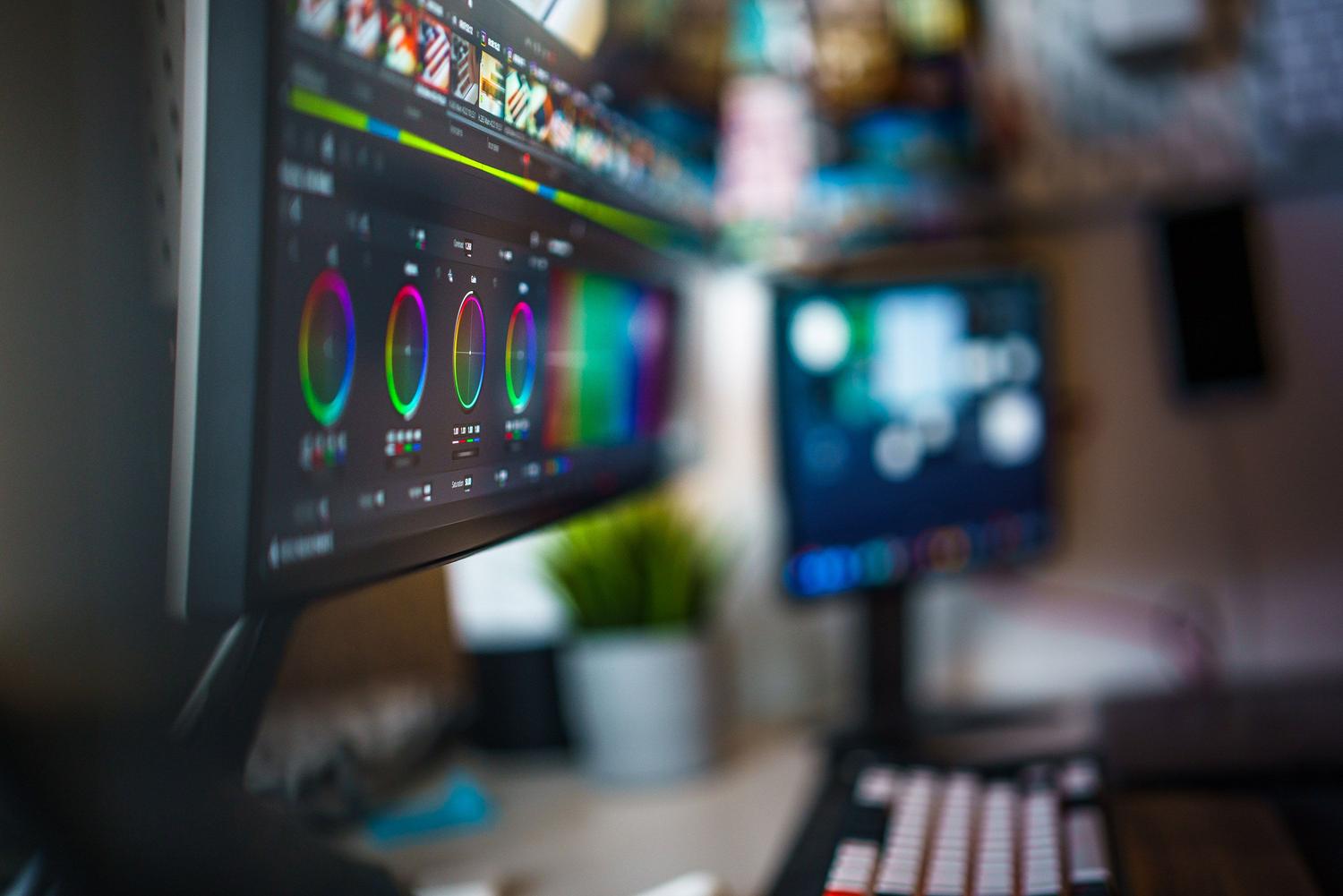
For those seeking superior image quality, Windows 11 offers automatic color management. This feature is a boon for creative professionals, ensuring that colors appear accurate and consistent across compatible displays, reducing errors in gradients and shadows thanks to up to 16-bit color accuracy.
If you feel your monitor's colors aren't accurate, you can calibrate the screen manually . Simply search "calibrate screen color" in the Windows search bar and follow the wizard's steps. This will create a color profile optimized for your specific hardware. You can also add or remove custom color profiles from Settings > System > Display > Color profile.
Aesthetic customization and accessibility
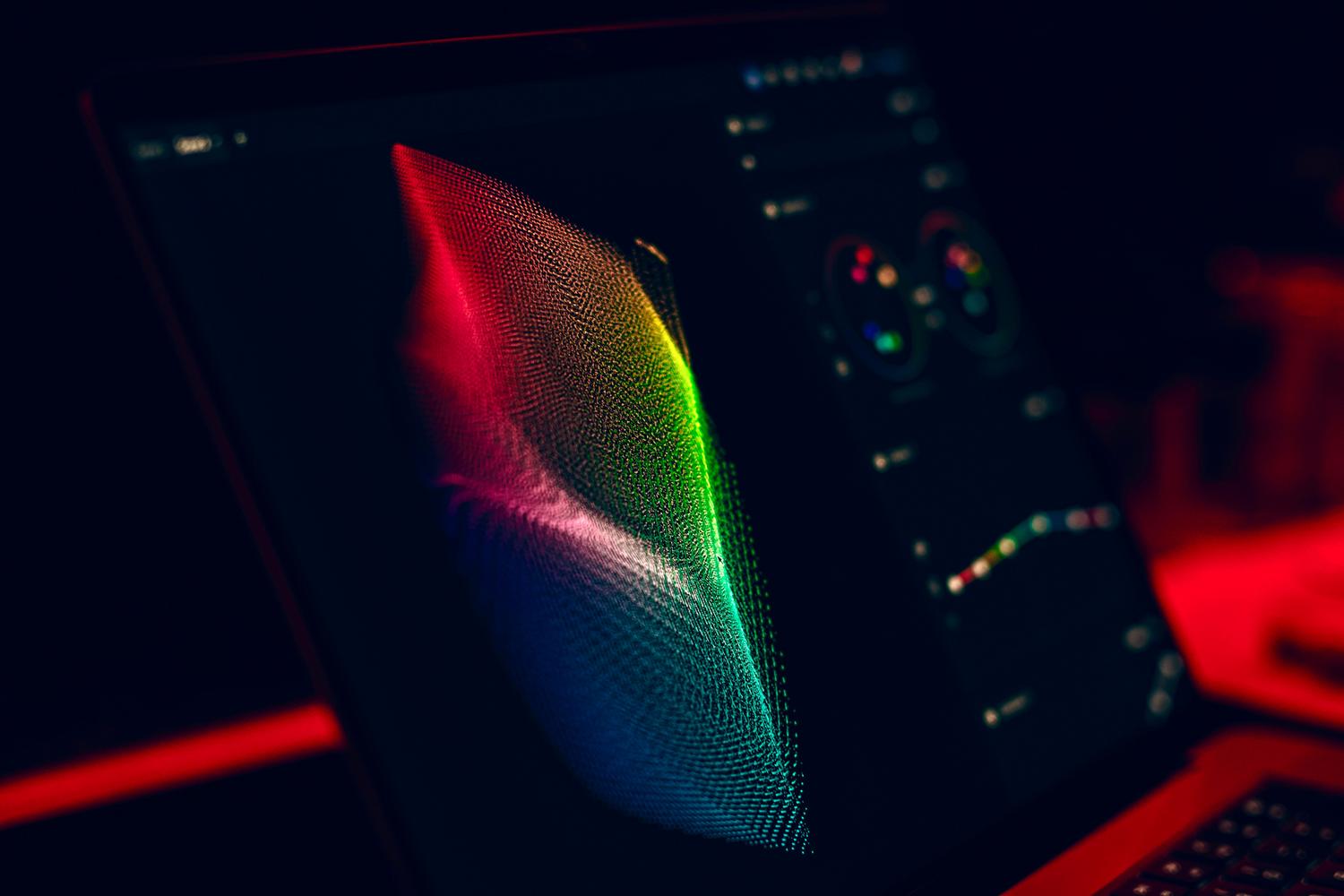
It's not all about eye health; appearance matters too. In the Personalization > Colors section, you can choose between light mode, dark mode, or a custom color . Dark mode is especially recommended in low-light environments to reduce glare. You can also choose an accent color to make buttons and links stand out to your liking.
For those who need extra support, there are color filters and contrast themes . These adjustments change the entire system color palette, helping people with color blindness or visual impairments to differentiate elements that would otherwise appear the same. If you also have a compatible monitor, enabling HDR (High Dynamic Range) will dramatically improve the contrast and brightness of compatible content.
Looking after your eyes involves combining the use of nightlight, proper monitor calibration, and choosing visual themes that don't strain your eyes. By correctly configuring automatic brightness, color profiles, and accessibility filters, you can create a balanced digital environment that protects your vision and improves daily productivity at the computer.