- It allows you to free up most of the storage space by removing the executable but preserving the user's settings and data.
- It can be managed manually from the system settings or automation can be activated through the Google Play Store.
- Restoration is immediate by tapping the dimmed icon, provided there is an internet connection and available space.

I'm sure it's happened to you a thousand times: you want to take an amazing photo or download a new app, and suddenly that dreaded " no storage space" message pops up . It's a real headache, because deleting photos or videos hurts, and uninstalling apps is a pain if you then have to set everything up again from scratch.
To solve this problem, Google has implemented a feature called app archiving . Basically, it's like putting apps you don't use much to sleep so they stop taking up space, but without completely removing them. The best part is that your personal data and settings are saved , so when you decide to use them again, you won't have to struggle with logins or re-configure them.
What exactly does archiving an application involve?

Many people confuse archiving with uninstalling, but they're not the same. When you archive, the system removes the executable package (the large part of the program) and temporary files, but keeps the icon on your screen intact and, most importantly, your user data . It's like compressing the app so it takes up a tiny fraction of its original size.
The space savings are incredible. Depending on the method, you can free up anywhere from 60% to a staggering 95% of the space the app was occupying. For example, if you have a game that's 450 MB, you could recover around 230 MB or even more, leaving only what's strictly necessary for the system to know the app is still there and reinstall it quickly.
How to archive your apps step by step
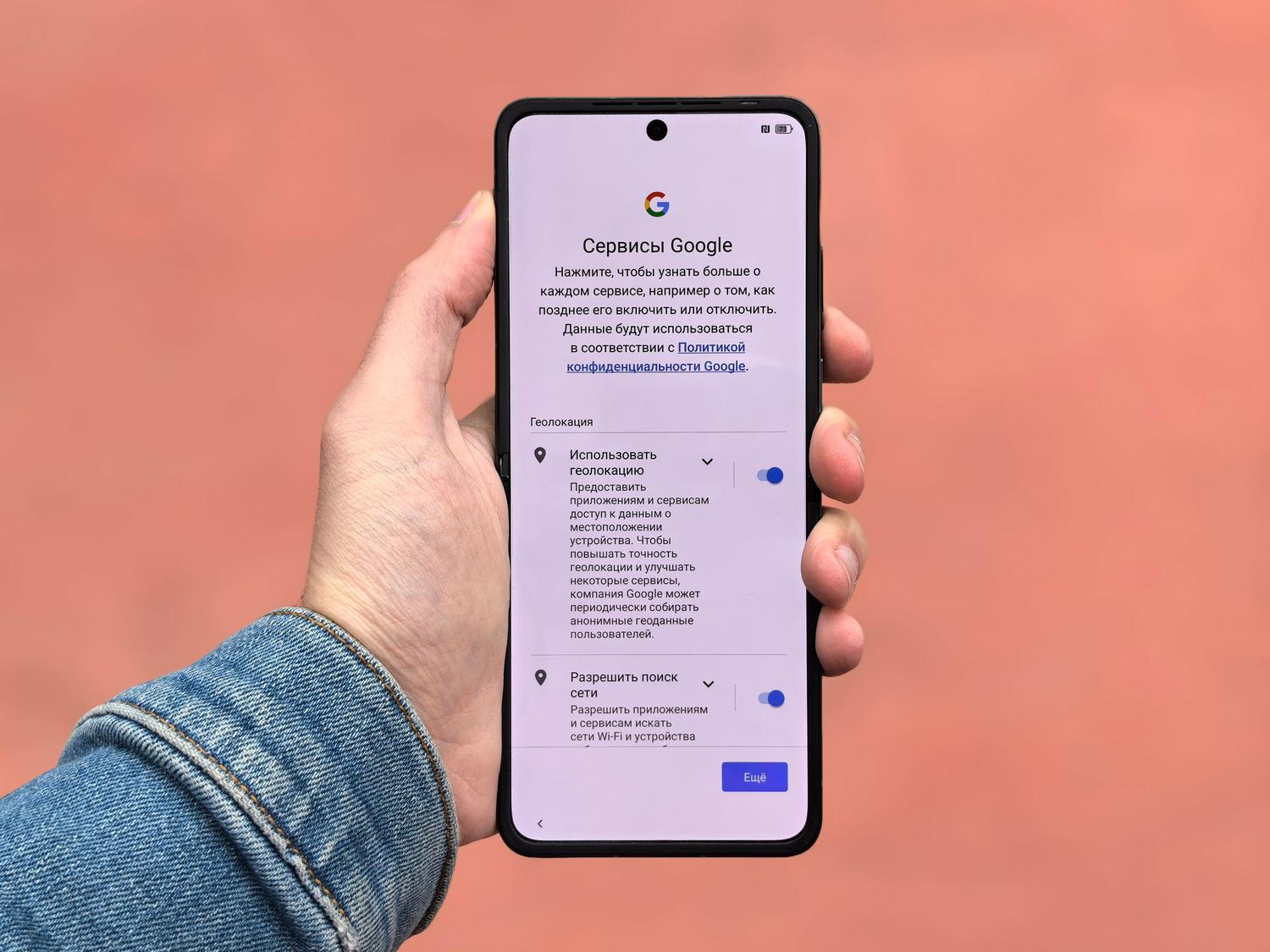
If you prefer to be in control yourself and not let the system decide, you can do it manually. There are a couple of very simple ways to do this:
- From Settings: Go to the Settings menu, enter the Applications section, find the one you want to "park," and press the button. File.
- From the home screen: Long press the app icon, select Application Information And once inside that menu, tap on Archive.
You'll know the process has worked because the app icon will dim and a small cloud or download arrow will appear at the top. This is the visual indication that the app is in sleep mode.
The magic of Google Play's automatic archiving
If you don't feel like going through each app individually, Google Play can do the legwork for you. This option detects which apps you haven't opened in ages and, when your phone starts running out of battery, it automatically archives them . To activate this mode, go to the Play Store, tap your profile picture, go to Settings, then General, and check the box for Auto-archive apps.
If you want to know which apps have been archived, you can go to the Manage apps and device section in the store and apply the "Archived" filter. This will give you complete control over the reclaimed space.
How to recover an archived application
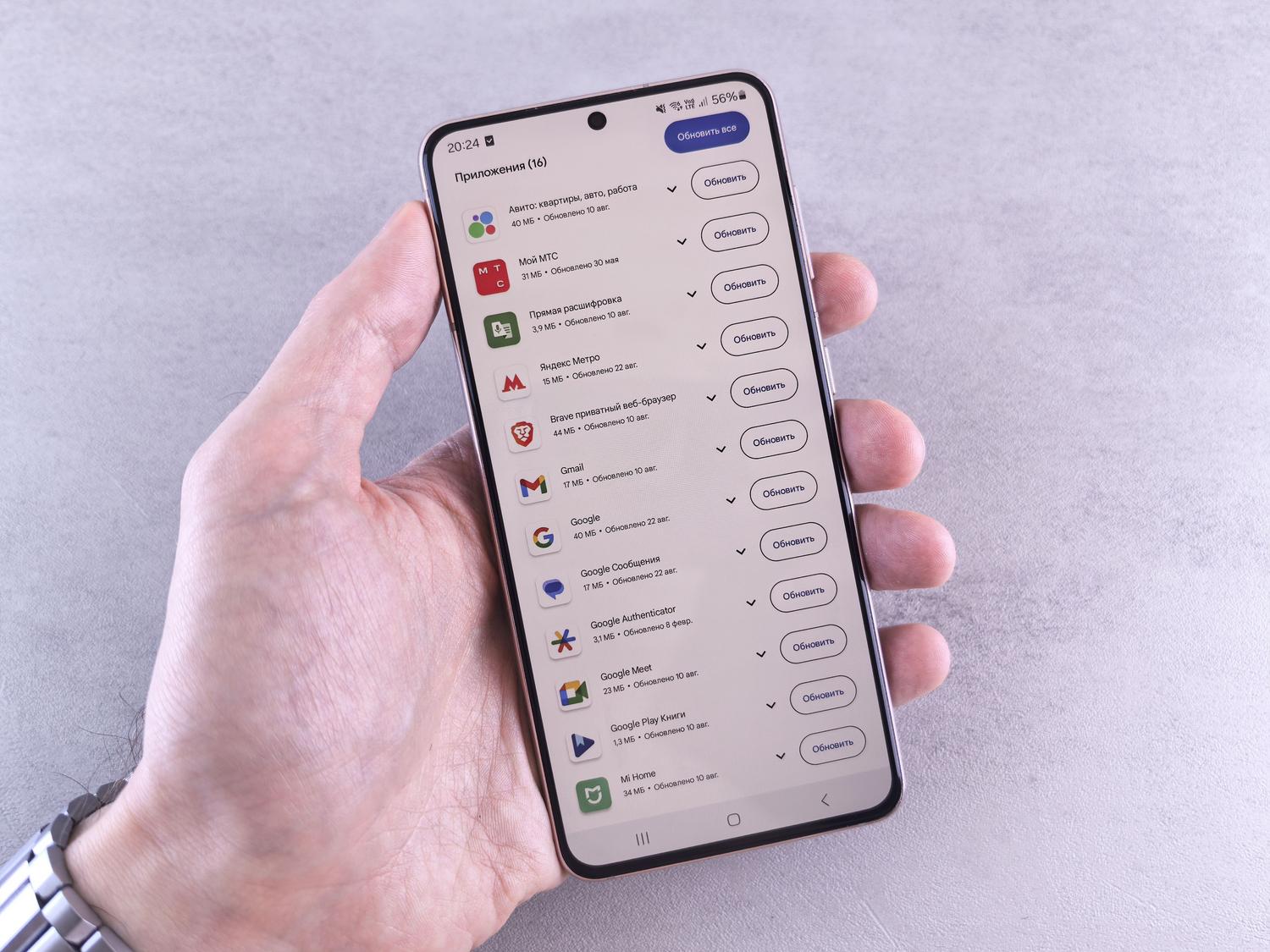
Bringing an app back is a breeze and doesn't require you to manually search for it in the store. Simply tap the grayed-out icon on your home screen or app drawer. The system will begin downloading the missing files, and in a few seconds, the app will be working again.
However, keep a couple of things in mind: you need an internet connection for the executable file to download, and obviously, there must be free space on your phone's storage. If your phone is still full, the system will ask you to manage your storage before letting you reinstall the app. Also, although your data is saved, you may have to re-enter your password for some very strict security apps.
How to prevent the system from archiving important apps
There are some apps you absolutely don't want archived, such as your bank's app, a security authenticator, or WhatsApp. To prevent Google Play from accidentally "sleeping" them, do the following: Go to Settings, then Apps, select the critical app, and disable the "Manage app when not in use" option . This way, the app will remain installed and ready to use, even if you haven't opened it for months.
Key differences and privacy tips

It's important to note that, for security reasons, Android revokes data access permissions (such as camera or SMS) for apps that have been inactive for a long time. Archiving an app speeds up this process, strengthening your privacy against potential data leaks while you're not using the program.
If you're wondering when it's best to archive and when to delete completely, the rule is simple: archive what you use occasionally (travel apps, one-off purchases, etc.) and permanently uninstall what you no longer need or what you want to delete for absolute privacy.
Mastering these tools allows you to keep your device running smoothly and with plenty of space without having to give up your favorite apps. By combining automatic archiving with the exclusion of critical apps and manual archiving for specific cases, you achieve a perfect balance between performance and usability , ensuring your Android never freezes due to lack of memory.