- The system uses Bluetooth signal strength (RSSI) to detect the distance between the mobile phone and the computer.
- You need to pair your smartphone beforehand in the device menu and activate the Dynamic Lock box in the account options.
- There is a waiting time of about 30 to 60 seconds before the system executes the effective lock.
- The function acts as an additional security measure, as it does not allow automatic unlocking upon returning.

Have you ever gotten up from your chair at the office or at home and broken out in a cold sweat when you realized you left your computer on and unlocked? It's a super common oversight, but it can be a major security vulnerability if someone with malicious intent decides to snoop through your files. Luckily, Microsoft has integrated a tool called Dynamic Lock that automatically solves this problem, making your PC protect itself as soon as it detects you've stepped away.
This system is essentially an invisible guardian that uses Bluetooth technology to detect your proximity. When you pair your smartphone with the computer, Windows monitors the received signal strength (RSSI) . If the phone moves away and the connection weakens, the system understands that you're no longer nearby and logs you out. While not a complete replacement for biometric methods like Windows Hello, it provides a fantastic additional layer of security for those who are forgetful.
How the technology behind the lock works
To better understand this, the process is based on creating a piconet , which is a short-range wireless network where paired devices communicate. The computer constantly monitors the connection with the phone; as long as the signal is strong, everything continues as normal, but the moment the link is lost or drops below a certain threshold, blocking is activated. It's important to note that Bluetooth range varies depending on the transmitter power of each device, so the exact blocking distance may change.
Device Requirements and Preparation
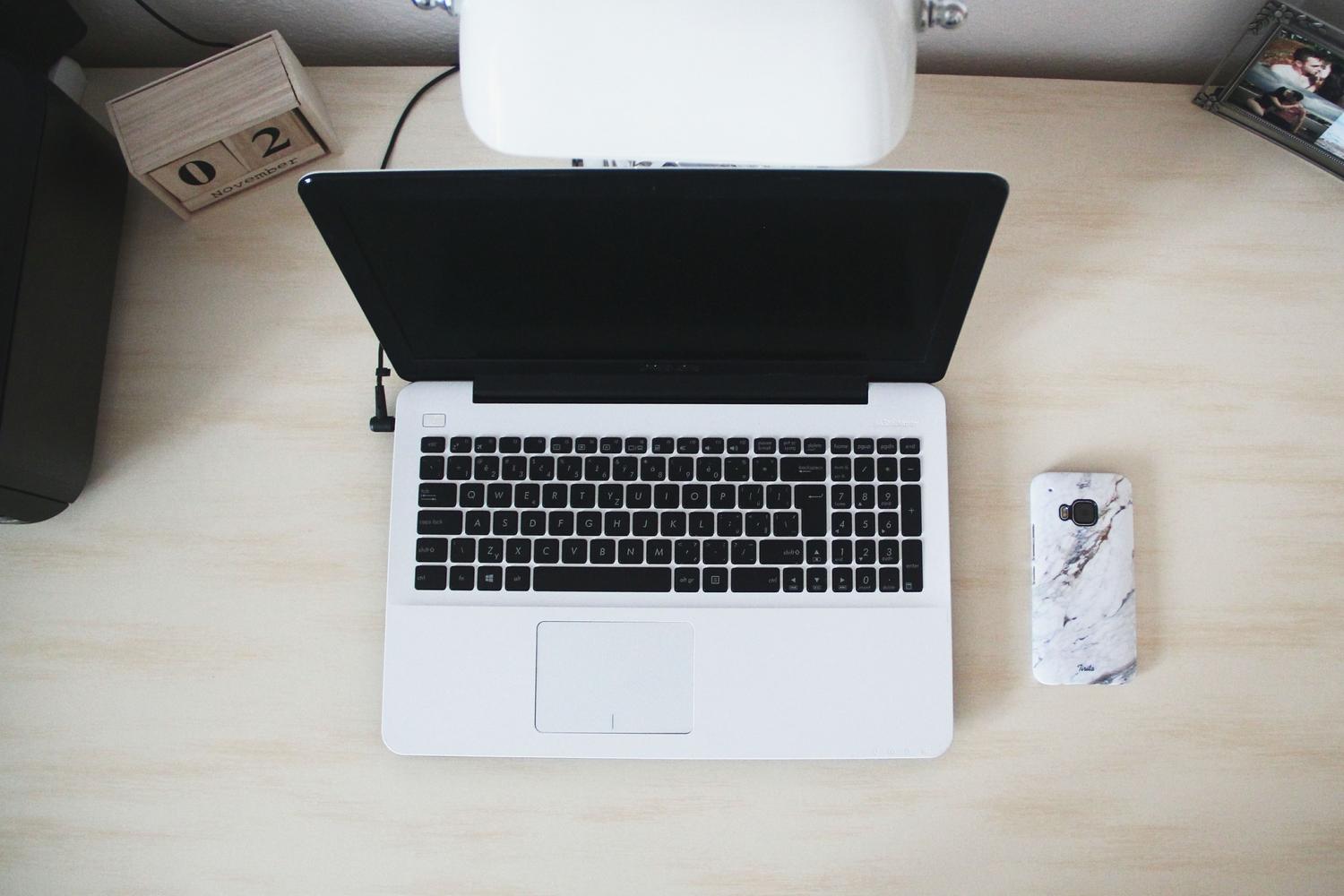
To get this up and running, you'll need a smartphone (either Android or iPhone) and a PC with Bluetooth. With Android, the integration is usually very smooth, while with iOS, although possible, some users report that it's not as stable . An extra tip is to install the Link to Windows app from the Play Store or App Store, sign in with your Microsoft account, and make sure Bluetooth is enabled on both devices before starting the setup.
Step-by-step guide to setting up dynamic lock
The process is quite simple and won't take more than a couple of minutes. First, we need to physically pair the devices:
- Go to the menu of PC setup and go to the Bluetooth and devices section.
- Turn on the Bluetooth switch and click on Add device.
- Select the Bluetooth option, find your mobile phone in the list and accept the pairing code that will appear on both screens.
Once the phone and computer are known, the specific security function must be activated:
- Go back to Settings and enter the section for Accounts.
- Look for the option of Login Options and scroll down until you find the Dynamic Lock section.
- Open the menu and check the box that says Allow Windows to automatically lock the device when you are away.
Important details and limitations you should know
Not everything is perfect, and there are a couple of things you should know to avoid surprises. First, the lock isn't instant; there's a grace period that usually ranges from 30 seconds to a minute. If someone sits in your chair and starts moving the mouse right after you leave, the feature might not activate. Also, be aware that this tool doesn't automatically unlock your PC when you return; you'll have to enter your PIN or password as usual.
Another aspect to consider is energy consumption. Constantly scanning for Bluetooth signals can drain the battery faster on both your phone and laptop, potentially reducing your devices' battery life slightly. However, compared to the risk of leaving your data exposed, it's a small price to pay.
Beyond the Block: Productivity in Windows
Since we're on the topic of system improvements, Microsoft has added other features to make your workflow smoother. For example, Snap Layouts allow you to organize windows on your screen much more efficiently, especially on touch devices. There are also Focus Session and Do Not Disturb modes , which clear your screen of intrusive notifications so you can concentrate fully on your tasks without distractions.
Setting up dynamic lock, along with using organizational and privacy tools, makes your computer a much safer and more productive environment. Simply connect your phone via Bluetooth and enable the option in your account settings. The system will then automatically lock your computer every time you leave your chair, ensuring your confidential information remains safe without you having to remember to press Win+L every two minutes.