- Changing your name in Google Meet affects all Google services.
- Management is done from your Google account settings, not from Meet.
- You can edit your first and last name and add a nickname to personalize your presence.
- There are currently no limits on the frequency of name changes.
In both professional and personal settings, Google Meet has become one of the most widely used video conferencing and meeting tools worldwide. It stands out not only for its quality and ease of use, but also for the numerous customization options available to users. Among these, one of the most important is the ability to change the username so that it appears exactly as desired during each meeting.
Updating your name in Google Meet might seem simple, but it's directly linked to your Google account. This means the change affects not only Meet but also all Google services like Gmail and Drive. In this article, you'll discover step-by-step how to change your name in Google Meet, both from your computer's browser and the mobile app, with clear explanations and practical tips to ensure everything goes smoothly.
Why is it important to change your name in Google Meet?
The main reason to change your Google Meet name is to personalize your digital identity . Whether for work, personal, or even legal reasons, you might need to update your name or use a nickname that better identifies you in different contexts.
For example, if you work in a professional environment where formality is required, you might prefer to use your full name. On the other hand, in informal gatherings or with friends, a nickname can convey approachability and authenticity. This change is also useful in situations such as weddings, legal name changes, or simply if you're looking to strengthen your personal brand.
Keep in mind that this adjustment will apply to your entire Google account , so it will affect other services like Gmail, Drive, and Calendar. If you only want to change how you appear in a specific meeting, you'll need to manage the changes with this in mind.
How does Google Meet take your name?
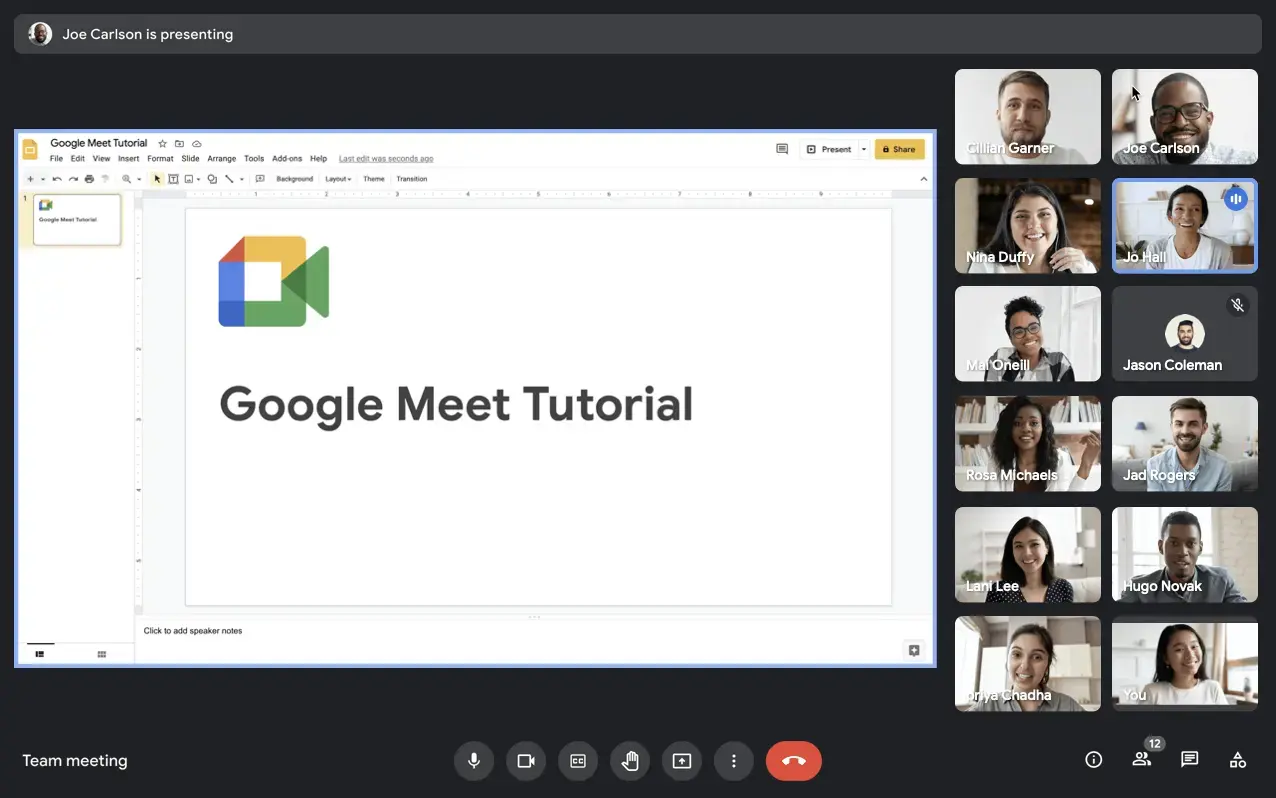
One of the first key concepts to understand is that Google Meet uses the name you have set up in your Google Account . Every time you join a video call, the name displayed to other participants is your primary account name. Therefore, any changes must be made from your account settings, not from the Meet interface.
The steps to change your name are similar on both desktop and mobile browsers, although the path may vary slightly depending on the device. However, you should always go through the "Personal Information" section of your Google account, where your basic information such as your first name, last name, and nickname are located.
Step by Step: Change your name in Google Meet from your computer
If you normally use Google Meet on your PC or laptop using a browser (Chrome, Edge, Firefox, etc.), following these steps will allow you to change your name quickly and easily:
- Access your Google account settings: Go to myaccount.google.com and sign in if you haven't already.
- Locate the “Personal Information” section: In the left sidebar, click "Personal Information" to find your basic information.
- Edit your name: Scroll down to "Basic Information" and find your current name. Click the pencil icon next to it to edit it.
- Make the changes: Enter your new first and last name. You can also add a nickname if you want this to appear as your screen name.
- Save the changes: Click “Save” to apply the change.
- Check in Google Meet: Open Google Meet and make sure you and others see the updated name. The change should be reflected immediately in future meetings.
Remember : This setting will be reflected across all Google services. If the change doesn't appear in your next meeting, try closing and reopening Meet.

Change your name in Google Meet from the mobile app (Android and iOS)
Many users manage their meetings from their mobile devices. If you prefer to change your name using the Google Meet app or from your Android or iPhone device's settings, follow these steps:
- Open the Google Meet app on your phone.
- Click on the three lines in the top left corner to display the menu.
- Click on your account (usually displayed with your email and photo).
- Choose the option “Manage your Google account”.
- Go to “Personal Information.”
- In the name section, click to edit it.
- Enter the first and last name you want to display and click on “Save”.
On Android, you can also go directly to your phone's Settings, find the "Google" section, go to "Manage your Google account," and follow the same process as above. On iPhone, the process is very similar from the app.
Tip: The change is immediate. If you still see the old name, try closing and reopening the app or clearing the cache if the problem persists.

Can I add or edit a nickname in Google Meet?
An interesting option for those who want a more personalized touch is to add a nickname . This way, you can display the alias that best identifies you, beyond your legal name.
To add or change your nickname:
- Log in to your Google profile.
- In the “Basic Information” section, locate the “Nickname” field.
- Click the pencil icon next to the word “Nickname.”
- Enter your favorite nickname and save the changes.
- You can then choose how your screen name is displayed by selecting from different combinations (full name, name and nickname, nickname only, etc.).
This setting lets you give your digital identity a more informal or approachable feel , perfect for gatherings with friends or family. However, keep in mind that this change will affect your entire Google account, and the nickname may also be visible on other services.
How many times can the name be changed?
Until recently, Google imposed restrictions on how often you could change your name. However, you can now change it as often as you like . This gives you greater freedom and control over your digital identity.
There's no formal limit, so you can update your name based on your needs, whether for work-related or personal reasons, or simply for your own preference. Just keep in mind that each time you do this, it will be changed across all Google products associated with your account.

Common problems and how to solve them
Occasionally, minor issues can arise when changing your name in Google Meet. The most common error is that the new name isn't immediately reflected. If this happens, follow these tips:
- Clear cache and cookies from the browser if you use Meet from your computer.
- Close and reopen the app if you're using your phone. You can also restart your device.
- Please join and leave the meeting again, or try signing out and signing back in.
For linked devices (such as meeting room hardware), you need to differentiate between changing the name of a resource or room and the name of your personal account. Changing a room name won't necessarily reflect that change on the associated device. To do this, you'll need to manage "device information" from your Google Workspace administrator account.
Additional tips for taking advantage of Google Meet
Changing your name is just one of Meet's many useful options. If you're interested in improving meeting productivity, you might consider using extensions or additional apps like recording and transcription assistants. Several options are available with features such as automatically recording sessions, generating smart summaries, or creating custom notes. Always remember to review each tool's privacy policy before connecting it to your account.
For example, there are extensions that allow you to record and transcribe Meet meetings and then receive the summaries and actions in your email, which can be very useful for work teams and students.
Frequently asked questions about changing your name in Google Meet
Can I change my name during an ongoing video call?
Yes, you can, but it may take a few minutes for the change to appear. Sometimes it only updates when you start a new meeting, so if you're in a hurry, you can leave and re-enter.
Does changing my name in Google Meet affect other services?
Indeed, any change you make affects your identity across all Google services (Gmail, Drive, Calendar, etc.)
Can I have different names depending on the device or account?
No. The name is associated with the Google account. If you use multiple accounts, you can define a different name for each one, but you cannot define different names for the same profile depending on the device.
Is the name change immediate?
Normally yes, but in some cases it may take a few minutes. It's recommended to log out and back in or clear the cache if you notice any delays.
This knowledge allows you to have greater control over your Google Meet presence, adapting it to each occasion and ensuring a consistent identity across all linked services. Personalizing your name also reinforces your personal brand and helps create a more professional or friendly atmosphere, as appropriate.