- The verification can be performed using the NVIDIA Control Panel, the GPU-Z tool, or the Windows Device Manager.
- Its operation requires that CSM mode is disabled and UEFI mode is enabled in the BIOS.
- It is essential to have the latest version of the motherboard BIOS and the graphics card VBIOS.

If you're someone who's always looking for ways to squeeze a few more FPS out of your games, you've probably heard of Resizable BAR . This technology, which essentially breaks the traditional 256MB barrier so the processor can access all the video memory at once, can provide a pretty decent performance boost, even improving benchmark results by up to 10%.
The problem is that, even with powerful hardware, it's not always enabled by default or requires a couple of manual adjustments that can be a real headache. For everything to work smoothly, you need complete compatibility between your motherboard's BIOS , the graphics card's firmware, and the drivers installed in Windows, because if one of these fails, the function will be disabled.
How to know if you have the Resizable Bar activated
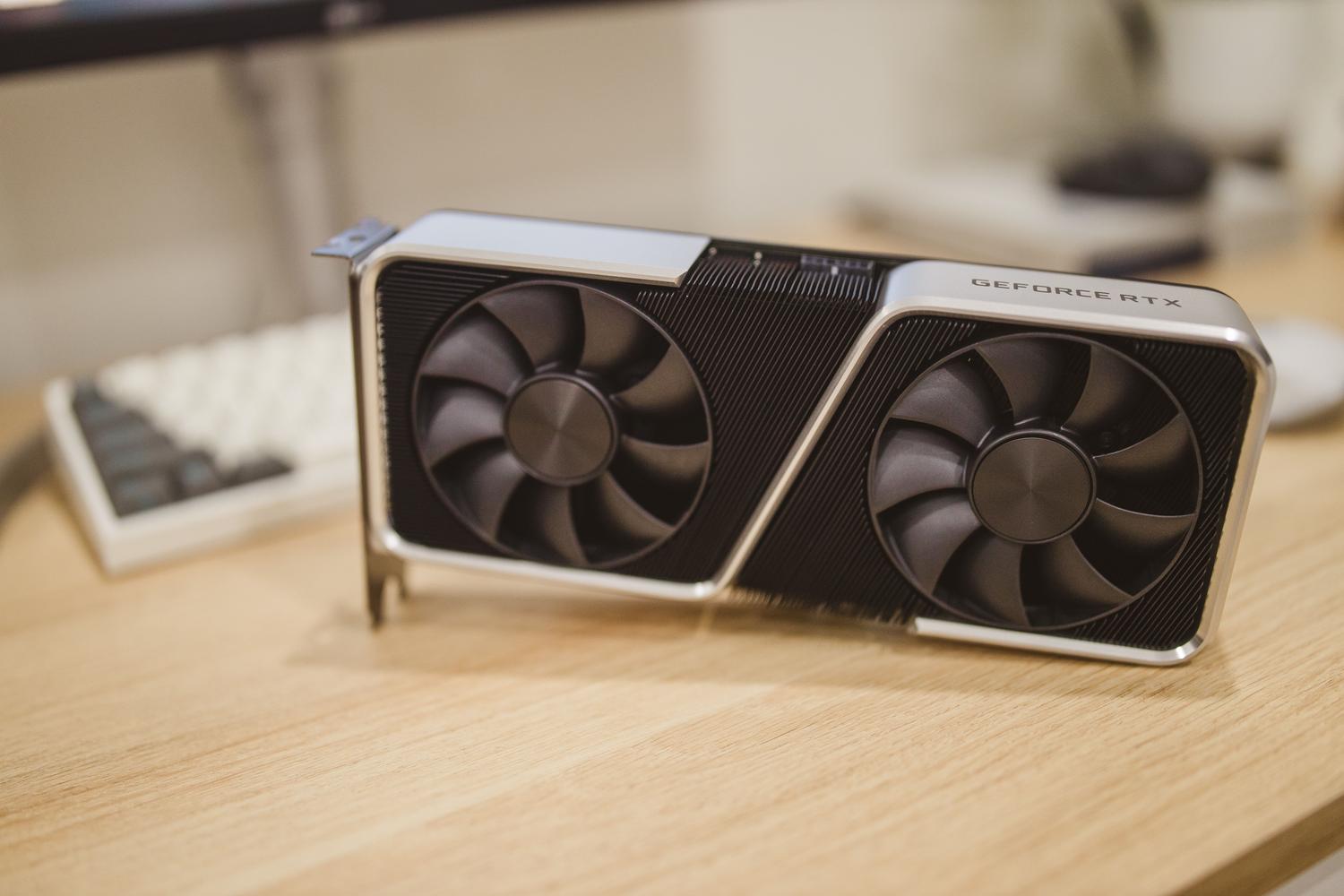
Before getting bogged down with the BIOS, the most logical thing to do is check if it's already working. The quickest way is to open the NVIDIA Control Panel , go to the Help section, and then to "System Information." If the list shows that Resizable BAR is set to "Yes," you can forget about it. If you're not confident in this or prefer a more technical approach, you can download GPU-Z ; when you run it as administrator, you'll see a specific section on the main screen that will confirm whether the feature is enabled or disabled.
For the more meticulous users who want to go all out, there's a way to check it from the Windows Device Manager . If you access your RTX's properties and look at the "Resources" tab, you'll be able to see the memory range. When ReBAR is disabled, the range is very limited, but when it's enabled, you'll see that the memory range increases dramatically , indicating that communication between the CPU and GPU is complete.
BIOS prerequisites and configuration
If you've discovered that it's turned off, the first step is to enter your motherboard's BIOS (usually by pressing the Delete or F2 key at startup). Here's a crucial detail: for the ReBAR to work, you must have UEFI mode enabled and the "Start CSM" (Compatibility Support Module) option completely disabled. If you installed Windows in Legacy mode, you may need to reinstall the operating system to enable UEFI and, therefore, the ReBAR.
Once you're in the correct mode, look in the advanced menu for the Above 4G Decoding and Resizable BAR Support options . First, you must enable Above 4G Decoding; once you've done this, the Resizable BAR option will be unlocked, allowing you to set it to "Auto" or "Enabled." Don't forget to save the changes with F10 before exiting.
Critical updates: BIOS and VBIOS
Sometimes, even if you enable everything on the motherboard, GPU-Z will still say it's disabled. This usually happens because the graphics card's VBIOS (the GPU's internal firmware) is outdated. On RTX 30 series cards, especially models like the 3070, 3080, or 3090, you may need to install a specific firmware update provided by the manufacturer (ASUS, MSI, Gigabyte, etc.) or use NVIDIA's Founders Edition tool.
Similarly, it's crucial to keep your motherboard BIOS up to date . Many manufacturers have released updates specifically to improve stability and compatibility with this technology. Also, make sure you have the latest Game Ready drivers installed to avoid software conflicts.
The advanced trick with NVIDIA Profile Inspector
Some users claim that NVIDIA leaves this feature disabled by default in certain driver profiles. To force it, there's a tool called NVIDIA Profile Inspector . After downloading and running it, select the global profile and look in the "5 - Common" section for the rBAR - Enable option . By changing the status from "Disabled" to "Enabled" and applying the changes, you might notice an immediate performance improvement without needing to restart your PC, although restarting is always recommended to ensure stability.
For the system to perform optimally, it's vital to coordinate the disabling of CSM, the activation of UEFI, and the enabling of Above 4G Decoding and ReBAR in the BIOS, ensuring that both the motherboard BIOS and the graphics card's VBIOS are up to date. If you still have doubts after this, tools like GPU-Z or the NVIDIA Control Panel are the quickest way to confirm that your hardware is fully utilizing the VRAM.