- Reliable alternatives if the Photos app doesn't show collage
- Google Photos and Canva solve automatic montages
- AI in Fotor and Picsart for fine-tuning and replacements
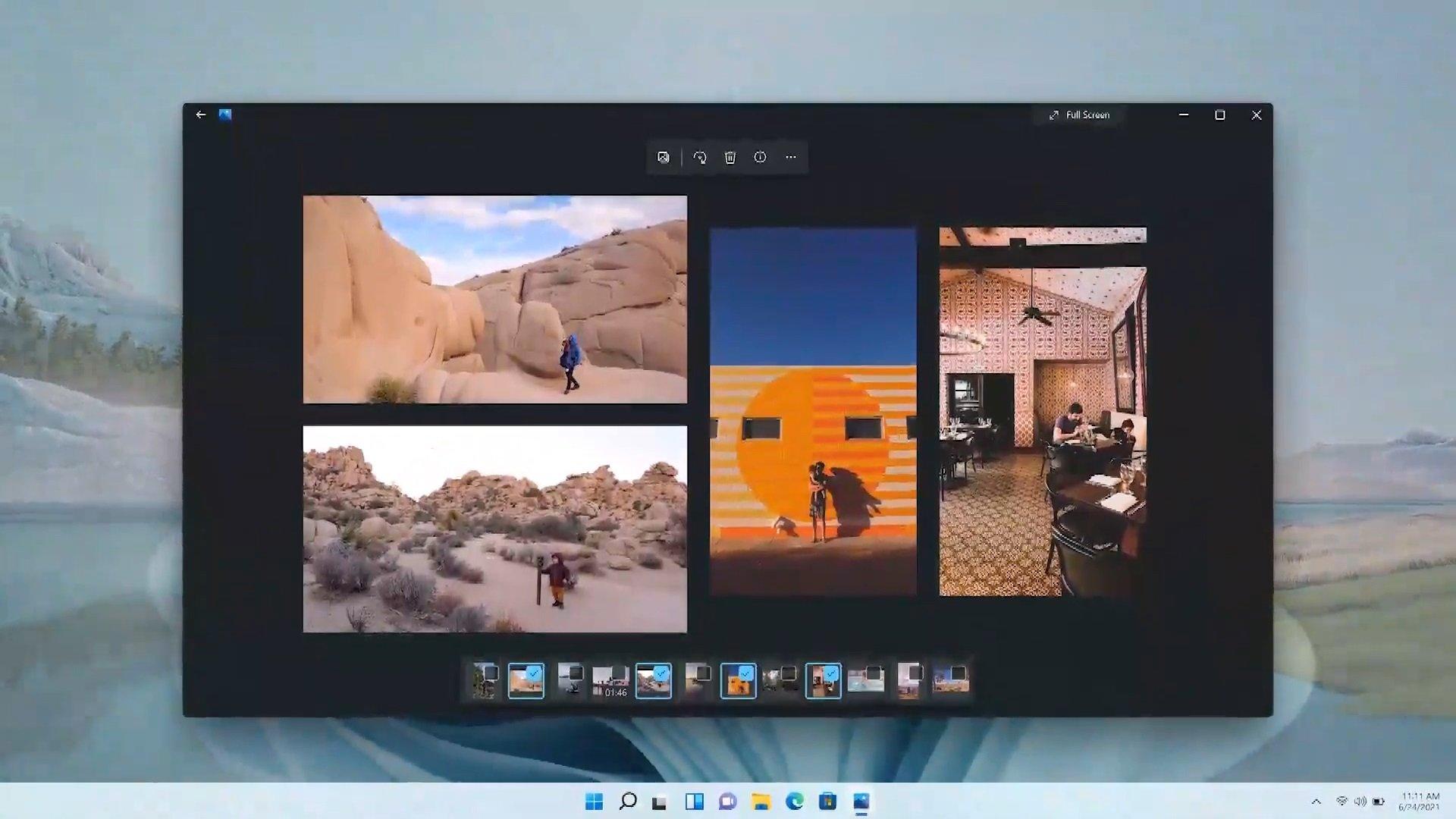
If you're looking to combine multiple images into a single composition without going crazy, you've come to the right place. Windows 11 makes it easy to create collages, and there are also services and apps that do the work for you in just a click or two. Here's how to create an automatic collage using the Photos app, Google Photos on the web, and various AI-powered tools that streamline the process.
Beyond the "how-to," you'll also find practical tips , a selection of free and paid tools for different skill levels, and tricks for finding your existing collages. The idea is that, whichever method you choose, you'll have a clear workflow and fantastic results that are perfect for sharing, printing, or posting on social media.
How to create an automatic collage with the Windows 11 Photos app?
The Windows 11 Photos app lets you manage and edit your images , and in many installations, you'll see quick creation options. If you select multiple photos (hold down Ctrl and click) and open the creation menu or the three-dot button, you'll find features like albums or slideshows . Depending on the version, there might be a "Collage" or similar composition option; if it appears, choose the images and let the app automatically create the collage . If you don't see it, don't worry: below, I've provided alternatives with the same "auto" concept, using web and AI, so you can have your collage ready in a minute.
If your version doesn't include a direct collage option, you can use built-in Windows solutions like Clipchamp (for video with templates) or Microsoft Store apps like Pic Collage , which is free to download and provides ready-to-use frames and designs. For those who want zero hassle, Google Photos on the web is another great option.
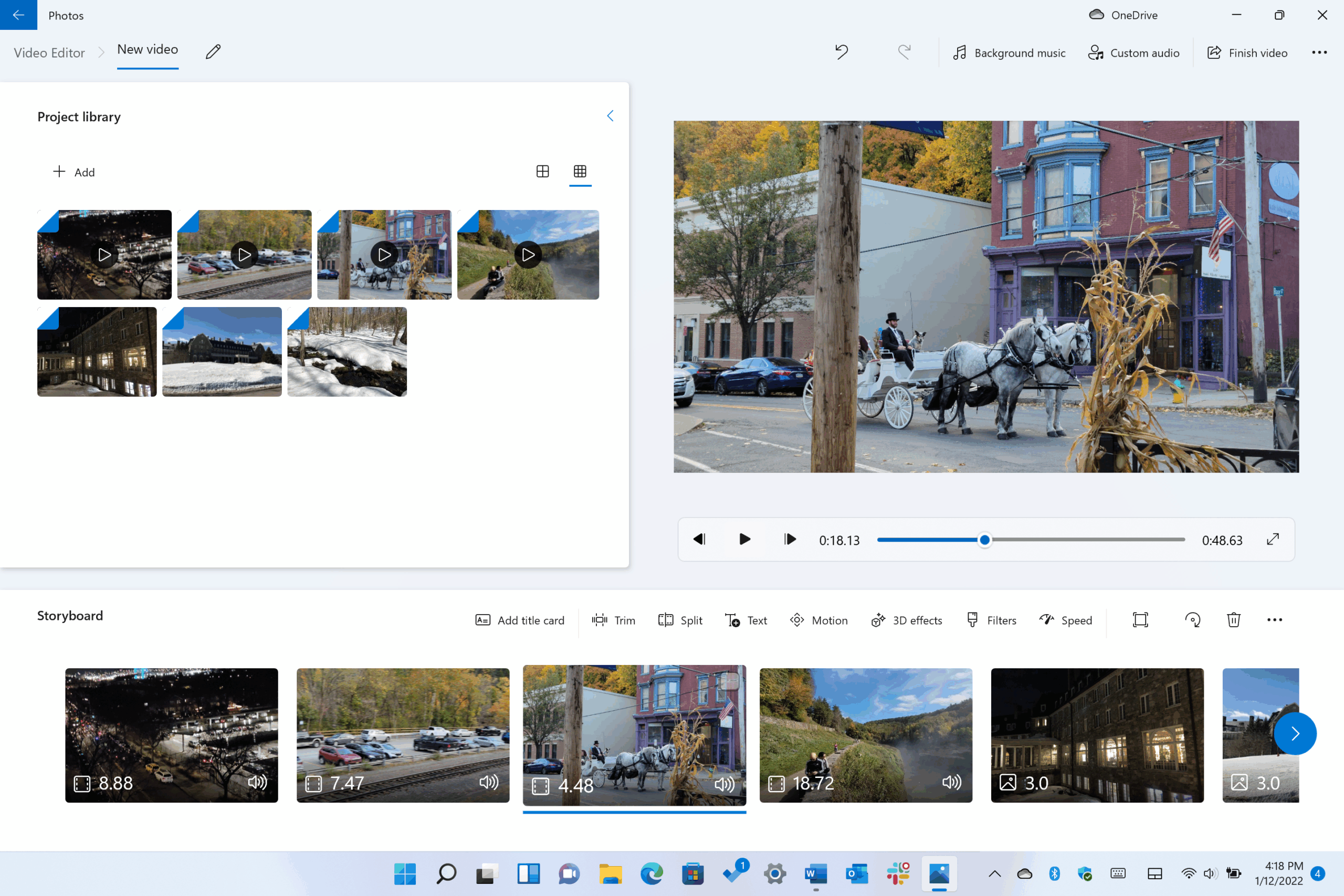
Create a collage automatically on your computer with Google Photos (web)
From your PC's browser, the most direct way to create a collage without struggling with layout is through Google Photos on the web . The process is simple and delivers exactly what it promises: automatic composition from your images.
- On your computer, go to photos.google.com.
- Hover over a photo and check the box that appears.
- Select up to 9 photos for the composition.
- At the top right, click Create > Collage.
Important: Google advises that if you need to edit the collage in more detail (for example, repositioning elements), it's best to create or edit it using the Google Photos mobile app , which has features not available on the web version. Even so, for a quick collage on your PC, this method is very convenient and completely automatic.
To find your collages later, type "Collages" in the search box at the top of the website and click Search . This way you'll see all the collages you've created, without having to go through each album individually.
Before you start: Basic planning that makes a difference
A collage looks much better if you take a moment to consider its purpose and format . Do you want to share it on social media, print it, or save it as a photo? The final size and orientation— horizontal, vertical, or square— will depend on this . This decision will affect how the images fit together.
Choose high-resolution, high-quality photos , and if they have some "breathing room" around them, even better: it will give you room for cropping without sacrificing what's important. Avoid overloading each photo with too many elements; if everything is competing for attention, the result will be tiring to the eye.
Also consider visual coherence : theme, style, even color palette. The collage should tell a story. A journey, a celebration, a tribute… When the images connect with each other, the whole works on another level.
And don't be afraid to experiment. Change tools if you're not happy with the result, try another template , iterate again. Each attempt gives you clues for the next, and sometimes the collage you love comes on the third or fourth try, not the first.
 Recommended tools
Collage with generative AI: text, style, and go
Another interesting and increasingly popular approach is to let a generative AI create the composition directly. The trick is to write a clear prompt requesting a collage with X images, describing what should be visible in each one, and specifying the desired artistic style .
I want a collage with X images where appears. Apply a style.
The better you define the scenes, the closer the result will be to your vision. Model-based tools like GPT-5 , ChatGPT, Copilot, or Gemini can generate the image in various styles, from realistic to more illustrative. If you're looking for style ideas, consult references and specify them in the prompt ("vintage style, warm tones, fine grain," for example).
Your photo + AI: collages that respect a person or motif
If you want the AI to accurately represent the appearance of a specific person (or object), upload a reference photo and clearly tell the system. You can do this on platforms like Freepik, ChatGPT, or Copilot by attaching the file and explaining its relevance to the final result.
Generate a collage with X images of . The person must be the one in the attached photo. Apply a style .
The accuracy with which the collage reflects that person will depend on the AI chosen. In general, the clearer your instructions and the better the reference photo, the more coherent the final composition will be.
Canva: AI-powered templates and adjustments
For many, Canva is the most straightforward solution . Go to canva.com, search for collage templates, and click "Customize template" when you find one that suits you. From there, replace the sample photos with your own images by dragging them from your folder or the library you upload.
If you double-click on a photo within the template, you can crop and reposition it as you like. Canva also integrates several AI-powered smart adjustments (for example, to better adapt framing or remove backgrounds and unwanted elements), which greatly speeds up the editing process.
Once you have it, add text, change fonts, modify colors, and, if needed, take advantage of more advanced AI tools to replace objects or give the overall design color consistency. It's fast, flexible, and perfect if you're looking for a polished finish without too much hassle.
Fotor: Collage Maker and Editing with Built-in AI
At fotor.com you'll find their Collage Maker . Go in and choose a template; the paid ones are marked with a diamond icon. Then, add your photos to the spaces; with a double-click you can resize and arrange them as you like.
What's interesting is its AI Editor for each image: it includes AI tools to remove objects, remove backgrounds, resize, expand canvases, or replace elements . There's even skin retouching if you need it. It's a solid option when, in addition to creating collages, you want to clean up imperfections in your photos.
Picsart: Simple, Powerful, and AI Replaceable
On picsart.com, choose the Generate creatives option and then the collage maker tool . You'll see free designs and others marked as Plus (paid). Select the one you prefer and insert your photos, easily repositioning and resizing them.
Its key differentiator is the integrated AI. With AI Replace, you can select parts of an image (or let the AI suggest facial features or objects) to change the sky , clothing, hair, or add/remove elements. It's ideal if, in addition to collage, you want a creative touch with highly controlled local edits.
More options from your PC: online and desktop apps
If you prefer working from a computer, there are many collage makers for PC . Some require installation, while others run in your browser. Before making a decision, you can try several and choose the one that best suits your project needs.
Advantages of using a PC program: unlike traditional manual collages, here you select a design you like , add photos (or even videos and GIFs), and decorate with text, stickers, frames, and more. It's fast, fun, and allows for customization.
Adobe Express (often referred to as “Express It”) is a reliable , free online tool with a resource library, collage templates for quick and easy creation, and a “ Free Style ” mode for free-form composition. If you're also interested in adding movement to your projects, you can learn effects like 3D Zoom in Filmora with step-by-step tutorials.
Note: If you browse communities like Reddit for ideas or presets, you'll see cookie notices and privacy policies. Nothing unusual; just keep this in mind when browsing threads and shared community resources .
Recommended apps and services (free and paid)
Besides Google Photos, Canva, Fotor, and Picsart, there's a good list of collage apps that can fit your needs, from the simplest to very complete tools.
- piccollag to (iOS, Android): many templates, random composition if you don't want to decide, and powerful edition with clippings, borders, shadows, stickers, and effects. Allows you to save work in progress.
- Instagram Layout (iOS, Android): Drag and drop, adjust with pinch-zoom, very easy to useIt's minimalist in photo editing, but in design it does exactly what it promises.
- Adobe Spark (iOS, Android): It was not born as a pure “collager”, but solves very well editing and allows you to publish videos with simple editing, subtitles and music.
- Instasize (iOS, Android): Simple collage maker with borders, text and beauty tools. Full editing (exposure, brightness, hue, etc.) and over 130 professional filters.
- BeFunky Collage Maker (Mac, Linux, PC and web): easy, cheap, with templates and cloud connection (Dropbox, Drive, Facebook) and integration with stock apps like Unsplash. You can generate the collage automatically.
- MOLDIV (iOS, Android): Camera + Editing Suite + collage in a single app, with magazine-style layouts and tons of fonts, patterns, labels, and stamps.
- PicPlayPost (iOS, Android): Designed for collages of video In addition to photos, with various frames, customizable aspect ratios and the option to add music.
- PicsArt Photo Editor & Collage (iOS, Android): In addition to the editor, you have a community where you can collaborate (up to 50 people), themed contests, and many ways to share.
- Fuzel (iOS, Android): unlimited images, capture from the app and connection to Facebook, Flickr, and Instagram. Allows you to animate compositions.
- Pic stitch (iOS, Android): more than 200 templates, easy and with clear instructions for beginners.
- PhotoGrid (iOS, Android): Creative for networks, with filters, up to 15 photos by collage, more than 300 grids, animated GIFs and meme tools.
- Collage templates in Canva (web): downloads in PNG, JPG or PDF, with options like Crop marks and bleed if you are going to print.
- Google Photos (iOS, Android): six types of collage, powerful search to locate people and image recommendations.
- Pic jointer (iOS, Android): thorough editing, varied in filters, fonts, frames, and layouts; allows for easy mirroring and zooming.
- PhotoCollage (iOS, Android, web): very practical and compatible with shortcuts keyboard. Simple interface for quick collages.
- Video (Mac and Windows): for video collages, with over 4000 pre-designed templates and animated text effects.
If you want to upgrade to premium features , consider these payment options:
- PiZap (iOS, Android; Free & Pro): Fun, perfect for social media with stickers and doodles, although less strong in advanced editing.
- Fotor Collage Maker (iOS, Android; free and Pro): veteran, powerful even with RAW files, ideal for experimenting; with a Pro version packed with effects.
- Ribbet (iOS; free and paid): very complete in filters and tools darkroom type, with more than 100 fonts.
- Diptic (iOS; paid): integrates video and photo in elegant frames, 190+ designs, high-resolution export and filters.
- Photovisi (web; free and Premium): super easy, turn the collage into card or poster, although photo editing is limited and the watermark is removed with Premium.
- P (web; test and plans): very complete editor, collaborates with equipment and has extensive effects, filters and fonts.
Windows and desktop programs: PhotoPad and company
If you prefer to install a robust program on your Windows PC, PhotoPad is an interesting option. It allows you to create collages manually or using an automatic grid with a virtually unlimited number of images, select orientation, background (color, photo, or preset options), and adjust spacing and corners between images.
Key advantages: It offers a small app size and control over spacing and borders. Limitations: It doesn't add stickers or filters to individual images, and it doesn't allow for fully customized collage sizes. Even so, if you prioritize simplicity with good grid control, it performs very well.
Useful notes and resources
Keep in mind that with Google Photos, if you want to edit your collage in more detail (for example, changing cell positions), the official recommendation is to do so from the mobile app. And if you're interested in a quick and easy way to do it on Windows, Pic Collage in the Microsoft Store offers a free download and installation for a hassle-free solution.
Quick summary of the most important things
- The collage tools make it easy to create eye-catching compositions without a learning curve.
- There are many options for Windows that you can download or use online immediately.
- Wondershare filmora provides a variety of stock resources if you create videos with your images.
By the way, if you're looking to showcase your work, upload your collages to an online portfolio using templates that match your style and, if possible, one that integrates with Instagram. This way, your compositions will look great both on social media and your website, and you'll have a professional presence for potential clients.
If the Windows 11 Photos app shows you the collage option, take advantage of it for a quick collage; if it doesn't appear or you need more control, Google Photos on the web will create an automatic collage in seconds, and if you want an even more polished look, Canva, Fotor, and Picsart use AI to refine compositions, remove backgrounds, or replace objects . For those who prefer a desktop, PhotoPad offers a good automatic grid, and if you're feeling adventurous, the list of apps above will give you a variety of options for any idea you have in mind.
