- Analysis of advanced native utilities such as Reliability Monitor, God Mode, and Sandbox to optimize security and performance.
- Detailed instructions on using ViVeTool to activate experimental features and system redesigns before their official release.
- A thorough exploration of the PowerToys ecosystem, a set of open-source tools that enhance productivity and personalization.

If you think you know your computer inside and out, get ready, because Windows 11 hides a ton of secrets that can completely change the way you work. We're not just talking about the typical settings everyone finds in the configuration menu, but deep capabilities and utilities that Microsoft leaves unnoticed by the average user, but which are real gems for those looking to get the most out of their hardware.
From handling critical errors to forcing features that haven't yet been officially released, the Microsoft ecosystem is far more flexible than it seems. In this article, we'll delve into the less-traveled corners of the OS , combining native tools, open-source software, and a few commands that will make you feel like you have complete control of the machine.

Advanced diagnostics: The Reliability Monitor
When your PC starts acting up, whether it's with blue screens, sudden app crashes, or 24H2 version failures, you usually resort to the typical troubleshooter, which sometimes falls short. This is where Reliability Monitor comes in , a veteran diagnostic tool in Windows 11 that remains essential for pinpointing the exact source of system instability.
Basically, this panel acts as a health log for your computer, recording warnings and critical errors that affect performance. The longest way to access it is through the Control Panel, going to Security and Maintenance and then View Reliability History . However, if you want to get straight to the point, you can type that same phrase into the Start menu search bar or run the command `perfmon /rel` from the Run dialog box.
The interface is divided into two sections: a timeline at the top that organizes errors by day or week, and a lower panel with technical details. Icons indicate the severity of the issue: a red circle with an X signifies a critical error, a yellow triangle is a warning, and a blue circle represents an informational report. If you need more information, simply right-click on the error to view specific technical details , which is invaluable if you need to consult a comprehensive guide for troubleshooting Windows 11 errors on specialized forums.

Activating the future with ViVeTool
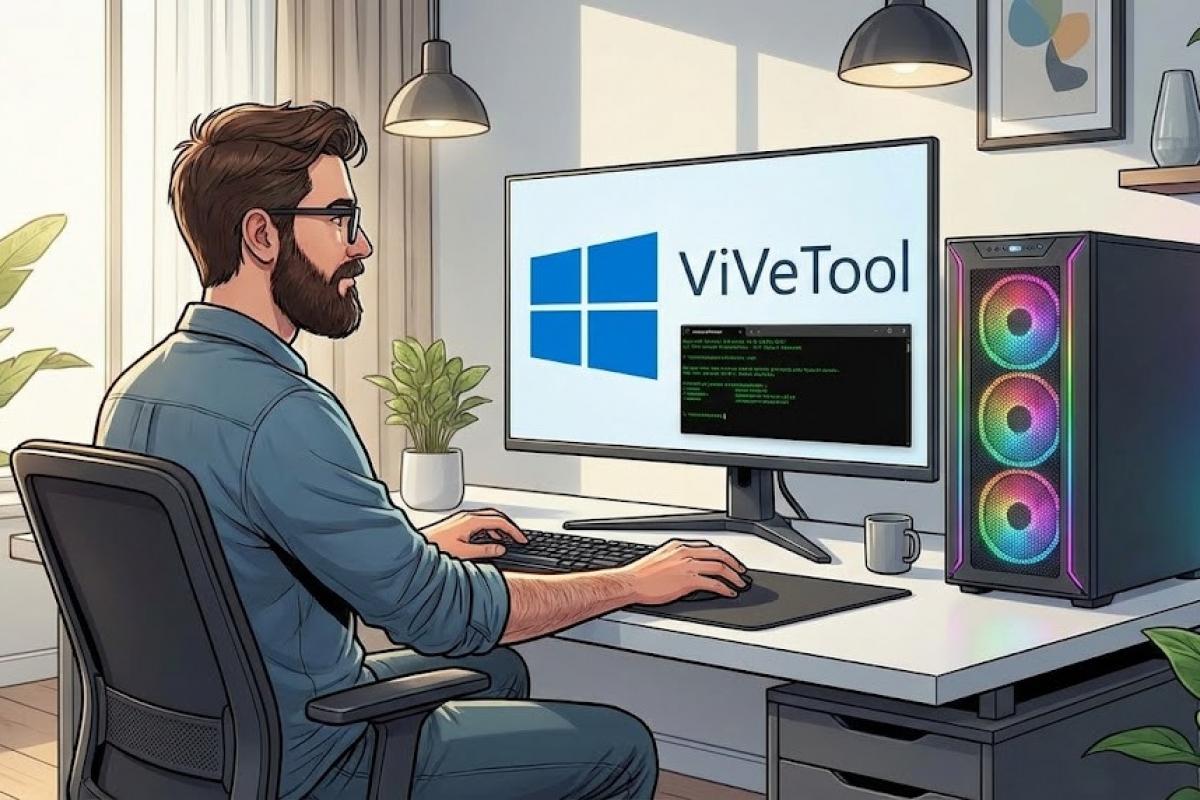
Microsoft typically releases new features gradually through controlled rollouts, meaning someone might have a feature that you don't, even if you're using the same version. To bypass this wait, there's ViVeTool , an open-source utility that allows you to interact with Windows feature management and unlock hidden Windows 11 features that are already in the code but disabled.
To use it, you first need to download the ZIP file from its GitHub repository, making sure to choose the IntelAmd version for standard PCs or the SnapdragonArm64 version for ARM devices. Ideally, extract the contents to a simple path, such as C:\ViVeTool , to avoid dealing with very long paths when using the console.
Since it doesn't have a graphical interface, everything is done through the terminal run as administrator. First, you navigate to the folder using the command cd C:\ViVeTool and then you use the syntax vivetool /enable /id:NUMBERFor example, to activate the new Start Menu design (ID 47205210), simply run the command and restart. Other codes also exist for this purpose. widget redesign (59162732) or cloud search in Explorer (4569026).
However, be very careful and don't go overboard activating everything at once. It's crucial to create a restore point before starting, as you'll be modifying experimental features that could make the system unstable. If something goes wrong, remember that you can use the /reset command to revert the feature to its original state.

Productivity tricks and the mythical God Mode
There are built-in features that, while not exactly secret, often go unnoticed. One of them is Classic Indexing in folder search, which allows you to find files by ignoring default locations. It's enabled in Privacy and Security settings in Windows 11 by changing the indexing mode. Another gem is the ability to scroll inactive windows , which lets you navigate through an app with the mouse wheel without having to click on it first—ideal for those who use multiple monitors.
For users who want absolute control, God Mode is the ultimate tool. It's not a button, but a special folder that centralizes over 200 advanced settings in one place. To create it, you need to make a new folder on your desktop and name it exactly this: GodMode.{ED7BA470-8E54-465E-825C-99712043E01C} . Once you've done that, the icon will change, and you'll have access to all the system's internal settings without having to navigate through menus.
We can't forget the quick shortcuts. Using Ctrl+Shift+Enter to run commands like "cmd" or "taskmgr" saves time, as does Clipboard History (Windows + V) , which lets you manage multiple copied items and sync them across devices. And if you need to test potentially dangerous software, Windows Sandbox is the perfect solution, creating a disposable virtual environment that doesn't affect your main installation.
Powering up the system with Microsoft PowerToys

If you want to take customization to the extreme, you need to install PowerToys . It's a suite of utilities powered by Microsoft but created by the community. You can get it from the Microsoft Store, GitHub, or by using PowerShell in Windows 11 with the command `winget install Microsoft.PowerToys` . It's a command center where each module solves a specific problem.
Among its most notable features are FancyZones , which allows you to create window organization templates far more powerful than the native Snap Layouts, and PowerToys Run (Alt + Space), a quick launcher very similar to macOS's Spotlight. Also incredible is the Text Extractor (Windows + Shift + T), which performs OCR on any area of the screen to copy text from images or videos where it would normally be impossible.
For designers, the Color Picker (Windows + Shift + C) is essential, while the Always on Top tool (Windows + Ctrl + T) keeps any window fixed at the top. Other interesting modules include Mouse Limitless for controlling up to four PCs with a single mouse, Browser (Ctrl + Space) for previewing files without opening them, and Video Conference Mute (Windows + Shift + Q) for instantly turning off your camera and microphone.
The package is rounded out with utilities such as PowerRename for renaming files in bulk, an image resizer integrated into the context menu, and PowerToys Awake to prevent the PC from going to sleep. These tools transform a standard system into a high-performance workstation, adapting to the exact needs of each user.
The combination of these capabilities—from diagnostics with the Reliability Monitor and experimentation with ViVeTool to the efficiency of PowerToys and God Mode—makes Windows 11 an extremely versatile platform. Mastering these hidden features allows you not only to troubleshoot technical errors accurately but also to optimize multitasking and customize your work environment for real-time productivity gains.