- Customization of touch gestures and screen optimization to improve interactivity.
- Exclusive software tools such as automatic music recognition and live subtitles.
- Advanced photo and video settings with cloud processing and high-efficiency formats.
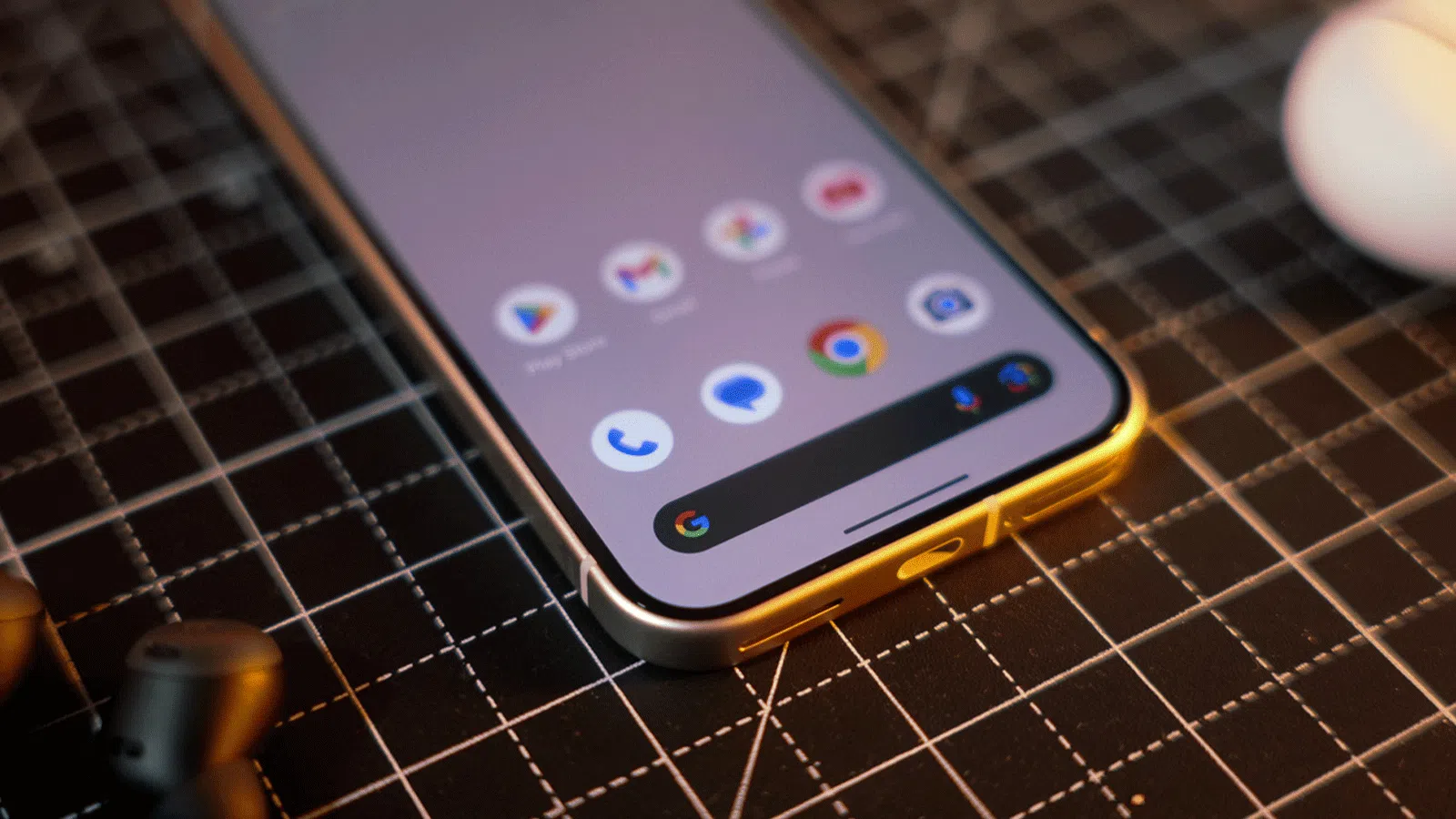
If you have a Google phone in your pocket, you probably already know that the user experience is incredibly smooth. The magic of these devices lies not so much in the raw power of their components, but in the optimized software and exclusive features that make everything run like a dream, although many of the best tools are disabled by default to avoid overwhelming the user.
Getting the most out of your equipment is essential, as there are capabilities that go unnoticed but completely transform your daily work . It's a bit like what happens in the business world: sometimes you have incredibly powerful software, but you only use ten percent of its functions because no one has told you where the hidden buttons are.

Gestures and shortcuts to get you faster
One of the crown jewels is Quick Touch . Essentially, you can turn the back of your phone into a secret button. By double-tapping it, you can make the phone open the flashlight, take a screenshot, or launch the assistant. To activate it, simply go to Settings, then System, and look for the Gestures section where you'll find the option to configure Quick Touch actions.
Another very handy trick is the ability to copy items from multitasking . If you're switching between apps and see a link or image you like, you don't need to go back into the app; just press and hold the item in the recent apps view to instantly extract the text or URL .
If you like having complete control, remember that you can change the behavior of the power button . By default, Google usually assigns it to the Gemini assistant, but if you prefer the classic power off and restart menu, you can revert to the traditional settings or learn how to disable Gemini in Google apps under the Gestures section of the system settings.
Smart and exclusive software features
The Now Playing system is simply amazing. It's like having a Shazam that's always on the lookout; it recognizes the music playing around you and puts it on your lock screen without you having to do anything , and best of all, it works even if you don't have a data connection at the time.

For those who consume a lot of multimedia content, live subtitles are a lifesaver. This tool generates real-time text for any audio being played, which is ideal for watching videos in noisy environments or when the original content doesn't have subtitles. This feature has evolved and is similar to the power of Google Translate with real-time voice , already supporting several languages , including Spanish.
Additionally, if you feel like social media is stealing your life, there's the option to pause apps . By pressing and holding an app icon, you'll see an hourglass that lets you mute it completely until the next day, helping you reduce distractions and regain focus.
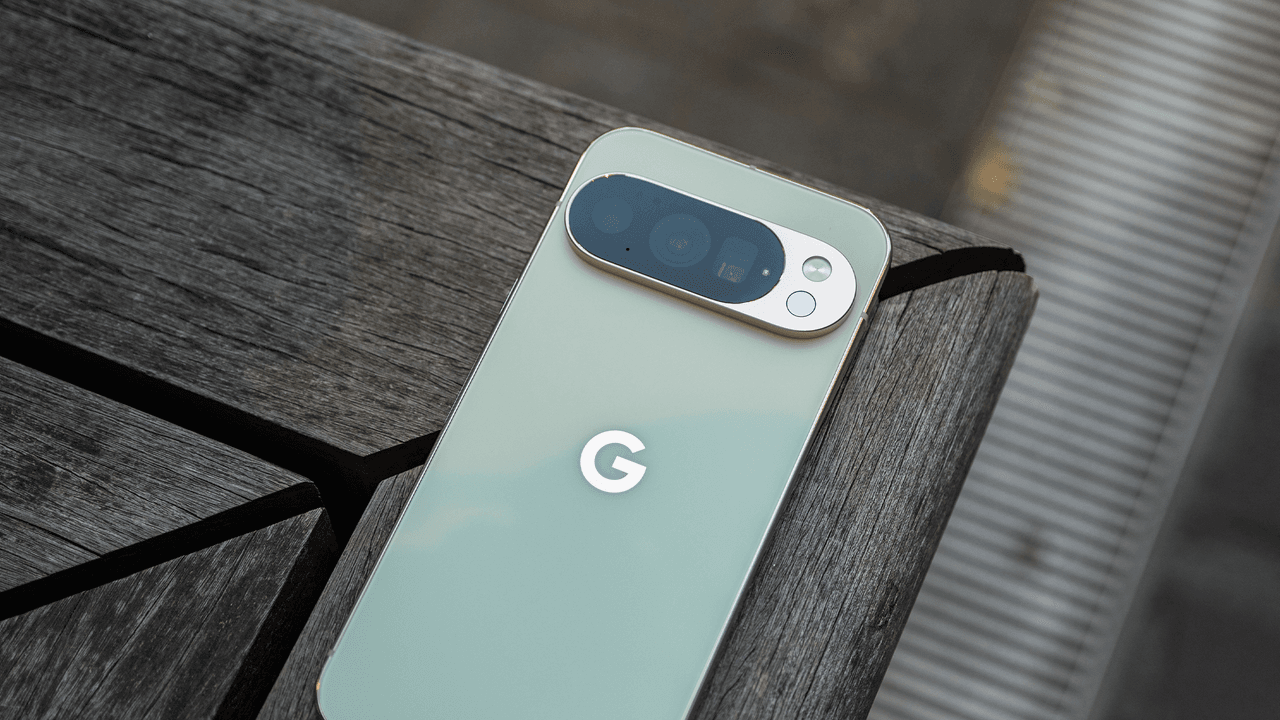
Screen and display optimization
Don't settle for the standard settings. If you have a Pro model, make sure the screen resolution is set to maximum in the Display & Touch settings. Yes, the battery might drain a little faster, but the visual clarity is on another level and is what truly justifies buying a high-end device.
The lock screen also offers plenty of customization options. You can activate the dynamic clock and personalize the corner shortcuts to access the flashlight or get the most out of Google Wallet with a single tap. You can even play with cinematic effects on the wallpaper to add depth to your favorite photos.

Boost your camera and video
In the audiovisual field, the latest models allow recording in AV1 format . This codec is fantastic because it compresses the video while maintaining excellent quality, allowing you to save a lot of storage space on the device's internal memory.
For those seeking perfection, Video Boost is the key tool. The phone uploads the clip to the Google cloud to process brightness, color, and stabilization. Although it takes some time to process, the result is a professional-quality video with significantly less visual noise.
If you use extreme zoom, you should know that Pro Res Zoom exists , which uses generative artificial intelligence to fill in gaps when you reach 100x zoom. If you prefer a more natural image with less AI processing , you can disable the download of these models from the camera's settings menu.
Productivity and advanced safety
For those who hate typing passwords, Gboard's integration with Bitwarden is the solution. It allows you to autofill your credentials directly from the keyboard, making access to your accounts extremely fast and secure.
And if you need to document something long, don't take ten screenshots in a row. Use scrolling screenshots . When taking a regular screenshot, tap "Capture more" and scroll down to save the entire webpage or conversation in a single, elongated image.
Owning a Google Pixel device is like owning a technological Swiss Army knife; once you explore the system menus and adjust the camera, battery management, and custom gestures, the smartphone becomes an infinitely more powerful tool than any factory configuration.