- Gemini integrates with Gmail, Workspace, Chrome, and Android using so-called smart features and different service levels.
- Disabling Gemini in Gmail means turning off smart features, which also affects Docs, Drive, and other Google products.
- Gemini's activity and history settings are key to limiting what data is stored and how it is used for AI.
- Workspace administrators and individual users can reduce the scope of Gemini, but not remove it entirely.
If every time you open your email you see the flashing Gemini icon popping up in your messages and you wonder how to get rid of it, you're not alone. Google has embedded its AI deep into Gmail, Docs , Drive, Chrome, and Android , often enabled by default and with settings scattered across half a dozen menus. The good news is that, while you can't completely eliminate Gemini, you can significantly limit what it sees and what it does with your data.
In this comprehensive guide, you'll find step-by-step instructions on how to disable Gemini in Gmail, Drive, Docs, Photos, Chrome, and Android , both as a user and, if applicable, as a Google Workspace administrator. You'll also learn what this means for your privacy , exactly what Gemini does with your emails and documents, and what alternatives you have if you want to "de-Google" your digital life as much as possible.
What is Gemini and why does it interfere with your Gmail?
Gemini is not just a ChatGPT-type chatbot; it's the name of Google's generative AI models and a whole family of products : the web app (gemini.google.com), the mobile app, the assistant built into Android, and the smart features that appear in Gmail, Docs, Meet, Drive, or Chrome.
In Gmail, it appears as a button or floating bubble that offers "Help me write," thread summaries , AI-powered suggested replies, and inbox filters powered by advanced models. In Docs and Drive, it's used to summarize documents, generate drafts, or search for key information. On Android, depending on the device, it can directly replace the old Google Assistant and launch actions in apps like WhatsApp, Messages, or Phone.
The problem is that, to do all that, Gemini needs to read highly sensitive content : work emails, invoices, personal messages, private files, photos, calendar events, Maps locations, etc. And although Google promises certain limits, the fine print and silent changes to the settings have raised many suspicions.
It's also important to understand that, at the enterprise level, Gemini is offered in two different ways : as the core Google Workspace service (with enterprise-level data protection) and as an add-on service (governed by Google's general Terms, with more options for model training). This distinction is key to understanding what happens to your data.
How the Gemini app works depending on your account type
The same Gemini app behaves differently depending on whether you use a personal Google account, a Workspace account, or an educational account . Google distinguishes between several scenarios with very different implications for data processing.
For business users, the Gemini app can be the primary Workspace service with enterprise-grade data protection . It's available in most paid editions: Business Starter, Standard, Plus, various Enterprise editions, Frontline, Nonprofits, and editions with AI Expanded or Ultra Access. In these cases, Google guarantees that the content will not be reviewed by humans or used to train generative AI models outside of your domain, without explicit permission.
For those who don't have a compatible version of Workspace, the app is offered as an additional service subject to Google's Terms of Service and the Gemini Apps Privacy Notice . This notice does stipulate that human reviewers will analyze conversations and that these interactions will be used to improve Google's products, services, and machine learning technologies, so it's recommended not to enter sensitive information.
In the education sector, there's a specific variant called Gemini for Education , designed for schools using Google Workspace for Education. It can function as a primary service with enterprise protections for students of all ages (with certain features restricted to those over 18) or as a paid add-on with access to Pro models and advanced features (Google AI Pro for Education), also only for those over 18.
In addition, all versions share a system of usage limits per day and per plan type (Pro, Thinking, Fast), along with quotas for audio summaries, image generation, music, slideshows, or video. These limits may change frequently depending on server capacity.
History, activity, and limits: what Gemini saves and for how long

Beyond the "on/off" buttons, what really matters is what history is saved and how it's used . Gemini has several layers of logging that can be confusing: in-app conversation history, activity in apps with Gemini, and general activity from your Google account.
When you use the Gemini web or mobile app with a work or school account , your chat history is saved for 18 months by default. Your administrator can change the automatic deletion period to 3, 18, or 36 months, or disable history altogether. When "Retain activity" is enabled, everything you do on gemini.google.com and in the mobile app is included.
If your administrator disables Gemini for Workspace's chat history, you lose access to previous chats and won't be able to see them again once you leave the conversation. Google may still retain interactions for up to 72 hours to maintain the service, but this activity will no longer appear in the "Activity in Apps with Gemini" section.
With personal accounts, there's also a "Gemini app activity" setting in My Activity . If you disable it, Google stops using your interactions with Gemini to "provide, improve, develop, and personalize" products and models, although it will continue to store a minimum amount of data for up to 72 hours for security, protection, and feedback purposes.
One important point: when you disable chat history, Gemini loses access to certain integrations with other Workspace apps (for example, relying on Google Chat data or extracting information from documents in your domain). It's a clear trade-off between functionality and privacy.
How to disable Gemini in Gmail: Smart features out
The point that worries most people is Gmail. Google is "bringing Gmail into the Gemini era" and has begun enabling AI features by default, such as automatic summaries, suggested replies, AI-powered inbox filters, and the "Help me write" option . To achieve this, Gemini needs access to the content of your inbox.
On the Gmail website, the control is hidden under the "Smart Features" section , which applies to both Gmail itself and the rest of Google Workspace. Disabling all of this not only slows down Gemini, but also turns off classic features like automatic tab sorting and advanced spell checking.
From Gmail in a browser, the general process is as follows: go to Settings (gear icon), click on "See all settings," go to the General tab, and locate the Smart Features section. There you can uncheck "Turn on smart features in Gmail, Chat, and Meet," and just below, go to "Manage workspace smart features settings."
On that screen, you would disable "Smart features in Google Workspace" and "Smart features in other Google products ." After saving the changes, Gemini will no longer be able to use your email, chats, and calendar to summarize content, generate drafts, or personalize experiences in other Google products based on your Workspace activity.
In the Gmail mobile app (Android or iOS), the process is similar: from the side menu, go to Settings, select your account, disable "Smart Features," and then go to "Google Workspace Smart Features" to also turn off both global options . If you have multiple accounts, you'll need to repeat this process for each one, except for the Workspace setting, which applies to your entire workspace.
Side effects of disabling AI in Gmail and other Google apps
There's a catch to this whole process: disabling smart features in Gmail not only removes Gemini's capabilities but also other long-standing features. These include automatic inbox categorization (Primary, Social, Promotions), advanced text prediction, certain reply suggestions, and some smart filtering.
Even if you've turned off everything related to Gemini in Workspace, you'll still see the assistant's button or icon in Docs, Sheets, Drive, and other apps . The button remains, but clicking it won't work unless you reactivate the AI features. This is a design choice that, for many, aims to encourage you to turn the AI back on with a click.
Furthermore, the fact that Google groups Gemini and basic functions into the same switch complicates things: if you only want to disable advanced AI but keep spelling help or basic suggestions , there's no fine-tuning slider; it's all or nothing. This clearly discourages those who want a "clean" inbox without losing features.
If your concern isn't just convenience but also data usage, you should keep in mind that Google relies on advertising and the profiles it generates from your activity . While the company promises not to use certain Workspace data to train general models, it's difficult to be certain what it's used for, and its history of sanctions and opaque practices doesn't exactly inspire blind trust.
At the same time, some people choose to cut their losses and migrate their email to encrypted alternatives like Proton Mail or Tuta , where the approach is diametrically opposed: end-to-end encryption by default, less dependence on advertising, and, when there is AI to help with writing, it is offered as an optional add-on without training models on your messages.
How to disable Gemini in Photos, Chrome, and other Google apps
Gmail isn't the only front. Google is also rolling out Gemini in Google Photos, the Chrome browser, and other ecosystem apps , often with separate settings you have to manually configure.
In Google Photos, for example, there's a specific section for AI. From the app, go to your profile, then to Google Photos Settings, then to Preferences, and finally to " Gemini features ." Unchecking "Use Gemini in Photos" disables Gemini's AI features on your images , preventing them from being analyzed to generate summaries, memories, or advanced automatic edits.
In Chrome, the new "AI Innovations" section centralizes several features: AI-powered history, typing assistance, and Gemini in Chrome . From the Settings menu (or by going directly to chrome://settings/ai), you can access Gemini's security and privacy settings in Chrome and disable AI-powered history search, typing assistance, and the built-in Gemini feature itself.
However, these settings are per Chrome profile, not per Google account . If you use one profile for work and another for personal use, you'll have to repeat the steps in each one. And even if you disable everything in Chrome, Gemini may still be active in other products like the search engine or YouTube, depending on your global account settings.
In the corporate environment, Chrome Enterprise also offers the possibility of using "GeminiSettings" to disable Gemini in Chrome at the organization level, while maintaining access to the Gemini web app and mobile app, if the administrator so decides.
Finally, it's worth noting that Google is also bringing Gemini to other layers, such as AI-powered search, where advanced answers are generated at the top of the results. There, again, you can limit some customization through your account settings and My Activity , but there isn't as clear a way to completely disable it as many would like.
Gemini on Android: how to disable, limit, or remove it
The most delicate front is Android. Starting on certain dates, Google is gradually replacing the old Assistant with Gemini on many Android phones, and introducing deep integrations with apps like Messages, Phone, and WhatsApp. On some models, it's installed as a separate app; on others, it arrives integrated via a system update.
If you don't want Gemini to have free rein on your phone, you have several options. The first is to disable the Gemini app and block its access to other applications . To do this, open the Gemini app, tap your avatar (top right), go to "Apps," and disable Google Workspace and each of the listed apps (Messages, Phone, WhatsApp, etc.). By doing this, you prevent Gemini from performing actions or reading content from those apps.
If you prefer to continue using Gemini but without leaving a lasting trace, you can go to the "Gemini Apps Activity" settings within the app's profile. There you'll find the option to disable activity and delete history . You can choose "Disable and delete activity" and select "All time," which will erase what has already been recorded and prevent new activity from being saved beyond the technical maximum of 72 hours.
On some devices, using Gemini on Android requires the administrator (in enterprise environments) to have the Search & Assistant service enabled in the Google Admin Console. If this service is disabled, Android users will not be able to use the Gemini app as an assistant.
If you want to go further, you can uninstall Gemini using developer tools from a PC , using the package identifier com.google.android.apps.bard. This is a more advanced process, recommended only if you know what you're doing, because it involves ADB connections and potential side effects. Alternatively, some users choose to switch ROMs directly (LineageOS, /e/OS, GrapheneOS on Pixel) to minimize dependence on Google services and reduce the risk of these kinds of forced changes.
While you can, another useful measure is to avoid accidentally invoking Gemini. Many phones launch the assistant when you press and hold the power button . On a Samsung Galaxy, for example, you can go to Settings > Advanced features > Function button and change the long-press behavior so that it doesn't invoke the Google Assistant, eliminating one of the most annoying shortcuts if you want to avoid Gemini altogether.
What can Google Workspace administrators do with Gemini
If you manage a business or educational domain with Google Workspace, you have much more control over Gemini than a single user. From the Admin Console, you can decide who has access, which features are enabled, and how long activity is retained.
To control general access, the administrator can go to the Generative AI > Gemini app menu and, under "User access," allow only certain groups or organizational units to use the app , or open it to everyone over 18 regardless of license. This same panel controls gemini.google.com, the mobile apps, and Gemini in Chrome, but it doesn't affect other AI features distributed across Workspace.
In "Service status," the administrator can fully enable or disable the Gemini app for the entire organization or for specific units. This determines whether or not people can access the service, even if they see the icon in the Gmail or Docs interfaces.
In addition, the "Gemini Conversation History" section allows you to define whether to save the history, and for how long (3, 18, or 36 months). The history is enabled by default and only administrators can change this setting. When disabled, as previously mentioned, Gemini's ability to rely on internal domain information is severely limited , which can be a compliance requirement in sectors such as finance, healthcare, or law.
In an educational context, Google Workspace for Education administrators can similarly decide which students and teachers can access Gemini for Education , under which license model (core service or AI Pro add-on), and with what usage limits. They must also consider age restrictions, as certain features are only available to users 18 and older.
In all cases, it is crucial that IT managers understand whether their organization is using Gemini as a core service (protected by the Workspace contract) or as an add-on service (governed by Google's general terms). This determines whether the conversations can be used to train models beyond the domain and what transparency obligations they have toward customers and regulators.
Privacy, consent, and why so many people are deactivating Gemini
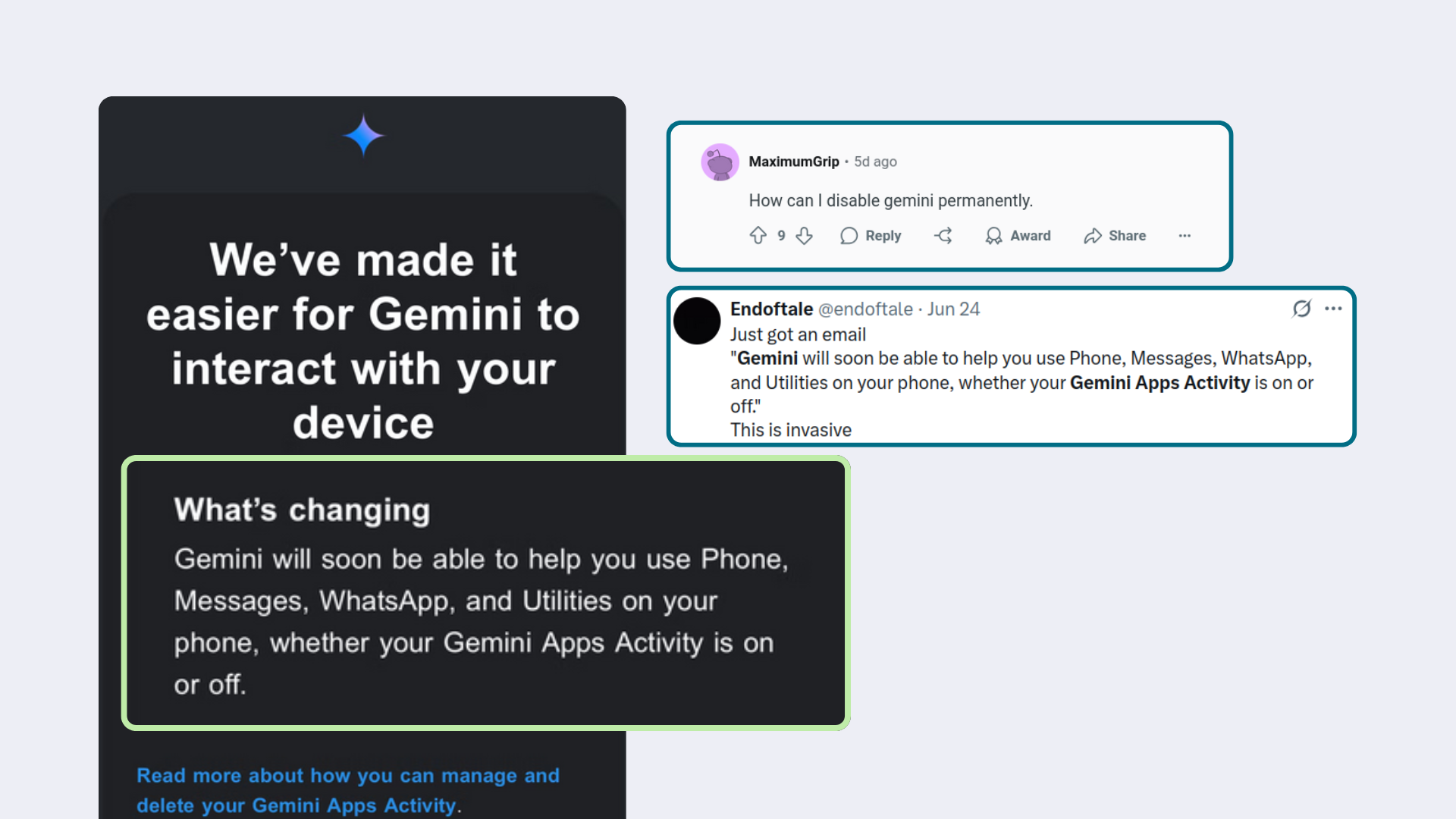
Beyond the technical aspects, what has raised concerns is the way Google is rolling out Gemini. The company has sent emails to Android users warning that Gemini will be able to use Phone, Messages, WhatsApp, and other device utilities "whether Gemini app activity is turned on or off ." Ambiguous messages like this, combined with unclear instructions for disabling the options, have generated strong backlash.
Several users have pointed out that this behavior closely resembles an "auto-opt-in" disguised as an improvement : if you don't read the email, if you don't follow the steps, if you don't understand what setting they're talking about, Gemini gains permission to access highly sensitive layers of your digital life by default. And it does so without offering direct instructions like "click here to disable everything," something that would be trivial to include in those emails.
This pattern is not unique to Google. Other major tech companies have made similar moves: LinkedIn activating AI training with user data without clear notification , Meta hastily integrating Meta AI into WhatsApp and preparing ads in the messaging app, and changes to terms of service that effectively expand the scope of data processing without genuine informed consent.
For many people, especially in Europe where the legal framework is stricter, all of this is seen as a form of "privacy whitewashing" : beautiful rhetoric about control and transparency, while underneath, the options are hidden, grouped together, or phrased in a confusing way. The obvious response for those who don't want to participate is to disable anything that smacks of artificial intelligence in their everyday tools.
The reality is that AI can be incredibly useful, but it's also an ideal tool for collecting intimate data: personal emails, medical records, business plans, chat conversations, shopping habits, daily movements . All of this is gold for advertising targeting systems and for giants whose business is based on exploiting data on a massive scale. That's why many prefer to opt for solutions where AI, if present, is optional, local, or at least not trained on their private information.
Given all this context, taking the time to review Gemini's settings in Gmail, Android, Chrome, and other apps isn't just a matter of being anti-AI. It's increasingly becoming a conscious decision to control which parts of your digital life you want Google to see , and which you prefer to keep out of the reach of its language models, even if it means giving up tempting conveniences or automated features.
Ultimately, disabling Gemini in Gmail and other Google services involves understanding where each switch is hidden, what each setting sacrifices, and what data is still saved even if you turn everything off. By carefully exploring the options for smart features, Gemini app activity, conversation history, and permissions on Android, you can drastically reduce the exposure of your emails, files, and messages, and reserve AI only for the situations you choose to use it, preventing it from being imposed by default or spreading unchecked to the rest of your digital life.
