- The Windows 11 Photos app allows quick tiles when selecting multiple images.
- Collages win if you choose good formatting, visual narrative, and color consistency.
- AI and tools like Canva, Fotor, and Picsart streamline adjustments and templates.
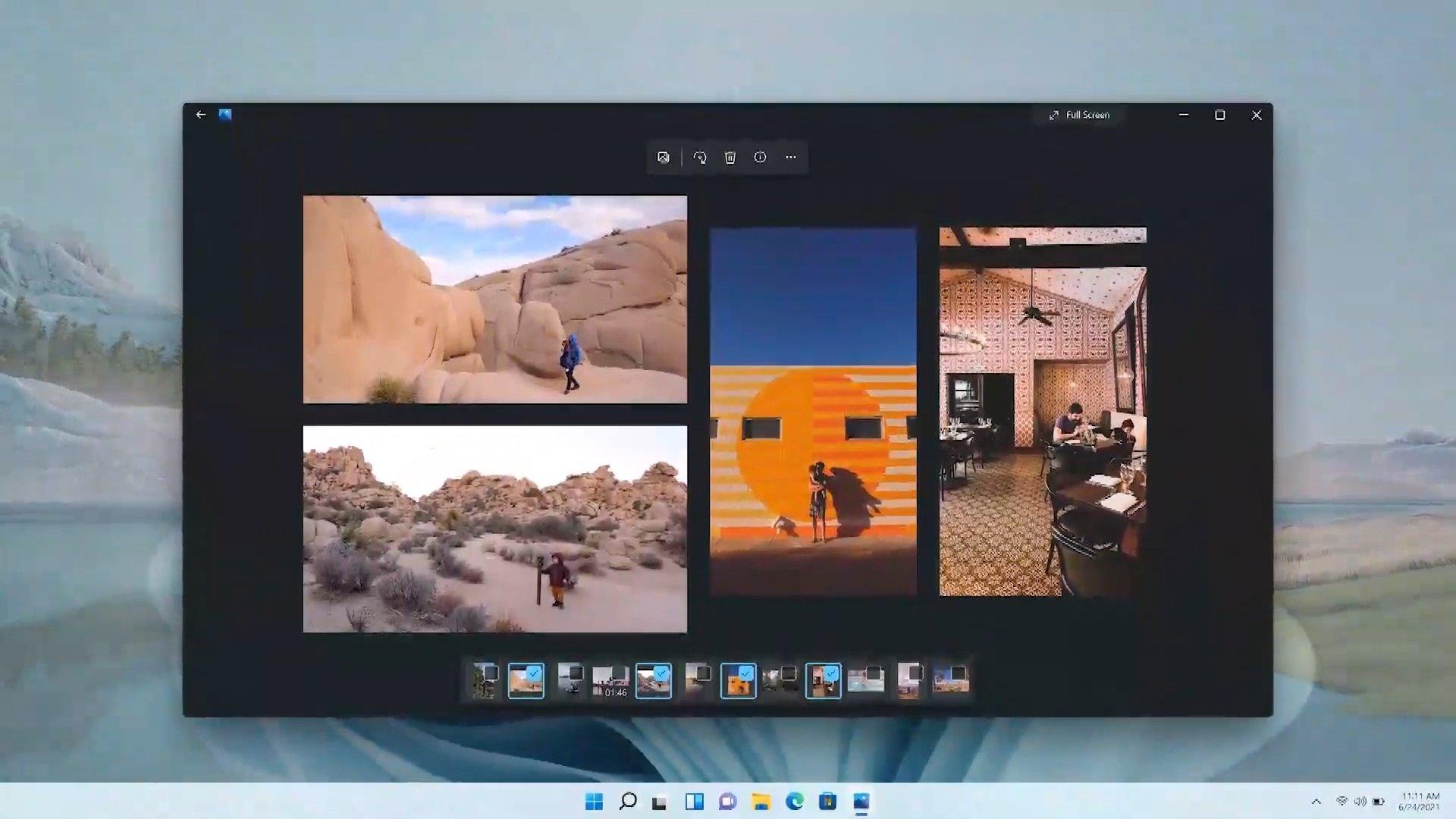
Creating a collage is a quick and effective way to combine several photos into a single image to share on social media, send via messaging, or even print. In Windows 11, the Photos app has been revamped with a carousel and tiled views that make creating collages easier in just a few clicks, and there are also other AI-powered tools and options to take your collages even further.
While creating a collage might seem like a quick and easy task, it's important to consider the format, photo selection, and visual style to avoid a cluttered or disorganized result. Here's how to take advantage of the mosaic/collage view in Windows 11 Photos , what guidelines to follow before starting, how to leverage generative AI with effective prompts, and which are the best apps and services (Canva, Fotor, Picsart, PhotoPad, PicCollage, and more) to achieve a polished final product.
What the Photos app allows in Windows 11 with collages and what has changed
The Photos app included in Windows 11 has been redesigned with a cleaner interface , featuring centered, floating controls and a refreshed image information panel. The most useful change for casual collages is a carousel at the bottom that lets you browse photos in the current folder without leaving the view.
Hovering your mouse over the bottom of the window reveals a carousel, allowing you to select multiple photos and display them simultaneously in a mosaic format. As you add images, the app automatically rearranges the grid to create a visually appealing collage, instantly crafting a unique composition.
In addition, access to image information (metadata, size, date, etc.) has been simplified, which is useful if you're preparing a collage for archiving or printing. The update was rolled out first to Windows Insider members and later to the general public as part of the Windows 11 release cycle.
This native approach doesn't replace an advanced collage maker, but it does solve the need for a quick and tidy collage without installing anything else. For more elaborate compositions, you'll find AI-powered options and specialized apps below.
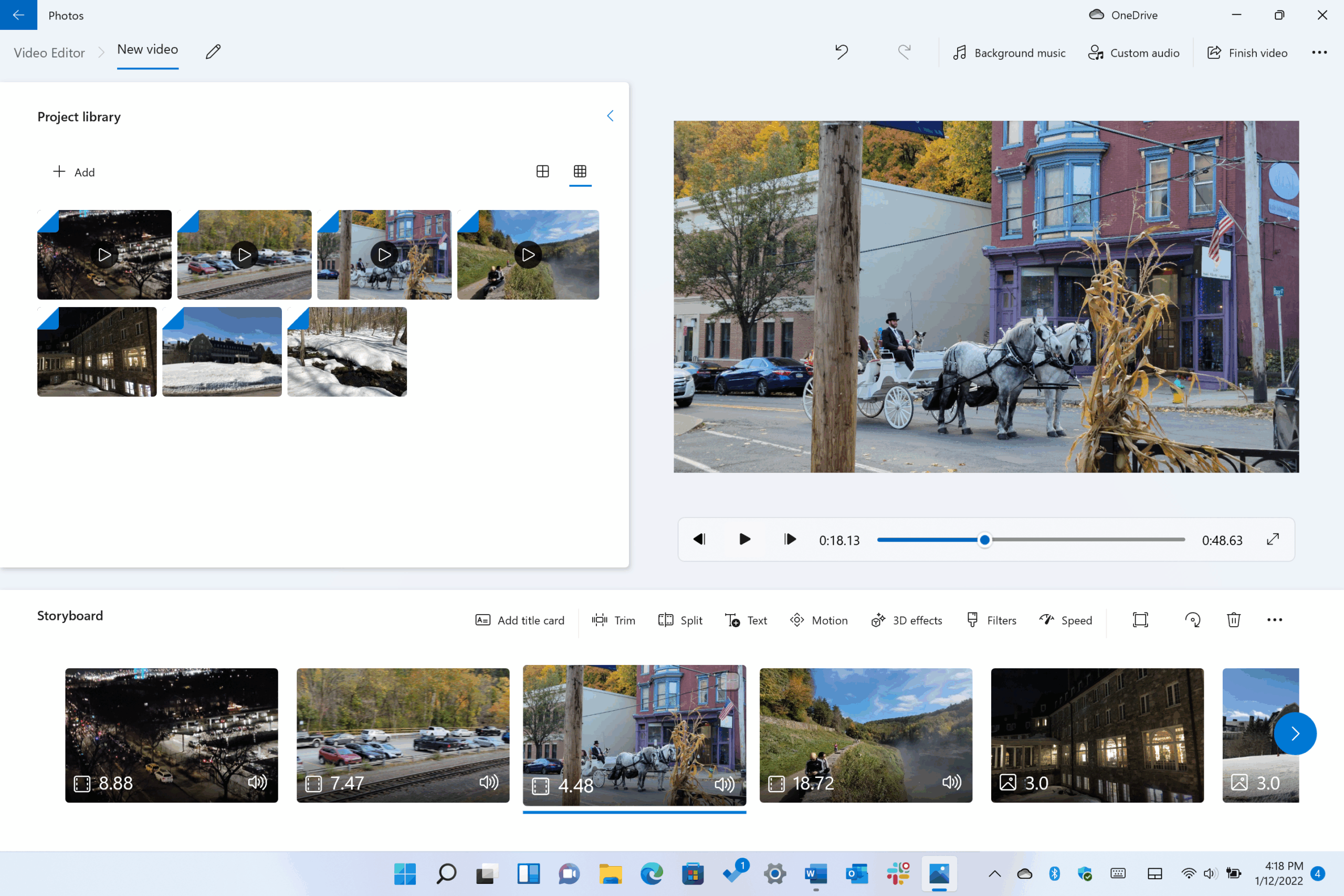
How to Create a Quick Collage with Photos in Windows 11
The Windows 11 Photos app doesn't have a dedicated "Create collage" button, but its automatic mosaic feature, created when you select multiple photos, serves the same purpose for efficient everyday use. The workflow is very simple and takes advantage of the bottom carousel.
Open any image and hover your mouse near the bottom to display the carousel; from there, click on the photos you want to add . You'll see the view change to a mosaic layout that rearranges the thumbnails as you add or remove images.
This tiled view provides an immediate preview of the entire collection . If you're deciding which photos work best together, the carousel is ideal for effortlessly trying out different compositions , keeping everything in the same window without having to switch between folders.
Keep in mind that this is a quick composition tool: there are no stickers, photo filters, or custom frames (at the moment) like you'd find in a dedicated app. If you need to do more extensive retouching or design a specific template, check out the AI-powered alternatives and collage makers below that do include those features.
If you like having your data under control, you can open the information panel on the right to see metadata for the images that make up your mosaic. And if you're someone who always adjusts the framing, you can edit each photo separately before or after creating the mosaic to ensure a balanced result.
Key tips before you start composing collages
Before you start, think about the purpose of the collage and its intended use : posting it on social media (feed, stories), printing it for a frame, or keeping it as a keepsake. This will determine the format (horizontal, vertical, or square) , as well as the size and aspect ratio that best suit your needs.
Select high-resolution, high-quality images . If the subjects leave space around the edges (top, bottom, left, and right), you'll have more room to crop and reposition without losing important elements when you assemble the grid.
Avoid visual overload : if all the photos have too many elements, the overall effect is tiring. Try to maintain thematic coherence and, when possible, harmony of color and style so that the collage works as a unified whole.
Think about the visual narrative : a celebration, a journey, a tribute… If the images follow a thread (by chronological order, by key moments or by color ranges), the result is much more engaging.
Don't get stuck on the first try: experimenting is part of the process. Change the layout, try a different tool, and adjust the cropping. Iterating often makes the difference between an acceptable collage and one you love.
Collages with generative AI: prompts and references that work
Current generative AI tools (like ChatGPT, Copilot, or Gemini ) can help you create collages from scratch or using references. The key is in the prompt: specify that you want a collage, how many images, and the visual style you want.
A basic prompt that works well would be something like: “I want a collage with X images featuring [character name]. Give the images a consistent style.” The more defined the scenes and the aesthetic, the more consistent the result will be.
If you want to protect someone's identity, attach a photo and explicitly request it: "The person shown must be the one in the attached photo ." The AI will then recognize the face more accurately than others and incorporate it into the overall image.
You can also use services that combine editing and AI on your photos (for example, Freepik, ChatGPT, or Copilot with image capabilities). In these cases, AI assists with edits such as cropping, object replacements, or background adjustments to improve the composition.
Remember: define the number of images, the style (minimalist, retro, magazine, cinematic, etc.), the key elements per scene and any restrictions (for example, color palettes or fonts if you will later add text).
Create collages with your photos: Canva, Fotor and Picsart
Canva
Canva is probably the easiest way to create collages using templates. Go to canva.com, check out what Canva is if you have any questions, and find a design you like; then click on " Customize template " to edit it to your liking.
Upload your images and replace the template photos: click in the space and drag your photo to replace the previous one. Double-click to crop and reposition each image to precisely fit the frame.
Canva incorporates AI-powered editing tools that can intelligently adjust framing or select and modify backgrounds and objects. If you're looking for a quick and polished approach , these features greatly speed up the process.
Another plus is that it allows you to download in various formats (PNG, JPG and PDF) , and even add bleed and crop marks if you plan to print your design without any headaches.
Photor
Go to fotor.com and choose “ Collage Maker ”. From the left panel you can select templates of all kinds (the paid ones have a diamond) and then fill in the gaps with your photos, adjusting each one with a double click.
Fotor's AI Editor integrates automatic tools for removing objects, backgrounds, resizing, expanding, or even replacing elements, as well as skin retouching . Perfect if you want to eliminate distractions and make everything fit together better in your collage.
Picsart
On picsart.com, from the home screen choose “ Generate creatives ” and, in the left column, select the option to create collages with the design you prefer (some are free and others are Plus for subscribers).
Once inside, add your photos, adjust their size and position, and if you feel like it, use AI: the AI Replace function lets you select areas (or elements that the AI detects) and replace sky, clothes or hair , or add/remove objects with amazing results.
Picsart is very accessible and, when you want to go further, those smart tools get you out of trouble to achieve visual consistency in seconds.
More collage tools and apps worth checking out
If you need other options, there's a huge range of apps and services with different approaches. Starting with the Windows ecosystem, the Microsoft Store offers "Pic Collage" for free download on PC , a quick alternative if you want templates and light editing without any hassle.
On desktop, PhotoPad (NCH) is a very complete photo editor that also creates collages: it supports automatic grid (unlimited number of images) and manual placement, allows you to choose orientation and background , adjust spacing and corners between photos, and stands out for its small file size . On the downside, it doesn't include stickers or filters per image and doesn't allow you to set a fully customized collage size.
Among the general-purpose listings, there are some very powerful free options: PicCollage (iOS/Android) offers hundreds of templates, automatically organizes photos if you prefer, and provides flexible editing (zoom, cropping, blending, shadows, stickers, and text), with the ability to save your work in progress. Instagram Layout shines for its designs and ease of use , although it lacks advanced photo editing features.
Adobe Spark wasn't originally designed as a collage maker, but it allows for professional-looking compositions and the publishing of videos with subtitles and music. Instasize adds a powerful editor for exposure, tone, contrast, and over 130 filters . BeFunky works in the cloud (web and mobile), imports from Dropbox, Google Drive, and Facebook , integrates stock photos (Unsplash), and even auto-fills collages with one click.
MOLDIV combines a camera, editing suite, and collage maker with a magazine-style aesthetic , offering hundreds of fonts, patterns, and stickers. PicPlayPost stands out for integrating video into collages (with various aspect ratios and resizable frames), music support, and direct posting to social media.
The PicsArt community fosters collaboration and themed challenges, ideal if you want to share and co-create . Fuzel lets you add as many images as you like and take photos directly from the app; it integrates with Facebook, Flickr, and Instagram . Pic Stitch offers over 200 templates and guides beginners with clear instructions.
PhotoGrid is geared towards social media: creative filters (including storybook styles ), animated GIFs, and memes, with up to 15 photos per collage . Canva templates (previously mentioned) can be downloaded in various formats and allow for bleed and crop marks for printing.
If you're looking for something simple, Google Photos creates collages in seconds (it has six basic types ) and uses its powerful people search to suggest images. Pic Jointer stands out for its precise interface , convenient reflections and zoom, and a good selection of filters and frames. PhotoCollage (web) is minimalist, supports keyboard shortcuts , and text with font effects.
For video collages, InVideo is very flexible, with over 4000 templates and 24/7 customer support; it combines images and clips, and adds text with animations . Among the paid options, PiZap focuses on fun (stickers and photo booth-style doodles), and Fotor Collage Maker (since 2012) even supports RAW files in its editor.
On iOS, Ribbet includes darkroom tools and over 100 fonts . Diptic offers more than 190 designs , 14 filters, high-resolution export , and seamless video and photo integration. Photovisi (web) makes it incredibly easy to create cool images and turn them into cards or posters (you need their Premium plan to download without a watermark). PicMonkey adds grid and freestyle tools, over 50 effects , fonts, and even team features for management and collaboration if you work in social media.
As a reminder of a list that summarized the essentials: collage tools avoid complications and help you compose eye-catching designs; there are multiple downloadable options for Windows ; and if you need a visual repertoire, Wondershare Filmora is a useful solution for locating stock images by category and completing your compositions.
Privacy and Platforms: A Practical Note
If you browse threads on platforms like Reddit for inspiration or to find answers, you'll encounter notices about cookies and similar technologies used for personalization and measurement. Accepting or limiting these cookies affects certain site functionalities , something to keep in mind when searching for references or tutorials.
Publish and showcase your work: portfolio and Instagram
Once you have several collages, upload them to your online portfolio : clients appreciate seeing this skill. Choose a template that suits your style, pay attention to typography , and consider having an integrated shop and blog to provide context for your projects.
If you also connect your website to Instagram , everything you publish will appear both on the social network and on your site without duplicating effort. It's a simple way to keep your work visible and up-to-date on both channels.
With the tiled view in Windows 11 Photos, you have a perfect shortcut for quick collages ; when you want to take a creative leap, generative AI and tools like Canva, Fotor, Picsart, or PhotoPad provide templates, smart editing, and personalized finishes. By focusing on good photos, visual consistency, and a little trial and error, you'll create compositions that look just as good on screen as they do on paper.
