- Hardware verification by changing CAT 5E cables and restarting the router.
- Using network reset commands and adjusting the TCP autotuning level.
- Manually updating Realtek drivers and managing conflicting Windows updates.
- Background process control and security software that limit bandwidth.

There's nothing more infuriating than having a top-of-the-line fiber optic internet connection and then, when you turn on your laptop, websites take forever to load or YouTube videos just keep buffering. The most frustrating thing is when you run a speed test and the meter says everything is running smoothly, but the actual browsing experience is incredibly slow , creating a contradiction that leaves you completely bewildered.
If you've experienced your Ethernet connection slowing down after updating to Windows 11, you're not alone. This problem can range from a simple TCP/IP stack configuration error to bugs specific to recent updates or malfunctioning drivers. Let's take a closer look at how to get your connection running smoothly again.
First steps: Rule out hardware and network
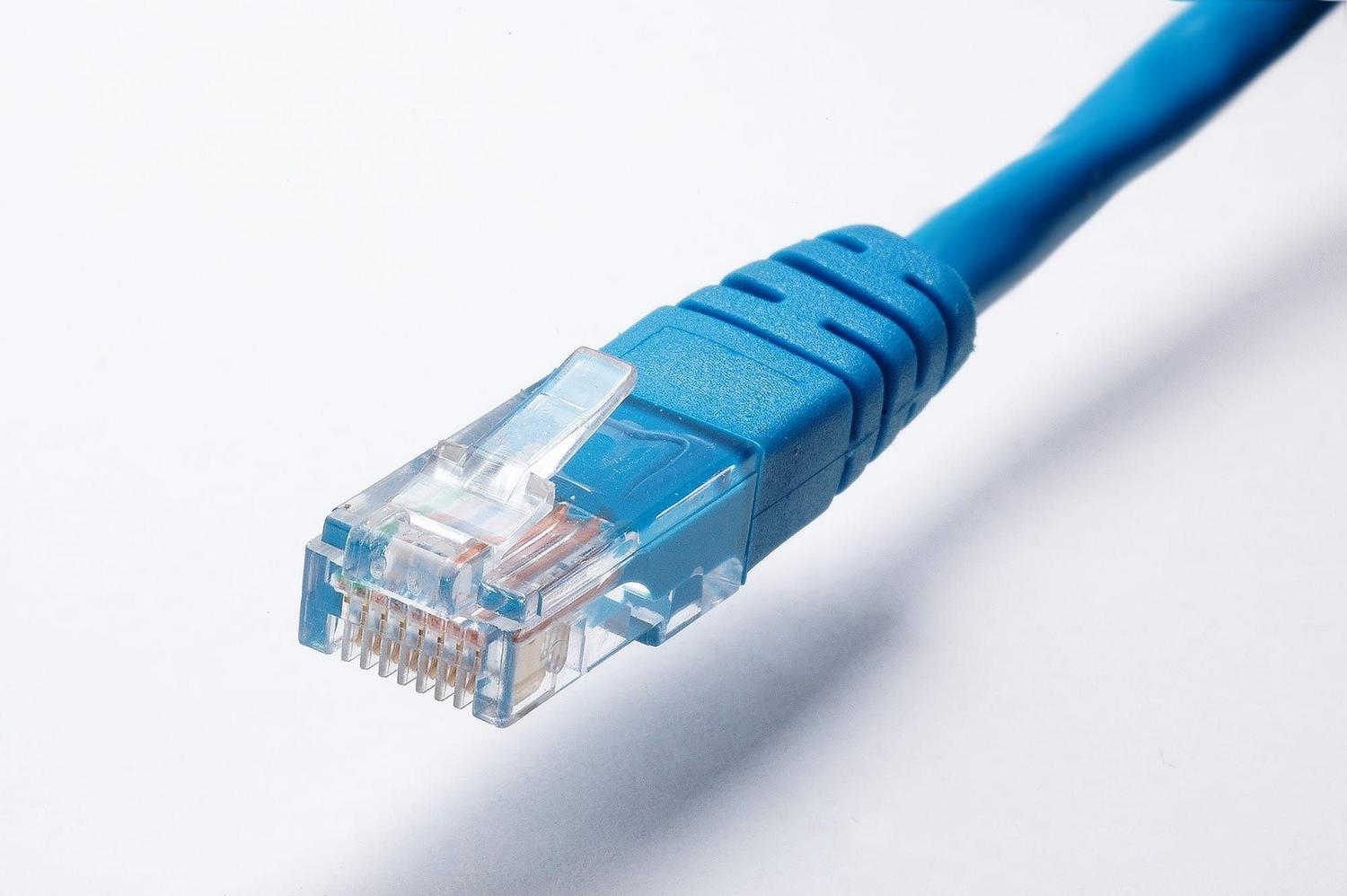
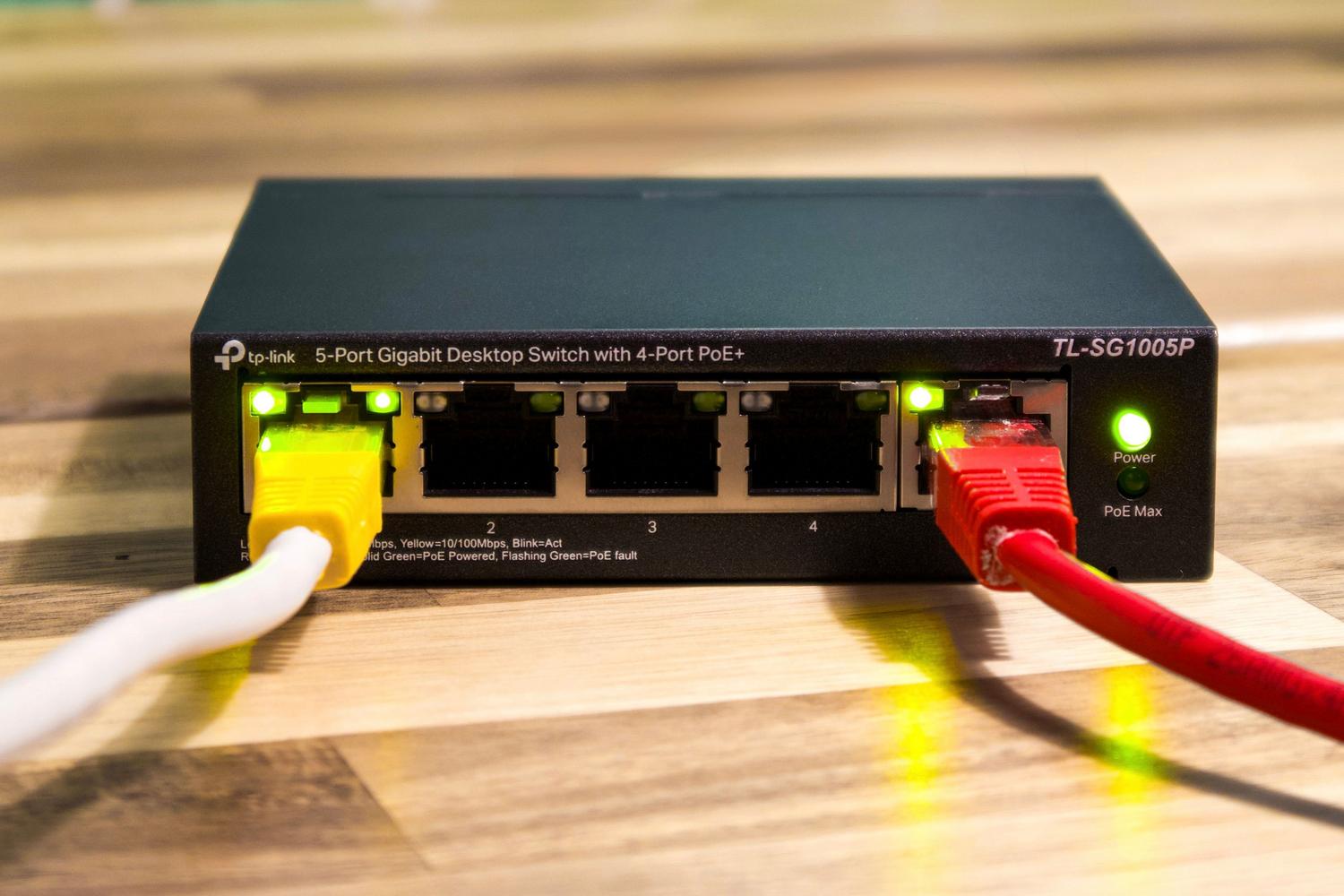
Before getting into software troubleshooting, it's a good idea to make sure the problem isn't physical. The most basic thing to check is that the Ethernet cable is properly connected to both your PC and the router. Don't rule out the possibility that the cable is damaged; if you have a spare, try it. Remember that to achieve Gigabit speeds you need a Category 5E cable or higher , as an older cable will drastically limit your speed.
Another key point is the router. Sometimes, the equipment gets overloaded, and simply restarting the modem and router can clear the connection. Unplug it, wait about 30 seconds, and plug it back in. If you have other devices at home, check if the problem occurs on them as well. If all the other devices work perfectly and only your laptop is having issues, then the culprit is within Windows.

Quick fixes from Windows Settings

Windows 11 includes automatic tools that can save the day. The first thing to try is running the Network & Internet troubleshooter from the Get Help app or System Settings. Although it may sometimes seem to do nothing, it can detect basic configuration errors that might otherwise go unnoticed.
If that doesn't work, it's time to bring out the big guns with the Command Prompt. Running the console as administrator, you can reset the network stack with a series of commands. Try running `netsh winsock reset` and `netsh int ip reset` to clear the network configuration. Complement this with `ipconfig /flushdns` to flush the DNS cache and `ipconfig /renew` to request a new IP address from the router.
The problem with updates and drivers
It's quite common for a security patch, as has happened with some versions of Windows 11, to disrupt network stability. If you notice that the slowness started right after updating, you could try uninstalling the latest KB update from the update history in Settings. Sometimes, the simplest solution is simply to pause updates for a few weeks until Microsoft releases a patch that fixes the bug.
On the other hand, drivers can be the bottleneck. Don't rely solely on Windows Update; go directly to your laptop manufacturer's website or to Realtek to download the latest driver. An effective technique is to uninstall the network adapter from Device Manager, check the box to delete the driver software, and restart your computer so Windows reinstalls it from scratch.
Advanced settings for expert users
There's a setting called "Auto-tuning level" that often causes problems after a system update. You can check its status with the command `netsh interface tcp show global` . If it's set to "normal" and your network is performing poorly, try changing it by running `netsh int tcp set global autotuninglevel=disabled` . In some cases, disabling it restores normal speed.
It's also crucial to monitor which processes are consuming your bandwidth. Open Task Manager (Ctrl+Shift+Esc) and filter by the Network column. Sometimes, cloud sync services like OneDrive or Google Drive , or background updates, are hogging your connection without you realizing it, making web browsing feel sluggish.
Other possible causes: Security and Malware
We can't forget that security software can be a double-edged sword. A poorly configured firewall or overly aggressive antivirus can analyze every data packet that comes in and goes out, slowing down page loading. Try temporarily disabling your VPN or security software to see if the speed recovers instantly.
Malware is also an unwanted guest that often uses your connection to send data in the background. Perform a thorough scan with Microsoft Defender or another trusted tool. If the problem persists only in Windows but disappears when booting into a Linux Live system (such as Ubuntu), it confirms that the problem is purely software-related and not a physical failure of the network card.
To solve these problems, the ideal approach is to follow a logical order: first, rule out cables and routers, then clean the network configuration using commands, update drivers from official sources, and finally, check that no Windows update or background process is limiting the system's data flow.