- Print queue cleaning can be performed from the system settings or through advanced service management.
- Restarting the Spooler service and emptying the temporary print files folder eliminates persistent locks.
- Automation using .bat scripts allows for quick resetting of printing without repeating manual steps.

You've probably experienced this before: you send an important document to print, but the printer decides to ignore you, and the file just sits there, stuck in the print queue, not moving an inch. It's one of those minor technological annoyances that can drive you crazy, especially when you're in a hurry and the cancel button seems to do absolutely nothing.
Don't worry, this problem in Windows 11 is more common than you might think, and it's usually caused by the Print Spooler service freezing or a corrupted file blocking the process. In this article, we'll explore all the possible ways to clear the print queue, from the simplest methods to more technical tricks to get your printer working again.
Quick ways to clear pending documents
Before delving into complicated menus, the most logical approach is to try deleting the print jobs directly from the Windows interface. To do this, go to Settings, then Bluetooth & devices , and find the Printers & scanners section. Once you select your device, click Open print queue and delete the documents one by one by right-clicking on them and choosing Cancel.
If you'd rather save yourself a few clicks, you can check the taskbar ; the printer icon sometimes appears when there are pending jobs. Just click on it and select the option to cancel all documents to start fresh. Alternatively, the classic Control Panel is still useful: go to View devices and printers, right-click on your printer, and choose View what's printing to manage the waiting list.
The definitive method: Manually restarting the Spooler service

When the previous methods fail and the documents refuse to disappear, it's time to get to the root of the problem. The culprit is usually the service called Print Spooler . To reset it, press the Windows key + R, type services.msc , and press Enter. Find Print Spooler in the list, right-click it, and select Stop.
With the service paused, we need to clean up the temporary files that are causing the blockage. Open File Explorer and navigate to C:\Windows\System32\spool\PRINTERS . It's vital that you delete all the contents of this folder , as this is where the stuck print jobs are stored. Once it's empty, return to the Services window and restart Print Spooler.
Advanced solutions and automation
If you're someone who doesn't want to repeat these steps every time the error occurs, you can create a automated scriptOpen Notepad and type the commands net stop spooler, del /F /Q %systemroot%\\System32\\spool\\PRINTERS\\* y net start spoolerSave the file with the .bat extension And the next time the queue gets stuck, you'll just need to run this file as administrator to have it do all the dirty work for you.
You can also perform this process manually by opening the command prompt (CMD) as administrator and running the same commands one by one. If the problem persists, check the Device Manager to ensure there are no outdated or conflicting drivers causing the printing system to freeze.
Additional tips to avoid further traffic jams
Sometimes the problem isn't the software, but a communication issue. A surefire trick is to perform a complete physical reset : turn off the printer, unplug it from the power outlet for at least a minute, and restart your computer. Additionally, you can access Printing Preferences from the Control Panel and, on the Advanced tab, check the box to start printing immediately , preventing the document from waiting for the entire file to finish processing.
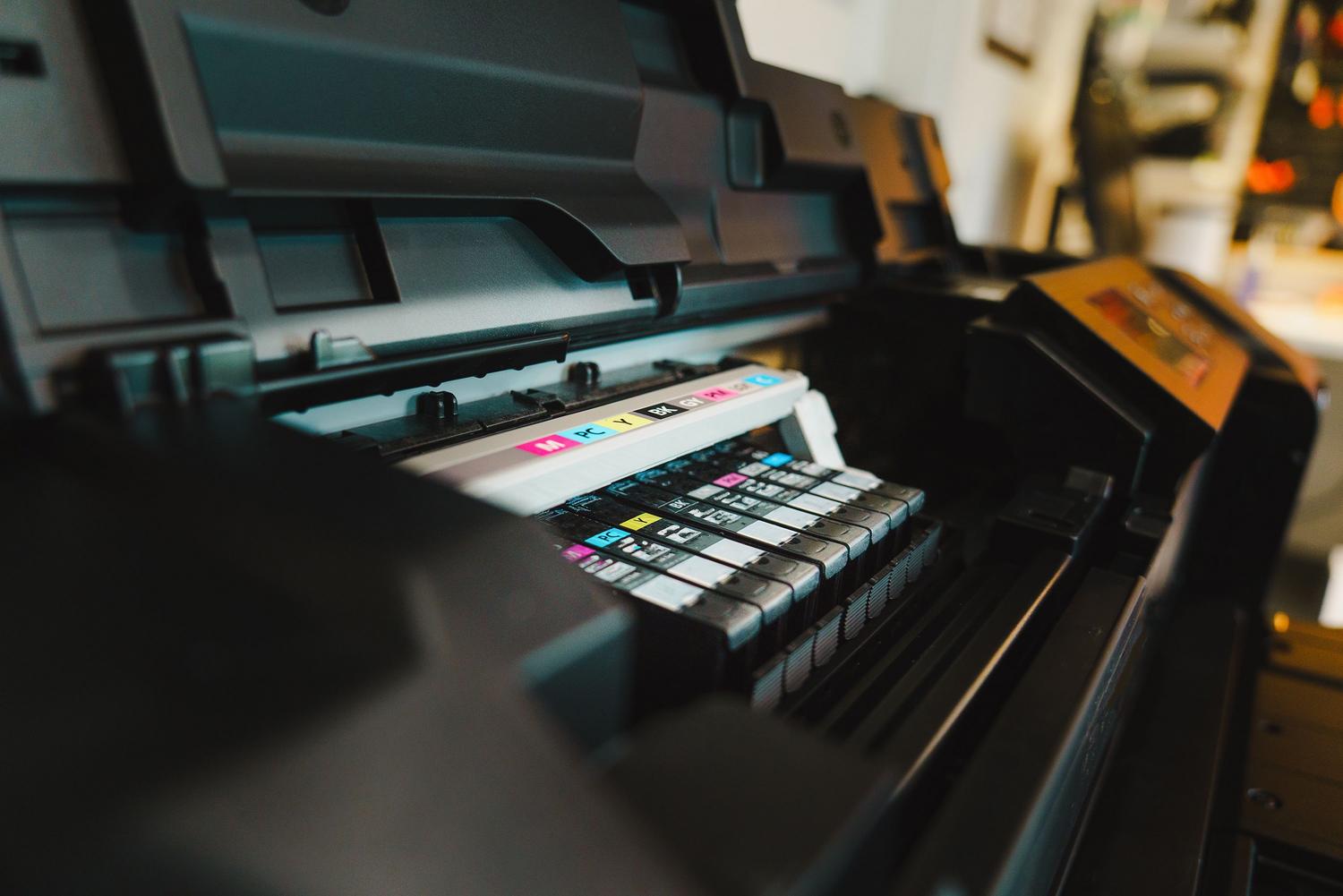
If you notice that your printer is offline or unresponsive, check for mechanical errors or a lack of ink , as Windows sometimes blocks the print queue simply because the hardware can't execute the print job. In extreme cases, uninstalling the current driver and downloading the latest version from the manufacturer's official website often resolves the issue.
Managing the print queue involves everything from simple cancellations in Windows settings to manually clearing the spool folder and restarting critical system services. Whether using commands in CMD, creating a .bat script to automate the process, or simply restarting the hardware and updating drivers, there are multiple ways to remove stuck documents and restore the functionality of any printer on the system.