- Identifying common causes such as lack of updates, insufficient memory, or WebView system failures.
- Application of progressive resolution methods, from basic reset to factory reset.
- Importance of keeping software updated and properly managing application permissions.
- Advanced technical resources to remove corrupted data and resolve synchronization conflicts.

There's nothing more frustrating than being in the middle of an important task and suddenly having your device freeze or the dreaded " app not responding" message appear . Whether you're using an Android smartphone or sitting at a Windows computer, these kinds of freezes can disrupt your workflow and cause considerable stress.
Fortunately, most of these situations are solvable and don't always involve a serious hardware failure. In most cases, they are temporary software conflicts , insufficient RAM, or outdated application versions that are incompatible with each other, so with a few adjustments, we can get the computer running smoothly again.
Basic steps to regain control of your app
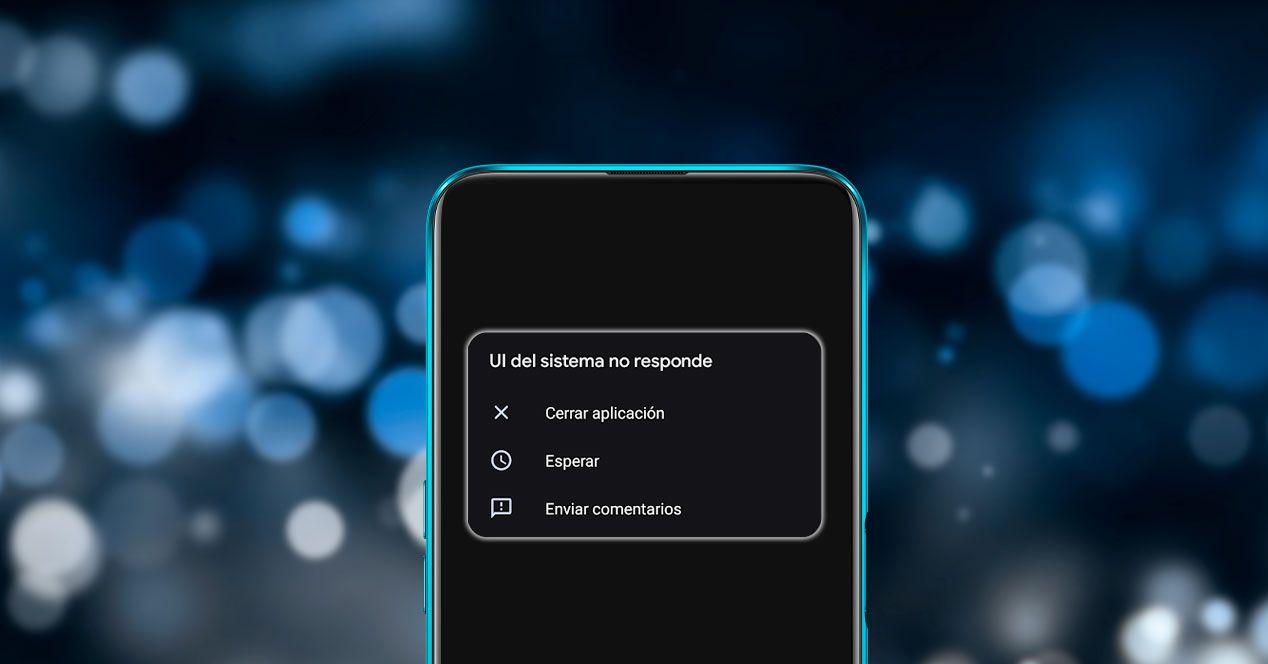
When an app starts acting up, the wisest course of action is not to panic and to start with the simplest solutions. The first step, and possibly the most effective, is to perform a complete device restart . Turning your phone or PC off and on refreshes the volatile memory and stops any rogue processes that might be causing the problem.

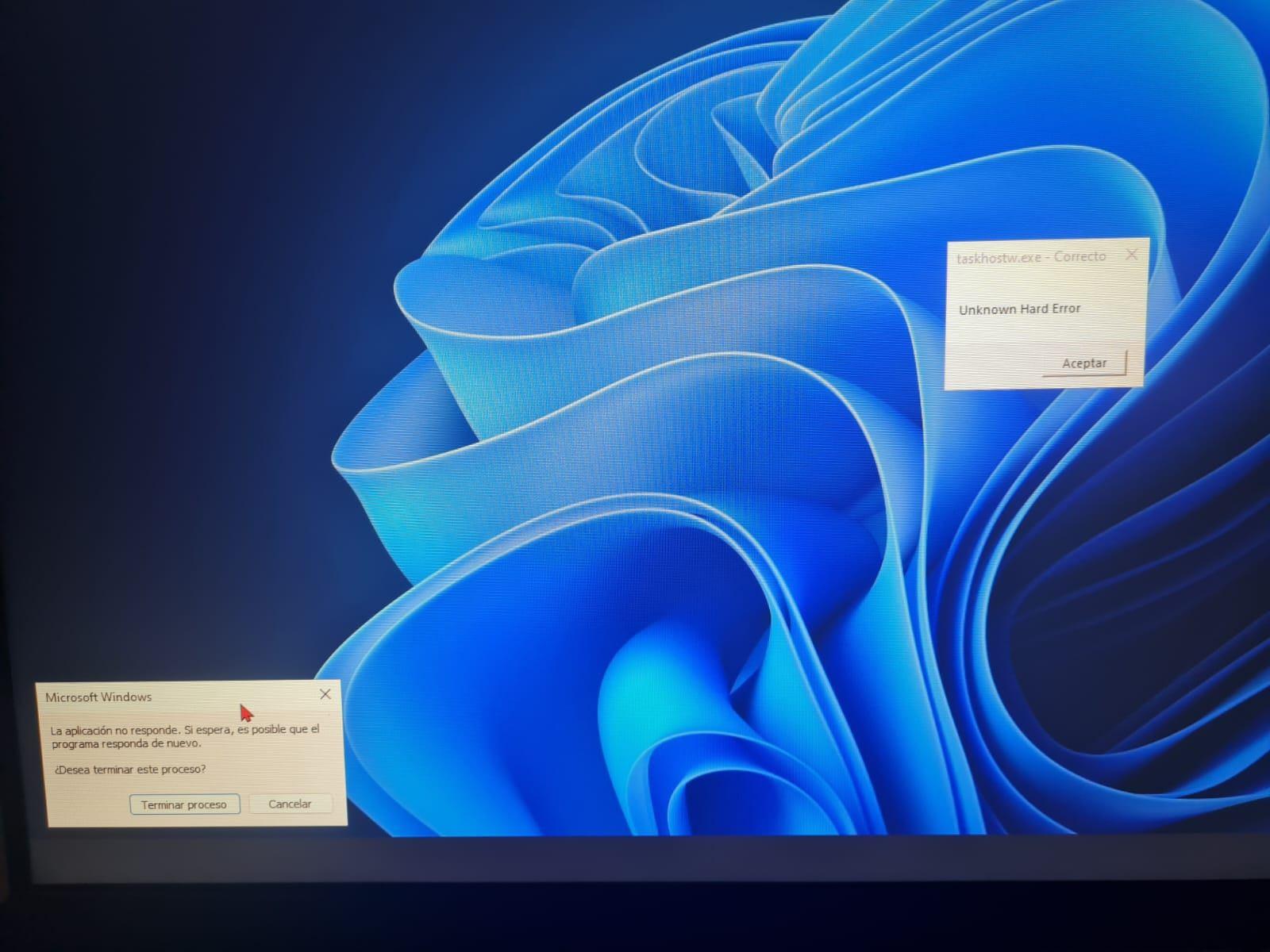
If the problem occurs on a Windows computer and a pop-up window appears, you might wonder if you should terminate the process . Generally, forcing the application to close via Task Manager is safe and the quickest way to break out of an error loop without putting your operating system at risk, thus avoiding common Task Host errors in Windows.
Another critical point is software updates. It's essential to ensure that both the operating system and the application in question are running their latest versions. On Android, simply go to the Google Play Store and check for pending updates, as older versions often cause incompatibilities.
Technical solutions for persistent problems
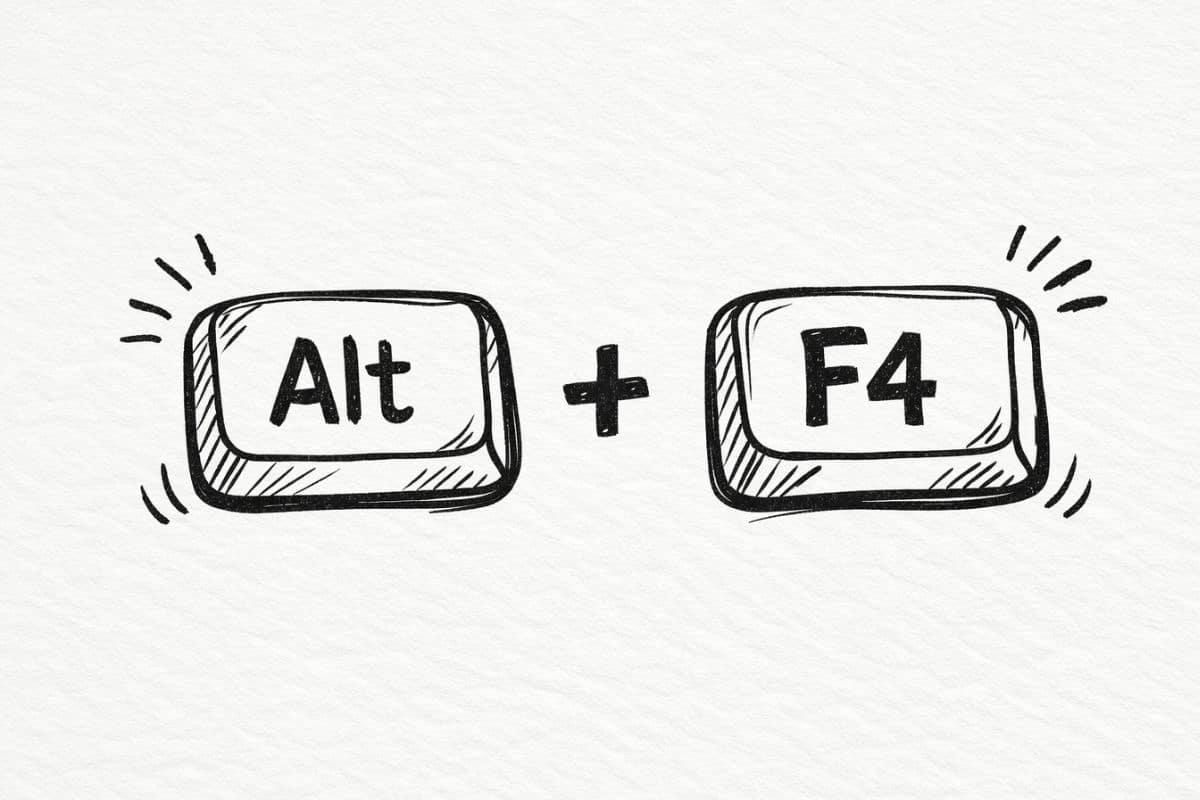
If restarting hasn't helped, it's time to delve into the system settings. A very useful technique is to force stop the application . This forces the system to close any threads that may have remained suspended in the background, allowing you to launch the app from scratch and clear any loading errors.

Sometimes, the culprit is temporary storage. Apps save files in the cache to run faster, but if this data becomes corrupted , the result is an unexpected crash. To fix this, go to your app settings, select the problematic app, and choose the option to clear the cache and stored data.
Android has a vital component called Android System WebView . This engine allows apps to display web content; if it fails, apps like Gmail or Chrome are likely to crash. Updating WebView from the Play Store, or in extreme cases, uninstalling its updates to revert to the factory version, is usually the key to success.
If none of this works, you can try reinstalling the application . Completely removing it and downloading it again ensures that no corrupted files remain from the original installation. Remember that if the app requires specific permissions to function, you must grant them all in the security menu to prevent it from being blocked due to lack of access, especially if you're using the Windows app store in hybrid environments.
External causes and drastic measures
The app isn't always to blame; sometimes the problem lies with the environment. For example, if your device is running out of storage space , apps have nowhere to write temporary files and crash. Deleting old photos or unused apps can relieve the pressure on the system.

One detail that often goes unnoticed is date and time synchronization . If your phone's clock doesn't exactly match Google's servers, some apps may conflict and stop responding. Disabling and then re-enabling automatic time zone usually corrects this discrepancy.
When you've exhausted all other options and the problem persists, it could be a more serious issue, such as a virus or malware infection . In these cases, or if the device continues to malfunction after trying everything, it's best to contact a professional mobile phone repair service for a thorough diagnosis.
As a last resort, there's a factory reset . This process erases absolutely everything and leaves the device as it was on day one. It's the most drastic and effective solution against persistent software errors, although it's essential to create a backup beforehand to avoid losing all your personal information.
To keep your device healthy, the best approach is to combine frequent updates, regular memory cleanup, and common sense when installing apps. By following these steps systematically, from simple restarts to cache management and WebView control, you'll get your apps running smoothly again without interruptions or annoying error messages.