- Granular control of access to hardware such as camera, microphone and location to improve user security.
- Differentiation between the management of global permissions, for specific sites and for installed extensions.
- Importance of aligning corporate permission policies with legal data protection regulations.
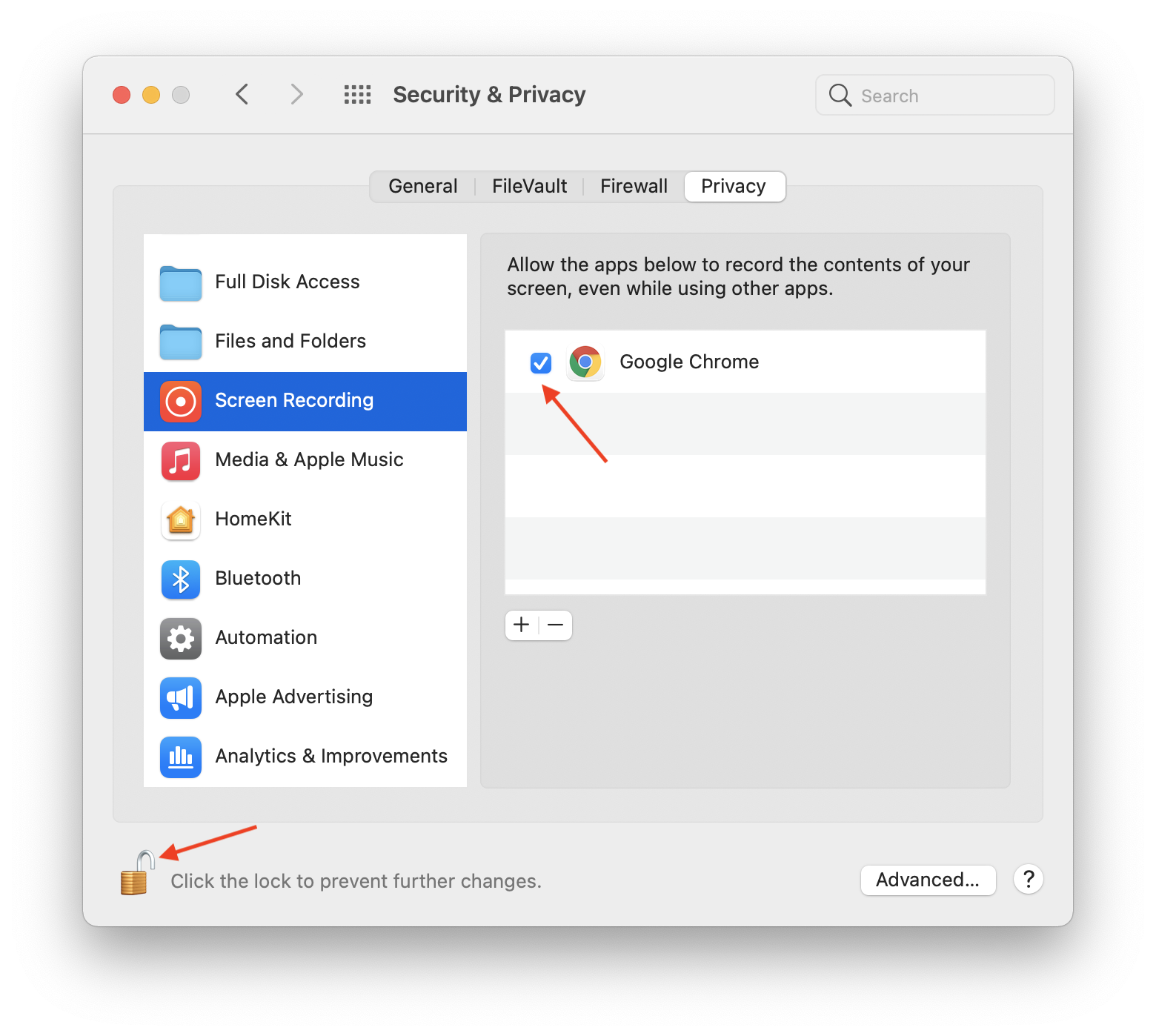
I'm sure it's happened to you: you go to a website and suddenly a notification pops up asking if it can use your location or activate your microphone. Sometimes we click "accept" without looking, and other times we're left wondering what happens if we simply ignore the window. The truth is, controlling browser permissions is essential to prevent the internet from becoming a black hole for our privacy, allowing us to decide exactly what each website can do on our device.
It's not just about preventing websites from spying on us; many professional tools, such as Aircall telephony systems or CRMs, also require specific permissions to function. If we don't properly configure access to sound or notifications, we're likely to miss important calls or the application might simply fail to launch. Let's see how to master all of this so you can browse with peace of mind and without technical issues.

Managing permissions in Google Chrome

When a website requests access to a feature, Google Chrome offers several options. You can choose Allow this time , which means the permission expires when you close the tab; Allow while visiting the site , so you don't have to repeat the process on future visits; or Never allow , which blocks the feature entirely.
If you want to do a general cleanup or change something you accepted by mistake, just go to the three vertical dots in the upper right corner, enter Privacy and security , and then look for the Site settings section . From there you can adjust the default behavior of almost any browser function.
There are a huge number of permissions we can adjust. For example, third-party cookies and JavaScript affect how the website looks and what data is stored. There are also protocol handlers , which allow a link to directly open your email application, and pop-up windows , which are sometimes useful but mostly a real nuisance.

As for the hardware, we have control over the camera and microphone , essential for video calls, and location, which is useful for providing local news. But there are more unusual and technical features, such as access to USB, MIDI, or Bluetooth devices , and even the ability for a website to use motion sensors for virtual reality experiences.
Other advanced options include editing local files , accessing the clipboard for formatted copying and pasting, and background synchronization. You can even manage whether a website can use automatic picture-in-picture to continue watching a video while you do other things on your computer.
How to adjust a specific website
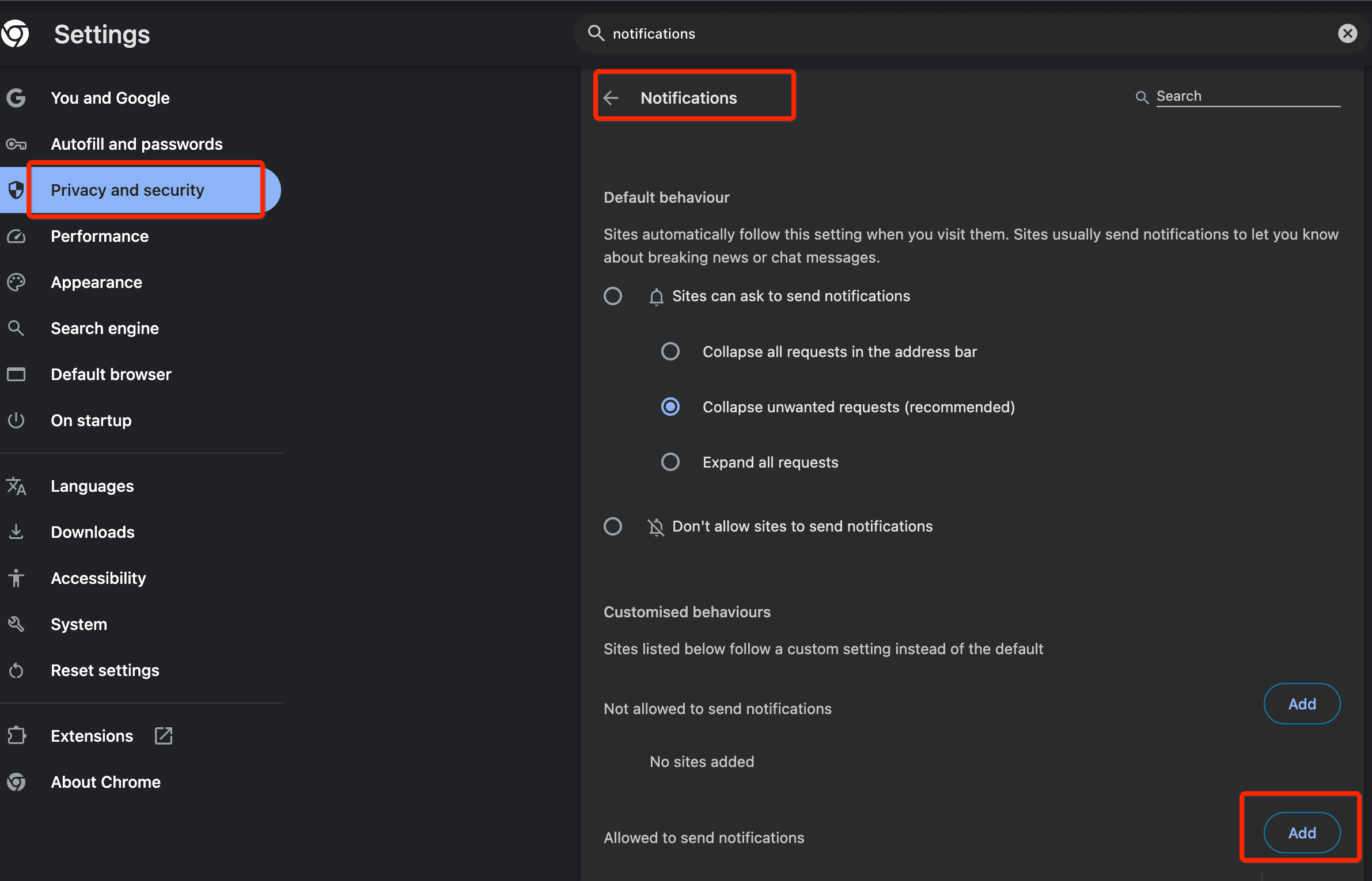
If you don't want to change your entire browser settings, you can focus on a specific website. Simply click the padlock icon (or site information) to the left of the URL. Selecting Site settings will open a panel where you can enable or disable permissions for that domain only.
It's important to know that Chrome applies these rules at the domain level . If you grant permission to a subpage of a site, it's very likely that permission will apply to the entire main domain. Furthermore, to prevent the browser from becoming cluttered with outdated permissions, Chrome automatically removes access for sites you haven't visited in a long time.

Extension control in Microsoft Edge
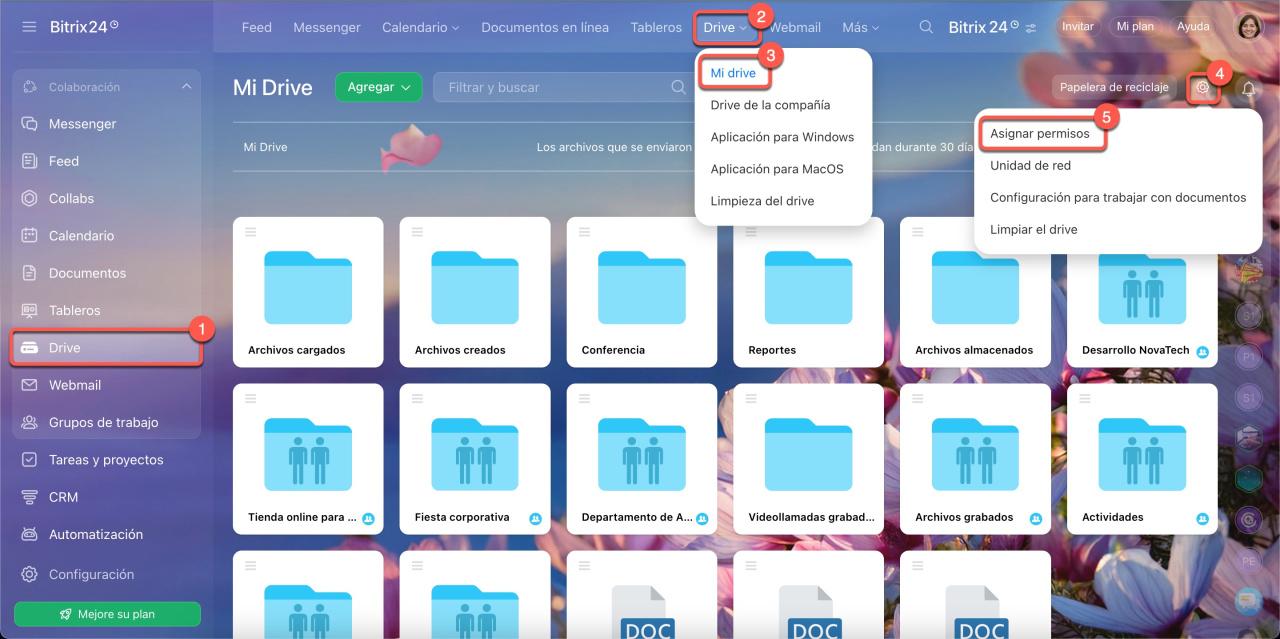
In Edge, managing extensions is a whole different ballgame. To change what an extension can read, you need to go to the Extensions menu next to the address bar and select Additional actions. Here you can choose whether the extension only works when you click on it , only accesses the current site, or has permission to read data on all websites.
If you need more in-depth control, go to Manage extensions and click on Details. There you can decide whether the extension can run in InPrivate mode or if it has permission to access local files using file URLs, which is essential for certain development or productivity tools.
Professional approach and corporate policies
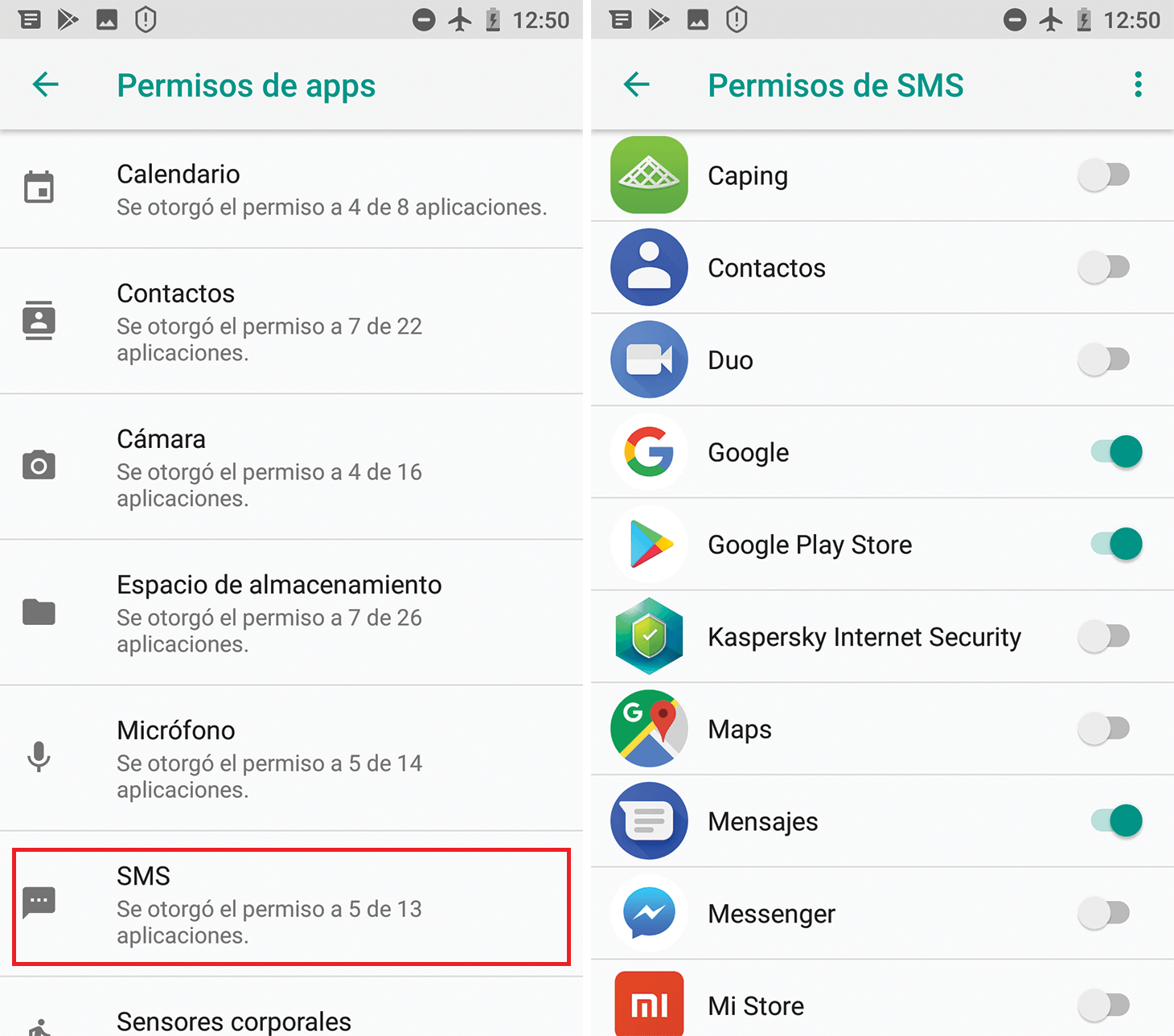
In a business environment, allowing each employee to configure their own permissions can be risky. That's why policy templates are used through Chrome Enterprise or Microsoft Edge to deploy centralized configurations. This ensures that all teams have the same security foundation and prevents human error that could expose sensitive data.
From a legal standpoint, these configurations must comply with the GDPR in Europe . It's not just about technical aspects, but about regulatory compliance. Companies must conduct impact assessments when requesting critical permissions and document who has access to what, ensuring that data processing is transparent and legal.

For developers, it's essential to leverage the MDN Web Docs permissions API and adhere to W3C standards. This ensures that access requests are clear and unobtrusive for the user, improving the browsing experience and increasing the acceptance rate of requested permissions.
Optimization for communication tools
When using specialized software like Aircall, permissions are essential for smooth operation. To ensure the Control Panel and web application function correctly, it's crucial to allow microphone access , notifications, and redirects. If you notice calls aren't ringing or live monitoring isn't updating, it's likely due to a blocked permission in the site settings.
The same applies to CRM integrations like Salesforce or HubSpot. When using CTI technology, permissions must be configured from the CRM domain . Ensuring the browser allows incoming notifications is key to maintaining a smooth workflow and allowing agents to handle calls immediately.
If you ever encounter a permission window that pops up and you click outside of it without choosing either to allow or block, don't worry: the browser usually treats this as an implied denial . This means the site doesn't receive permission by default, but remains in a waiting or blocked state until you make a conscious decision in the settings menu.
Mastering permission management involves knowing how to navigate between global browser settings, per-site exceptions, and extension restrictions, always keeping in mind that a good balance between technical functionality and privacy protection is the best way to browse today.
