- Built-in configuration methods for the most popular browsers.
- Use of specialized extensions for a more aggressive and effective blocking.
- Prevention of security risks such as malware installation and phishing.
- Exception management to allow legitimate windows on trusted sites.
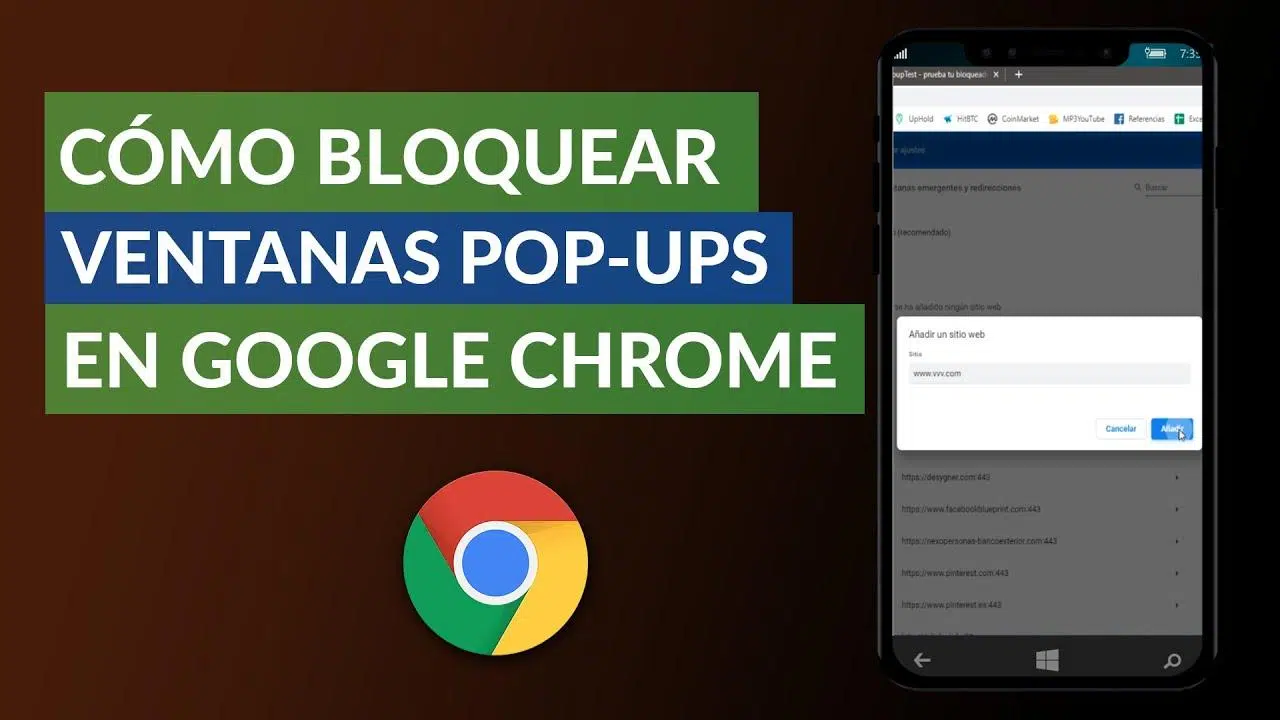
I'm sure it's happened to you a thousand times: you're reading an interesting article or trying to buy something online and, suddenly, bam!, a window pops up asking you to subscribe to a newsletter or trying to sell you a product you're not even interested in. These intrusions, known as pop-ups , can be a real headache and completely disrupt your browsing experience.
But beware, it's not all just a visual annoyance. Sometimes, these pop-ups are the gateway for malicious software, or malware , designed to sneak onto your device without you noticing. Therefore, knowing how to stop them isn't just a matter of convenience; it's a fundamental security measure to protect your personal data and the health of your computer.

What exactly are pop-ups and why are they so annoying?
To get down to business, we need to understand that pop-ups are secondary windows that launch automatically without the user's consent. Sometimes they appear as floating boxes, other times they open new tabs, and in the most aggressive cases, they become pop -unders , which remain hidden behind your main window and are only visible when you close the website you were visiting.
The reason they're so frustrating is that they often hide the content we actually want to see. Furthermore, they frequently contain deceptive links promising incredible prizes or fake virus alerts designed to trick you into installing dangerous programs. Even Google has recognized this as a bad practice and penalizes the search engine rankings of websites that abuse these techniques.

How to disable pop-ups in Google Chrome
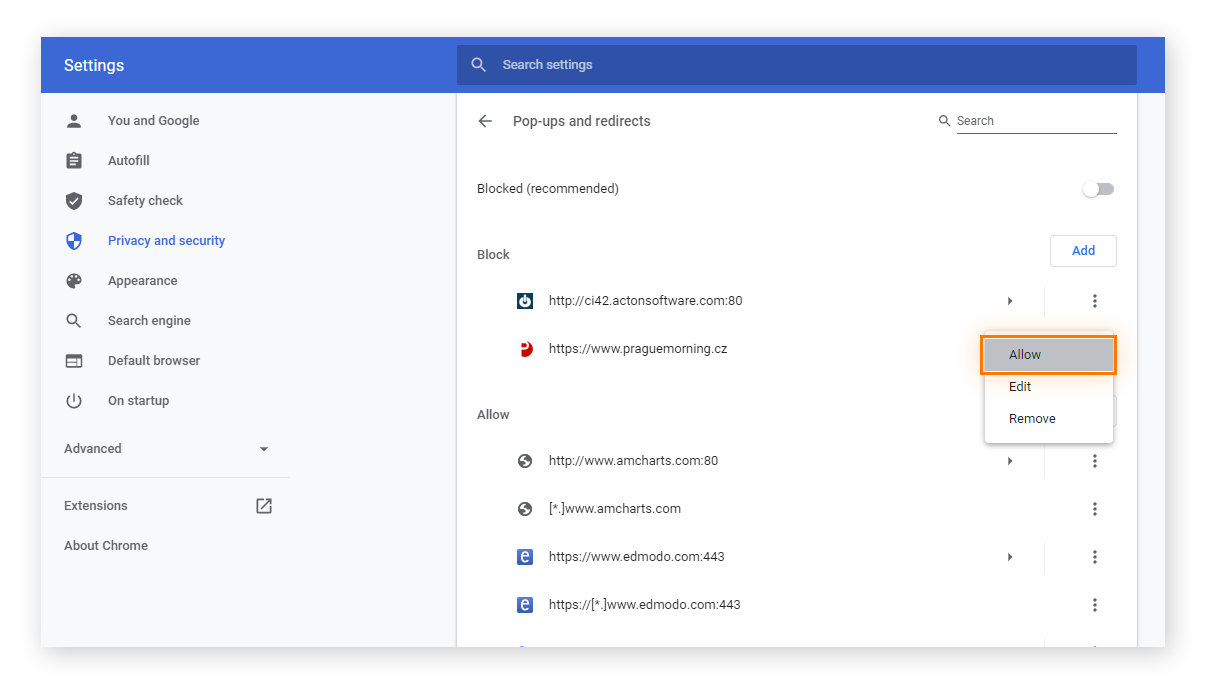
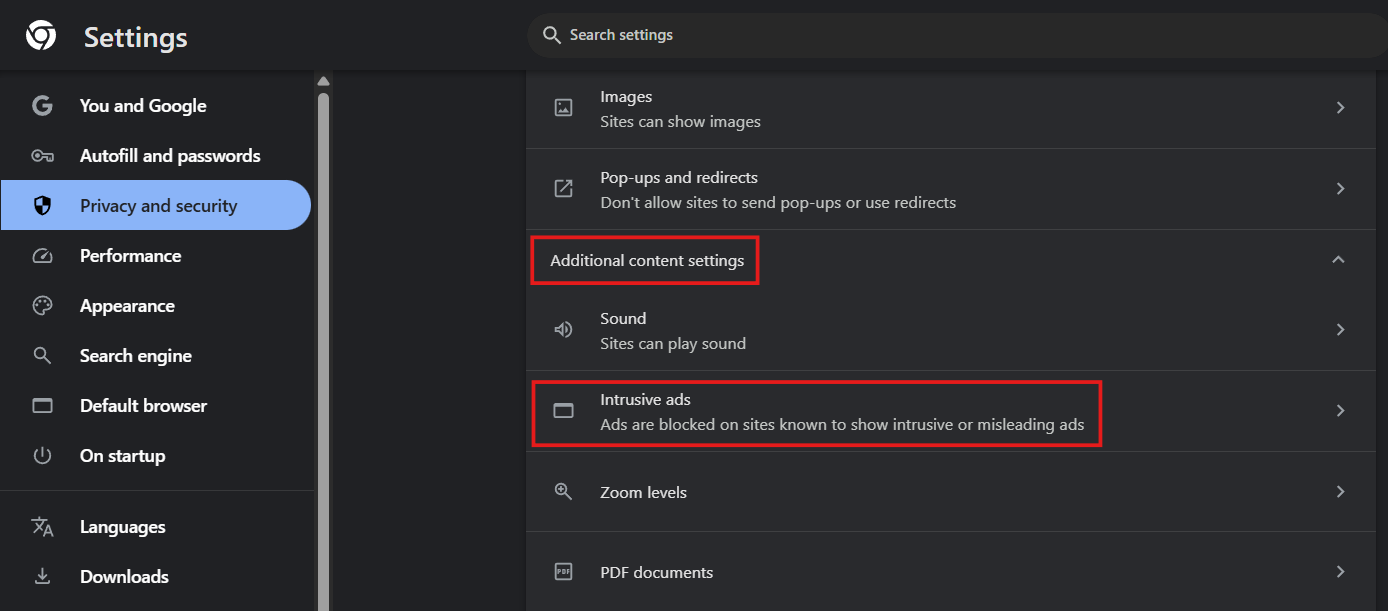
Chrome is configured by default to block most pop-ups, but sometimes some slip through or we need to adjust permissions. To manage this, the easiest way is to go to the three-dot menu in the upper right corner, enter Settings , and then navigate to the Privacy and Security section.
Once there, go to Site settings and look for the Pop-ups and redirects section . Here you can select the "Not allowed" option so that the browser blocks them automatically. If you see that a legitimate website needs these pop-ups to function (like some banks), you can add exceptions by typing the site's address into the allowed list.
If you're still receiving annoying notifications even after blocking pop-ups, you've likely subscribed to the site's notifications . To remove this, go to the website in question, click the information icon next to the URL, and change the notification permission to Block.

Blocking settings in Microsoft Edge and Mozilla Firefox
If you're a Microsoft Edge user, the process is quite similar. Just go to Settings , then to Privacy, search, and services , and look for the Site permissions option . There you'll find the Pop-ups and redirects section where you should enable the recommended blocking button . There are also other disabled Edge features you can adjust to improve your privacy.
In Firefox, the process is equally straightforward. Go to Preferences , then to the Privacy & Security tab , and scroll down to the Permissions section to check the box for Block pop-ups . As with other browsers, Firefox allows you to manage an exception list for domains you fully trust.

Advanced tools and extensions for total lockdown
Sometimes, native browser settings fall short against aggressive advertising that uses complex JavaScript code. In these cases, installing a specialized extension is ideal. uBlock Origin is probably the best option currently available, as it's lightweight, efficient, and consumes very few system resources.
With uBlock Origin, you can perform targeted blocking . If an annoying element appears that the browser doesn't detect, you can use the Block Element function , select the intruding window with your mouse, and create a rule to prevent it from ever appearing again. Other well-known alternatives are AdBlock and Popper Blocker, which are also very effective at cleaning up the browsing interface.
To keep your device completely safe, simply blocking pop-ups isn't enough. It's vital to keep your browser updated to the latest version, as updates usually include security patches against new threats. Also, always be wary of any pop-up that asks for personal information or warns of a serious system failure if you haven't run a scan with official antivirus software.
If you come across a website that's a veritable minefield of pop-ups, the smartest thing to do is leave the site immediately . Don't interact with its buttons or try to close the windows if they seem suspicious, as sometimes simply clicking the "X" on a malicious ad can trigger a malware download in the background.
Maintaining a combination of internal browser settings, using robust extensions like uBlock, and practicing cautious clicking behavior is the winning strategy for browsing the web without being bothered by intrusive advertising or having your computer's integrity compromised.
