- Methods to remove annoying Windows license expiration notices.
- Specific Command Prompt commands to verify and restart activation.
- Software and operating system alternatives in the face of the end of support for older versions.
You've probably experienced this: a message suddenly pops up on your screen warning that your Windows license will soon expire . This can be a real headache, especially if you know you paid for a genuine version or if you just bought the computer and it doesn't make sense for the system to ask you to renew anything.
Sometimes, this problem arises because we've bought suspiciously cheap licenses online that end up expiring, but if everything is in order, it's most likely a temporary system glitch . In this article, we'll see how to get out of this jam with various methods, from the simplest to some more technical tricks to get your PC running smoothly.
Basic steps to remove the expiration notice
Before getting bogged down with complicated commands, the wisest thing to do is try the basics. Sometimes Windows goes haywire, and a simple restart can reset the system and make the error disappear completely. If nothing changes, try shutting it down completely, letting it rest for a few minutes, and then turning it back on.
If the warning persists, the next step is to find out exactly what's happening. To do this, we need to use the Command Prompt (CMD). Simply open the application and type the command `slmgr -xpr` . Pressing Enter will open a small window that will tell you if your license is genuine or if there is indeed an expiration date.

Advanced tricks to reactivate the system
If you've confirmed there's a problem, a very effective option is to delete the current license and re-enter it . To do this without any issues, first make sure you have your 25-digit product key; you can use specific programs to extract it or search for it through the terminal.
Once you have the key safely stored, open Command Prompt, but this time with administrator privileges . Here are two very useful tools: the command `slmgr -rearm` , which resets the activation grace period, and the command `slmgr /upk` , which removes the license from the system. After running either of these, restart your computer and re-enter your key in the setup.
If the problem is simply a visual bug, you can try restarting Windows Explorer . Go to Task Manager, look for the "Windows Explorer" entry in the Processes tab, right-click it, and select Restart. This will refresh the interface and might remove the annoying message from the screen.
Disable license notification services
If none of the above works and the message is preventing you from working, there is a way to silence the renewal notifications . Keep in mind that this doesn't fix the license issue, but it does stop the notification from appearing. Press Windows + R, type services.msc , and press Enter.

In the list, find "Windows Licensing Manager Service," open its properties, click Stop, and change the Startup type to Disabled . We recommend doing the same thing with the Windows Update service before restarting your PC to ensure the message doesn't reappear.
The future of Windows and current alternatives
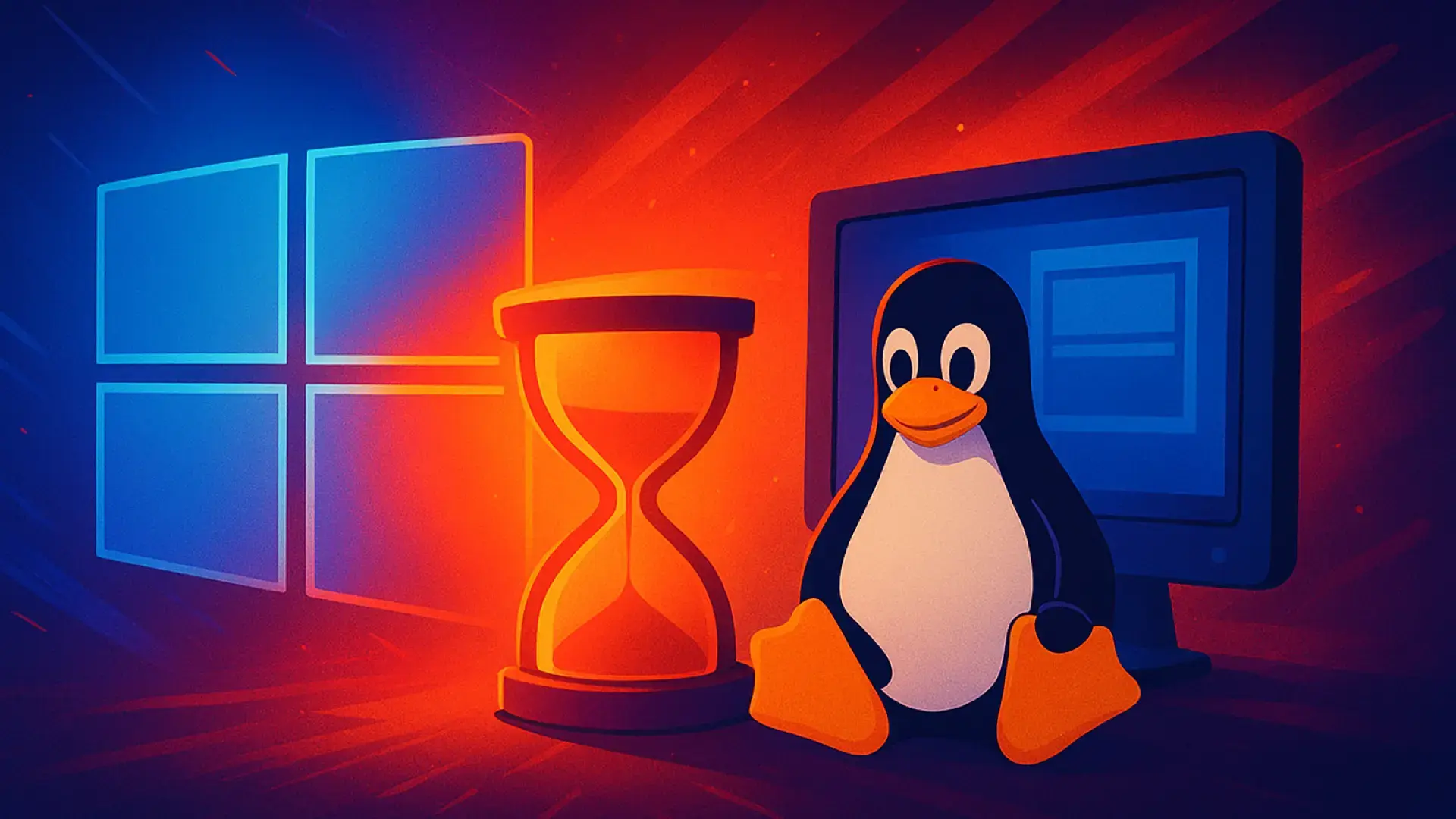
We can't forget that we're nearing the end of the road for Windows 10. On October 14, 2025, Microsoft will end official support for this version, meaning there will be no more security patches or updates. To prevent your PC from becoming obsolete, it's best to upgrade to Windows 11 if your hardware is compatible, which you can check using the PC Health Check tool.
If your computer is old and doesn't meet the requirements, there are ways to force the installation, although Microsoft warns that you could lose access to official updates. If you don't want to take security risks with an outdated operating system, you could consider buying a new computer or opting for refurbished computers that already come with Windows 11.
For the more adventurous or those with a very limited PC, there are alternatives outside of Microsoft . ChromeOS Flex is a great option for turning an old laptop into a lightweight, web-focused machine. On the other hand, installing Linux (like Ubuntu or Mint) is an increasingly popular route, as it's free, stable, and nowadays allows you to play video games with surprising performance, especially with AMD graphics cards.
Some experts suggest that, given Windows' increasing sluggishness and constant errors, Microsoft may eventually release its own Linux-based distribution to maintain its brand while gaining stability. In any case, keeping software updated or switching to a lighter system are the best ways to prevent an expiration warning from becoming a serious problem.
To resolve activation errors, simply use terminal commands like slmgr , restart browser processes, or, in extreme cases, disable licensing services. If the problem is system obsolescence, the best solution is to migrate to Windows 11 or explore Linux distributions to give the hardware a second life without relying on expiring product keys.
