- Using the official recovery tool and configuring a static IP address on the PC.
- Alternative procedures using TFTP servers for specific models.
- Solutions to massive crashes due to server errors and factory resets.
- Importance of correctly entering rescue mode using the physical button.
Having a problem with your router just as you're trying to get it working properly can be a real headache. Sometimes, a seemingly routine software update goes wrong, or we make the mistake of installing a version that doesn't exactly match our model, leaving the device unstable or, in the worst-case scenario, completely unresponsive. When the device stops responding or behaves erratically, all is not lost, as there are internal rescue mechanisms specifically designed for these critical situations.
To resolve these issues, most ASUS devices feature a recovery mode that allows you to force the operating system to load from scratch. Whether you're dealing with a router that won't boot, has lights flashing erratically, or has simply frozen due to a server error, there are several ways to revive it , from using official utilities to more technical methods like a TFTP server or UART console access on very old models.
Restoration using the official rescue mode
When your router fails to boot normally, the Firmware Restoration tool is a lifesaver. First, go to the manufacturer's support website, find your exact model, and download the latest firmware file , making sure to extract it before attempting any operations. Simultaneously, you need to install the rescue utility compatible with your operating system, which is usually Windows.
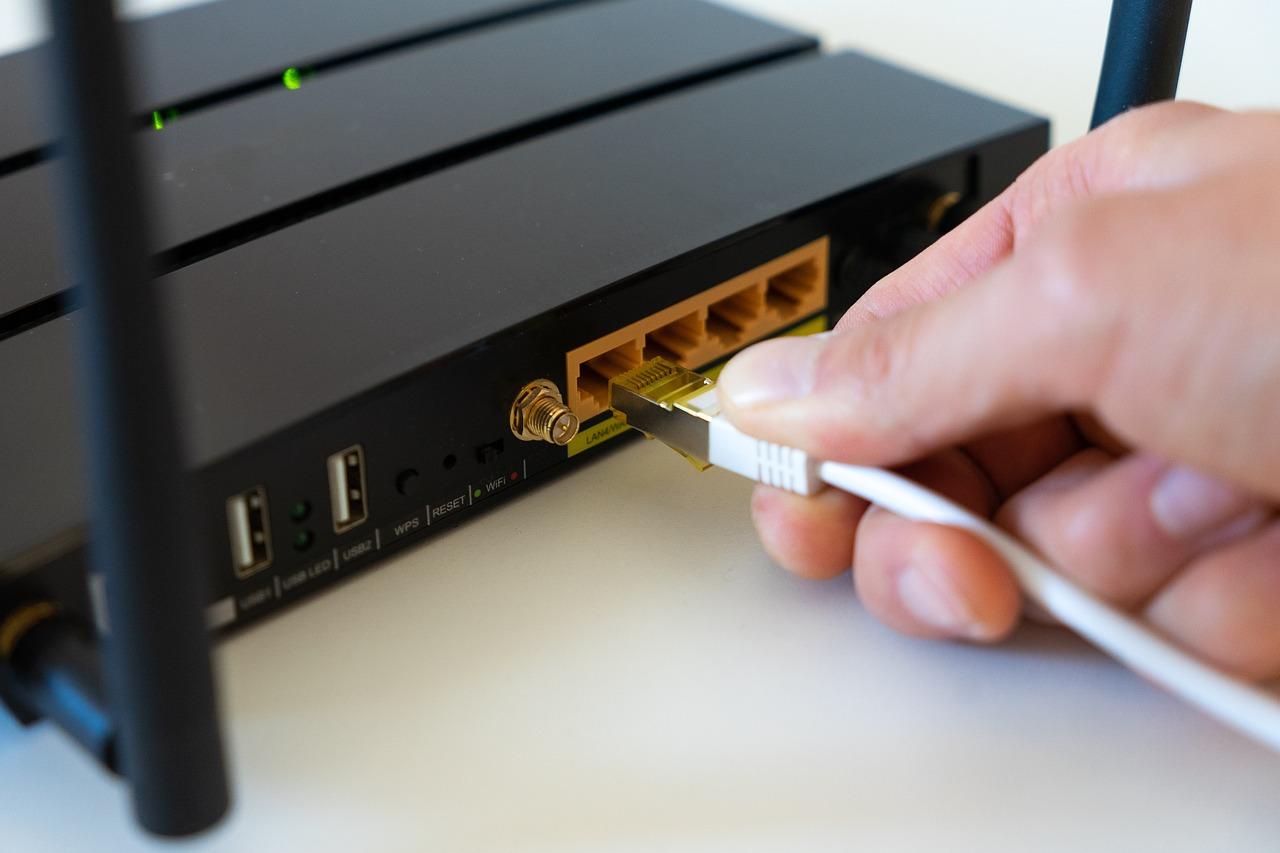
A crucial step, and one where many people make mistakes, is network configuration. For the computer and router to communicate in this state, you must assign a static IP address to your PC's network adapter, specifically 192.168.1.10 with a subnet mask of 255.255.255.0. Once this is done, the router must enter rescue mode: turn it off, press and hold the Reset button, and while holding it, connect the power until the power indicator flashes slowly.
With the device now in standby mode, open the recovery utility, select the firmware file, and click Load. After about a minute, the LED will stay on, indicating that the process is complete. It is essential to reset the computer's IP address to automatic to access the usual web configuration interface.
Advanced recovery using TFTP server
In some specific models, such as the RT-AX50 Go series, the process varies slightly and requires external software called a TFTP server. In this case, the computer connects via cable and is assigned any IP address in the 192.168.1.x range (avoiding the .6). Powering on the router while holding the reset button for about 7 seconds will confirm that recovery mode is active , and a solid green LED will illuminate.
Using the TFTP client, the firmware file should be directed to the router's address 192.168.1.6. If the transfer is successful, the device will verify the software image and reboot itself. If the device does not reboot, the upload likely failed, and the process needs to be repeated from the physical connection.
Handling common failures and server errors
Not all problems require a deep clean. Sometimes, massive failures in the manufacturer's servers can cause thousands of routers to freeze due to RAM filling up or the processor overheating. Depending on the firmware version, the solution can be as simple as a power cycle or, in more critical cases, a full factory reset.
If you have access to the web interface, it's highly recommended to back up your configuration before performing a physical reset. For those who can't access the web interface, holding the reset button for 10 seconds is the quickest way. In extreme cases with very old hardware, such as WL500G motherboards, you can try accessing the system via a UART connection with a Raspberry Pi to flash the operating system directly onto the motherboard.
Preventive updates and maintenance
To avoid reaching these extremes, it's best to keep your system updated through the WebGUI interface or the official application. There are three ways to do this: automatic, which is the most convenient; manual via the web, by uploading the file from the administration panel; and forced updates when the server is unresponsive. After any version change, it's strongly recommended to perform a factory reset to clear any residual old configurations that may be causing instability.
If, after attempting a factory reset, the router still doesn't allow access to the configuration page, you should verify that your PC is obtaining an IP address automatically or try a hard factory reset. The key to avoiding bricking the device is to never interrupt the power supply during the firmware flashing process, as this is what usually forces you to resort to rescue mode.
Recovering an ASUS router depends entirely on the severity of the failure. It can be resolved with a simple reboot, using the firmware restore utility with a static IP address, or via TFTP servers in newer models. Success hinges on strictly following the physical connection and network configuration order, always ensuring the device has correctly entered rescue mode before attempting to upload any software files.