- Microsoft integrates promotions disguised as recommendations into various sections of the operating system.
- Most of these alerts can be disabled through personalization, privacy, and notification settings.
- System cleaning improves user concentration and prevents tracking via advertising ID.

It seems Microsoft has decided that having a paid operating system isn't enough to avoid advertising. What began as an experiment in beta versions has now landed in the stable version of Windows 11, sneaking ads into the Start menu and other strategic areas under the guise of helping us discover interesting apps.
Although the company politely calls them recommendations or suggestions , the reality is that they're promotions from the Microsoft Store and its own services like OneDrive or Edge that disrupt the device's aesthetics. The good news is that, even though they're enabled by default, you don't need to be a computer expert or mess with the registry to remove them.
Cleaning the Start Menu

The most noticeable place for this intrusion is the Recommendations section, right below your pinned apps. With the KB5036980 update, Microsoft started showing apps from select developers. To remove this, go to Settings, then Personalization, and then Home . There you'll see a toggle called Show recommendations for suggestions, shortcuts, new apps, and more ; turn it off, and the menu will be clean again.
Goodbye to ads on the Lock Screen
That screen you see when you turn on your PC can also serve as an advertising showcase. If you have Windows Spotlight enabled , you're likely to see interesting facts that are actually marketing ploys. To avoid this, go to Personalization and select Lock screen . Change the background to a static image or your own slideshow to eliminate the tips and recommendations that appear there.
Notification and Experience Control
Often, advertising comes in the form of annoying notifications that pop up in the corner of your screen. To stop them, go to System and then to Notifications . If you scroll down, you'll find options like Get tips and advice about Windows and Show me personalized experiences . Unchecking both will prevent the system from bombarding you with unsolicited suggestions. You can also access the settings of each application individually to silence those that are particularly intrusive.
File Explorer and OneDrive
Even while browsing your folders, Microsoft might try to sell you its cloud services. To remove these banners, open any folder, click the three dots in the top menu , go to Options, and on the View tab, find the " Show sync provider notifications" checkbox . Unchecking it will stop you from seeing intrusive OneDrive notifications.
Privacy and Advertising ID
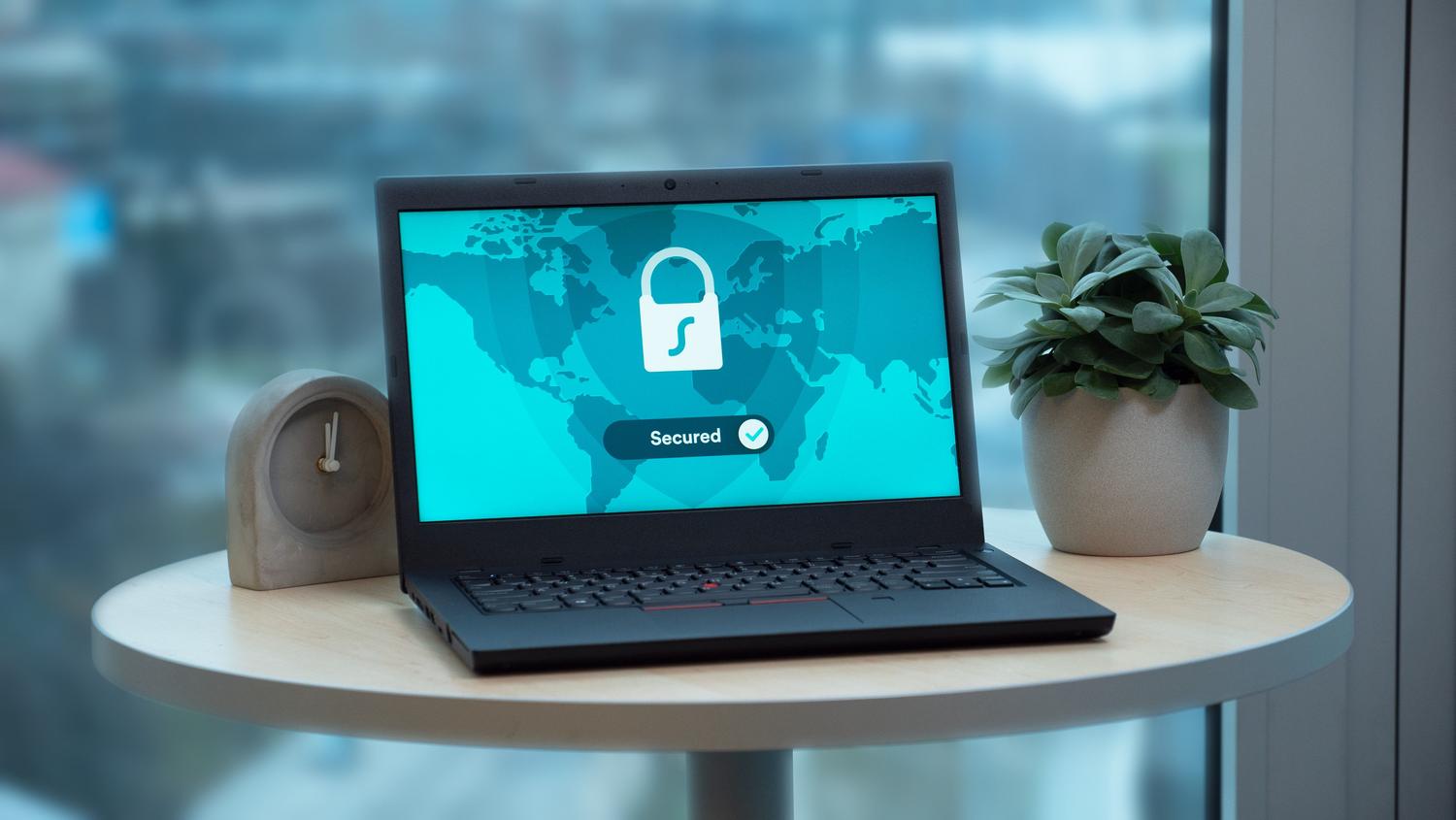
There's a setting many people overlook, but it's crucial to prevent tracking. Windows creates a unique advertising ID for each user, allowing developers to show you ads based on your interests. To disable this, go to Privacy & Security and then General . Uncheck the box next to " Allow apps to use my advertising ID ." Also in this same menu, you can disable app launch tracking and content suggestions within the Settings app itself for complete privacy.
Having complete control of your computer is possible by adjusting these customization and security settings. By disabling advertising IDs, Start Menu recommendations, and lock screen notifications, you can make the operating system much smoother and less intrusive , restoring the elegance and quiet it should have from the very first minute, free from unnecessary distractions.