- Using a specific key combination to force an immediate restart of the video driver.
- Manual device management through Windows Device Manager.
- Differentiating between temporary software failures and persistent hardware problems.
- Advanced features such as safe mode and restore points for critical errors.

Having a graphics card that performs at its best is essential for any PC user, as this component is responsible for processing and rendering all the images we see on the monitor. From enjoying a game with ultra-realistic graphics to watching a high-resolution video, the GPU is the key piece that makes everything look smooth and sharp on our screen.
However, it's quite common for problems to start appearing over time. Whether it's because the hardware has become outdated for current programs or because it's been heavily used editing demanding videos or playing demanding games, the component may begin to show signs of wear. If you notice the screen going black, windows flickering when you move them, or programs closing unexpectedly, it's most likely a driver issue.
What exactly is happening with the video drivers?

Before we delve into the details, it's important to clarify that these errors don't always mean the card is physically broken. In the vast majority of cases, the culprit is the driver software , which is the program that allows Windows 11 and the video hardware to communicate correctly. When this connection fails, the system begins to behave erratically.
The quick trick: Reboot using keyboard
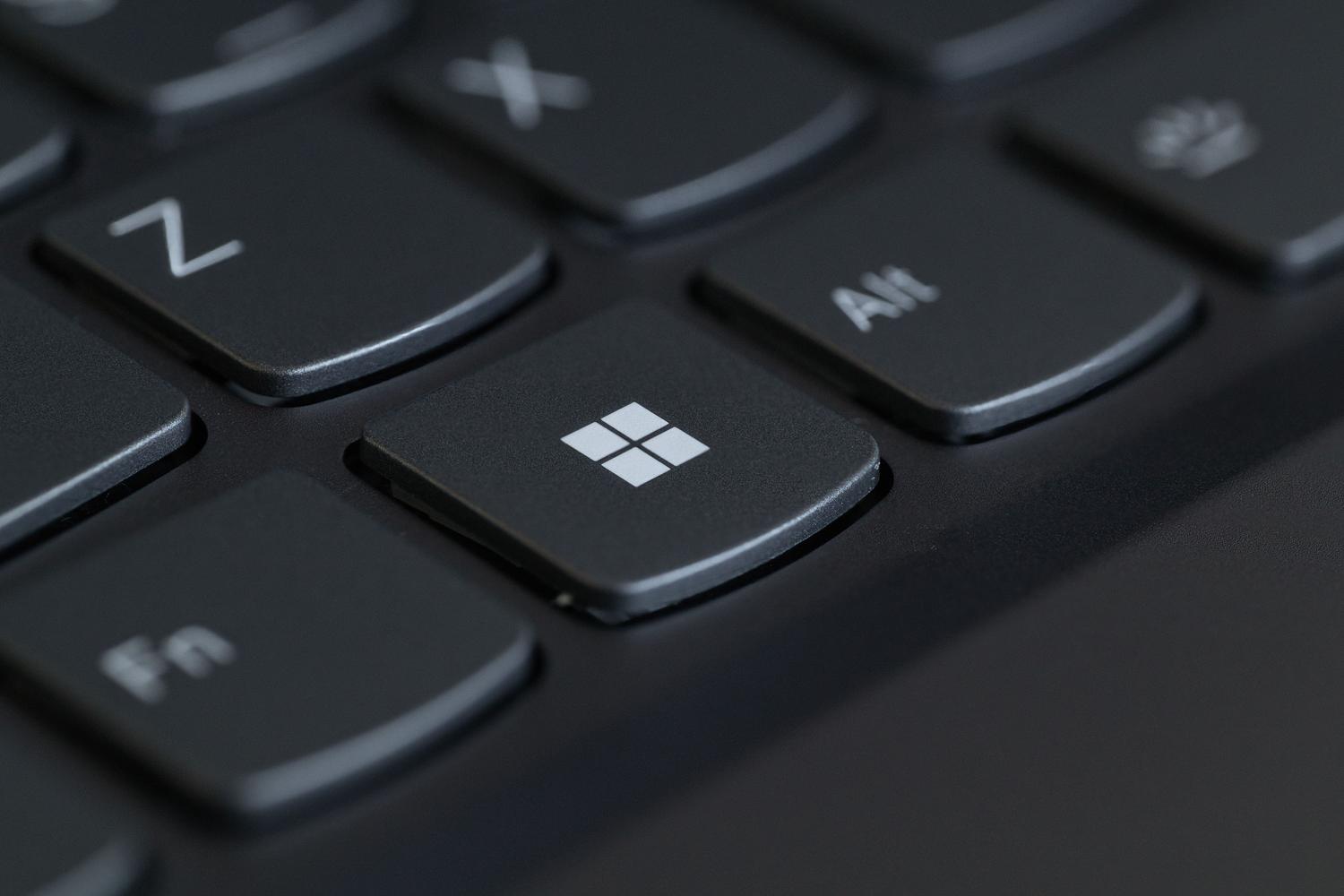
If you're in the middle of a game or working and notice something's wrong, there's a quick fix that will save the day without having to shut down your computer. Windows includes a hidden command that forces the system to instantly restart the video driver . To run it, simply press these four keys simultaneously:
- Windows + Ctrl + Shift + B
The moment you press this combination, you'll notice the screen go white or black for a moment and hear a characteristic system beep . Don't worry, it's a sign that the driver has successfully restarted. This method, which has existed since the days of Windows Vista, is ideal for fixing minor freezes and restoring the system to its normal state without losing any open work.
Manual method via Device Manager
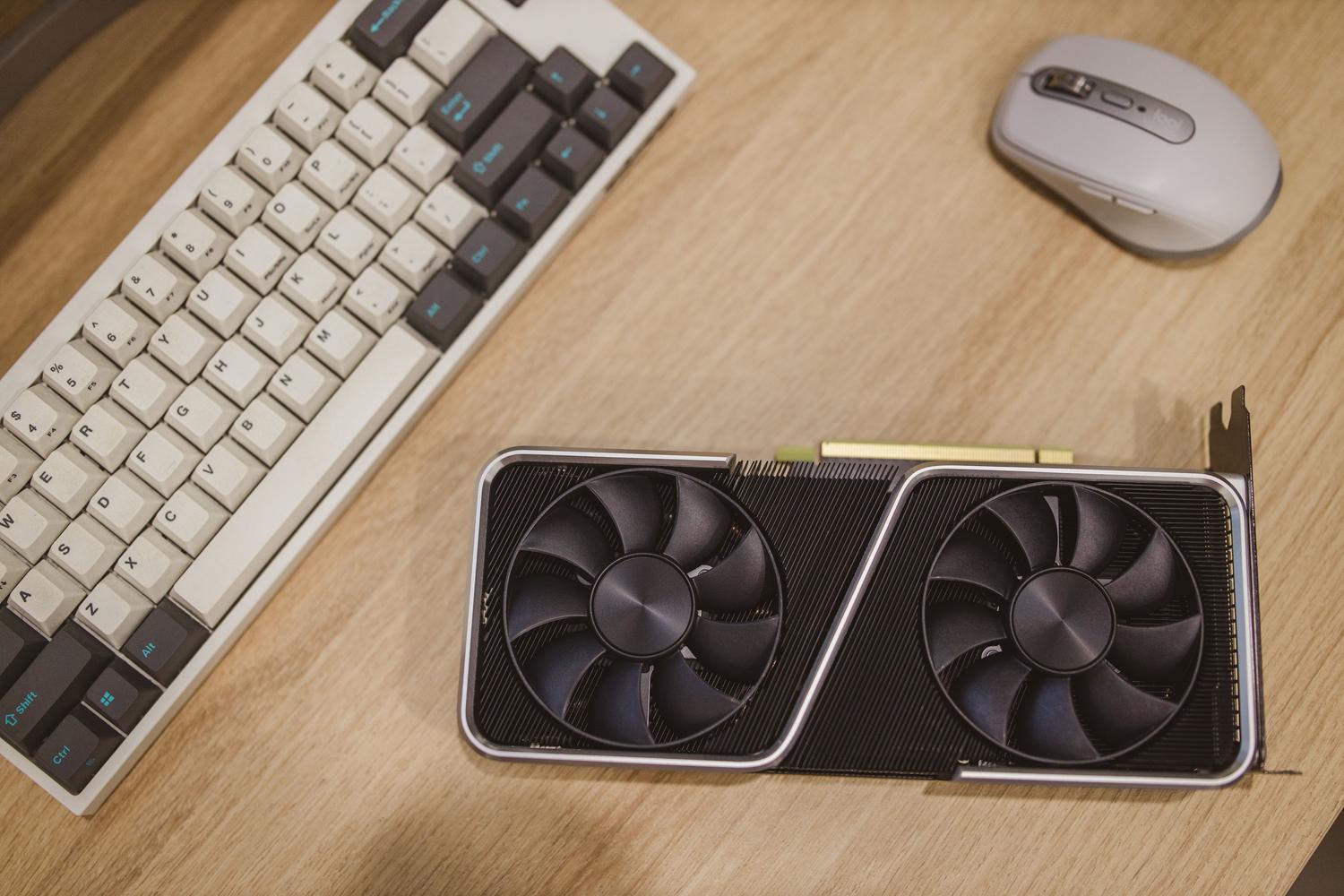
If the keyboard shortcut wasn't enough or the problem keeps recurring, it's time for a more thorough solution. In this case, we need to force a system restart by following these detailed steps:
- Search and open the Device administrator by typing its name in the Windows search bar.
- Locate the section called Display adapters and expand it to see your graphics card (whether it's an NVIDIA GeForce, AMD Radeon, or Intel).
- Right-click on the name of your chart and select the option to Properties.
- Go to the tab Controller and click the button Disable deviceConfirm the action and wait a few seconds while the screen flashes or goes black.
- Once disabled, repeat the process but now select Enable device so that the controller loads from scratch.
Other alternatives for serious failures
There are situations where the problem is more serious and a simple restart isn't enough. If the system continues to malfunction, it may be necessary to reinstall the drivers from scratch or update them to the latest available version. In extreme cases, such as when the computer won't boot correctly, Microsoft recommends accessing Safe Mode to uninstall problematic updates or using the recovery tool to restore the system to a previous point where everything was working properly.
Keeping your video software up to date is the best way to avoid these problems and ensure your hardware performs optimally. By combining the emergency shortcut with manual Device Manager management, you can fix most display errors in Windows 11 without needing to restart your entire computer.