- Direct integration between Samsung Gallery and Google Photos to replace synchronization with OneDrive.
- Setting up automatic or selective backups using the Google Photos app.
- Option to back up images to Google Drive or use external software to save data on the computer.
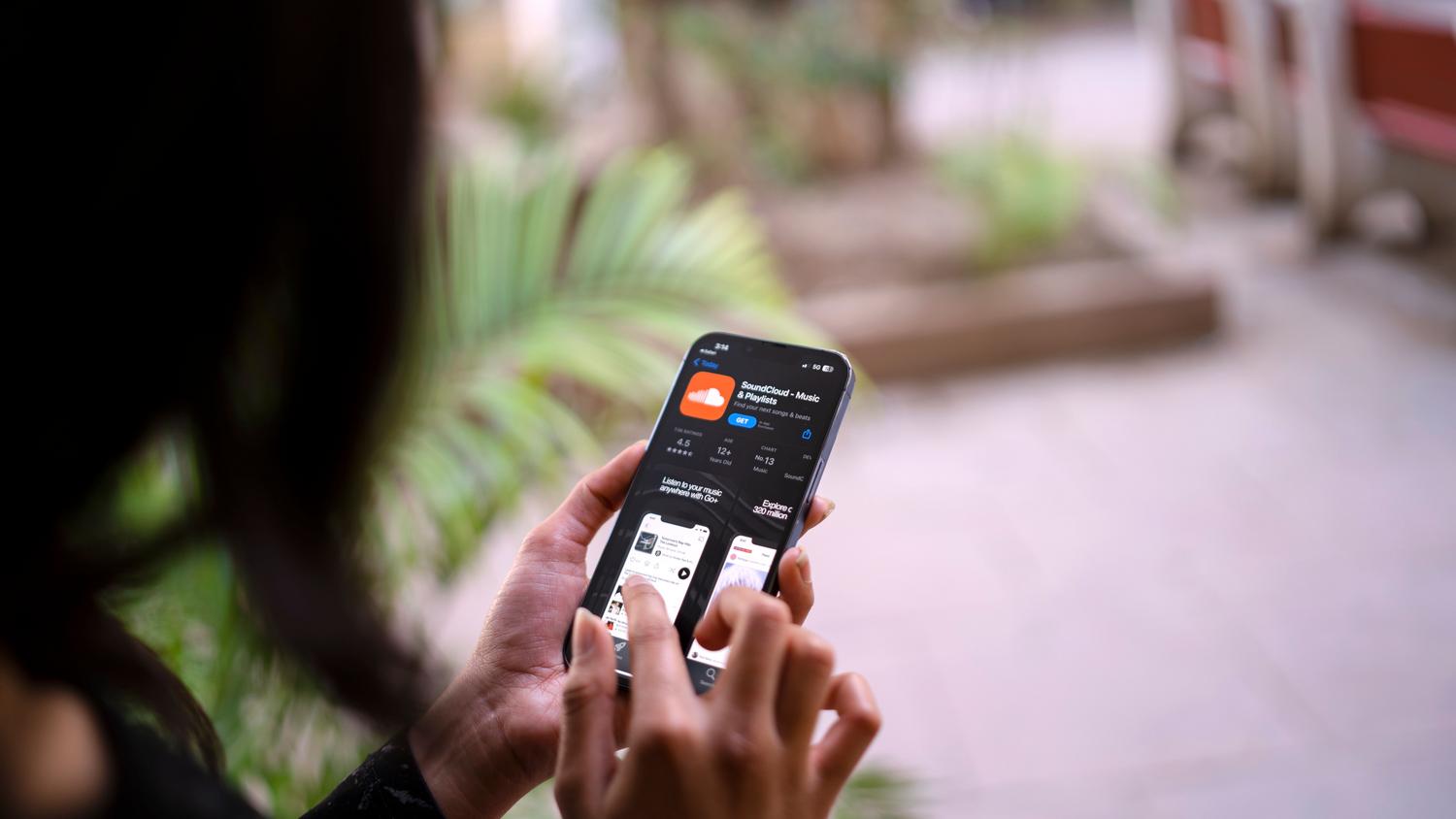
If you own a Samsung phone, you've probably noticed that managing photos can be a real headache without a clear system. The good news is that syncing your Samsung gallery with Google Photos is the best way to avoid losing precious memories and keep everything organized in one place, accessible from any device where you log in with your Gmail account.
The truth is, there are several ways to achieve this, from the classic backup using the Google app to the new native integration Samsung has implemented to replace OneDrive. In this regard, we'll explain step by step all the available alternatives so your images and videos are always safe in the cloud, without complications and tailored to your needs.
Native syncing: the new Samsung and Google Photos alliance
There's been a significant change recently: Samsung has decided to abandon its partnership with Microsoft OneDrive in favor of direct integration with Google Photos . This means you no longer need to switch between apps; you can manage everything directly from your phone's Gallery app.
To use this feature, you need Samsung Gallery version 15.9.01.7 (or higher) and Android 13 or later. To activate it, simply go to your smartphone's settings and look for the "Sync photos and videos" option . From there, link your Google account and choose which folders you want to back up, including screenshots and downloads. Keep in mind that Samsung Gallery will only display content uploaded through this specific system, not your entire Google Photos history.
How to back up your photos using the Google Photos app
If you don't have the native update or prefer the traditional method, the Google Photos app remains the most reliable tool. However, remember that storage is no longer unlimited , so you should keep an eye on your account space.
- Access and configuration: Open Google Photos and sign in. Tap on your profile picture in the top right corner and go to "Photo adjustments".
- Backup activation: Look for the section «Backup and sync» and activate it. At that moment, your phone will start uploading your files automatically.
- Selective management: If you don't want to upload everything, you can use the three vertical dots menu to select specific images and choose the option to back up only those files.
Additional alternatives: Google Drive and PC
While Google Photos is the flagship option, Google Drive also lets you save your images, although it has a 15GB sharing limit . You can upload files manually by clicking the "Add" (+) button and selecting the photos, or perform a more robust synchronization using your computer.
To sync from your PC, connect your Samsung device via USB and install Google Drive for desktop . Once installed, add your device's photos folder and check the "Sync with Google Drive" box to sync changes to the cloud.
Advanced backup with MobileTrans

For those seeking extra security and preferring not to rely solely on the cloud, tools like MobileTrans are available . This software is ideal for creating a complete backup of Samsung photos directly to your computer's hard drive.
The process is simple: connect your phone to your PC, select the "Back Up and Restore Phone" option , and choose the types of files you want to save. It's a very effective solution for preventing cloud storage from becoming overloaded and maintaining complete control over your data without the risk of loss.
Important differences and nuances of the system
It's crucial to understand that synchronization isn't always bidirectional in every way. For example, some users want photos deleted from their local gallery to automatically disappear from Google Photos ; however, the standard backup typically functions as a backup, not as an exact, real-time mirror for deletion.
Also, if you're coming from OneDrive, don't worry: your photos won't be deleted when the agreement with Microsoft ends, but will remain available in your OneDrive account , although they will no longer automatically sync with the Samsung Gallery.
Keeping your memories protected is now easier than ever thanks to your choice of native Samsung integration , the versatility of the Google Photos app, Drive's structured storage, or the physical security of PC backup software.