- ChromeOS Flex allows you to revitalize old computers using a lightweight, cloud-based operating system.
- It is possible to run the system directly from a USB drive to evaluate its performance without affecting the data on the hard drive.
- The process requires the Chromebook recovery tool and configuring the computer's UEFI/BIOS boot.

Do you have a laptop lying around that feels like a museum piece and barely runs Windows? Google has launched a rather ingenious solution called ChromeOS Flex , which is basically a lifesaver for rescuing those old machines and giving them a second life without having to spend a penny on new hardware.
The coolest thing about it all is that you don't have to jump in headfirst and delete all your files at once. There's a way to try the system from a USB drive , which means you can tinker with it and see if it suits you without touching a single comma of your current Windows or macOS installation. If you end up liking it, you can install it for real, but in the meantime, the risk is zero.
What you need to know before you start
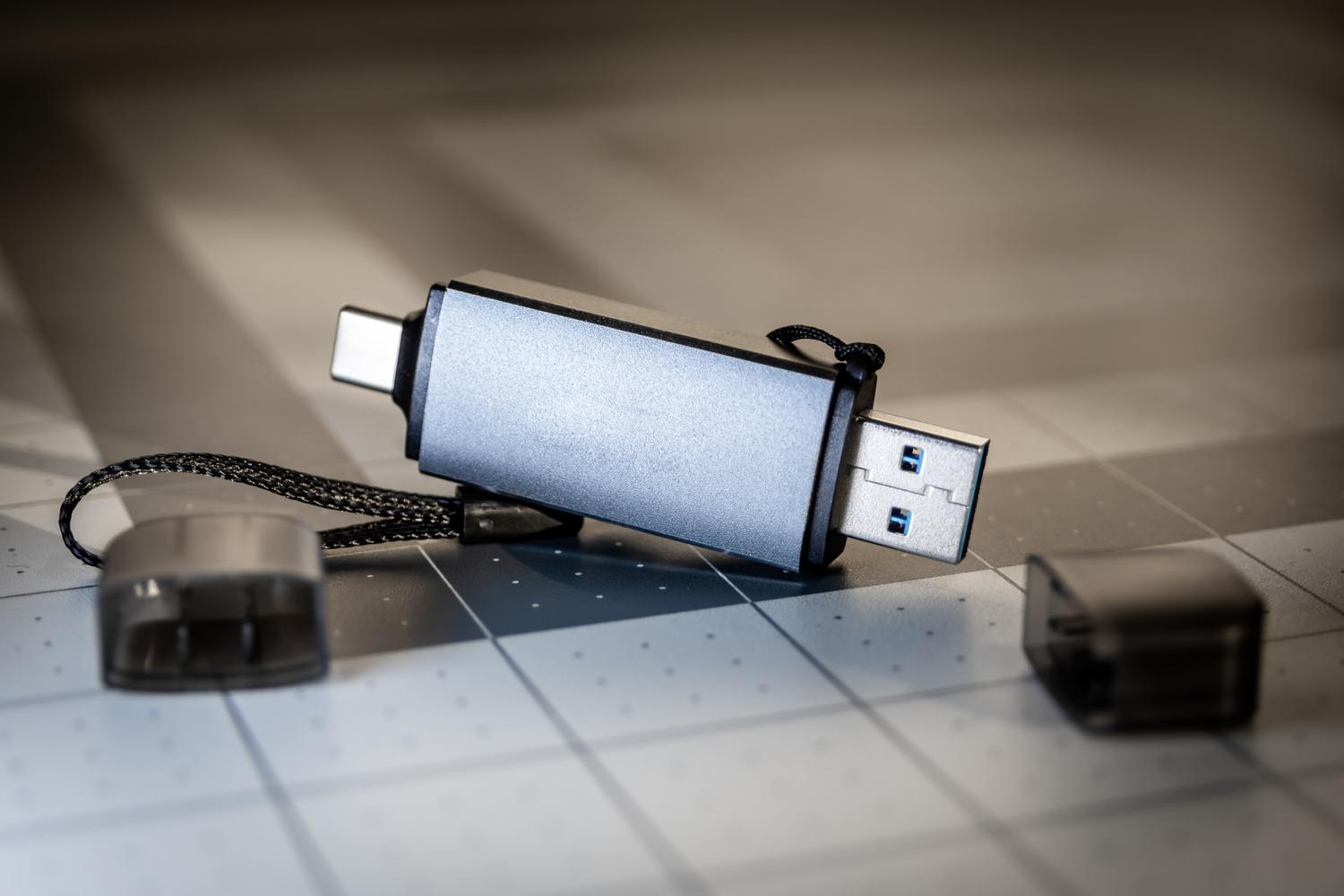
Before we get started, let's clarify a couple of things. ChromeOS Flex isn't exactly the same as the operating system that comes with native Chromebooks. The biggest difference is that it doesn't support Android apps , so forget about installing the Play Store. Also, since it's still a work in progress, some ports or features on your PC might not work perfectly.
To ensure the experiment goes smoothly, make sure you meet these minimum technical requirements :
- A computer with a processor X86-64 architecture (Intel or AMD).
- At least 4 GB of RAM and 16 GB of disk space.
- Un 8GB USB flash drive or more (note that everything inside will be erased).
- A PC with Google Chrome installed to prepare the boot drive.
- Preferably, manufactured components after the year 2010 to avoid incompatibilities.
How to prepare a bootable USB drive
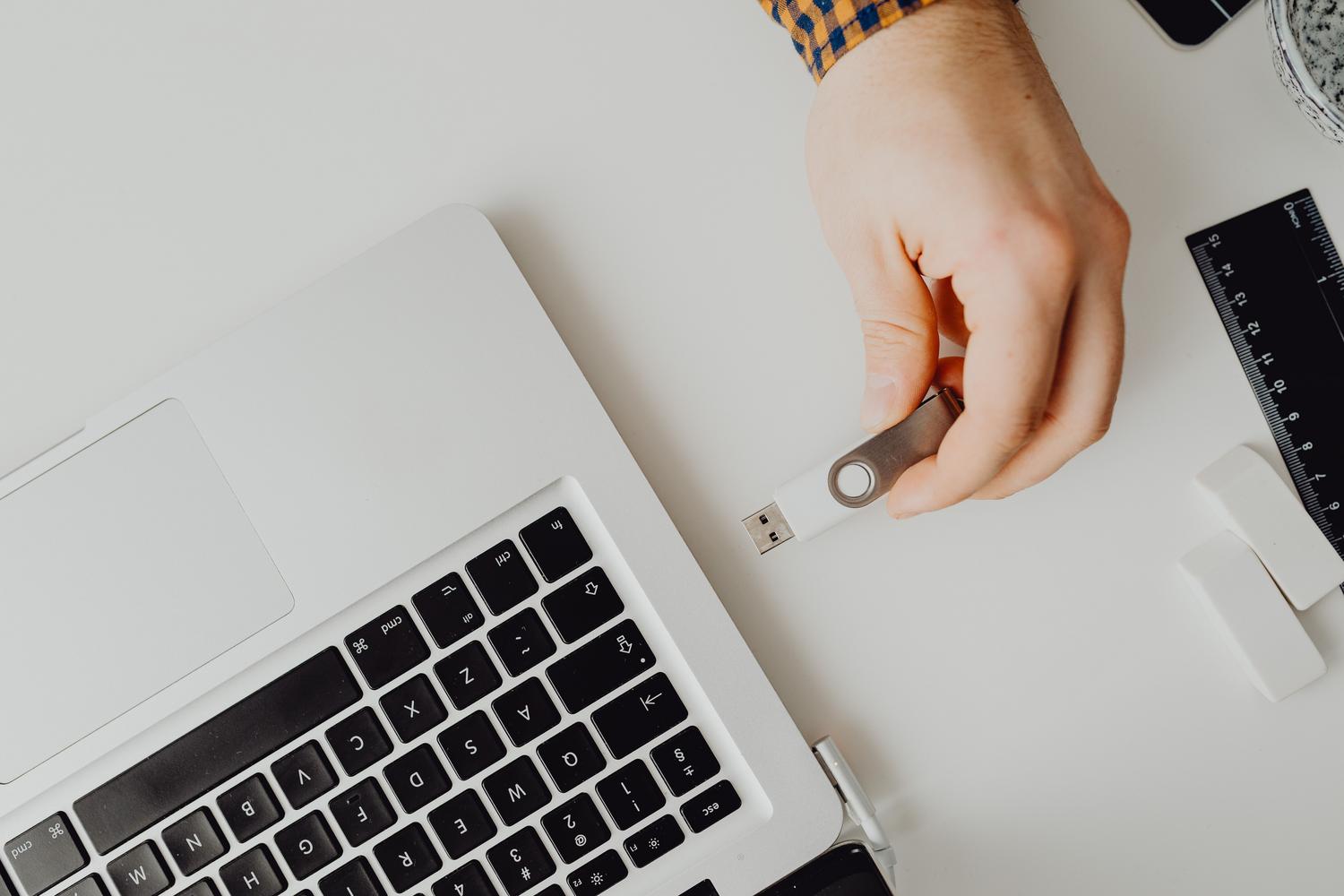
To create the installation tool, you don't need to download any unusual ISO images. Everything is done through your browser. First, you need to install the Chromebook Recovery Tool extension from the Chrome Web Store. It's essential to use the Chrome browser, as it often fails in other browsers like Edge.
Once installed, open the extension and follow these detailed steps:
- Press on Start to launch the assistant.
- When prompted to identify the device, select from the manufacturer dropdown menu. Google ChromeOS Flex And, in the system, choose the ChromeOS Flex option (usually the unstable developer version will appear).
- Connect your USB drive and select it from the list of available units.
- Click on Create now And wait. The process includes downloading the system and writing it to the USB drive, which may take about 30 minutes depending on your connection.
Booting the PC from the USB drive

This is where things get technical, but don't panic. To prevent your computer from booting into Windows and instead use the USB drive, you need to access the BIOS or UEFI settings . In Windows 11, you can go to Settings > System > Recovery and select Restart now to access the advanced options menu.
From there, go to Troubleshoot > Advanced options and choose UEFI Firmware Settings . When you restart, you'll need to be very careful to press the access key (usually F2, F12, or Delete ) and change the boot order so that the USB drive is the priority. On some laptops, simply pressing a specific key during startup will open the fast boot menu.
System configuration and testing

When the Chrome logo appears on the screen, you'll enter the setup wizard. You can choose Spanish as your language and connect to your Wi-Fi network. You'll reach a point where the system will ask if you want to install ChromeOS Flex or try it first.
If you choose to install, the system will completely erase your hard drive, and Windows will be gone. Therefore, the smart option is to select "Try it first ." This way, the operating system runs directly from the USB drive. Your settings will be saved between restarts, but the moment you remove the USB drive and restart, your Windows 10 or 11 will be intact and exactly as you left it.
Limitations and actual performance
Once inside, you'll notice it's an extremely lightweight system. You have access to the entire Google ecosystem: Chrome, Gmail, Drive, and Calendar , plus any web-based application. Although it's an unstable version, the fluidity is surprising, especially on Windows machines that can barely open a browser tab.
It's important to note that some users attempt a persistent installation on external drives to avoid erasing the internal drive, but ChromeOS Flex doesn't allow easy selection of the destination drive, always tending to format the main drive. Therefore, the best way to keep Windows is to continue using the USB test mode or dedicate a computer exclusively to this system.
Transforming an old laptop into a fast machine is possible thanks to this operating system that prioritizes web browsing over resource-intensive software. As long as you have the right USB drive and know how to navigate the BIOS, any user can revitalize their hardware without risking data loss, enjoying fast and secure browsing while they decide whether to upgrade.