- Windows Sandbox creates a clean, isolated Windows environment for testing suspicious programs without affecting the main system.
- Requires Windows 10/11 Pro, Enterprise or Education, hardware virtualization support and a minimum CPU and RAM configuration.
- It is ideal for quick and disposable testing, while Sandboxie and classic virtual machines cover more specific or persistent isolation scenarios.
Running unknown programs in Windows This is one of the most common ways to install malware, adware, or unintentionally corrupt your system. You download something "quick" from the internet, open it without thinking twice, and before you know it, your system is slow, your browser is full of strange extensions, or pop-up windows are appearing everywhere.
To avoid these situations, Microsoft includes it in Windows 10 and Windows 11 Pro, Enterprise and Education (if you need) migrate from Windows 10 to Windows 11A very powerful feature called Windows Sandbox. Basically, it's like having a clean, temporary, and disposable Windows environment inside your own PC, ideal for testing suspicious programs without risking your main system. Let's take a closer look at exactly what a "sandbox" is, how Windows Sandbox works, its requirements, how to activate it, and how it differs from other solutions like Sandboxie, VirtualBox, or Hyper-V.
What is a Sandbox software and what is it used for?
Un Sandbox software creates an isolated environment within the main operating system, using virtualization or system-level isolation techniques. This environment, known precisely as a "sandbox," acts as a kind of bubble: everything that runs inside it is separated from the rest of the system, so that any changes, files, or settings that are modified do not affect Windows "for real."
In practice, this means that we can run potentially dangerous applicationsWe can open suspicious email attachments or beta tools without fear of damaging anything. If the program turns out to be malicious, it remains confined to the sandbox, and upon closing or restarting it, everything that happened inside is completely discarded.
To achieve this, sandbox solutions typically rely on an abstraction layer that functions as a virtual machine or as a filter that intercepts system calls. This implies extra resource consumption (CPU, RAM, storage) because the system has to "simulate" or isolate this additional environment, but in return we avoid modifying the host operating system, for better or for worse.
This approach is not only useful for those who want test suspicious programs without virusesbut also for any user who wants to test applications, configurations or scripts without leaving a trace of changes, or for developers who need to constantly reproduce clean scenarios without reinstalling Windows every time.
Furthermore, Modern sandboxes are a key security tool both in home and professional environments. They allow you to contain threats, study malware behavior, validate installers downloaded from dubious sources, and, in general, greatly reduce the risk of a quick test ending in forced formatting or data loss.
Windows Sandbox: the disposable environment built into Windows
Windows Sandbox is Microsoft's implementation This concept is found within Windows 10 and Windows 11. It is an isolated desktop environment that runs using Hyper-V virtualization technology, but in a fully integrated and simplified way: there is no need to create virtual disks or install a separate operating system, everything comes "out of the box".
When opening Windows Sandbox, A clean instance of Windows is launched It behaves as if it were freshly installed: only the default applications (like Microsoft Edge) and default settings are present. There are no third-party programs, no leftover software, and no customizations. Perfect for testing from scratch to see if something works well.
The key point is that every time you close the Windows Sandbox windowEverything that happened inside is erased without any possibility of recovery: installed programs, registry changes, downloaded files, settings, etc. The next time you run it, you'll have a completely fresh Windows installation, inheriting nothing from previous sessions.
This feature is available in Windows 10 version 1903 or later and Windows 11This feature is available only if you have the Pro, Enterprise, or Education edition. Home versions do not officially include this feature, so in that case, you'll need to use external alternatives.
Requirements and prerequisites for using Windows Sandbox
Before you can enjoy this isolated environment, It is essential to verify that your equipment meets a series of conditionsHaving a relatively modern version of Windows is not enough, as both the system edition and the hardware and BIOS/UEFI configuration come into play.
Regarding the operating system, you need Windows 10 Pro or Enterprise (1903 or higher) or any Pro, Enterprise or Education edition of Windows 11 (see the Windows 11 initial setup (if you've just migrated). Home variants are officially excluded, as Microsoft reserves Windows Sandbox for the "professional" versions of the system.
In terms of processor, the minimum requirement is a 64-bit CPU with at least two cores and virtualization support (Intel VT-x or AMD-V, among other similar extensions). However, if you want a smooth experience, it's recommended to have a modern mid-range or high-end processor with multiple cores and threads, such as an Intel Core or a recent AMD Ryzen with, for example, 6 cores and 12 threads.
RAM is another critical point: Microsoft indicates 4 GB as a minimum. To run Windows Sandbox, you need RAM, but that's just the basics. The isolated environment consumes some of your available RAM, and you also have to continue using your main system at the same time. Therefore, it's advisable to have at least 8 GB for comfortable use, and even 12 GB or more if you plan to run demanding applications within the Sandbox or perform intensive multitasking.
Regarding storage, The space that Windows Sandbox occupies is relatively small.Since it reuses components from the host system itself, you still need to have enough disk space for temporary files and any programs you install within the environment. If you're running low on space, you'll notice some slowdown when creating and destroying sessions.
Finally, it is mandatory that Hardware virtualization must be enabled in the BIOS/UEFIOn many systems, this feature is enabled by default, but on others, you need to access the firmware settings and activate the Intel VT-x, Intel VT-d, AMD-V, or similar options. Without this support, Windows Sandbox will not be able to use Hyper-V and will not function.
How to install and activate Windows Sandbox on Windows
Once your team meets the requirements, Enabling Windows Sandbox is quite simple.You can do this via the command line using PowerShell or through the classic graphical interface in "Windows Features". Both methods achieve the same result.
If you prefer the console, Open PowerShell with administrator privilegesTo do this, type “PowerShell” in the Start menu search box, right-click on the result, and choose “Run as administrator.” It is important to have elevated privileges because a system feature will be activated.
With the PowerShell window open, you just need to run the following command to enable the necessary component:
Enable-WindowsOptionalFeature -FeatureName "Containers-DisposableClientVM" -All -Online
After completing the process, the system will ask you to restart. Windows Sandbox will not appear until you restart your computer.So save anything you have open and accept the restart. On modern computers, this process usually takes no more than a couple of minutes.
If you don't get along with the console or simply don't feel like typing commands, You can activate Windows Sandbox from the graphical interface.In the Start menu, search for “Turn Windows features on or off” and open it. A window will appear with a long list of optional system components.
Within that list, scroll until you find “Windows Sandbox” or “Windows Sandbox”Depending on your system language, select the appropriate option. Check the box, click OK, and let Windows install the feature. Again, you will be prompted to restart your system for the changes to take effect.
Getting started: how to use Windows Sandbox on a daily basis
With the function now active, Opening Windows Sandbox is as simple as launching any other application.Simply go to the Start menu and type "Windows Sandbox" or "Windows Sandbox" in the search box and run the result that appears with the Microsoft icon.
The first time you start it, The start-up may take a little longer than usual.The system needs to finish configuring the virtual environment. Don't worry if you see a blank screen for a few seconds; on subsequent runs, the loading time is significantly reduced, and you'll have your virtual desktop ready in just a few moments.
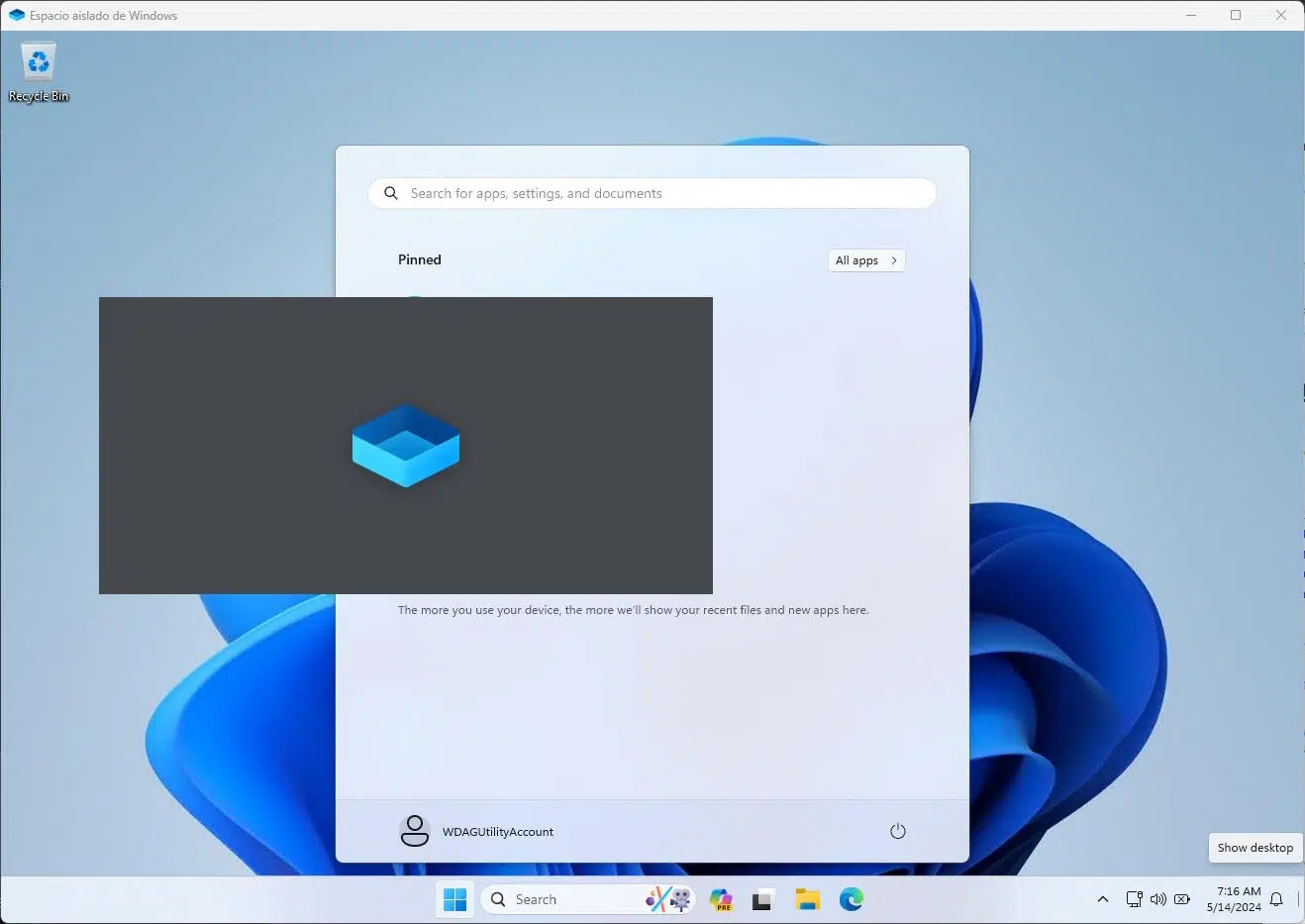
Upon entering, you will see a fully functional Windows desktopIt's usually in English and unactivated (it's a temporary license for this environment). You'll see that only the basic system applications are present, with no trace of your usual programs, personal data, or customizations. It's like a "fresh out of the box" Windows.
One of the advantages is that The Sandbox window automatically adjusts The size you give it: when you resize the window, the internal screen resolution adjusts, and it behaves like a very lightweight virtual machine. You don't have to mess with graphics drivers or complicated settings.
Within this isolated desk you will be able to browsing the internet, downloading files, installing programs, and opening suspicious documents It's practically the same as if you were on your main Windows system. The environment has network access through a virtual interface, which makes it easy to download installers or perform quick checks, although it also means that any malware with network capabilities can communicate externally, so it's best to use common sense and, if you're concerned about privacy, you can Enable DNS over HTTPS on Windows 11.
To move files from your system to the Sandbox, You can use the Windows clipboardSimply copy a file on the host (Ctrl + C) and paste it onto the desktop of the sandbox environment (Ctrl + V). That's it, you have the executable or document inside the sandbox ready to be tested. Advanced users can also create .wsb configuration files to mount folders from the host directly in the environment, but that's a bit more technical.
When you've finished testing what you needed, You just need to close the Windows Sandbox window Click the "X" in the corner, just like in any other program. A clear warning will appear indicating that everything in the environment will be deleted. Upon confirmation, the virtual machine will shut down and all changes, files, and installed programs will be permanently destroyed.
If you have generated any files within the Sandbox that you want to keep (for example, a clean document generated by a program you didn't trust), Remember to copy it back or consult data backup guides before closing the window, otherwise it will disappear along with the temporary environment.
Alternatives and comparison: Windows Sandbox, Sandboxie and virtual machines
Although Windows Sandbox is very practical, It's not the only way to isolate software in WindowsDepending on your needs, you might be interested in using other tools such as Sandboxie or a complete virtual machine with VirtualBox, VMware, or Hyper-V itself.
Sandboxie is a veteran solution that It works at the operating system level Instead of launching a complete Windows within another, it essentially intercepts the application's access to the registry, file system, and other resources, redirecting them to an isolated area. Thus, the changes the program makes are not actually written to the system, but to a "sandbox" that can be easily cleaned.
The advantage of Sandboxie is that It has very low resource consumption It can even be used on Home editions of Windows or older versions of the system. Furthermore, it allows you to isolate specific programs (for example, just the browser or just an installer) without needing to boot a complete operating system, and it's possible to have multiple Sandboxie environments running in parallel.
Complete virtual machines, on the other hand, such as those of VirtualBox, VMware or Hyper-VThey create an independent virtual computer with its own disk, emulated hardware, and installed operating system. Here, the isolation is even stronger because the guest system behaves like a separate machine, which can even be a different system (another version of Windows, a Linux distribution, etc.).
Its greatest strength is the possibility of maintain the state of the virtual system between sessionsYou can permanently install programs, maintain complex configurations, set up servers, or create lab environments with multiple interacting machines. Additionally, you have features like snapshots, which allow you to freeze the machine's state at a specific point and return to it whenever you want.
The downside is that Virtual machines consume much more RAM and storageBecause each VM needs several gigabytes of disk space for the system and data, in addition to reserving memory at startup. They also require a bit more patience during initial setup: you have to create the machine, mount an ISO, install the system, update it, and maintain it as if it were a real computer.
In response to all this, Windows Sandbox is betting on immediacy and simplicityYou open it in seconds, test whatever you want, and when you close it, everything disappears without you having to manage virtual disks or saved states. It's ideal for quick tests and analysis of suspicious files or programs that you'll only open once or very occasionally.
Hyper-V and persistent testing laboratories
If you already have Windows 10 or 11 Pro or Enterprise, You also have access to the Hyper-V virtualization platformwhich is the basis on which Windows Sandbox works, but with many more customization options for advanced scenarios.
With Hyper-V you can create one or more fully customized virtual machinesby configuring how much CPU, memory, disk, and virtual network cards you want to allocate to each. It's even possible to leave a machine completely without internet access, isolated from the network—ideal for dissecting highly dangerous malware without the risk of it communicating externally.
After creating the machine, you will have to install an operating system within it (Windows, Linux, etc.), using an ISO image or a pre-made system template. Once installed, the VM behaves like an independent PC that you can turn on and off as needed, keeping your data and applications intact between sessions.
One of Hyper-V's greatest strengths is the ability to create control points or checkpointsThis allows you to take a "snapshot" of the virtual machine's state (system, programs, files, and configuration) at a given moment. You can then install software, test configurations, or even infect the machine in a controlled manner, and if something goes wrong, you simply restore the checkpoint and return to the initial clean state.
This philosophy is quite similar to that of a sandbox, but with the advantage of being able to save and manage several different statesOne with the newly installed system, another with certain updates, another with a specific set of applications, etc. However, each checkpoint takes up additional disk space, so it's advisable to have ample storage space.
In professional or advanced user environments, it is very common to set up complete virtual labs with Hyper-V: one machine with Windows 10 without a network connection for malware testing, another with Windows Server to test service configurations, a third with Linux for development, and so on, all running on the same physical computer as long as the hardware allows it.
To get it up and running, just Enable Hyper-V from “Turn Windows features on or off”very similar to what was done with Windows Sandbox, and then open the “Hyper-V Manager” console, from which you can create and manage your virtual machines and their checkpoints.
When to use Windows Sandbox and when to use other solutions
In day to day, Windows Sandbox is perfect for those quick situations You might receive a suspicious attachment, download an installer from an unclear source, or want to try out an application you don't plan to use long-term. You open it, test it, close the window, and forget about it, knowing your main system remains untouched.
For users who don't want to complicate their lives with complex configurations, This feature provides an immediate “safe zone”. without the need for external tools or a second computer. Especially in work or production environments, it can be a very useful extra layer of security for filtering software before installing it on the live system.
On the other hand, if your goal is maintain a test environment for a long timeFor programs you want to keep installed between reboots, specific configurations, or even test servers, you'll probably be more interested in opting for a classic virtual machine with Hyper-V, VirtualBox, or VMware, where you decide when to delete or restore states.
Tools like Sandboxie can be the ideal option when You just want to isolate specific applications without setting up an entire system within another, or when working with Home editions of Windows that don't include Windows Sandbox. In that case, isolating the browser or email client can reduce the impact of many everyday attacks without consuming as many resources.
With all this in mind, The smartest thing to do is to combine several strategies. Depending on the scenario: use Windows Sandbox for one-off tests, use virtual machines for persistent labs, and, if necessary, complement it with application-level sandboxing tools like Sandboxie. This way, you'll have everything covered for both quick, day-to-day use cases and more complex development or analysis environments.
Thanks to this set of options, any user with Windows Pro or Enterprise can drastically reduce the risk when testing suspicious programs or dangerous files, taking advantage of Windows Sandbox as a quick and easy first barrier, and relying on Hyper-V or third-party solutions when something more robust and durable is needed.

Table of Contents
- What is a Sandbox software and what is it used for?
- Windows Sandbox: the disposable environment built into Windows
- Requirements and prerequisites for using Windows Sandbox
- How to install and activate Windows Sandbox on Windows
- Getting started: how to use Windows Sandbox on a daily basis
- Alternatives and comparison: Windows Sandbox, Sandboxie and virtual machines
- Hyper-V and persistent testing laboratories
- When to use Windows Sandbox and when to use other solutions