- Quick Share is native to Samsung and is not directly compatible with iOS, except on specific Google Pixel models.
- There are third-party applications such as MobileTrans or SHAREit that allow fast wireless transfers between both platforms.
- Cloud storage services and Google Photos are effective alternatives for moving media without installing complex software.

Moving your photos, videos, or any documents between a Samsung phone and an iPhone can seem like an impossible mission because each brand has its own closed ecosystem. While Apple users are comfortable with AirDrop, Samsung users rely on Quick Share, creating a kind of invisible wall that makes it difficult for files to jump from one operating system to another without going through too many hoops.
The good news is that, although it may seem like we're speaking different languages, there are several ways to bypass this limitation . From native solutions that are starting to appear in Google's most advanced models, to third-party applications that do the dirty work for us, it's now entirely possible to transfer content from one device to another without going crazy in the process.
To understand the problem, it's important to know that Quick Share is Samsung's tool designed to make file sharing between its own devices instantaneous. This feature, which arrived with the Galaxy S20 series, combines Bluetooth and Wi-Fi Direct technologies so you don't have to rely on the internet or cumbersome cables.
For this to work, both devices must be compatible (usually Android 10 or higher on phones and Android 9 on tablets). The process is simple: enable visibility in the quick panel, choose the file in the gallery, and select the receiving device. However, the major drawback is that Quick Share is a closed system , meaning that, by default, it doesn't recognize iPhones because Apple's communication protocols are completely different.
In a surprising turn of events, Google has begun to break down these barriers. Direct integration between Quick Share and AirDrop has been implemented , although it's important to clarify that, for now, this feature is exclusive to the Google Pixel 10. Google intends to expand this to more Android models, but currently, it's the only "native" way to bridge this gap.
If you have one of these updated devices, you can send files to an iPhone by selecting the item and choosing Quick Share; the receiving iPhone will see the request as if it came from another Apple device via AirDrop. However, the iPhone user must have AirDrop set to "Everyone for 10 minutes ," otherwise the device will be invisible to the Android.
Effective alternatives for transferring files from Samsung to iPhone
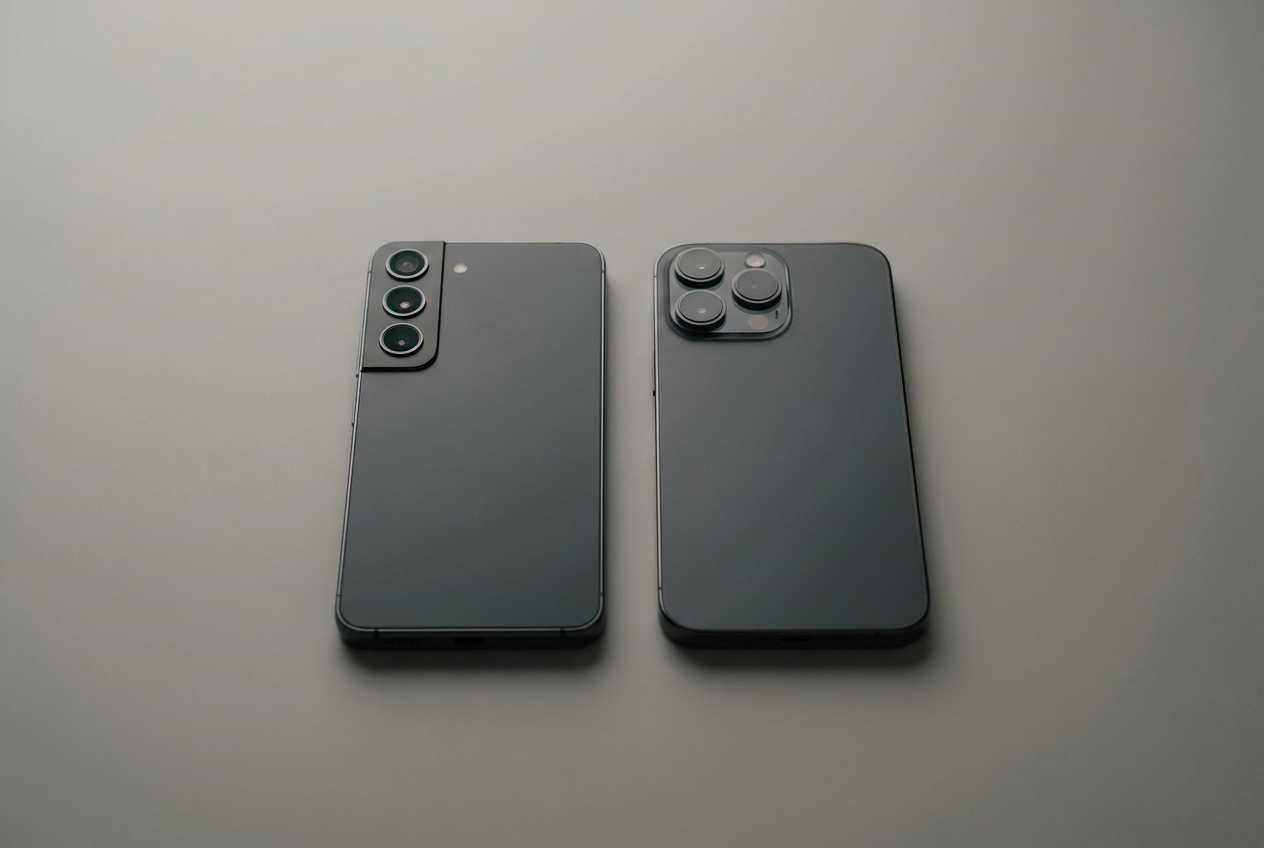
If you don't have a latest-generation Pixel, don't worry, there are very effective ways to solve this problem. Here are the most reliable options:
- Wondershare MobileTrans: It's probably the most comprehensive option. This app lets you move up to 10 different types of data, including WhatsApp chats, without using cables or mobile data. You simply install the app on both phones, connect them to the same Wi-Fi network, and transfer the content seamlessly. encrypted and secure.
- Move to iOS: Apple's official tool is useful if you've just bought an iPhone and want to migrate your data from your Samsung. It allows you to transfer contacts, photos, and calendars, although it's considerably more limited than other apps and only works in one direction (from Android to iOS).
- SHAREit: A classic that still works. It has no file size limits and is cross-platform, allowing transfers via a direct Wi-Fi connection, guaranteeing a very high shipping speed.
Other manual methods and quick tricks
Sometimes we don't want to install resource-intensive apps and prefer to play it safe. In those cases, we have several options. We can use the cloud, uploading files to Google Drive or Dropbox from our Samsung and then downloading them to our iPhone. For photos, Google Photos is the best choice: you activate backup on Android, and when you open the app on iOS, your entire camera roll magically appears there.
If you prefer something more tangible, you can use a USB-C to Lightning cable connected to a computer to manage the files. There's even a neat trick with Quick Share: you can generate a QR code through Samsung Cloud for the iPhone user to scan and download the photos directly from their browser.
How to send files from an iPhone to a Samsung
If you're going in the opposite direction, the process is very similar. Pixel 10 users simply open the file on their iPhone, choose AirDrop, and select the Android device, which must have Quick Share set to "Receive ." For everyone else, apps like SHAREit or cloud services like OneDrive remain the best way to ensure your data reaches its destination without errors.
Whether we opt for the new Google integrations, external apps, or cloud services, the gap between Samsung and Apple is narrowing. The key is choosing the method based on the amount of data: for a couple of photos, the cloud is sufficient; for migrating an entire phone, a specialized app is the best choice to avoid data loss and save time.