- There are several applications such as Remote Mouse or Unified Remote that allow you to transform your mobile phone into a wireless peripheral.
- The connection can be established via local Wi-Fi networks, requiring a client on the PC, or via Bluetooth without the need for additional software.
- This solution is ideal for emergency situations, professional presentations, or remote control of multimedia centers.
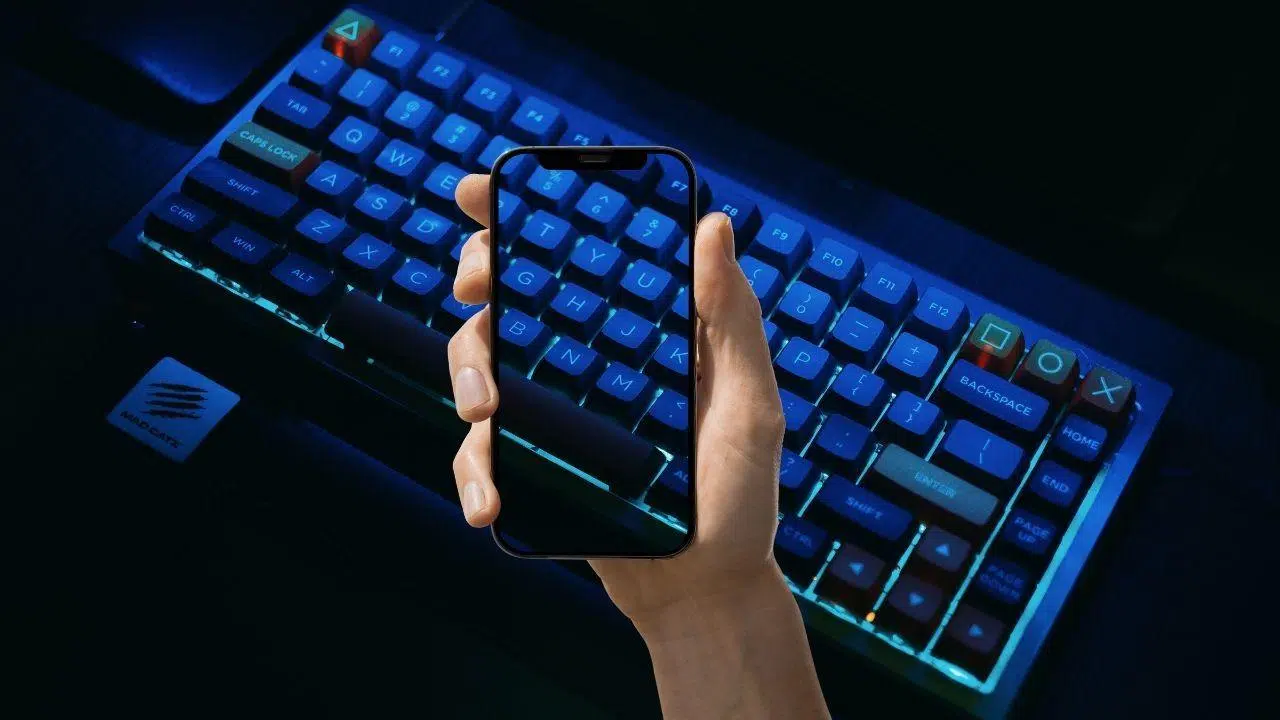
Today, it's amazing to see how a mobile phone can do things that even the manufacturers themselves hadn't imagined. Thanks to independent developers, we can get the most out of our device's power to find alternative and very useful uses for it in everyday life, similar to some ideas about what to do with an old smartphone.
A perfect example is when we're stranded because our PC keyboard has died or the batteries have run out at the worst possible moment. While a mobile phone will never have the ergonomics of a physical keyboard, it can be the ideal lifesaver while we wait for a replacement.

Recommended tools for connection
To achieve this trick, we need third-party software that creates a bridge between the computer and the mobile device. One of the most popular options is Remote Mouse , which is compatible with Android, iOS, Windows, and Mac. This tool not only emulates the keyboard but also allows you to control the mouse pointer remotely.
Another very powerful alternative is Unified Remote , which stands out for being more comprehensive and compatible even with Linux systems. Although it has a slightly steeper learning curve, it offers specialized controls and advanced management of the device's functions.
If you're looking for something simpler and you have an Android device, there's the Serverless Bluetooth Keyboard and Mouse . The interesting thing about this option is that it doesn't require installing any software on your PC, as it relies on the Bluetooth connection standard to emulate an HID input device.
Step-by-step guide to setting up Remote Mouse
To begin, the first step is to download the official client to your computer and the corresponding app from your mobile device's app store. It's essential that both devices are connected to the same Wi-Fi network so they can recognize each other, thus facilitating an efficient remote desktop connection.
Once installed, open the app on your phone. Normally, your phone will detect your PC automatically, but if it doesn't, you'll need to link them using their IP addresses . You have two options: manually enter the IP address or, much more conveniently, scan the QR code displayed on your computer screen.

For Android users who can't find their IP address, simply go to Settings, then Network & Internet, tap on the active Wi-Fi network, and look in the advanced options section . Once connected, just tap the keyboard icon on your phone's interface to start typing in real time without any lag.
Important considerations and usage tips
Using your phone as a keyboard consumes a lot of power because the screen has to stay on. To prevent it from turning off mid-sentence, it's recommended to set the screen timeout to 30 minutes or, even better, keep your phone connected to the charger or an external battery.
If you notice the system is running slowly, check that your Wi-Fi signal is stable. Using mobile data outside your home isn't recommended unless you have a very fast, unlimited 5G connection , as even a brief interruption can cause lag while typing.
To improve your experience, you could disable intrusive notifications that might cover the virtual keyboard. Also, if you're going to be typing for a long time, we recommend using a phone stand or tripod to maintain a more ergonomic posture and avoid wrist pain.
Use cases and professional advantages
Beyond emergencies, this feature is a gem for the workplace. Imagine you're in a meeting with your laptop connected to a projector; you can advance slides or take notes without being glued to the table, using software tricks that boost your productivity.
It's also ideal for entertainment, turning your smartphone into a remote control for your media center . From the sofa, you can pause a movie, adjust the volume, or browse streaming platforms without moving an inch, thanks to its integration with the Kodi media player.
In very specific cases, such as when you need to enter long passwords stored in a manager like 1Password, the mobile phone acts as a secure vault that transmits the characters directly to the PC, avoiding manual typing errors.
Common troubleshooting
If it doesn't work after following these steps, check for compatibility issues with your operating system version. Sometimes, simply restarting your router or force-stopping the app by clearing its cache can resolve most connection problems.
If the problem persists and you believe it's a hardware issue (such as an unresponsive touchscreen), you'll have no choice but to contact technical support . If the error is software-related, the quickest solution is to visit the community forums for the specific application you're using.
Turning your phone into an input device is a versatile solution that allows you to regain control of your computer in critical situations or improve productivity in presentations and entertainment, provided you have the right application and a stable connection between devices.