- Clearing the Play Store cache and data eliminates compatibility errors.
- Restarting the application forces a check for pending updates on the server.
- The process of updating Google services usually happens automatically in the background.

Sometimes, Android throws us annoying warnings saying that some of our favorite apps will stop working if we don't update Google Play services . The most frustrating thing is that, sometimes, we search high and low for the update button in the store and it's simply nowhere to be found, leaving us stranded.
If you've ever experienced a system that, despite having a modern device, becomes stubborn and won't let you progress, don't worry. There are a number of technical tricks you can apply from your phone's settings to force everything back to normal and get apps updating without further problems.
How to reset the Google Play Store to fix errors
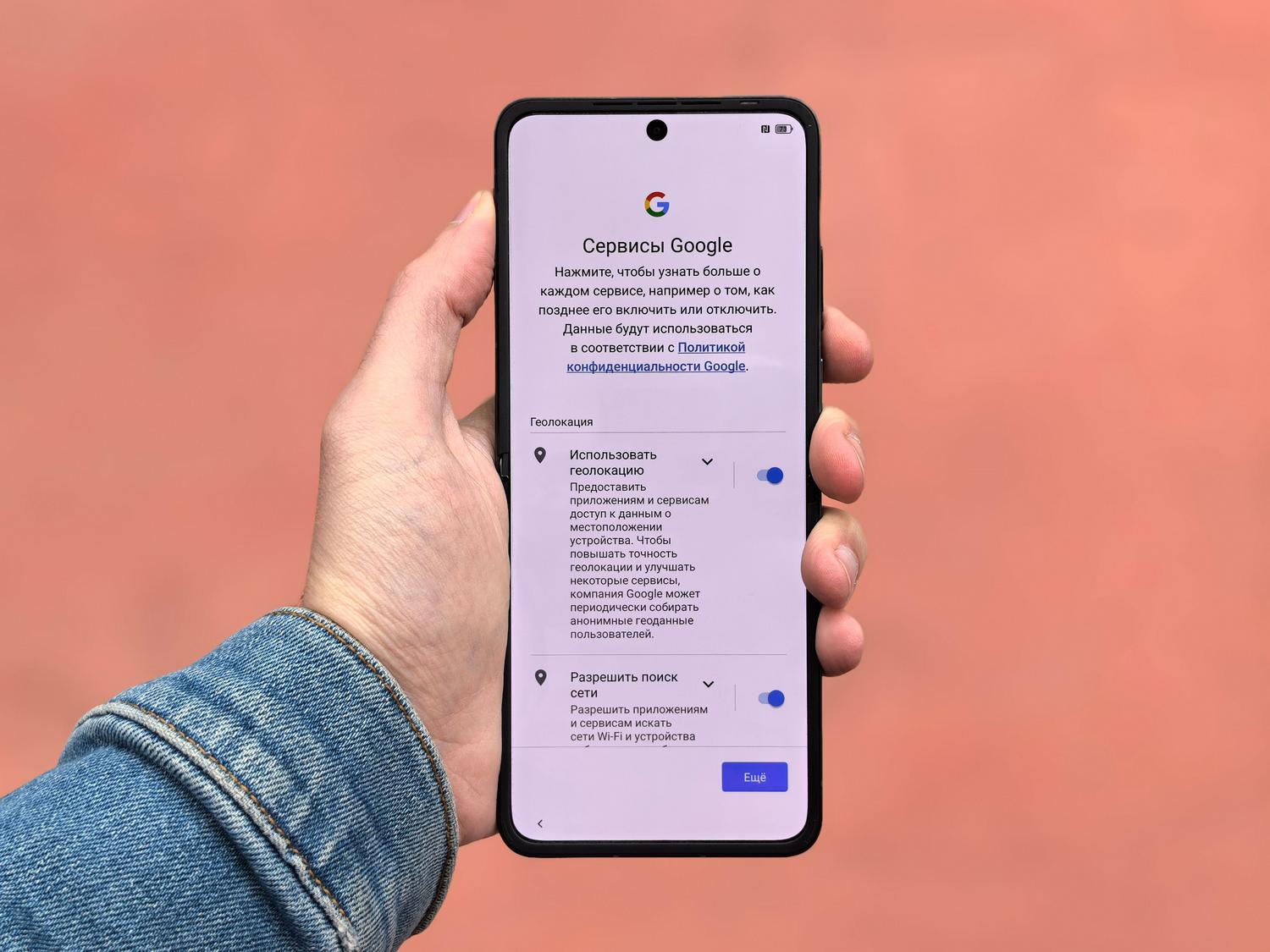
When the app store freezes or fails to recognize a new version of the services, the most effective solution is a thorough cleanup. Clearing the cache and data forces the app to completely restart, eliminating any corrupted files that might be blocking the update process.
To perform this process on your phone or tablet, follow these detailed steps:
- Enter the menu Settings or Configuration from your Android device.
- Look for the section Applications and notifications and select the option to view all installed applications.
- Scroll down the list until you find the Google Play Store and click on it.
- Access the section Storage and press the button to clear the cache.
- Immediately afterwards, select the option to Delete data to leave the app as if it had just come from the factory.
- Close everything, reopen the Play Store and Try downloading again or update that was giving you problems.
It is essential to know that all data management performed by Google Play Services is strictly governed by Google's Privacy Policy , so your personal files are not at risk when you perform this reset.
What to do if the update option doesn't appear?
Some users, even those with recent models like the Moto G 5G, find that there's no clear button to update services. This usually happens because Google Play services update automatically in the background, but sometimes the notification system gets stuck and keeps reporting an error that no longer exists.
If you've already tried manually checking for updates in both the app manager and the Play Store and still haven't had any luck, the definitive solution is the storage wipe mentioned earlier. This forces the system to check the current version with Google's servers and install the correct version invisibly.
Performing a temporary memory cleanup and restarting the store is usually the key to making error notifications disappear and ensuring all your tools are compatible with the operating system again.