- Comprehensive management of access permissions and the flow of shared personal information.
- Advanced tools for the immediate restoration of privacy in critical situations.
- Comprehensive control over location, third-party applications, and accounts linked to the ecosystem.
Sometimes we realize we've left the door open to too many people in our digital lives. Whether it's sharing our location with a friend, granting permissions to an app we've forgotten we downloaded, or having linked accounts we don't control, our privacy becomes riddled with holes without us even noticing.
To address this, Apple has implemented tools that allow us to perform a general cleanup. It's not just about changing a password, but about managing who has access to what and, above all, being able to quickly and effectively sever those connections when we feel our personal security is at risk.
The iOS security review system
When you need to get things in order, the security review is your best ally because it offers two very clear paths. On the one hand, there's the emergency reset , which is basically a panic button to cut off access to all people and applications at once. On the other hand, there's the option to manage access individually , ideal for those who want to review, on a case-by-case basis, what data is flowing and where it's going.
This tool lets you quickly change your device passcode and Apple account password, and also restricts the use of FaceTime and Messages so they only work on the device you're holding, preventing anyone else from receiving your communications on another device.
Location control and tracking
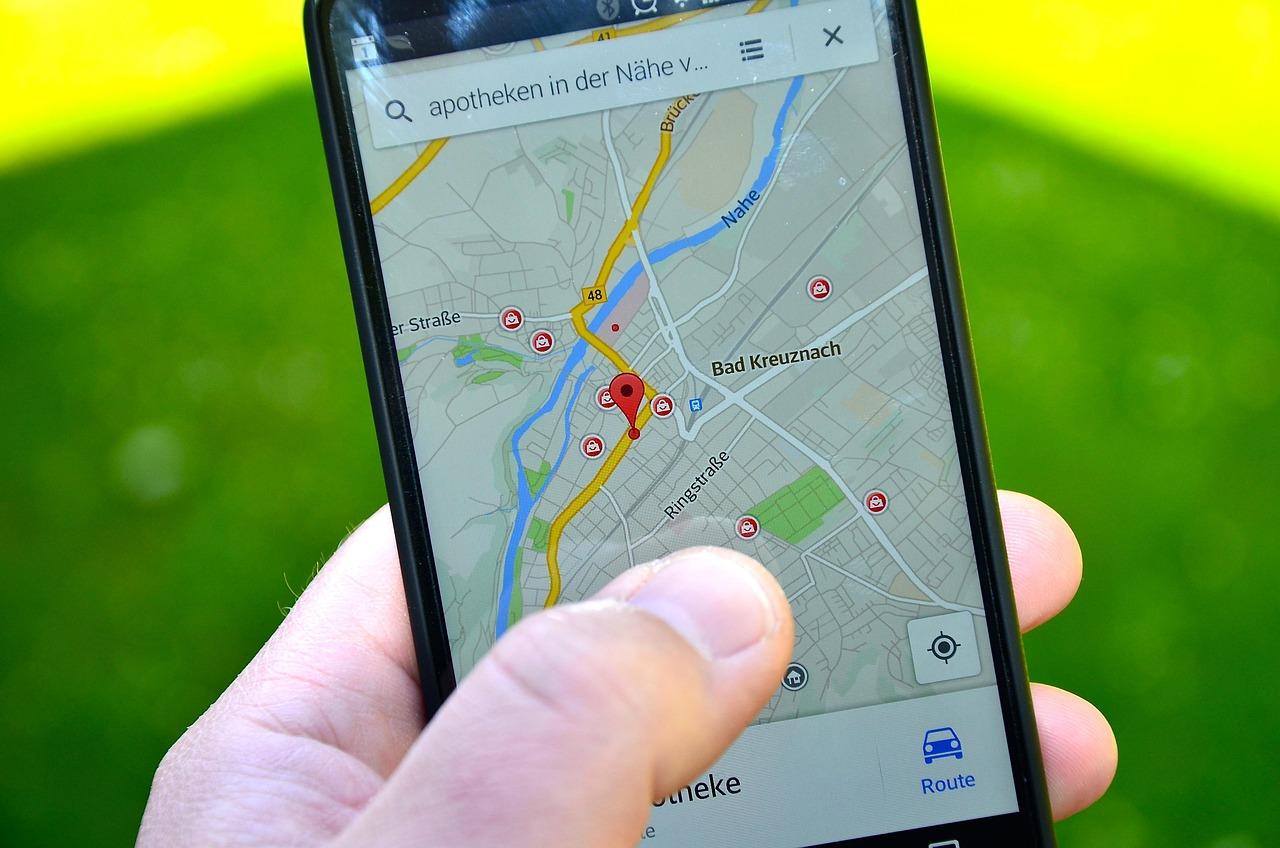
If you're using a modern version of iOS, the security check is the primary way to do this, but if you're using an older version, you should go directly to the privacy settings. To stop an app from sharing your location, simply go to Privacy & Security and select "Never" for location access.
As for people, the Find My app is key. If you want someone to stop knowing your location, select their profile and tap " Stop sharing my location ." Interestingly, the other person won't receive any notification that you no longer appear on their map. Additionally, it's vital to monitor your Find My network accessories to remove any unusual devices that might be linked to your account.
We can't forget about photo metadata. When you send a photo, it might include the exact coordinates of where it was taken. To avoid this, it's recommended to remove location metadata in the Photos settings and disable future collection of this data.
Protection against external applications and accounts
Not everything happens within Apple. Often, the problem comes from apps outside the ecosystem that collect your general location data . The best course of action is to audit your installed apps and ruthlessly delete any you don't recognize or no longer use, as this reduces the attack surface.
Regarding bank accounts, social media, and email, it's essential to change passwords regularly and check that no messages are being forwarded without your permission. On social media, think twice before posting content that reveals details of your private life and manage your follower lists to include only trusted individuals.
Advanced security and physical measures
For those who need an extreme level of protection, there's Lockdown Mode , which limits system functions to prevent sophisticated spyware attacks. It's also important to use a long passphrase (at least 10 characters) instead of a short PIN, as biometrics like Face ID or Touch ID could be compromised in critical situations.
On a physical level, there are tricks that seem like something out of a movie but actually work. Using a privacy filter on the screen prevents someone from looking over your shoulder, and putting a sliding cover over the camera prevents malware from spying on you visually. It's also highly recommended to disable Bluetooth and Wi-Fi from Settings (not Control Center) when you're not using them, to prevent your device from broadcasting its identity to unknown networks.
Account management and connectivity
It's vital to check in Settings which devices are signed in to your Apple ID. If you see a device that isn't yours, remove it from the account immediately . Similarly, check for any MDM (Mobile Device Management) configuration profiles that shouldn't be there, as these are typically used by businesses or institutions to control devices.
If you share a mobile plan, keep in mind that the primary account holder could see your call activity or location. In these cases, it's best to contact your carrier to add a security PIN code to prevent unauthorized changes to the line. Also, make sure your personal hotspot is disabled so no one can use your connection without permission.
Keeping your operating system updated, clearing saved Wi-Fi networks, and using the default iOS keyboard are simple steps that close important security gaps. Ultimately, privacy is a balance between convenience and control, where constantly reviewing permissions is the only way to ensure your information doesn't fall into the wrong hands.