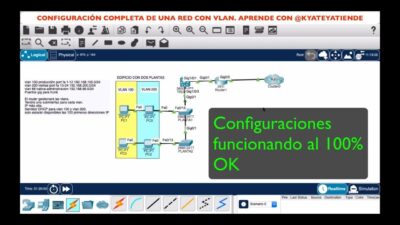
- Segmentation into zones (LAN, DMZ, VLAN) and the use of precise ACLs drastically reduce the attack surface on servers.
- A properly configured Windows Firewall with advanced security provides granular control of incoming and outgoing traffic on each computer.
- NGFWs combine application filtering, IPS, VPN, URL filtering, and QoS for comprehensive environment protection and management.
- Regular logging, auditing, and testing of rules are essential to detect misconfigurations and maintain long-term security.
Mastering advanced server firewall configuration is no longer just for large corporations. Any company that takes cybersecurity seriously needs to understand how to segment the network, define zones, create detailed rules, and get the most out of both the perimeter firewall and the Windows firewall itself on every computer and server.
Throughout this guide you will see, in considerable detail, how Next Generation Firewalls (NGFWs) work , how to design zones (LAN, WAN, DMZ, VLAN), what types of rules to apply (program, port, protocol, IP…), how to take advantage of the Windows Firewall with advanced security , what role tools like SimpleWall play, and what best practices to follow so that this whole system doesn't become an unmanageable mess.
Next Generation Firewalls on servers: much more than port filtering
Next-generation firewalls, such as the FortiGate NGFW , combine advanced networking features and deep security in a single device. They don't just open or close ports; they analyze traffic at the application level, inspect encrypted content, and integrate with complex cloud, LAN, WLAN, and remote access architectures.
In the case of FortiGate, the heart of the system is FortiOS , a specific operating system that unifies security policies and network functions: integrated SD-WAN, universal ZTNA, traffic control in wireless and wired networks, and centralized management thanks to FortiManager.
Furthermore, these devices rely on a proprietary ASIC architecture (dedicated chips) to accelerate packet inspection and decryption without destroying performance or increasing energy consumption, even when the network is under full load and there are hundreds or thousands of simultaneous sessions.
Threat protection is reinforced with FortiGuard services , which add artificial intelligence to detect malware, suspicious traffic, exploits and targeted attacks, fitting everything within the concept of Fortinet Security Fabric: a security fabric that covers network, endpoints and cloud to respond in a coordinated way to incidents.
Firewall zone design and network segmentation on servers
Before creating rules like there's no tomorrow, you need to properly design the network's zoning architecture and segmentation . The flatter the network, the easier it will be for an attacker to move laterally once they gain entry.
The first step is to identify key assets and services : web servers, databases, internal applications, point-of-sale devices, VoIP PBXs, guest networks, etc. Depending on their criticality and exposure, they are grouped into different logical zones.
A standard practice is to create a DMZ (demilitarized zone) for servers that provide services directly to the internet (email, VPN, web applications, public portals, etc.). These servers must be isolated from both the external network and the more sensitive internal network, limiting as much as possible what traffic can flow between zones.
Servers that are only accessible from within the organization are located in internal server zones , separate from the user network, the management network, and any lab or test environments. To make this practical, it's common to use switches with VLAN support to maintain separation at Layer 2 as well.
In IPv4 environments, all internal networks must use private address ranges (RFC1918) and rely on NAT mechanisms to access the internet. This translation is typically performed at the perimeter firewall, which also enforces inbound and outbound policies for each specific zone.
Access control lists (ACLs) and inter-zone rules
Once the zones have been defined and assigned to the firewall's interfaces or subinterfaces, it's time for the ACLs (Access Control Lists) , which are the rules that decide what traffic is authorized and what traffic is rejected between those zones.
The idea is to define, for each interface or subinterface, a set of rules that are as specific and granular as possible: source IP or subnet, destination IP or subnet, protocol (TCP, UDP, ICMP, etc.), ports involved, and action (allow or deny). The less generic the rules, the fewer security gaps there will be.
A good practice is to end each ACL with an implicit "deny all" rule , which acts as a safety net: if a packet doesn't match any previous allow rule, it's blocked. From there, very specific exceptions are created for the flows that are actually needed.
It is also advisable to disable public access to the firewall's management interfaces (HTTP, HTTPS, SSH, etc.), allowing management only from very specific internal networks or through a secure management VPN.
Modern NGFWs offer more than just port and IP address control, leveraging application control , web categories, IPS, and advanced file analysis (sandboxing). If you've already paid for these features, it makes sense to enable and configure them for critical traffic flows, especially those crossing the perimeter.
Permissive firewall vs. restrictive firewall on servers
A key point when designing a firewall policy (whether perimeter or operating system) is deciding whether to start from a permissive or restrictive stance.
In a permissive firewall, the ultimate implicit rule is "allow everything." Only what is explicitly defined by deny rules is blocked. This approach is typically used on trusted internal networks (LANs) or on computers configured as a "private network" in Windows.
In a restrictive firewall , the opposite is true: the ultimate rule is "deny all." Only traffic that matches explicit allow rules is permitted. This philosophy is typical in the wide area network (WAN) interface, in firewalls like pfSense or corporate NGFWs, and in devices configured as a "public network."
Windows, for example, uses a restrictive policy by default for incoming connections (blocking everything that isn't explicitly allowed) and a permissive policy for outgoing connections (allowing everything except what you've blocked). This can be adjusted in the firewall's advanced settings.
What can the Windows Firewall really offer on servers?
Windows Firewall with advanced security is far more powerful than many people realize. It can control incoming and outgoing traffic, filtering by IP address, port, protocol, service, network interface, profile type (domain, private, public), and even by user or group in some scenarios.
Among its capabilities are low-level packet filtering , the generation of detailed logs (which can then be analyzed with the Event Viewer or sent to a SIEM), the detection of public networks to automatically apply a stricter profile, and integration with other security layers such as Windows Defender.
For small businesses and many server environments, a well-configured NGFW can be more than sufficient , especially when combined with robust antivirus software and good administration practices. However, it's important to be aware of its limitations: it's not a substitute for a perimeter NGFW or a dedicated IPS.
Weak points include the fact that the Windows firewall does not offer deep packet inspection with advanced signatures by default, does not natively block system telemetry, its notifications are discreet (it barely alerts you to new connections), and the way to view logs is not user-friendly for non-technical users.
Access to Windows Firewall with advanced security
To manage advanced firewall settings in an Active Directory domain environment , the best approach is to work with Group Policy Objects (GPOs) . Membership in the Domain Admins group or delegated permissions for GPOs is required.
From the policy management console, navigate to Policies > Computer Configuration > Windows Settings > Security Settings > Windows Firewall with Advanced Security . There you can define common rules for client computers and domain-joined servers.
If it's a single server or local computer , you only need administrator privileges on that device. The quickest way to open the console is to press START, type wf.msc , and press Enter. This will open the Windows Firewall console with advanced security for that computer.
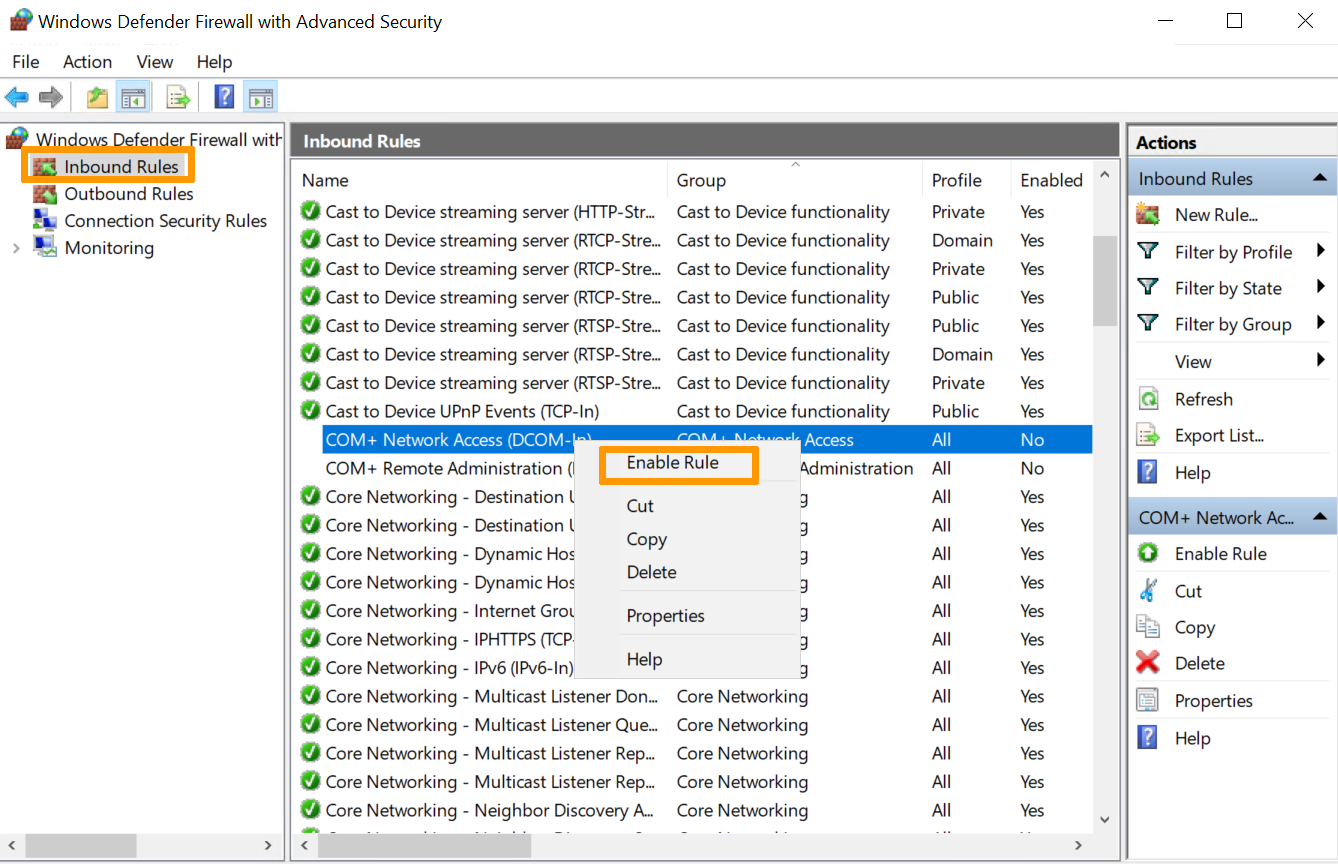
The main screen displays inbound rules, outbound rules, connection security rules , and the configuration of different profiles (domain, private, public), along with a monitoring area where only active rules are visible.
Profiles, global policies, and default behavior
The firewall properties panel controls the global options for each network profile (domain, private, public). These options determine how the firewall behaves when a network adapter is associated with a specific network type.
For each profile, you can decide whether the firewall is enabled or disabled , whether incoming connections that do not match any rule are blocked or allowed, and the same for outgoing connections.
You can also adjust parameters such as notifications when blocking a program , the location where firewall logs are stored , the maximum size of those logs, and the special treatment of traffic protected by IPsec VPN tunnels, which is generally considered more reliable.
The Monitoring section displays all currently active rules, including those from Group Policy Objects (GPOs) and those defined locally. This is the place to go to see which rules are actually active and with what parameters, and from there you can open and modify their properties.
Entry and exit rules: traffic direction
When working with rules in the Windows firewall, one of the most common mistakes is confusing the direction of traffic . Inbound rules apply to packets arriving at the computer; outbound rules apply to packets leaving the computer and going to another machine.
If the goal is to prevent connections from the internet to a server, inbound rules must be created or modified . Conversely, if the aim is to prevent a server service or program from connecting to the outside, outbound rules must be modified.
Each entry in the list indicates whether the rule is enabled (green checkmark icon) or disabled. Disabled rules do not affect traffic, even though they are still defined. It is common to find many predefined Windows rules that are present but not active until needed.
Understanding the source/destination flow and the local/remote port is fundamental to avoid creating rules that are never applied or that open more than is really necessary, something very common when configuring complex services.
Types of rules in the Windows Firewall
The Windows Firewall New Rule Wizard offers four main categories: Program, Port, Predefined, and Custom . Each is designed for a different scenario, and you should choose carefully depending on your desired outcome.
Program rules focus on a specific executable; port rules filter by TCP or UDP port number; predefined rules simplify the management of known Windows services; and custom rules allow for very fine-tuning by combining multiple criteria at once.
In all cases, the wizard concludes by asking what action we want to apply (allow, allow only if secure with IPsec, or block) and to which network profiles that rule will apply (domain, private, public). Finally, a name and description are assigned so that it can be easily identified later.
On critical servers, it's worth taking the time to properly document the rules, indicating what service it protects and why it exists , so that in future audits or changes there are no doubts about its usefulness.
Rules by program: fine control of specific services
Program -type rules are a convenient way to control an application's traffic without having to memorize all the ports it uses. They can be applied to both incoming and outgoing traffic.
In the wizard, select the "This program path" option and specify the executable path . You can use environment variables to ensure the rule is applied correctly even if the program is installed in different locations on different computers.
On servers hosting services within svchost.exe or other multi-service containers, you can customize the rule to apply only to specific services by selecting the service by its short name. This allows you to differentiate, for example, the traffic of a particular RPC service within the same process.
It is highly recommended to combine a program rule with restrictions in the Protocols and Ports tab , explicitly specifying which ports that application can listen on or use. If it attempts to open a different port, the firewall will block it.
Port rules: classic TCP/UDP filtering
Port -type rules allow you to permit or block traffic based on the local or remote port number and the protocol (primarily TCP or UDP). They can be used for both inbound and outbound rules.
In a typical inbound rule to open, for example, TCP port 21 , you select TCP, specify "specific local ports," and enter 21. You can specify multiple ports separated by commas (e.g., 21,20,22) or ranges such as 5000-5100, even mixing individual ports and ranges in the same rule.
Next, you decide on the action (allow, allow if secure, block) and the profiles where it will be applied. It's a simple way to open certain standard services (HTTP, HTTPS, RDP, etc.) without going into the details of specific programs.
In the case of outbound rules , it's most common to specify the remote port, as this is the destination the server attempts to connect to. A typical use case would be to block all outbound traffic to suspicious ports or to restrict certain applications to only communicating on very specific ports.
Predefined and customized rules
Predefined rules group ready-made configurations for common Windows services (File and Printer Sharing, Remote Desktop, etc.). Simply choose the service, indicate whether to allow or block it, select profiles, and you're done.
This option is convenient when you want to quickly enable or restrict an internal service without having to investigate which ports and protocols it uses in each case. Behind the scenes, the system creates several specific rules that cover that service.
Custom rules are the most comprehensive and offer the greatest control. They allow you to specify all parameters: program (or all programs), service type, IP protocol (with a list of TCP, UDP, ICMPv4, ICMPv6, GRE, IPv6-Route, etc.), combination of local and remote ports, source and destination IP addresses (including ranges and subnets), and additional conditions.
In protocols like ICMPv4 or ICMPv6, you can choose whether to allow all ICMP message types or only certain ones (echo request, echo reply, time exceeded, etc.). You can even define specific types and codes that don't appear in the general list.
Also, when defining IP addresses in the scope section, the wizard allows you to add entire ranges or subnets (for example, 192.168.10.0/24) to further restrict which devices can use that rule, both locally and remotely.
ICMP inbound rules on servers
Whether or not to allow ICMP traffic to a server is a strategic decision. An incoming ICMP rule allows the server to respond to pings and certain network diagnostic messages, which is very helpful for administration, but it can also provide information to an attacker.
To create an inbound ICMP rule in the Windows Firewall, open the Advanced Console, go to Inbound Rules , and create a new custom rule. In the Programs section, you typically select "All Programs."
On the protocol screen, select ICMPv4 or ICMPv6 depending on the network stack used. If you are working with both IPv4 and IPv6, you will need to create a rule for each. The customization option allows you to select the specific ICMP types you want to allow (echo request/echo reply only, or a broader set).
Next, the scope (which IPs can be pinged), the action (usually allowing the connection), and the network profiles where the rule will take effect are defined. Finally, a descriptive name is assigned to the rule for easy identification.
Incoming and outgoing service or program rules
In some scenarios, you want to allow a specific service to listen to incoming traffic on any port it needs, or the opposite: prevent a program from communicating with the outside world through any port.
For the incoming part, a custom rule is created, "This program path" is selected, and the service executable is specified. This can then be customized so that the rule only applies to services hosted within that executable, by choosing the service by its short name.
There's even the option to adjust the service's SID type using the command `sc sidtype <ServiceName> <UNRESTRICTED|RESTRICTED>`. This determines how that service can be used within the firewall rules. Changing it to RESTRICTED can prevent it from starting, so do this carefully and only when that type of protection is needed.
For outbound traffic, the process is similar but involves creating an outbound rule . If you want to completely block that program from accessing the internet, you define the executable's path, set the action to "Block connection," and choose the profiles you want to restrict.
Special configurations for RPC and dynamic ports
Services that use Remote Procedure Calls (RPC) can be particularly sensitive because they use dynamic ports that the system assigns at runtime. To allow this traffic in a controlled manner through the Windows firewall, it is usually necessary to create two specific rules.
The first rule targets the RPC Endpoint Mapper Service , located in %systemroot%\system32\svchost.exe. The rule is customized to apply to the RpcSs service, TCP is set as the protocol, and the "RPC Endpoint Mapper" option is selected for the local port.
The second rule is created for the RPC-enabled network service we want to allow, specifying the path to the executable that hosts it, and also associating it with that specific service. In this case, "RPC Dynamic Ports" is chosen for the local port.
In both rules, the scope (allowed IP addresses), the action (allow the connection), and the profiles are then adjusted. This way, only devices and services that meet these conditions can take advantage of RPC port forwarding.
Logging, auditing, and troubleshooting Windows firewalls
When something isn't working as it should, the firewall log and audit events are the first source of information . It's a good idea to have log collection properly configured before you need it.
In the firewall properties, under each profile tab, you can customize the log file path , the maximum size in KB, and whether to log dropped packets, successful connections, or both. In server environments, it's usually a good idea to log both for a clear overview.
On the other hand, the command-line tool auditpol.exe allows you to enable specific audit subcategories, such as policy changes, so that the system generates detailed events when firewall or IPsec policies are modified.
When investigating a problem, it's helpful to capture the network status with `netstat -ano > netstat.txt` and the process list with `tasklist > tasklist.txt` . By cross-referencing the process IDs (PIDs) in `tasklist` with the active connections in `netstat`, you can determine which program is using a specific port.
In complex scenarios, Microsoft provides scripts such as TSS.ps1 to collect advanced traces of the Windows Filtering Engine (WFP), which are then packaged into a ZIP file and can be analyzed or submitted to technical support.
External tools: SimpleWall and third-party firewalls
The built-in Windows firewall works well, but a more intuitive interface and clear notifications when an application tries to access the internet for the first time are often lacking . That's where third-party solutions come in.
One of the lightweight, open-source options for Windows is SimpleWall , which leverages the Windows Filtering Platform (WFP) but doesn't directly modify the Windows Firewall. Instead, it creates its own rules through WFP to control which applications have access.
Its features include a simple rules editor , internal lists for blocking Windows telemetry and spying, blocked packet logs, IPv6 compatibility, and support for system services and Microsoft Store apps.
SimpleWall allows you to create permanent or temporary rules (which disappear after a restart), activate filters globally, and classify programs as allowed, blocked, or silently blocked. However, for your rules to take effect, SimpleWall itself must be running in the background.
Beyond SimpleWall, some users opt for commercial firewalls with more features: deep packet inspection, preconfigured anti-trace lists, sandboxing, behavioral analysis, advanced graphical dashboards, and better visibility into outgoing traffic. Many of these products integrate with the Windows Firewall or partially replace it.
Performance, advantages and disadvantages of using firewalls on servers
Using a firewall, whether perimeter or operating system-level, incurs a small performance cost because each network packet is analyzed against one or more rules. This can be noticeable on systems with very limited or very old hardware. Review the Linux server optimization guide to mitigate any impact.
However, the advantage of having a first line of defense is enormous: it reduces exposure to external attacks, controls which applications can connect from outside, generates useful logs for auditing, and adapts the level of protection depending on whether you are on a trusted network or a public network.
The main disadvantages, apart from the impact on performance, are the complexity of maintenance (especially for inexperienced users) and the false sense of security: a firewall does not replace a good antivirus, system updates, or, of course, the administrator's common sense.
Furthermore, proper rule management takes time: reviewing what is actually in use, removing obsolete rules, documenting changes, and verifying that no loopholes are unintentionally left open when performing quick tests or temporary exceptions.
Advanced best practices for firewall security on servers
In a serious server environment, it's not enough to simply set a few rules and forget about it. There are a number of best practices that help maintain control and reduce long-term risks.
The first is to apply the principle of least privilege (PoLP) : both to users and to rules. Avoid generic rules like "allow everything from any IP" and instead define rules tailored to specific IPs or subnets, specific ports, and known applications.
Another key is to keep the firewall and its components always up to date . This involves applying operating system patches, physical firewall firmware updates, IPS signatures, and any updates released by the vendor, preferably testing them first in a test environment.
Finally, it is essential to deploy effective monitoring and logging : send logs to a SIEM, define alerts for suspicious patterns (for example, many packets blocked from the same IP) and periodically review reports, not just collect them "just in case".
In addition to the logical layer, the physical security of the firewall matters: equipment in closed racks, restricted access to the technical room, and configuration backups to allow for a quick rollback if something breaks after a change.
Additional layers: URL filtering, VPN, IPS, QoS, and application control
Most modern NGFWs allow you to enable advanced features that complement basic packet filtering and IP/port rules.
URL filtering allows you to classify websites by categories (malware, social networks, adult content, P2P downloads, etc.) and block those that are considered inappropriate or dangerous, which helps both to strengthen security and to enforce acceptable use policies.
VPNs , whether site-to - site or remote access, rely on protocols such as IPsec or SSL/TLS to encrypt traffic between offices and remote users. Firewalls typically integrate VPN termination and apply the same control policies to encrypted traffic as to the rest of the network.
An Intrusion Prevention System (IPS) inspects traffic in real time looking for known attack patterns or strange behavior, and can automatically block connections that attempt to exploit system or application vulnerabilities.
Application control provides much greater visibility than simple port control: it allows you to decide which specific applications (e.g., Skype, Dropbox, gaming applications, etc.) are allowed or blocked, even when they use standard or encrypted ports.
Finally, Quality of Service (QoS) allows prioritizing critical traffic (voice, videoconferencing, business applications) over other less important flows, preventing a massive download or backup from degenerating into a network unusable for the end user.
Thoroughly managing the advanced configuration of firewalls on servers , from the design of zones and granular rules to the use of next-generation features, logging, auditing, and tools like SimpleWall or dedicated NGFWs, makes the difference between a network that "more or less gets by" and an infrastructure truly prepared to withstand attacks, grow without losing control, and meet current security requirements.