- Widget Launcher offers modern, customizable widgets with low power consumption and an integrated library from the Microsoft Store.
- Classic .gadget gadgets do not work in the native panel; there are packages like Gadgets Revived and 8GadgetPack.
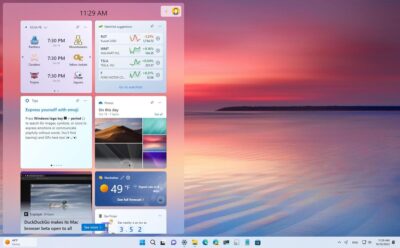
- The Windows 11 widget panel supports configurable notifications, announcements, and badges to avoid clutter.
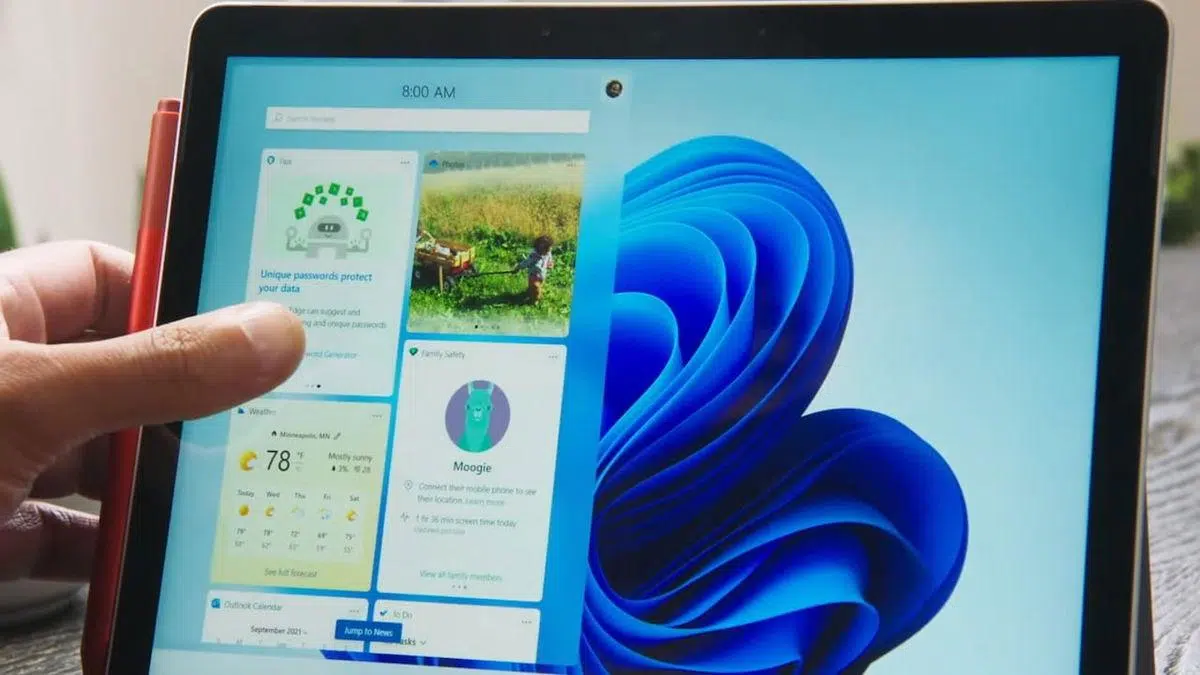
If you've landed here, it's because you want to get desktop widgets up and running on your PC, and more specifically, install Widget Launcher on Windows 11 to customize them to your liking. This guide brings together the best information from various sources and organizes it clearly so you don't get lost: what it is, how to install it, how to configure it, and what alternatives you have if you're looking for something more classic or minimalist.
Before we get into the details, it's worth clearing up a common misconception: the old .gadget files from Windows Vista/7 don't work with the modern Windows 11 widgets panel. These gadgets have been retired for security reasons , and while there are ways to recover them, they can't be added using the "+" button in the widgets panel; for that, you need specific packages. If your goal is to use a modern, lightweight system with a built-in library, Widget Launcher is one of the most convenient options because it can be downloaded from the Microsoft Store and integrates seamlessly with the desktop.
What is Widget Launcher and why is it important in Windows 11?
Widget Launcher is a free application available in the official Microsoft Store that adds a collection of customizable widgets to your desktop. These include elements such as weather, clocks, a calendar, notes, a CPU meter, currency and unit converters, and even an RSS reader, all with adjustable themes, colors, and transparencies. The interface is clean, allows you to launch multiple instances of the same widget, and, importantly, locks their position to prevent accidental movement.
The app runs in the background, and according to user experiences, its resource consumption is quite low compared to other solutions. We know that some users have noticed that the native Windows 11 panel can consume a lot of memory when active; with Widget Launcher, the idea is to have granular control over what loads and how you load it, since you choose from a library what you actually need, without having to sit through a news feed if you don't want to.
Install Widget Launcher on Windows 11 step by step
Installing it from the Microsoft Store is the most straightforward and risk-free way. Follow these steps to get it up and running in just a few minutes:
- Open the Microsoft Store on your Windows 11 PC and search for 'Widget Launcher' (it appears as a free download).
- Click on Get/Install and wait for the process to finish. Being an app from the StoreYou don't need unknown origins or strange steps.
- Launch Widget Launcher from the Open button or from the Start menu.
- On the home screen, you'll see the library of built-in widgets. Choose one, adjust its appearance, and tap Launch Widget to place it on your home screen.
- If you want the app to start with Windows, enable the automatic startup option in its settings. This way you'll always have your widgets ready. when turning on
One feature many users appreciate: you can launch multiple instances of the same widget. For example, two or more clocks for different time zones, or several separate notes for each project. Each instance saves its settings and position, making it easy to keep your desktop tidy.
Configure and customize widgets to your liking
Each widget in Widget Launcher includes appearance and behavior controls. From its panel, you can change the theme, colors, fonts, and transparency , as well as the size. Adjust it visually first, then refine it once the widget is on your home screen. Changes are applied almost instantly, so you can iterate without wasting time.
If you value a cohesive aesthetic, try unifying the color palette and transparency level so everything blends seamlessly with your background. To prevent accidental movements, remember to enable the " lock position" option . And if you do some occasional cleanup, disable or remove widgets you don't use; the fewer background processes, the better the overall performance.
The default library covers the basics (weather, calendar, clock, CPU, notes, converters, RSS feeds, etc.). A handy trick is to combine a notes widget with a world clock widget: if you collaborate with people in different countries, you'll have the time context at a glance and a pinned to-do list, without having to open extra apps.
Creating and importing custom widgets: advanced level
In addition to the built-in widgets, Widget Launcher allows you to import user-created widgets . This capability is invaluable if you need something very specific, but it requires basic development knowledge, especially JSON handling. If you're up for it, start by duplicating a simple widget and changing data sources and styles; this way you'll understand its structure without starting from scratch.
Once you have it, import it from the app and test it. If it doesn't look as expected, review visual properties and resource access permissions. Document your version (name, data source, format) so you can maintain it over time. And don't forget to test performance: overly aggressive queries or very frequent refreshes can impact memory or CPU usage.
Windows 11 native widgets: what they do and how they differ
Windows 11 includes its own widgets panel integrated into the taskbar, providing access to weather, sports, finance, news , and more. It's handy for those who want a quick overview of information, but its customization options are limited, and by default, it tends to push you to its content feed. If you open it, you can add or remove items using 'Add widget' and rearrange blocks.
A common question: Can .gadget files be loaded into this native panel? No, it's not supported . Clicking the "+" to add a gadget won't allow you to select a local file. These gadgets were removed for security reasons, and Microsoft no longer supports them in Windows 8 or later. If you're looking for the classic experience, there are dedicated packages that emulate them on the desktop, but these are separate from the native panel.
Notifications, announcements, and badges in Windows 11 widgets
The weather icon in the taskbar can display live updates , and the same is true for sports, finance, and news. When something important happens, Windows 11 can activate two mechanisms: rotating announcements (brief alerts from other widgets and sources) and notification badges for alerts that need to remain visible longer, such as severe weather or breaking news.
If you're not interested in these notifications, you can configure them. Open the Widgets panel, go to Settings > Notifications, and turn off the 'Show notification badges in the taskbar' and 'Show ads in the taskbar' options. On the Notifications tab, you can also choose which types of notifications you want to receive per account and per category.
Alternatives to recover classic gadgets (.gadget)
If you want to revive the gadgets from Windows Vista/7, there are veteran projects that bring them back safely and neatly. Gadgets Revived reinstalls the gadget panel on the desktop: after installation, simply right-click on the desktop > Gadgets and choose the ones you want. They work and look just like they did back then, with a fairly extensive catalog.
Another popular option is 8GadgetPack , which focuses on recreating the Windows 7 experience. Its advantage is that it organizes by categories, allowing you to download only what you need instead of loading an entire library. If you're feeling nostalgic or need a specific gadget you remember, these options are very useful.
If you prefer to stay within the Microsoft Store ecosystem, in addition to Widget Launcher you can try BeWidgets or WidgetBox , which offer modern, customizable widgets that are more aligned with the current Windows aesthetic and permissions. In all cases, installing from the Store provides peace of mind regarding updates and clean uninstallation.
Widgets for PC performance with the Game Bar
To monitor performance, Windows includes the Xbox Game Bar (Win+G) with its own widgets: CPU/GPU/RAM usage, audio, screenshots , and more. It doesn't compete with Widget Launcher in terms of visual customization, but it's useful if you want real-time metrics while gaming or working in full-screen mode. Activate it with Windows+G and add its modules from the menu.
Its catalog is more limited than that of dedicated desktop widget solutions, but it gets the job done: quickly viewing usage , switching audio mixes, or starting a recording without leaving the app you're in. If you're not interested in having metrics always visible, it might be better to open the Game Bar only when you need it.
Memory consumption and performance: what you should keep in mind
Widgets, by definition, run in the background and consume resources. Some users have noticed that having the native panel active can use hundreds of MB of RAM ; your experience will vary depending on your device and the amount of content loaded. Widget Launcher, on the other hand, prioritizes speed, but the final resource consumption depends on the number of widgets you keep active and how often they refresh.
Quick tips: only load what you use daily, avoid overly frequent updates for external sources (like RSS feeds or weather), and check automatic startup settings if you're running low on RAM. Sometimes, opening a specific app to check the weather is more efficient than keeping several data widgets running all day.
Advantages and costs of Widget Launcher
Its strengths include a comprehensive integrated library , support for multiple instances, advanced customization, and position locking. Its minimalist design blends seamlessly with the Windows 11 style, and the learning curve is short: you can have your desktop customized to your liking in minutes.
It's not all perfect: sometimes the app pushes you towards its paid version with banners or short wait times to enable certain widgets or unlimited features. These aren't major restrictions, but if you're looking for a completely free solution without any hassle, you might prefer to explore alternatives. In return, this model keeps the project alive and receiving improvements.
Practical user guide: from zero to a useful desktop
To get off to a good start, I suggest a basic set: weather + world clock + notes + CPU meter . With that, you can manage your schedule, the time zones you work with, your to-do list, and the system status. Set the transparency to 20-30% so the background isn't distracting, and use a clear font.
If you work remotely, add an RSS reader with a couple of key sources and a currency converter if you frequently make purchases or get quotes in other markets. Don't clutter your desktop : two or three columns of well-aligned widgets work better than a jumble of squares everywhere. And when you finish a project, clean up or disable any widgets that are no longer useful.
Solutions to common problems
“I copied a .gadget file to a folder and it doesn’t appear when I tap + in Widgets”: This is normal. .gadget files are not compatible with the modern dashboard. For classic gadgets, use Gadgets Revived or 8GadgetPack; for modern desktop widgets, use Widget Launcher or alternatives from the App Store.
“The weather widget isn’t displaying correctly or is slow to update”: Check your location permissions and the update interval. Sometimes, forcing a refresh or changing the data source resolves discrepancies. If you’re using a VPN, the location may not match, and you should enter the city manually.
“High RAM usage with active widgets”: Reduce the number of widgets, avoid those that refresh very frequently (very aggressive RSS feeds), and disable automatic startup when you don't need them all day. Restarting the app after major configuration changes also frees up memory.
“I want notifications, but without being overwhelmed”: If you use the native notification panel, configure which badges and announcements you want in Settings > Notifications. In Widget Launcher, limit the number of noisy widgets and rely on a couple of well-configured items (weather/calendar) instead of a dozen competing for your attention.
When to choose each option: native, Launcher, or classic gadgets
If you just want a quick glance at the weather and news in the taskbar, the native panel is sufficient. If you prefer true desktop customization , with control over style, position, and collections, Widget Launcher stands out for its balance of ease of use and power. And if you're looking for that nostalgic Vista/7 experience with those .gadget modules, then Gadgets Revived or 8GadgetPack are the way to go.
In security-sensitive businesses or teams, or in environments like Windows 11 LTSC , opt for solutions from the Microsoft Store and carefully review app permissions . Avoid installing outdated gadgets from dubious sources. The official store simplifies updates, software auditing, and clean uninstallation, which is crucial in managed environments.
In daily practice, you'll notice that working with two or three well-calibrated widgets offers far more benefits than simply adding ten. Less is more if you're looking for performance and focus. Start with the essentials, assess resource consumption, and only add what truly improves your workflow.
You now know how to install Widget Launcher, get the most out of its library, adjust notifications in Windows 11, and, if you're curious, bring back classic gadgets or use the Game Bar for performance. The key is choosing the right tool for your specific needs and configuring it wisely to avoid impacting memory or concentration.