- Configuring power modes and plans in Windows allows you to balance performance and battery life according to how you use your laptop.
- Adjusting brightness, screen timeouts, and sleep mode significantly reduces power consumption when the device is idle.
- Choosing the right combination of sleep, hibernate, and power off helps conserve battery life and prevent data loss.
- Controlling background apps and using advanced and manufacturer settings improves battery life and PC durability.

If you use a Windows laptop daily, power management makes the difference between making it through the day without plugging it in, and also between your computer lasting for years or starting to malfunction prematurely. Even so, most people never bother to check their system's battery and power settings.
Windows 10 and Windows 11 offer numerous options for extending battery life and protecting components , but many come with generic settings that don't suit your actual workflow. This article will show you, in detail and without beating around the bush, how to configure these settings to improve battery life, reduce wear and tear, and avoid bad habits that shorten your PC's lifespan.
Power modes and power plans in Windows: how they differ
Windows combines two concepts that are often confused: fast power modes and classic power plans. Understanding them well is key to getting the most out of your laptop without draining the battery.
On the one hand, in Windows 10 (and somewhat differently in Windows 11) you can choose a power mode focused on performance or battery life . In Windows 10, this was done from the battery icon by moving a slider between Best battery life, Recommended, and Best performance (although not all computers support this control; it depends on the manufacturer). In Windows 11, this functionality is integrated into the path Start > Settings > System > Power & battery , where you can choose your preferred power mode.
On the other hand, there are the traditional power plans , which are still available and can be configured from the "Power Options." Windows typically includes three by default: Power Saver, Balanced, and High Performance. Their main differences lie in the maximum processor speed, screen brightness, and how aggressively the system conserves power.
The Power Saver mode minimizes CPU speed and reduces screen brightness to maximize battery life; it's great for travel, but it does make the laptop feel slower. The Balanced mode tries to maintain a balance between performance and power consumption , and is usually the active option when the laptop is running on battery power. High Performance, on the other hand, frees up the processor, keeps the screen brightness high, and prioritizes power, so it makes more sense when the laptop is plugged in.
Some models, especially gaming or high-end ones, add variations like Silent, Turbo, or custom modes . Silent reduces noise and power consumption; Turbo pushes the CPU and GPU to their limits, at the expense of battery life and temperature. All these profiles can be combined with advanced power settings to further fine-tune performance.
How to configure power mode in Windows 11 and Windows 10
In Windows 11, power mode is managed through the modern settings. The system defaults to Balanced power mode, designed for stability and reasonable battery life, but you can change it in just a few steps.
Go to Start > Settings > System > Power & battery . In the "Power mode" section, you'll see options like High efficiency, Balanced, or Performance (the exact name may vary depending on the manufacturer). If you select High efficiency , Windows prioritizes battery life: it lowers CPU performance when possible, reduces background activity, and adjusts other internal settings. Keep in mind that this mode is designed to consume less power, not to perform better , so if you plan on playing games, editing video, or using demanding software, it's best to switch back to Balanced or a high-performance mode.
In Windows 10, when your hardware allows it, you can quickly adjust this behavior from the battery icon in the taskbar . Clicking it displays a slider: moving it to the left provides more battery life (Power Saving mode or "Better Battery"), while moving it to the right provides more power ("Better Performance"). If your computer doesn't display this slider, you can go to Settings > System > Power & sleep and look for the power mode options.
Manufacturers like ASUS offer their own power plans, such as ASUS Recommended , which aim to automatically balance performance and power consumption based on usage. If you're unsure which plan to choose, it's usually a good idea to start with the manufacturer's recommended plan or Balanced mode, and then adjust it according to your needs.
Screen and sleep settings to reduce power consumption when you're not using your PC
One of the most effective ways to save energy is to shorten the screen timeout and sleep mode when you're not using the computer. The screen is one of the components that consumes the most battery power, and leaving your laptop on when not in use is wasting energy.
In Windows 11, you can access these settings from Start > Settings > System > Power & display, sleep & hibernation timeouts (the wording may vary slightly depending on the version). There you'll see options like "Turn off my display after" and "Put my device to sleep after," both for when the laptop is on battery power and when it's plugged in.
Microsoft has been refining default settings over time to reduce power consumption on modern computers. For example, on devices with modern standby modes, the screen turns off after 3 minutes when running on battery power instead of 4 , and after 5 minutes when plugged in. The same applies to the time it takes to enter sleep mode: it's reduced so the computer enters a low-power state more quickly.
On devices with classic S3 mode, times have also been reduced: screen-on time on battery power is reduced from 5 to 3 minutes, and sleep mode can be configured to enter much sooner when there is no activity (for example, from 15 to 10 minutes on battery power, and from 30 to 15 minutes when plugged in). These are small changes that, in everyday use, result in significant energy savings, especially if you tend to leave your device on without using it.
Ideally, you should adjust these times to your workflow: the shorter the times, the more battery you'll save . However, avoid setting values so aggressive that you have to wake your device constantly, as this can be annoying. A good middle ground is usually when the screen turns off after a few minutes and sleep mode starts a little later.
Suspend, hibernate, or shut down: which option is best depending on your needs
Most laptop users have the habit of closing the lid and forgetting about it , thinking that the computer barely uses any power and everything stays the same. In reality, what happens when you close the lid depends on how you have this action configured in the power options, and each setting affects power consumption, battery life, and data security differently.
In the power management of any PC, there are three basic states when you're not using it : sleep, hibernation, and complete shutdown. At first glance, they all seem the same because the screen is black and the computer is silent, but internally they are very different.
Sleep mode (Sleep on Mac) is usually activated by closing the lid or briefly pressing the power button. In this state, the system keeps all your work in RAM : browser tabs, open documents, programs, etc. To prevent the RAM from losing this information, the laptop continues to consume a small amount of power, even though the screen and hard drive are off. It's ideal for short breaks : grabbing a coffee, having a bite to eat, or leaving your computer unused for less than an hour. It resumes almost instantly, but if the battery runs out while the computer is in sleep mode and you haven't saved your changes to disk, you could lose data.
Hibernation is more aggressive at saving energy and is recommended for long breaks. In this mode, Windows copies the contents of RAM to a file on the hard drive (HDD or SSD) and then shuts down the computer completely. Power consumption drops to virtually zero, so the battery doesn't continue to drain. This is very useful if you're going to leave your laptop unused overnight, over the weekend, or for several hours at a time, but don't want to close all applications. However, the resumption time is slightly longer than from sleep mode because the system has to reload that state from storage.
Finally, a complete shutdown is the best option for your computer's internal health. Turning off your PC stops power consumption and completes tasks that aren't performed in sleep or hibernation mode: RAM is completely freed , processes that have become stuck are cleaned up, some pending Windows updates requiring a restart are applied, and the cache and temporary files are refreshed. Many experts recommend shutting down your computer at least once a week to prevent errors from accumulating and improve overall performance.
It's a common mistake to leave laptops in sleep mode overnight, or even for days, which results in minimal but constant power consumption and additional battery charging cycles . If you know you won't be using it for several hours, it's more efficient to configure it to hibernate when you close the lid or simply shut it down.
Configure what happens when you close the lid and press the power button
Windows lets you decide what your computer does when you close the lid, press the power button, or put it to sleep . Setting this up correctly is a simple way to conserve battery life and avoid losing work.
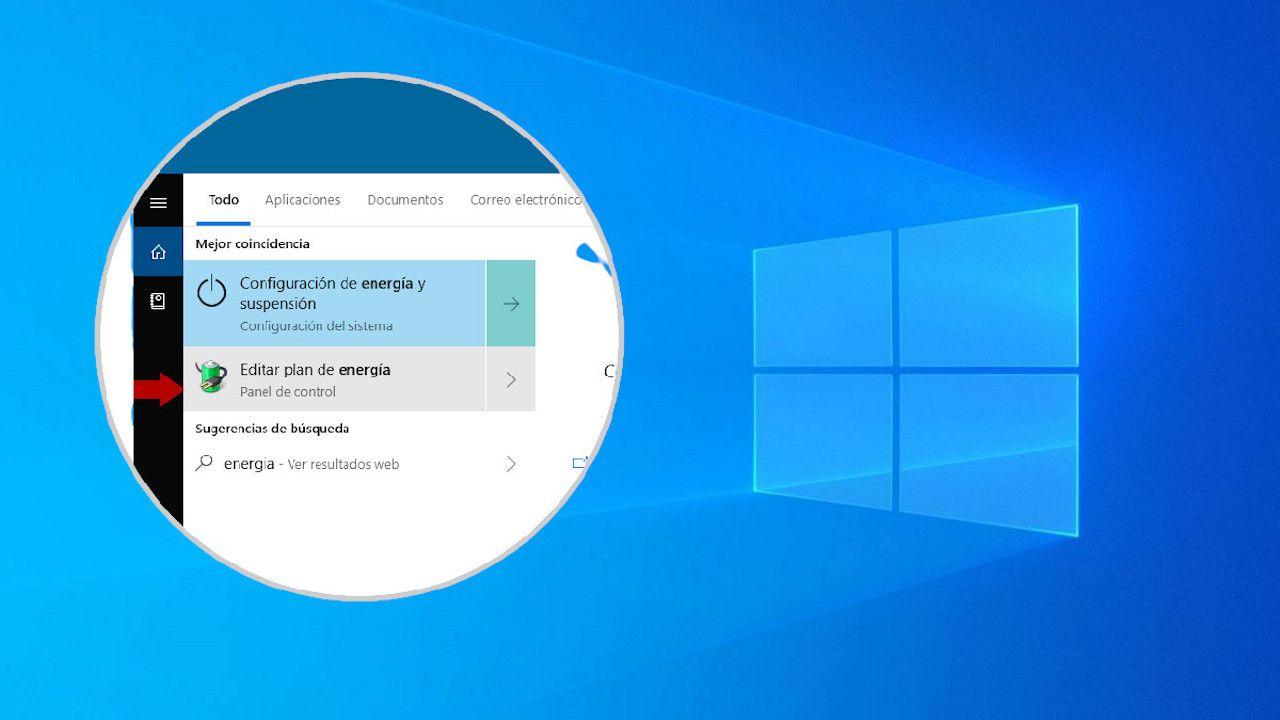
To do this, type "Choose what to do when I close the lid" or "Choose a power plan" in the search bar and access the standard power options. You'll see a menu where you can set, separately for when the laptop is on battery power or plugged in , what you want to happen when you close the lid: Do nothing, Sleep, Hibernate, or Shut down.
To maximize battery life and prevent it from slowly draining, a good practice is to select Hibernate when the device is on battery power and you close the lid. This will save the state, completely shut down the device, and prevent it from continuing to use power. In some cases, the hibernation option may not appear initially; in that case, you'll need to click "Change settings that are currently unavailable" to enable it.
This same panel lets you choose what the physical power button does . Many people leave it set to "Shut down" for quick access to a complete shutdown, while the lid button is used for sleep or hibernation. The important thing is to review these settings and adapt them to your routine, rather than relying on the default values.
Reduce brightness, use night light, and remove visual effects
Screen brightness is one of the biggest battery drainers on a laptop. Keeping it at maximum only makes sense in very specific situations, such as working outdoors in bright sunlight . Indoors, lowering the brightness saves a huge amount of battery without sacrificing comfort.
To optimize battery life, it's generally recommended to work at 30% to 50% brightness , adjusting it according to the room's lighting. Additionally, Windows offers a Night Light feature that reduces blue light and tints the screen with warm tones at certain times; you can schedule it for the evening so it activates automatically and improves visual comfort without you having to worry about it.
Another way to save battery life is by disabling non-essential animations and visual effects . In Windows 11, you can do this by going to Settings > Accessibility > Visual effects and unchecking the "Animation effects" option. The system will feel a bit less responsive when opening and closing windows, but you'll experience smoother performance on less powerful computers and slightly reduce battery consumption.
On laptops with very bright screens or high refresh rates, these small adjustments make all the difference between making it through the afternoon with battery life remaining or having to plug in mid-day . Ultimately, it's about finding the sweet spot where you're visually comfortable without wasting power.
Control which applications start with the system and run in the background
Another silent enemy of battery life is the applications that launch automatically when you turn on your PC and those that continue working in the background without you noticing. Even when you're not interacting with them, they keep performing queries, synchronizations, or other tasks that consume CPU, RAM, and therefore, energy.
In Windows 11, you can manage startup programs and apps from Settings > Apps > Startup . There you'll see a list of programs with a switch next to them; simply disable the ones you don't need to open automatically. The fewer processes that load at startup, the faster your computer will boot and the less battery power it will drain.
To go a step further, Windows includes a specific section to view battery usage by application . Go to Power & battery and look for "Battery usage" or "Battery usage by app." There you can select a time period (for example, the last 24 hours or the last week) and see which programs are using the most battery.
If you notice apps you rarely use but that are still showing up at the top of your battery usage, you can close them, uninstall them, or limit their background activity . Usually, clicking on each app will reveal an option to allow it to run in the background. Restricting these apps can significantly extend battery life, especially on laptops with less powerful hardware.
On ASUS computers, MyASUS also offers diagnostic tools and settings to check if battery wear is normal or if there's a problem . If the tool itself detects a poor battery condition, it's reasonable to consider a replacement, since the chemistry of lithium cells degrades with use, temperature, and charge cycles, no matter how well you manage your power.
Optimize advanced power settings and create your own plan
If you want to go beyond the predefined modes and plans, Windows allows you to create a custom power plan and fine-tune very specific settings: from the behavior of the wireless adapter to the maximum power of the processor.
To begin, type "Power Options" in the Start menu and open the classic panel. From there, you'll see the current power plans and a link called "Create a power plan." Clicking this link lets you choose a plan based on an existing one (for example, Balanced) and give it a name . On the next screen, you can choose how long it takes for the screen to turn off and for the device to go to sleep, differentiating between when the computer is using battery power and when it's plugged into a power outlet.
Once you've created the plan, you'll see a link to "Change advanced power settings." This is the heart of the customization. A window opens with a tree of options, some of which are particularly useful:
- Wireless adapter setupThis allows you to adjust the power-saving mode of the Wi-Fi card. If you choose a more aggressive mode when on battery power, the system will slightly reduce connection performance. spend less energywhile with the charger you can put it at maximum performance.
- USB configuration: through the USB selective suspend You can prevent ports from receiving power when they're not in use. On a power-saving plan, enabling this feature can be a good idea. prevent connected peripherals from unnecessarily draining the battery.
- Suspend > Allow wake-up timersHere you decide whether Windows can wake your computer from sleep mode due to scheduled tasks or applications. This is useful if you have processes like renderings or backups that must continueBut keep an eye on it so the laptop doesn't turn on by itself and drain the battery without you noticing.
- Processor Power ManagementThis is probably the most interesting setting. You can set the minimum and maximum processor state percentage, which in practice means limit the maximum CPU frequencyOn powerful laptops, capping the processor at 70-80% significantly reduces power consumption and temperature without you noticing a dramatic loss in normal tasks.
- ScreenIn addition to turning it off, you can adjust settings such as the behavior of dynamic wallpapers. In power-saving plans, you can disable animations or more demanding screensavers. further reduce consumption.
By adjusting these parameters, you can achieve something very similar to logically applying an "undervolt": you lower power consumption and heat in exchange for a slight performance reduction . Especially on CPUs with many cores and high frequencies, the impact on daily performance is less than it seems, while battery life improves and the fans work less.
Manufacturer-specific power management modes and software (e.g., ASUS)
Many manufacturers complement Windows options with their own software to manage performance, fans, and battery . ASUS, for example, uses applications like MyASUS, Armoury Crate, or ProArt Creator Hub depending on the type of computer.
From MyASUS, you can access "Device Settings" and choose an operating mode such as Whisper Mode , which focuses on reducing noise and power consumption to extend battery life. If your laptop has a dedicated NVIDIA graphics card, you'll also see options like GPU "Eco Mode," which minimizes the use of the dedicated graphics card and prioritizes the integrated one whenever possible, resulting in energy savings.
Armoury Crate, more common in gaming laptops, lets you quickly switch between profiles like Silent, Balanced, and Turbo. Silent mode limits the overall power of the system in exchange for less noise and slightly better battery life when gaming offline . If you want to learn more about techniques for reducing fan and case noise, see our guide on how to reduce PC noise.
For creator-oriented PCs, ProArt Creator Hub offers something similar: operating modes like Whisper mode to prioritize silence and efficiency, and GPU settings to select an Eco mode. All these profiles work in conjunction with Windows settings, so it's recommended to keep them updated along with the BIOS and drivers to ensure the most efficient power management possible.
Good usage habits and battery problem diagnosis
Beyond the menus, there's an important aspect that depends on how you use your laptop on a daily basis . Lithium-ion batteries are consumables: over time they lose capacity due to chemical processes, and factors such as temperature, charge cycles, and frequent full charges contribute to this wear.
If you notice your battery isn't lasting as long as it used to, it's important to distinguish between normal aging and a potential configuration or software issue . Tools like the MyASUS Battery Diagnostics app can give you an estimate of your battery's health and remaining lifespan . If the app indicates that the battery is deteriorating, it's reasonable to consider replacing it to restore capacity.
When your computer seems healthy but battery life drops drastically, the culprit might be a specific program hogging resources . A useful trick is to test battery life in Windows Safe Mode, where only essential services run. If it lasts significantly longer there, you probably have background apps consuming CPU and GPU resources. In these cases, checking battery usage by app, uninstalling unused items, and, if necessary, resetting the system after backing up your data , can often solve the problem.
Finally, remember to alternate between sleep, hibernation, and shutdown depending on the situation, avoid leaving your laptop plugged into the charger for days on end, and set reasonably short screen-on and sleep timeouts. By combining appropriate settings with good habits , it's easy to gain up to 30% extra battery life on many laptops and, at the same time, protect their hardware so it lasts for years without giving you trouble.
