- The EFI partition is required for booting on UEFI systems with GPT disks.
- It should be handled with extreme caution, as it contains the system startup files.
- The standard size is usually 100 to 500 MB, and it remains hidden in the system.
The Windows EFI partition is one of those terms that often mysteriously pops up when managing hard drives or trying to install or modify modern operating systems. If you've ever wondered what it's for, if it can be deleted, how it's created, or what risks it poses, this article is for you. We'll explain it in detail, without complicated technical jargon that won't lead you anywhere.
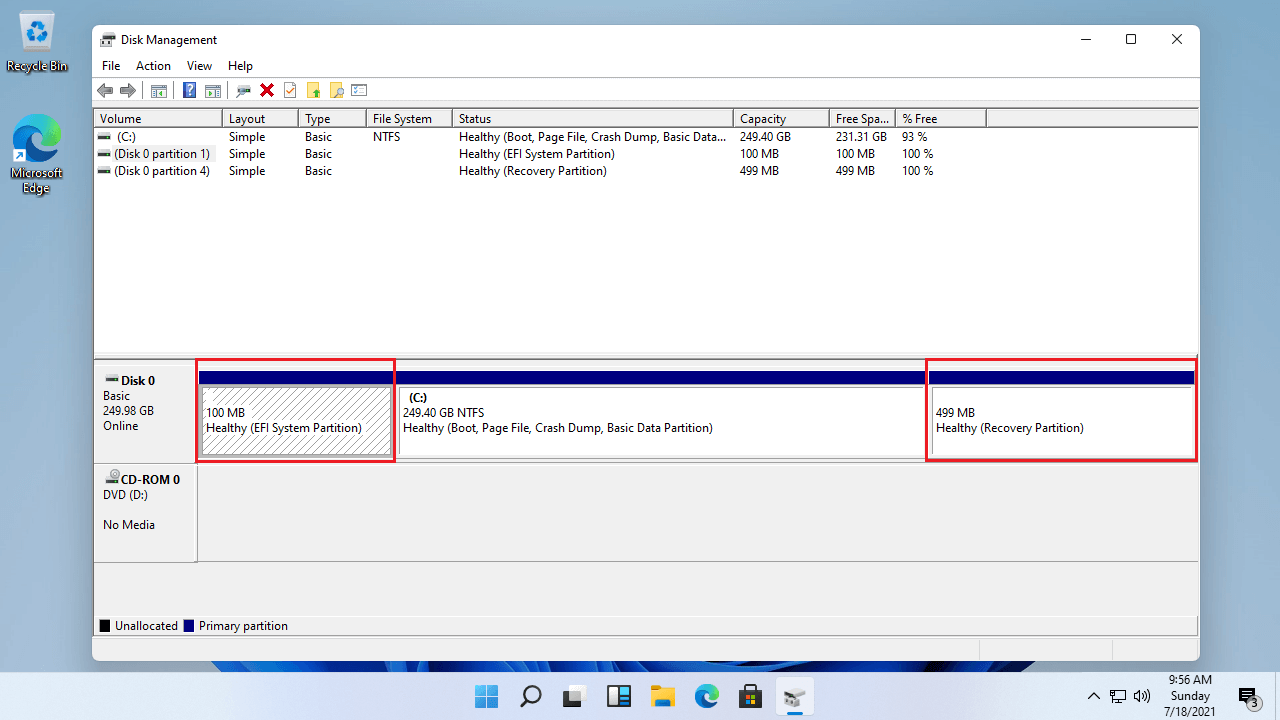
Many users discover the existence of the EFI partition when checking their disks using tools like Disk Management or partitioning programs. It usually appears as a small portion of space without a drive letter, typically between 100 and 200 MB. As small as it may seem, its function is essential for booting Windows and other operating systems, especially since the arrival of UEFI technology, which has replaced the old traditional BIOS.
What exactly is the EFI partition?
The EFI partition, also called the EFI system partition or ESP (EFI System Partition), is a section of the hard drive reserved when you install Windows or other compatible operating systems on a GPT-formatted disk. It does not have an assigned drive letter, and its standard size typically ranges from 100 to 500 MB, depending on the configuration and the installed system.
EFI stands for Extensible Firmware Interface , which is the modern standard for managing boot processes and communication between the motherboard firmware and operating systems. When your computer has UEFI mode enabled instead of a traditional BIOS, it uses this special partition to store everything needed to boot the system.
Some key elements stored within the EFI are:
- Bootloaders (bootloaders) for the installed operating systems.
- Essential drivers so that the hardware works correctly during boot.
- System Utilities, such as certain recovery tools or pre-boot diagnostics of the main system.
- Data files, including logs and error files that can be useful in case of boot problems.
The EFI is invisible to the naked eye in File Explorer, specifically to protect its contents from unintentional or accidental modification. It only appears if you access it from advanced tools such as diskpart or third-party partition managers.
What is the EFI partition used for in Windows?
Its main purpose is to allow the UEFI system to find the files necessary to boot Windows (or any other compatible system you have installed). If the EFI partition doesn't exist or is corrupted, the system will simply not boot, and you'll encounter error messages such as "no boot device found" or similar.
Furthermore, EFI is not exclusive to Windows: it is also used by other systems such as macOS and many Linux distributions , making it essential in dual-boot configurations. Thanks to EFI, different operating systems can coexist harmoniously on the same computer.
The EFI partition is responsible for:
- Manage the boot of one or more operating systems on modern machines with UEFI.
- Centralize essential files so that the computer firmware can correctly start the main system.
- Protect the boot process against possible accidental manipulation, since it is a specially armored partition.
- Enable advanced features such as secure boot, system recovery, or the use of encryption such as BitLocker.
How do you know if your computer has an EFI partition?
If your computer is relatively new, it most likely already has an EFI partition because modern systems and GPT-formatted disks create it automatically. You can easily check this by following one of these steps:
- From Disk Manager: Right-click "This PC" > "Manage" > "Disk Management." Look for a partition that doesn't have a drive letter, usually labeled "EFI System Partition."
- Via DiskPart (cmd): Open the console as administrator and run:
- diskpart
- list disk
- select disk N (N is the number of your primary disk)
- list partition
If you see a partition labeled EFI, your system already has one.
- Checking the boot type: If your BIOS is in UEFI mode and the disk is GPT, you likely have an EFI partition. If it's a Legacy BIOS and the disk is MBR, the EFI partition won't be present.
Fun fact: The EFI usually measures between 100 and 500 MB depending on the system, and never assumes a drive letter to prevent the user from accidentally manipulating it.

How to Create, Recover, or Delete an EFI Partition in Windows
Sometimes, due to failed installations, errors, or disk changes, the EFI partition can become lost or attempt to be modified. We'll explain the most common cases and the recommended safe ways to proceed.
Can I manually create an EFI partition?
Windows typically creates the EFI partition automatically during a clean installation on a GPT-formatted disk. However, if you need to create it manually (for example, after accidentally deleting it), you can do so from the recovery environment or using the advanced command prompt. Here's a summary guide:
- Boot from the Windows installation media (USB/DVD).
- Press Shift + F10 or Shift + 10 to open a command window.
- Follow the commands below:
- diskpart
- list disk
- select disk X (X is the number of your disk)
- create partition efi size=200
- format quick fs=fat32 label=»System»
- assign letter=S
- exit
- bcdboot C:\Windows /s S: /f UEFI (always replace S with the correct letter if you used another one)
With that, the EFI will be ready and your Windows will be able to boot correctly . If you have any doubts, it is recommended to consult the official documentation or use third-party assistance programs, but always with extreme caution.
Can I delete the EFI partition?
The short answer is: you should never delete the EFI partition if your system relies on it to boot . If you delete it, your PC won't be able to find the boot files and Windows won't be able to load.
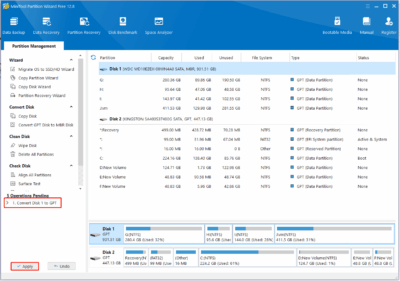
The "Delete Volume" option is grayed out (disabled) on the EFI partition in Windows Disk Management to prevent accidental deletion. However, it can be deleted using advanced tools like DiskPart, following a specific command sequence, or with dedicated partition management programs (such as EaseUS Partition Master or AOMEI Partition Assistant) by booting the computer from a rescue USB drive.
Before making this decision, you should consider whether it's really necessary. You should only do this if you're going to reinstall the operating system from scratch, completely format the disk, or if the EFI belongs to an old installation, a second operating system you no longer use, or is on a secondary disk you're recycling.
General steps to remove the EFI partition (at your own risk):
- Open a console with administrator privileges.
- Starts Diskpart and select the EFI partition.
- Change the partition ID so that Windows sees it as a “normal” partition:
SET ID=ebd0a0a2-b9e5-4433-87c0-68b6b72699c7 - Delete the partition with DELETE PARTITION OVERRIDE.
Remember that if you make a mistake or delete the wrong partition, you could lose your operating system or your data. Make a backup before making any changes.
What happens if I accidentally erase the EFI?
This can cause a real headache: the system won't boot , and you'll get "no boot device found" errors or similar. However, there are methods to recover the boot process and restore functionality, usually by recreating the EFI partition and using commands like bcdboot to regenerate the boot files.
If you've lost personal data, there are recovery programs like Wondershare Recoverit that can help you recover important documents from a damaged drive.

Is it safe to format or modify the EFI partition?
It is not recommended to modify, format, or delete the EFI partition unless you are absolutely sure of its purpose and how to recover it. The EFI partition is essential for system startup and stability. Windows, in fact, includes safeguards to prevent accidental manipulation of it.
You should only touch the EFI if:
- You'll completely format the disk and reinstall the operating system from scratch.
- You manage secondary disks that have been left with unused EFI partitions after removing installations of other operating systems.
- You are performing advanced recovery, system migration, or dual boot tasks with full understanding of the implications.
In all other cases, the recommendation is to leave the EFI as is: it takes up hardly any space and will ensure a reliable boot.
Other related partitions: MSR, Recovery, and Data
Along with the EFI, other special partitions may appear on GPT disks:
- MSR (Microsoft System Reserved): Typically 16 MB, it helps Windows manage partitions but does not store data or is visible to the user.
- Recovery partition: It is usually between 300 and 700 MB, dedicated to storing Windows Recovery Environment (WinRE) tools, to restore the system in case of failure.
- Data Partitions: If you manually create additional partitions, it's a good idea to place them after the recovery partition to facilitate future updates or upgrades and avoid boot issues.
EFI Partition FAQ
- For which operating systems is EFI required? It is mandatory on Windows 10 and 11 installed in UEFI mode, on Mac, and on most modern Linux distributions if they use GPT format.
- What size should it be? The most common size is between 100 and 500 MB. It's not advisable to reduce it below 100 MB, and some manufacturers recommend leaving a margin of up to 500 MB in case multiple systems or additional features like BitLocker are installed.
- Why doesn't it have a drive letter? Precisely to prevent accidental access and protect critical boot files.
- Can it cause problems if I install two operating systems? The EFI is designed to accommodate multiple bootloaders, but in dual-boot configurations, it's important not to delete or overwrite critical files. Always back up your EFI before handling it.
- Why can't I see it in the browser? Both Windows and other systems deliberately hide it to prevent unwanted manipulation.
Reasons why you should not delete the EFI partition
Deleting the EFI partition is equivalent to removing the "map" that tells the computer where and how to find the operating system. Without it, the computer simply won't boot. Furthermore, its small size makes it not worth risking problems just to free up a few MB of space. If you ever find yourself with space limitations, look for alternatives before considering deleting the EFI partition.
The EFI partition is an essential component of modern computers with UEFI and GPT disks. It's responsible for managing system boot, storing essential files for Windows (and other systems) to boot correctly. It's not a good idea to modify or delete it unless you know exactly what you're doing, as its absence renders booting unusable. If you ever need to create, restore, or delete it, always use specific tools and follow the steps with extreme caution.
