- Microsoft offers a login helper tool and a recovery form as the primary ways to regain access to Outlook and Microsoft accounts.
- The recovery form works by comparing data that only the owner should know, so it's best to provide as much information as possible and use common devices.
- If two-step authentication is enabled without backup methods, even Microsoft support has very limited options for recovering the account.
- Strengthening security after regaining access, with various verification methods and good digital hygiene, greatly reduces the risk of losing the account again.
Losing access to your Outlook account or any other account microsoft account (Outlook, Hotmail, Xbox, Skype, etc.) is one of those situations that tests anyone's patience. Suddenly you can't access your email, your associated services stop working, and everything gets complicated just when you need it most.
In this guide you will find, explained clearly and in everyday language, all the options that Microsoft offers for recover a blocked, compromised or closed accountWhat to do when the problem is two-factor authentication (Authenticator, SMS) and how to act if you've been receiving suspicious login attempts for a while. It's not magic, but knowing how the system works will give you a much better chance of regaining control.
Why you might lose access to your Outlook account
The first thing is to understand why you might suddenly see messages like “Your account is locked” or “We can’t log in”Microsoft usually temporarily blocks accounts when it detects unusual activity: logins from unusual countries, many consecutive failed attempts, or activity that appears to be from a bot or attacker.
This lockdown is not a punishment, but a measure to to avoid fraud, account theft or abuseThe problem is that, from the user's perspective, all you see is that you can't log in, and this generates a lot of stress, especially if that account is linked to important services like Xbox, Minecraft, digital purchases, or subscriptions.
You can also lose access if you have activated the Two-factor authentication (2FA) And then you lose your phone, uninstall Microsoft Authenticator, change your phone number, or no longer have any trusted devices set up. In these cases, even if you remember your password, the system will still ask for additional verification that you no longer have access to.
Another common scenario is that the account has been Closed by yourself or removed due to inactivityIf you voluntarily deactivated your account, there's a limited time to recover it. But if you haven't logged in for years, it may have been permanently deleted, and there's no going back.
Official Microsoft tools to recover access
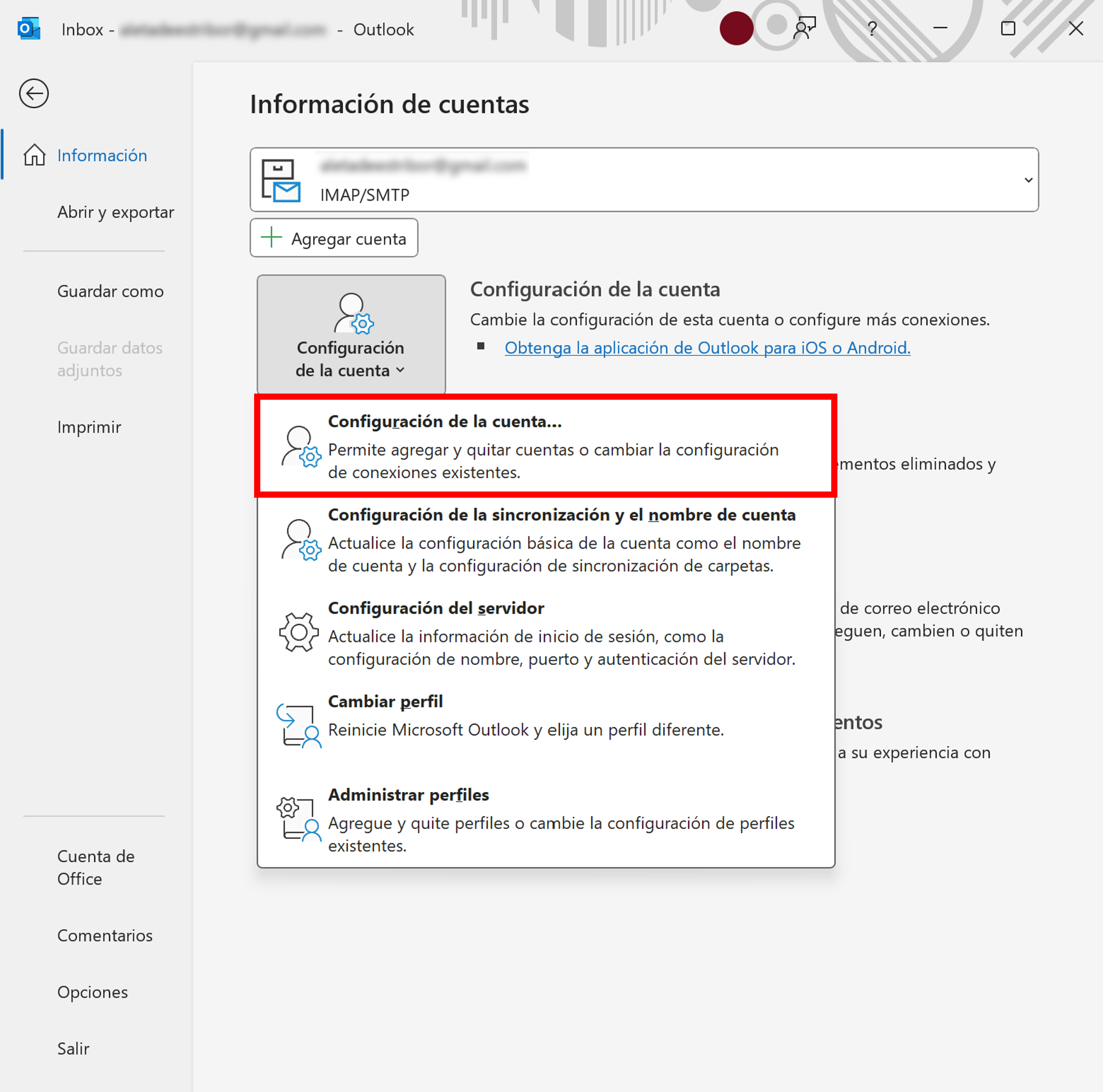
Microsoft centralizes almost all login problems in an online utility called, according to the translation, “Login helper application” or “Login assistant”It's basically an assistant that asks you questions about what's happening and guides you along the right path depending on your situation.
This tool will ask you to enter the email address or phone number The system will select the account you want to log in with and then perform automatic checks. If it detects a block due to suspicious activity, a password problem, a non-existent user account, or any other typical issue, it will show you suggested steps to resolve it.
In many cases, this assistant is enough to unlock the account, receive a security code or reset your password. If the system doesn't detect anything technically wrong but you still can't log in, the assistant will offer more detailed self-help instructions or direct you to other specific support pages.
If after following the instructions you still cannot log in, Microsoft refers you to the most demanding procedure of all: the account recovery formThis form is the heart of the entire process when you no longer have access to the usual verification methods.
Microsoft account recovery form: what it is and when to use it
When you have no access to your recovery email, phone, or the Authenticator app, the only real resource Microsoft offers is the recovery form at account.live.com/acsrThere is no "magic" shortcut or support agent who can skip this process for you.
This form is designed to allow you to prove that you are the legitimate owner of the account through facts that only you should knowPersonal information, account usage details, linked services, contacts, previous passwords, etc. The closer the match to what Microsoft has stored, the greater the chances of success.
It is important to understand that it is a process. self-managed and automaticEven Microsoft's own support agents have their hands tied: they can't see or modify your internal account data, they can only guide you on how to fill out the form and what steps to follow.
The review of each application is usually completed within approximately 24hYou will receive the response in the alternative email address you provided at the beginning of the process, not in the account you are trying to recover.
If Microsoft is unable to verify your identity, the answer will be negative, but you can try again. up to twice a day, as many days as you want, always providing more data and more precise answers with each new attempt.
Preparations before filling out the recovery form
To improve your chances of success, it is advisable prepare the ground well Before you start filling out the form, take a few preliminary steps. These can make all the difference and prevent you from repeating the process over and over again without success.
The first thing is to make sure you have an active email address You have access to that account. Microsoft will send you all communications about the recovery process there: confirmations, instructions, acceptance or rejection notices, etc. It can be your personal email from another provider (Gmail, for example) or the email of a trusted family member or friend.
If you don't currently have an alternative account available, you can create one. new free outlook.com account From the Microsoft login page itself, select the "Create one" option. This new account will serve as a contact mailbox during the process.
The second step involves gathering all the possible information related to the account that you want to recover: Microsoft services you used with it, devices you logged in from, subscription data if any, and even contact details or messages you remember.
Keep in mind that the form is designed to ask questions that are difficult for an attacker to answer, but relatively easy for the legitimate owner. The more specific you can beMicrosoft's internal verification system will work better.
How to fill out the recovery form step by step
When completing the form at account.live.com/acsr, there are several important details It's important to take care with this so as not to miss the opportunity. Filling it out hastily and without thinking usually ends in almost certain rejection.
Whenever possible, try to access the form from a device and a usual locationThat is, a computer or mobile device from which you have previously logged into that account and connected from your home or office. Microsoft's security system also takes this context into account, and recognizing a familiar device can work in your favor.
Fill all possible questionsEven if some require you to rely on memory and make an approximation. Incorrect answers don't count against you, but leaving fields blank does cause you to lose opportunities to match the actual data.
The questions can range from old passwords you remember using, to email addresses of your regular contactsSubjects of messages you've sent, services like Xbox, Minecraft, Skype, or subscriptions linked to that account. If you see an "add more" button, use it and add as much as you can.
If at any point the system displays the message “The Microsoft account you entered does not exist”Double-check the spelling of the email address or phone number. If you're sure it's spelled correctly and it's still not recognized, the problem might be that the username is no longer valid or the account has been deleted.
What happens after submitting the form
Once you submit the form, you'll need to be patient. The verification isn't instantaneous: Microsoft's system analyzes all the data you've provided and it will take approximately... 24h It sends you an email to the alternative address you indicated at the beginning of the process.
If the verification fails and the system concludes that there are not enough matches, you will see a message like this: “We were unable to verify your account”In that case, the door isn't closed: you can try again as many times as you want, with a maximum of two attempts per day, adjusting and expanding the information you include.
Once the system verifies that the data matches its records, you will receive an email with instructions on how to proceed. How to log back into your accountThis usually includes a link or procedure for setting a new password and regaining access to the full profile.
Once you manage to get in, it's vital that you take advantage of it to strengthen securityReview recovery data, clean up any suspicious changes, and add alternative verification methods. If you don't, you could find yourself in the same situation later, and you might not be so lucky next time.
At this point, it is highly recommended to take a look at Microsoft's documentation on how maintain a secure account and facilitate future password resetsThere are specific sections dedicated to adding additional verification methods, updating security information, and configuring alerts for suspicious access attempts.
What to do if your Outlook account has been hacked
Often the problem isn't that you've forgotten your password, but that someone has gained unauthorized access. If you've noticed logins from unusual locations, messages you don't remember sending, or changes to your settings, you need to act as if the account is active. compromised by malware or by an attacker.
Before changing anything on your account, make sure your PC is clean. If you're using Windows 8.1, Windows 10, or Windows 11 You already have it integrated Windows Defenderwhich offers protection against viruses and other types of malware. Make sure it's up to date and run a full scan.
To launch the analysis in these versions of Windows, simply press the button HomeType “Windows Defender” in the search box and open the tool. From there, follow the on-screen instructions to scan your entire system and remove anything it finds.
After cleaning your device, the next step is to log in to your account and Change your password as soon as possibleIf you can no longer log in because the attacker has changed it, use the password reset option from the Microsoft sign-in page and follow the verification steps requested.
Once you regain control, carefully review your account settings in sections such as Connected accounts, forwarding, and automatic repliesOften, when someone enters without permission, they take the opportunity to redirect messages, add suspicious forwarding addresses, or set up malicious automated responses.
Problems with two-step authentication (2FA) and Microsoft Authenticator
Two-factor authentication (2FA) is one of the best defenses against unauthorized access, but it can also become your biggest enemy if you lose the device that generates the codes and you didn't have a backup method. This is especially problematic when You only had Microsoft Authenticator as a form of verification.
Think about the typical case: you had the Two-step verification enabled only With the Authenticator app, there's no SMS, no secondary email, and no backup codes. If your phone breaks, gets stolen, or you have to factory reset it, your Authenticator data disappears. To top it all off, you're logged out of all trusted browsers and devices connected to your account.
In such a situation, even if you manage Reset password by emailWhen you try to log in, the system will ask for the second factor again, which you can no longer access. It's a very frustrating loop, and many users report filling out the recovery form repeatedly without getting a helpful response.
Microsoft is very clear on this point: if your account had the Two-step verification is enabled and you have no alternative method available. (Security codes, another number, another email, restored app, device still connected), there is no manual recovery procedure. Not even internal support can bypass 2FA.
While it may not be the answer you want to hear, prevention is key: if you manage to recover your account at any point, always configure various security methods (for example, Authenticator + SMS + alternate email) and save the recovery codes in a secure location that does not depend solely on the mobile phone.
Accounts closed, deleted due to inactivity, and reopened
There is another type of access loss that has to do with the account lifespanWhen you decide to voluntarily close your Microsoft account, the system doesn't delete it instantly: a grace period opens, usually of 30 or 60 days, during which you can change your mind and recover it.
During that period you only have to go to account.microsoft.comLog in with that account and follow the on-screen instructions. You will be asked to receive and enter a security code, and once confirmed, the account will be reopened with all the subscriptions, profiles, and content it had before it was closed.
If that grace period has passed, things change: the account is considered permanently closed and It is no longer possible to reopen itThe same applies if you haven't logged in for more than two years: for cleaning and policy compliance reasons, Microsoft may delete inactive accounts, and there's no way to recover them once deleted.
If you try to log in and see messages like that the username has stopped working If no account with that identifier is found, it's very likely you're in one of these situations. Again, the solution is to create a new account and, if necessary, reconfigure services like Xbox or subscriptions with a different address.
For questions related to account closure, reopening, deadlines, and statuses, Microsoft offers specific articles where it also links to resources such as "How to close a Microsoft account" or "How to check if your email address is a Microsoft account," which can help you confirm the exact situation.
Additional support options and contact information for Microsoft
When self-help isn't enough, the logical thing to do is to seek help from someone on the other end. Microsoft offers various ways to... Technical support for Outlook.com and Microsoft accountsHowever, let's be realistic: when it comes to account recovery, their room for maneuver is very limited for security reasons.
If you can sign in to any account (even if it's not the problematic one), you can access support on Outlook.com by clicking on the section for Custom From the menu bar, type your question. If the automated answers don't solve your problem, at the bottom of the page you'll see a "Need more help?" section where you can select yes to see additional contact options.
From the general Microsoft support page, you can also go to “Contact Microsoft Technical SupportDescribe your problem and click on “Get help”. If the system determines that you need direct assistance, it will offer you the option to “Contact technical support” to redirect you to the most appropriate channel (chat, email, phone, depending on the country and service).
Even so, even when speaking with a real person, if the problem is that you can't get through two-step verification or you can't pass the recovery form, the answer is usually the same: the agent has no way of unlock manually the account nor modify your internal security methods.
You can also turn to official forums and communities like the Outlook.com communitywhere other users (and sometimes Microsoft moderators) answer questions, share experiences, and suggest practical solutions. It's not an official recovery channel, but it can give you ideas about what information to include in the form or how to interpret certain error messages.
Best practices to protect and avoid losing access again
Once you've gotten over the initial shock, or even if you're still struggling with access, it's worth taking note of some best practices for minimize the risk of losing the account in the futureThey are small habits that save a lot of headaches.
In terms of security, the basics are having a good antivirus updated and regular scansEspecially if you use Windows and frequently download files or open attachments. Keeping your device clean reduces the risk of someone stealing your password or gaining access to your session tokens.
At the account level, it is essential to use strong and unique passwordsDo not reuse this password on other services. If you suspect your account has been compromised, change your password from a clean computer and review all security and contact information sections to ensure no one has added data you don't recognize.
With two-step authentication enabled, the key is not to rely on a single method. Combine the Microsoft Authenticator app with a phone number, an alternate email address, and recovery codes Stored in a safe place. If you switch phones, be sure to migrate your Authenticator settings or temporarily disable it before losing your old device.
Finally, don't neglect account activity: review notifications of unusual logins And logging in from time to time, even if you don't use it daily, will give you time to react to suspicious access and help you keep everything under control.
With all this in mind, dealing with a lockout or loss of access to your Outlook account is no longer an incomprehensible labyrinth: you know what the login helper does, how the recovery form works, the limitations of two-step verification, and the true extent of Microsoft support. With proper preparation, Accurate information And with a little patience, your chances of regaining control and strengthening the security of your account increase significantly.

Table of Contents
- Why you might lose access to your Outlook account
- Official Microsoft tools to recover access
- Microsoft account recovery form: what it is and when to use it
- Preparations before filling out the recovery form
- How to fill out the recovery form step by step
- What happens after submitting the form
- What to do if your Outlook account has been hacked
- Problems with two-step authentication (2FA) and Microsoft Authenticator
- Accounts closed, deleted due to inactivity, and reopened
- Additional support options and contact information for Microsoft
- Best practices to protect and avoid losing access again