- Key difference between local account (no sync) and Microsoft account (with cloud services and settings).
- Securely switch between account types from Settings > Accounts > Your Info.
- Practical method to replace the Microsoft account: switch to local and re-link with the new one.
- Work/education integration with work or education access to corporate resources.
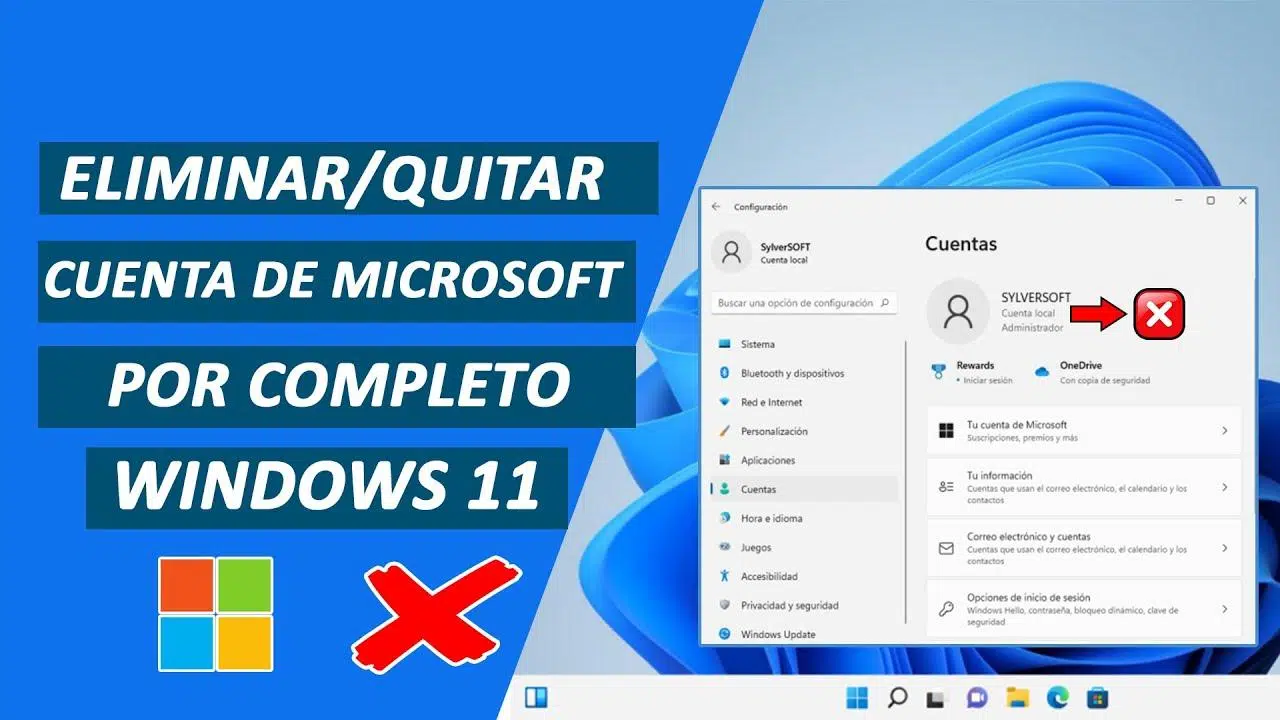
Changing your Microsoft account in Windows 11 is more common than you might think . You might want to replace the account associated with your computer, switch to a local account for privacy, or, conversely, convert a local account to a Microsoft account to sync your settings. This guide explains how to do it clearly, the differences between account types, and how to connect your PC to an organization if you need access to work or school resources.
The goal is to provide you with a practical, easy-to-understand, and secure step-by-step guide , integrating login options (password, PIN, and Windows Hello), official procedures for changing account types, and a straightforward method for replacing the Microsoft account linked to the computer. You'll also learn how to resolve access issues with the "I forgot my password/PIN" links and what the implications are for connecting to your organization.
What does it mean to sign in to Windows 11 and what options do you have?
Logging into Windows is the process of verifying your identity in order to use the computer ; it serves to protect your information, files, and settings from unauthorized access, and is the first security check every time you turn on or reactivate the computer.
In Windows 11 you can identify yourself with a password, a PIN or biometric data using Windows Hello ; the latter supports facial recognition and fingerprint if your device has the necessary hardware and you have previously configured the system.
If you are going to log in with a password or PIN, the procedure is simple and always the same :
- Turn on your computer and go to the login screen.If it was already on, lock it and log back in to see that screen.
- Choose your account if several are displayedIf you are the only user, it will be selected automatically.
- Enter your password or PINIf you use a Microsoft account, enter the password for that account.
- Press Enter or click the login arrow to access the desktop.
Once you have Windows Hello set up, access is faster and more secure , as you can identify yourself with your face, fingerprint, or PIN without having to type your password every time.
If you don't remember your password or PIN, the login screen offers recovery links such as "I forgot my password" or "I forgot my PIN"; by tapping them, you will follow the reset wizard to regain access in a guided manner.
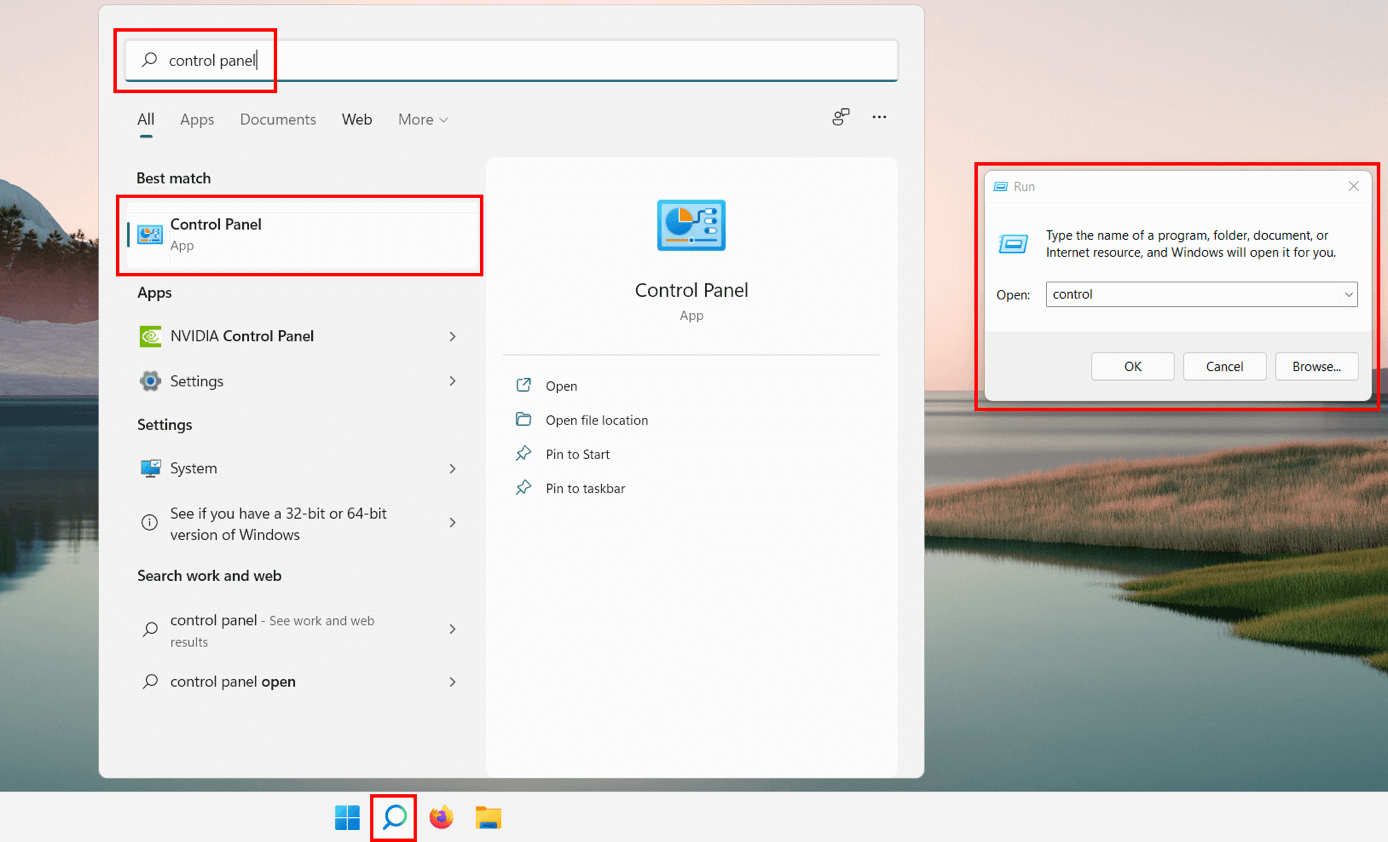
Local Account vs. Microsoft Account: Key Differences and When to Use Each
In Windows 11 you can use a local account or a Microsoft account, and they are not the same ; choosing one or the other affects synchronization, how you log in and the services you can access without additional steps.
The local account is specific to the device and does not need the internet to log in ; it works independently, is not connected to the cloud, and limits settings, files, and applications to that single device.
- Local account: It is created on the PC itself, does not require an online connection to enter, and does not synchronize settings or data with other devices.
- Microsoft account: is associated with an email and password that you also use for Outlook.com, OneDrive, Office, Skype, Xbox, and other services; when you sign in with it, synchronization is activated of settings and files between devices and direct access to Microsoft services.
In practice, a Microsoft account is ideal if you want synchronization, backups to OneDrive, and convenience with apps and services , while a local account gives you greater isolation and control on shared or disconnected computers.
If you use the computer for both your personal life and your business or school, you'll want to connect a work or school account to easily access your organization's email, files, apps, and resources without mixing it with your personal account.
Connect a work or school account
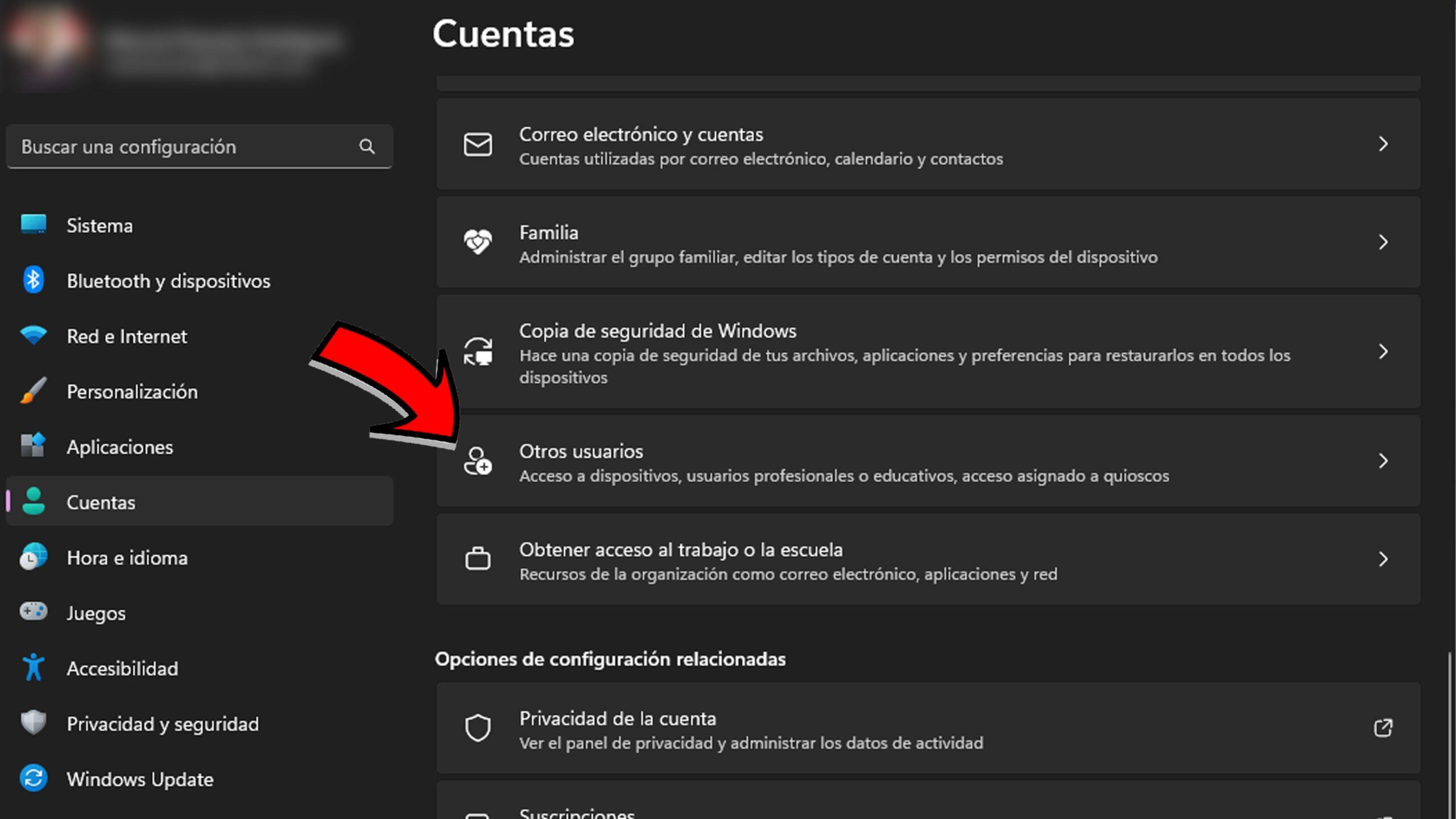
To link your PC to your organization's resources, use Settings > Accounts > Work or school access ; this will join your device to your organization and give you access to its policies and services.
- Open Settings and go to Accounts > Work or school access (You can search for “Work or school access” in the Settings search box.)
- Under “Add a work or school account,” choose Connect to start the wizard.
- Enter the account details, select the type and select Add to complete the process.
By connecting the account, the PC aligns with your organization's policies and you will see corporate applications or resources , simplifying daily life in work or study environments.
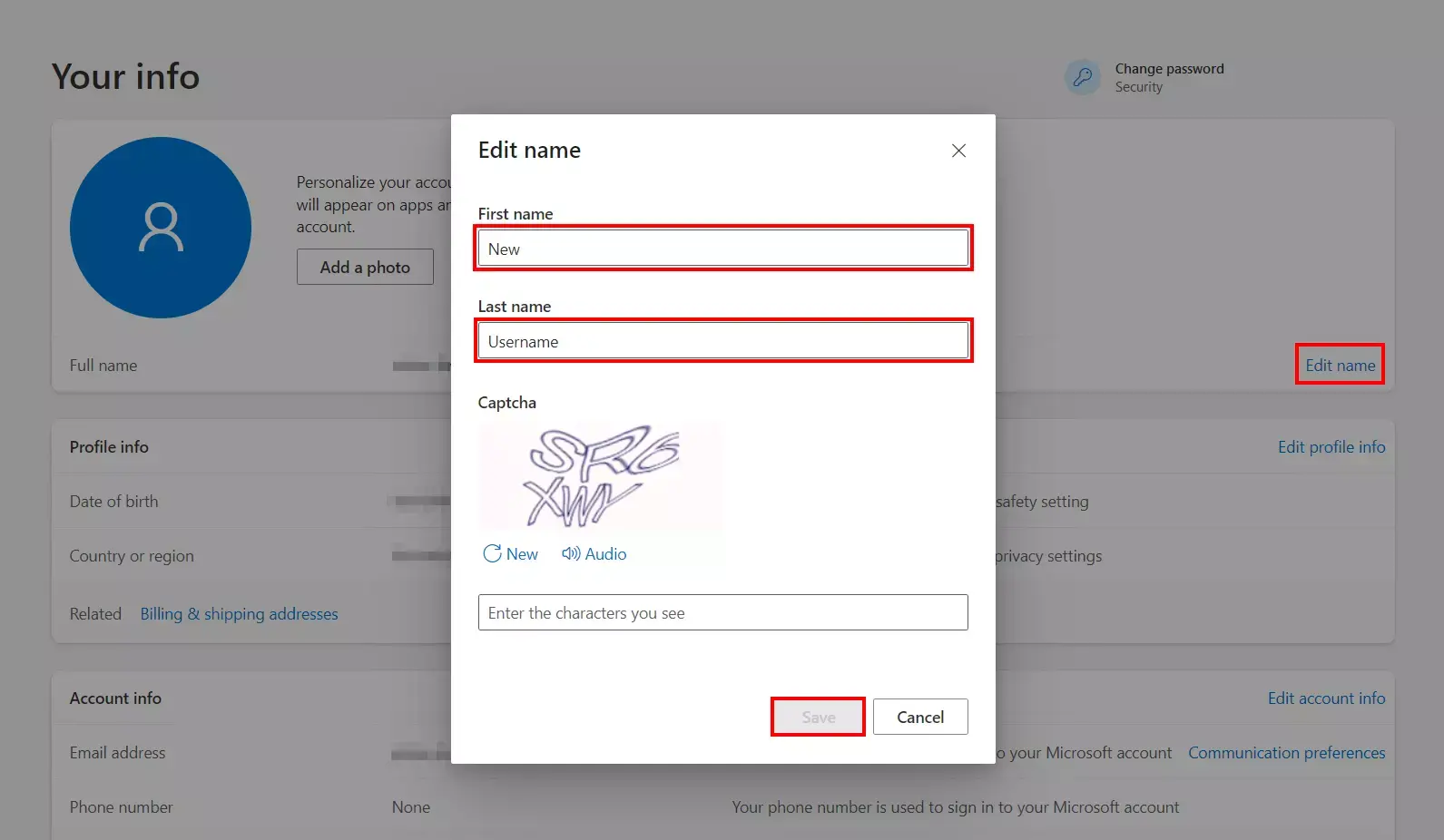
Switch from a local account to a Microsoft account in Windows 11
If you started with a local account and now want to take advantage of syncing and OneDrive, switch your sign-in to a Microsoft account from the Windows 11 Settings app.
- Open Settings and go to Accounts > Your information (You can also search for “Your Information” in the Settings search box.)
- Select the option “Sign in with a Microsoft account instead”; This option appears when you are currently using a local account.
- Follow the wizard's instructions and sign in with your Microsoft account email and password.
- Choose Next, then “Sign out and finish”; complete the process by signing back in with your Microsoft account.
After the change, Windows will activate settings synchronization compatible with your Microsoft account , and you will have direct access to the company's services on your computer.
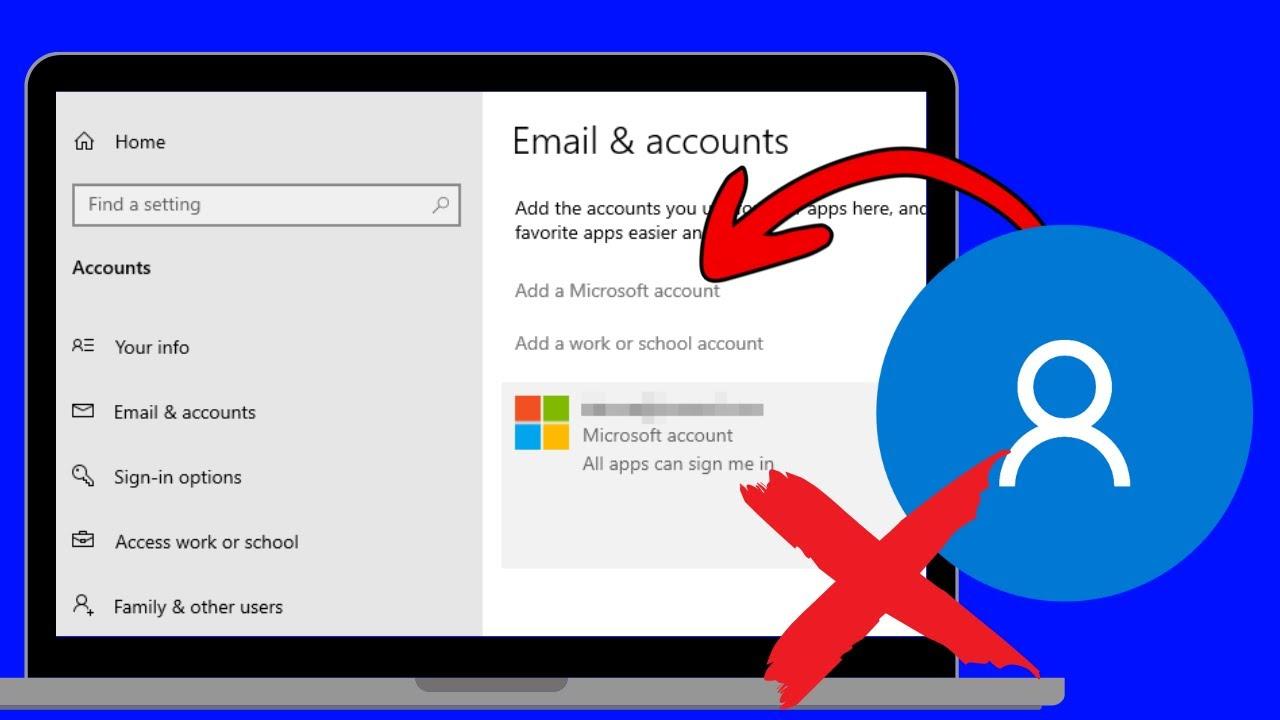
Switch from a Microsoft account to a local account
If you prioritize privacy, use your computer offline, or simply don't need to sync, you can switch from a Microsoft account to a local account in just a few steps from the same Settings section.
- Go to Settings > Accounts > Your Information to view the details of your current session.
- Click “Sign in with a local account instead”; You'll only see this link if you're currently signed in to a Microsoft account.
- Enter a username, password, and password hint.; remember that the name must be different from any existing user name on the computer.
- Choose Next and, when finished, “Sign out and finish”; please log back in using the new local account.
Upon completion of the process, your profile becomes local and you stop syncing settings and data with the cloud , maintaining control of your files and programs on that specific computer.
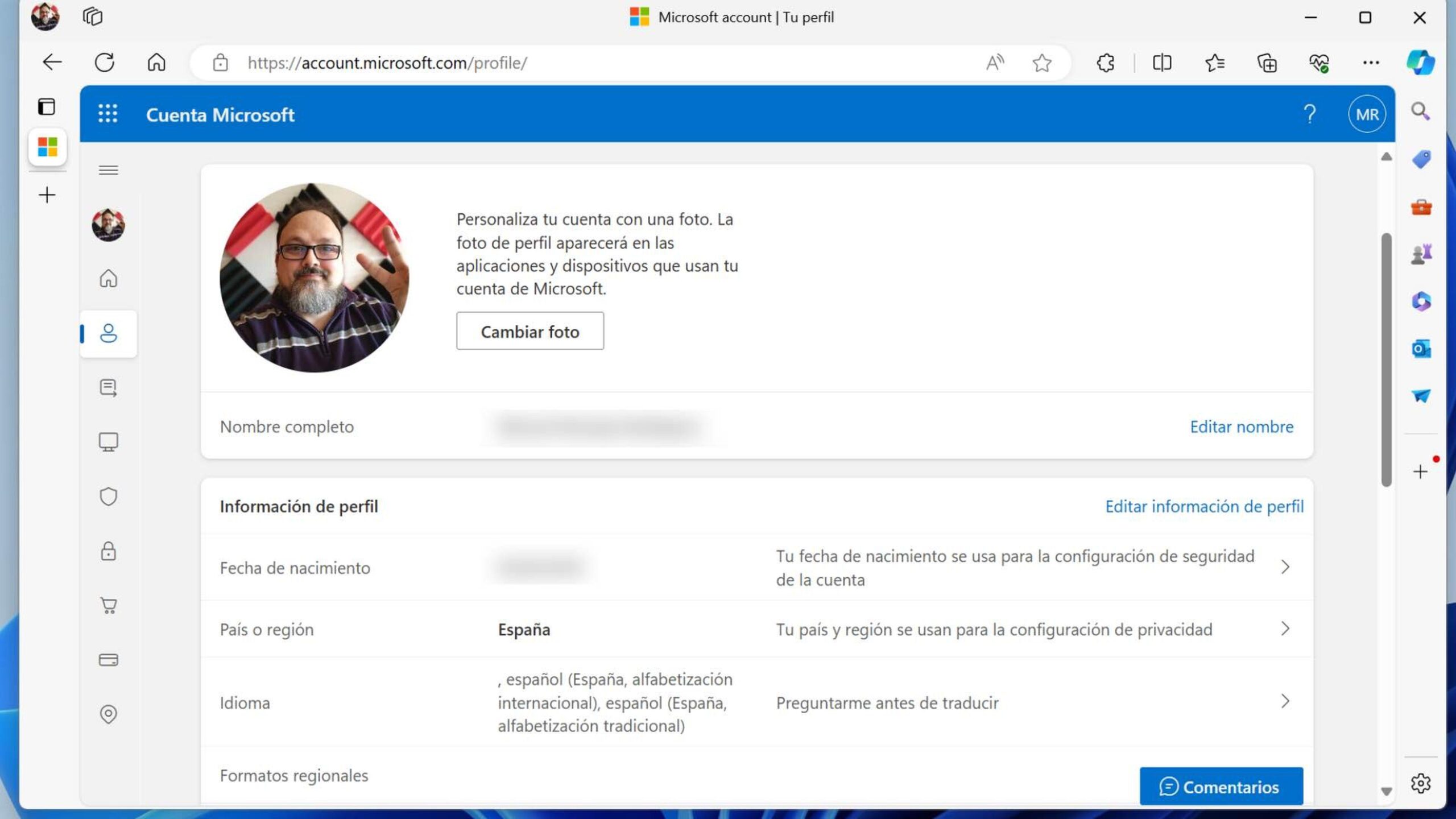
How to change the Microsoft account associated with your computer: practical method
If you want to replace your current Microsoft account with a different one on the same PC, the cleanest way is to first make it a local account and then relink it (see the guide for changing accounts in Windows 11 ). This way, you unlink the old account and link the new one without creating problems with duplicate profiles.
- Open Settings > Accounts > Your information with the session you want to replace.
- Click “Sign in with a local account instead” and create a local user with its password. Complete the process and log in with that local account.
- Make sure the local account has administrator permissions from Settings > Accounts > Your info, so you can link the new Microsoft account without limitations.
- Now, in that same path, click “Sign in with a Microsoft account instead” and enter the details of the new Microsoft account you want to use on the computer.
- When prompted, confirm the local account password, finish, and restart if Windows recommends it to complete the change.
After the restart, the computer will be associated with the new Microsoft account, with synchronization and services working with that identity ; the previous account will have been unlinked from logging into that Windows profile.
Helpful tips during the transition : While the process shouldn't delete your local files in your user folder, it's a good idea to have a backup. If you used Store apps linked to your old account, you might need to re-authenticate with your new one . If your team is part of an organization, also check with IT to ensure compliance with corporate policies.
Access locks: “I forgot my password” and “I forgot my PIN” links
If you're locked out because you can't remember your credentials, don't force access: use the recovery links built into the login screen; the wizard will guide you through resetting your password or PIN and securely regaining entry.
When browsing forums or websites like Reddit, you'll often find prominent cookie notices and privacy policies ; accept only the essentials if you prefer to limit tracking, and always review the links to their Cookie Notice and Privacy Policy before proceeding.
Manufacturer Compatibility: Example of Dell Equipment
The procedures explained are general to the operating system and apply to brands like Dell, HP, Lenovo, ASUS, etc. In Dell's documentation, for example, you'll see that the steps affect product families as broad as Alienware, Inspiron, Latitude, OptiPlex, Vostro, XPS, and G Series, as well as desktop and mobile workstations, and Dell Pro/Plus/Premium ranges with multiple variants and specific models. The key is that the account change depends on Windows 11, not a specific model.
When is each option appropriate?
If you prioritize seamless synchronization and access to OneDrive, Outlook, or the Microsoft Store, use a Microsoft account ; if you prefer isolation, local control, and zero internet dependency to access your device, opt for a local account . If the device is also used for work or school, connect your work or school account to access corporate resources without switching your personal account.
You now have a complete roadmap to choose the right account type, switch between local and Microsoft accounts when needed, and easily replace the account associated with the computer ; remember the recovery options on the login screen and, if you manage a corporate PC, coordinate the process with your organization to avoid policy conflicts.
