- TeknoParrot functions as an advanced compatibility layer to run PC-based arcade games on modern Windows systems.
- Proper configuration requires the installation of Visual C++ libraries and the creation of exceptions in the antivirus to prevent the deletion of critical files.
- The system supports a wide range of classic and modern hardware, including platforms from Sega, Namco, Taito, and Konami.
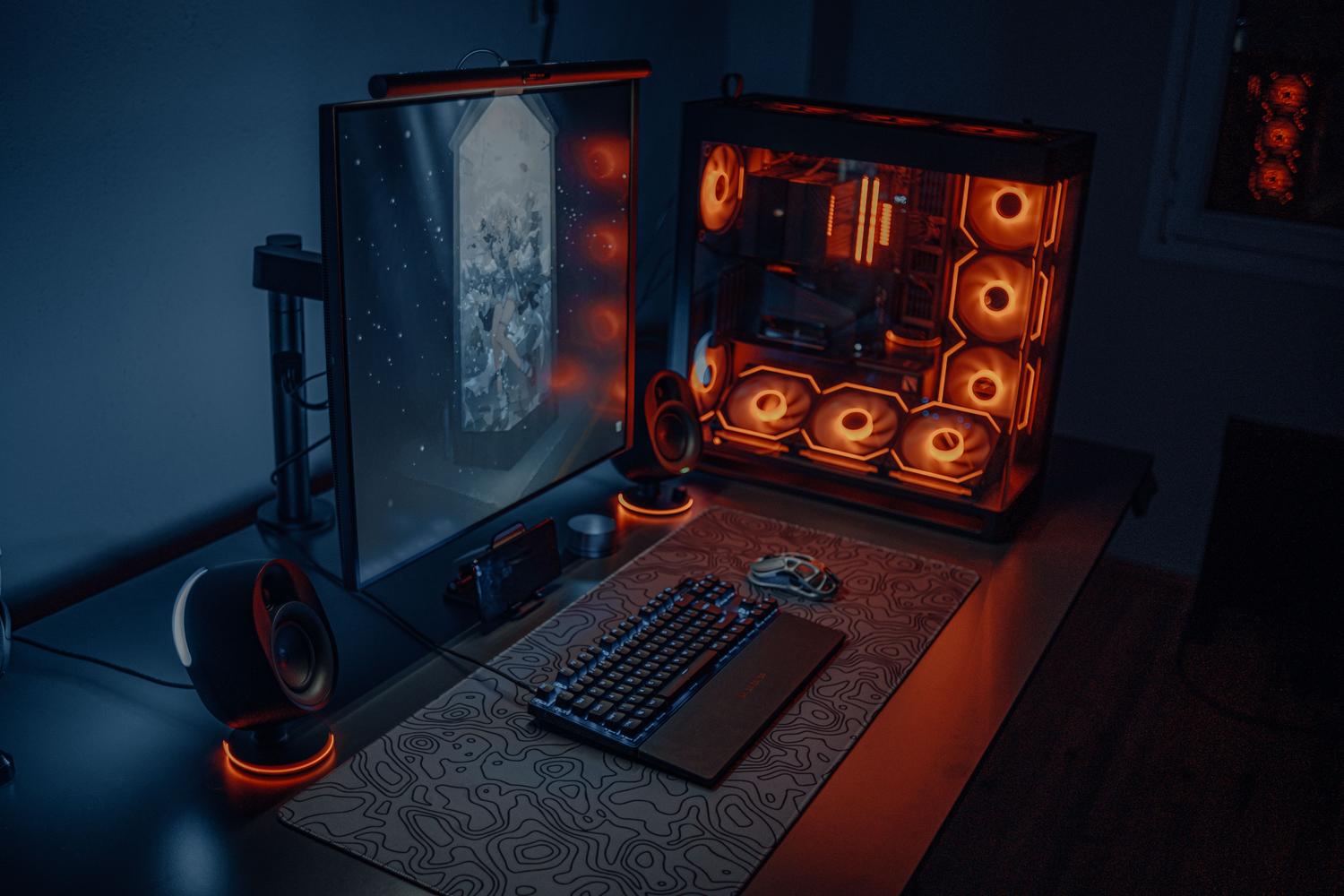
If you're nostalgic for arcades or simply fascinated by digital preservation, you've probably come across TeknoParrot. It's not your typical emulator trying to mimic an old chip, but a much more sophisticated tool that allows games designed for PC-based arcade hardware to run seamlessly on your home computer.
The most curious aspect of this project is that it doesn't recreate the hardware from scratch, but rather patches the Windows API calls to trick the game into thinking it's still running on its original cabinet. Thanks to this, we can rescue gems from Sega, Namco, and Taito that would otherwise be destined to disappear along with the burnt-out motherboards of arcade cabinets.
What exactly is TeknoParrot and what can it move?
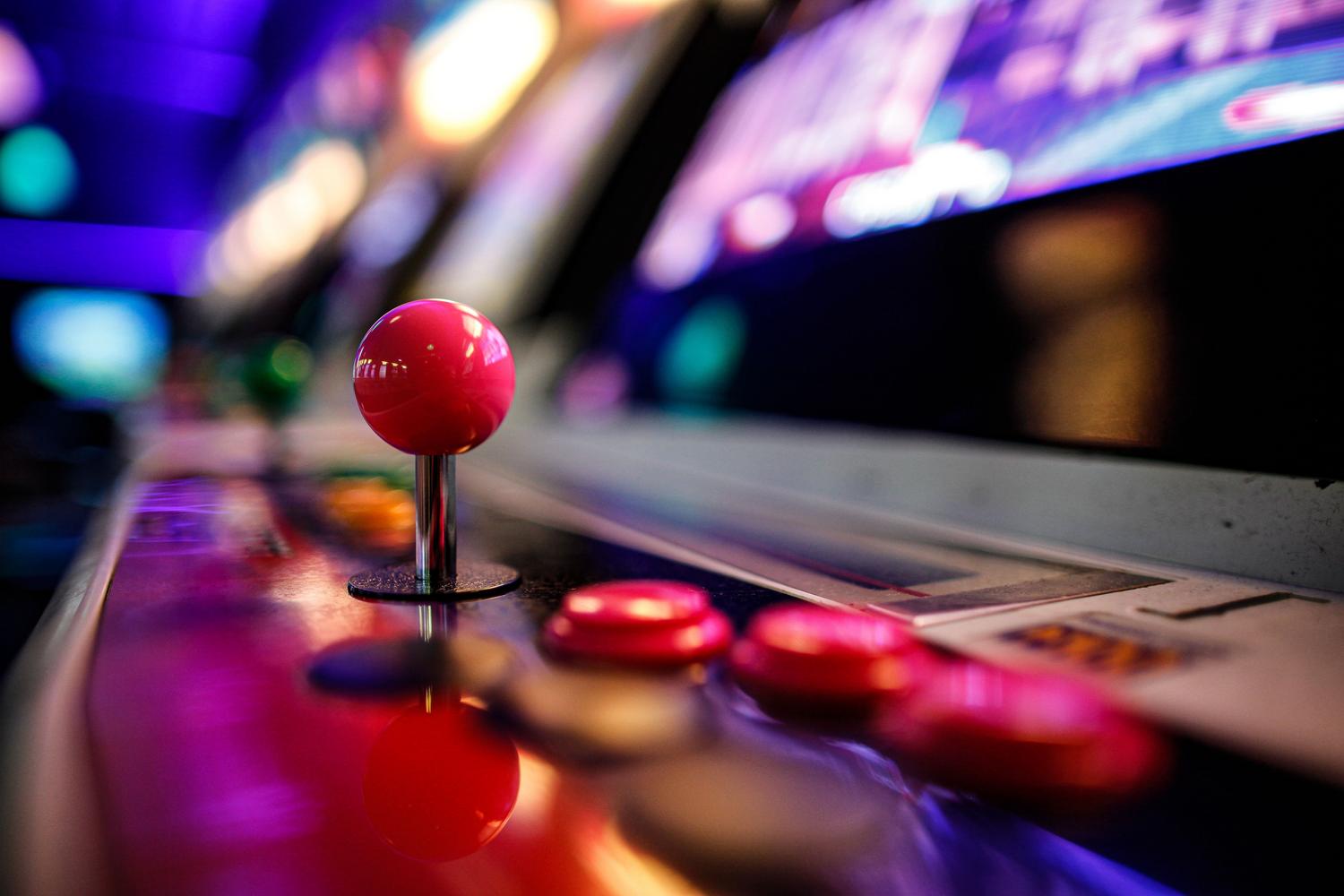
To avoid confusion, it's important to clarify that TeknoParrot is a compatibility layer , not a traditional emulator like MAME. While MAME simulates electronic circuits, TeknoParrot redirects game software that was already a Windows executable. Therefore, it only works on Windows, as the original games were written for that operating system.
As for the platforms it supports, the list is impressive. We're talking about hardware like the Sega Lindbergh, RingEdge, and Nu , as well as Namco systems like the System 246, 256, and 357. Taito's Type X and various Konami and Raw Thrills boards are also included. Basically, if the arcade game used a PC internally, there's a good chance there's a patch here to make it work.
Technical requirements for everything to run smoothly
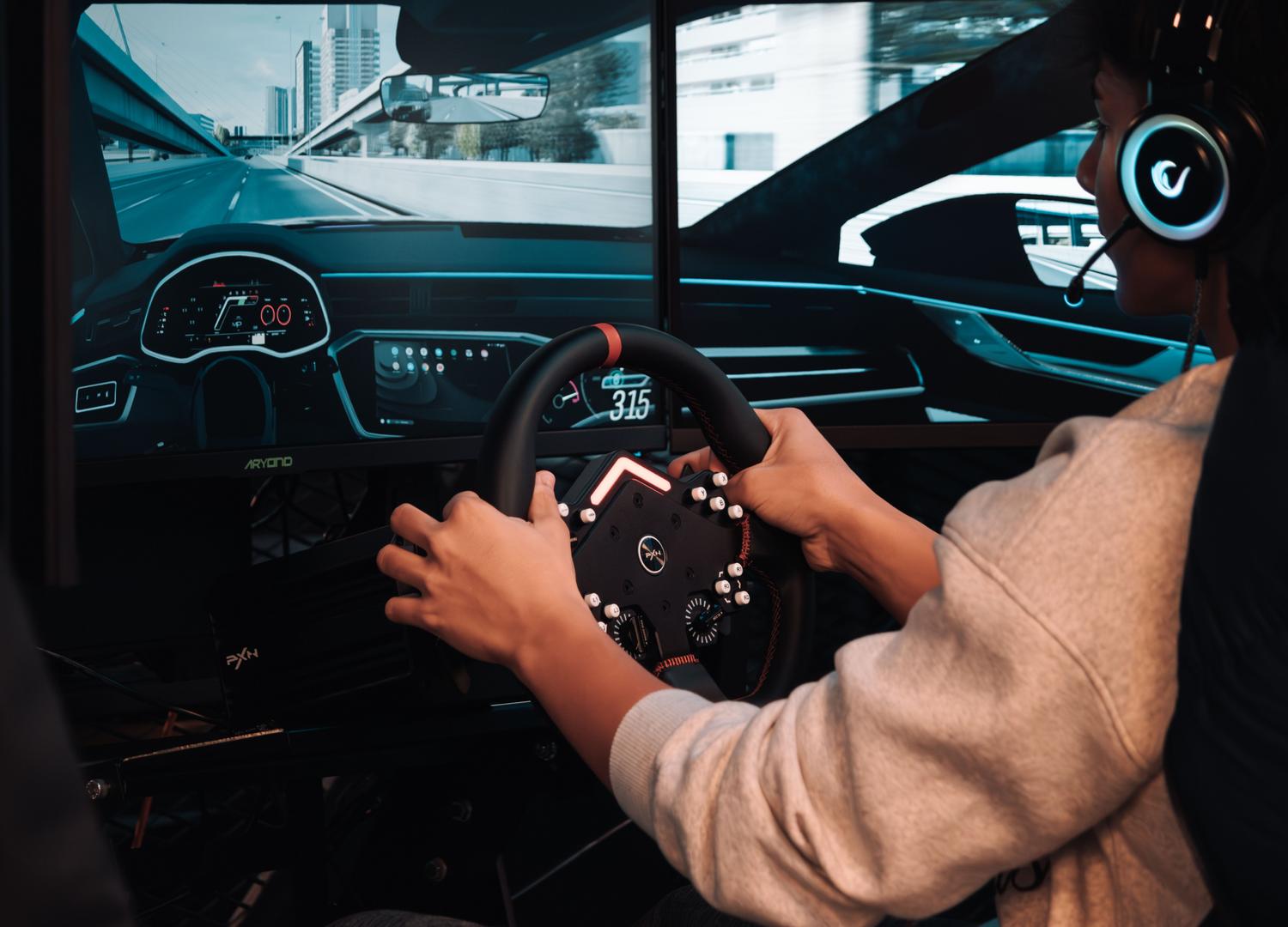
You don't need a NASA supercomputer, but not just any old toaster will do either. For older titles from the Lindbergh era, any graphics card that supports DirectX 11 is usually sufficient. However, if you want to really push modern rhythm or racing games from the ALLS era, you'll ideally need an RTX 2060 or better to avoid annoying frame rate drops.
Storage is a critical factor. Using an SSD is highly recommended , as many of these games load large assets while you play, and a mechanical hard drive could cause pauses that break the experience. Additionally, make sure you have the Visual C++ Redistributables installed in both x86 and x64 versions, as most games won't even launch without them.
Step by step: Error-free installation
The first step is to download the software from the official website. You have the option of the web installer (TPBootStrapper), which is the most recommended because it keeps the UI updated automatically, or the legacy version if you don't have a stable internet connection. Once downloaded, there's a crucial tip: don't install it in "Program Files" or in folders synced with OneDrive. It's best to create a short and simple path like C:\TeknoParrot to avoid write permission issues.
Before opening the program, you'll have to deal with your antivirus. Windows Defender often detects TeknoParrot patches as false positives because they modify executable files, something antivirus programs don't appreciate. To prevent them from deleting essential files, you must add the TeknoParrot folder to your antivirus exclusions . If you get SmartScreen warnings when running the file, don't panic; just click "More info" and then "Run anyway."
Software and game settings
When you open TeknoParrotUI.exe for the first time, always run it as administrator . You'll see that the program prompts you to update several things; don't hesitate to click "Update" on everything until no window remains pending. Once inside, you can access the settings menu (the hamburger icon) to configure general settings, such as the joystick dead zone, which is usually set between 16% and 20% to reduce twitchiness.
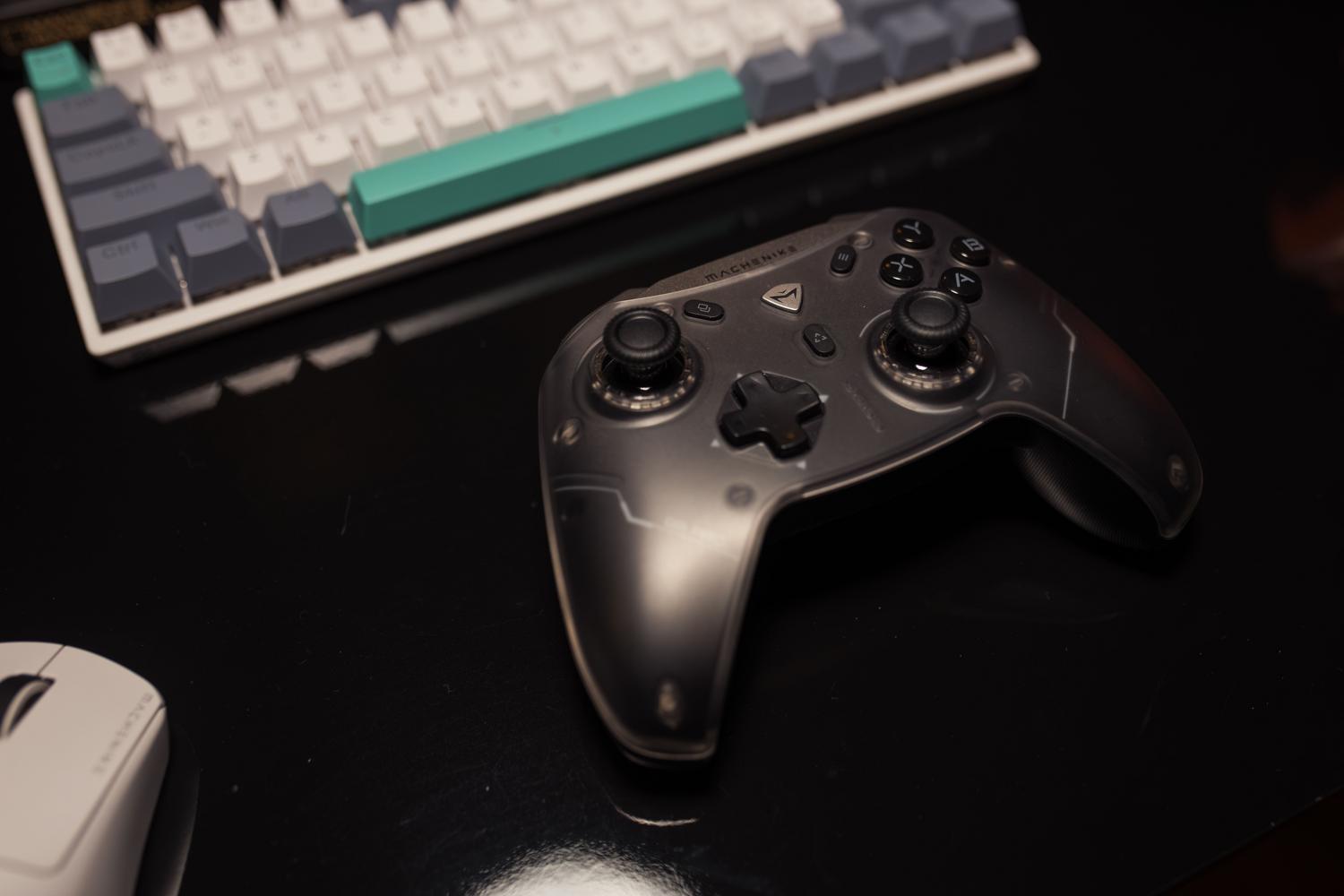
To add a game, remember that TeknoParrot doesn't include the games for legal reasons. You must provide the files extracted from your original hardware. Once you have the game folder, go to "Add Game," select the executable, and then go to Game Settings . Here you define the resolution and whether you'll be using XInput (for Xbox controllers). Finally, in Controller Setup , assign each button on your controller or steering wheel to the corresponding function in the game.
Advanced tips and troubleshooting
If you're using a laptop with dual graphics cards (integrated and dedicated), it's very common for the game to start using the integrated graphics and run very slowly. You need to go into your Windows graphics settings and force high performance for both the game launcher and the game executable. For Linux-based or Lindbergh-based games, the file you need to force is BudgieLoader.exe.
For fans of light guns, TeknoParrot isn't enough. You'll need a companion program called DemulShooter , which translates mouse or light gun movements into the format the game understands. It's vital to launch DemulShooter before the game itself for the grappling hook to work correctly.
If a game gives you a black screen, check that the resolution is compatible with your monitor and that the XML profile exactly matches the game's folder name. Sometimes, a single different capital letter in the folder name can prevent the program from finding the executable and cause an error.
Setting up an arcade system at home requires a little patience at first, especially with file paths and Windows permissions. Once you've configured antivirus exclusions, installed the C++ libraries, and mapped your controllers, all that's left is to enjoy a vast library of titles rescued from oblivion thanks to this powerful compatibility layer.