- Windows 11 automatically adapts the interface to tablet mode when it detects a touchscreen without a physical keyboard, without offering a manual button like in Windows 10.
- In tablet mode, the taskbar, icon size, window behavior, touch gestures, and on-screen keyboard change to make it easier to use with your fingers.
- The experience depends heavily on the hardware and drivers: on well-supported 2-in-1s it works smoothly, but it can cause problems on unoptimized systems.
- You can adjust the taskbar, touch keyboard, and screen orientation from Settings to improve and customize touch usage in Windows 11.
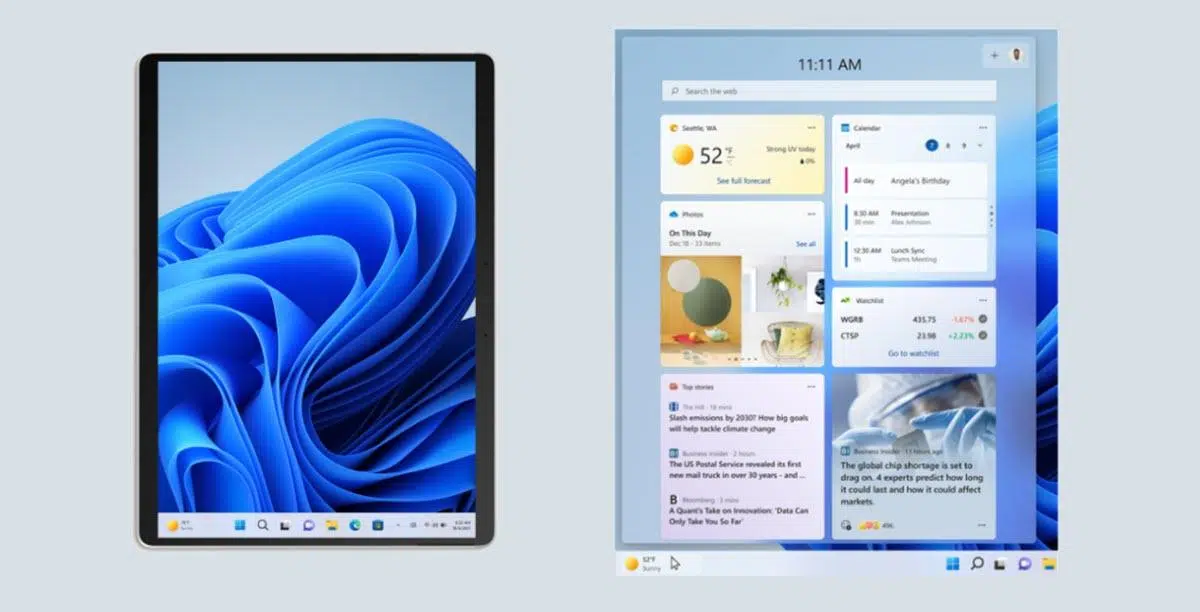
If you have a touch device running Windows, you've probably wondered what exactly happens when the interface changes and everything seems "bigger" and designed for finger use. That experience is what we commonly call Windows 11 in tablet mode , even though Microsoft no longer officially uses that term as it did with Windows 10.
In Windows 11, this behavior has become much more automatic and less manually configurable , which has both good and bad points: on the one hand, on convertibles and 2-in-1s it works practically on its own; on the other hand, there are users who encounter interface changes without understanding why, or who even want to disable that touch experience and don't see any clear option in the settings.
What exactly is tablet mode in Windows 11?
In Windows 11, you'll no longer see a button called "Tablet Mode," but the functionality remains: the system adapts the interface to be more comfortable to use with the touchscreen and without a physical mouse or keyboard . This idea dates back to Windows 8 and was refined in Windows 10 until reaching its current form.
When this experience is activated, Windows 11 applies a series of visual and behavioral adjustments to make everything easier to use with your fingers . These are automatic changes: the user doesn't have to go to a menu to activate them; the system itself detects whether the device is being used as a tablet.
Essentially, we're talking about an alternative interface that retains the desktop and windows, but modifies the size, spacing, and way you interact with many elements. The idea is that you can work, browse, or consume content without a mouse , reducing accidental touches and making better use of the screen.
This "touch layer" primarily affects the taskbar, icons, how some applications open, and how windows react when moved or resized. It also integrates touch gestures very similar to those used on a trackpad , minimizing the learning curve if you're already familiar with laptops.
How tablet mode works in Windows 11 (and how it differs from Windows 10)
In Windows 10, there was a very clear button in the Action Center to activate or deactivate tablet mode at will . It was a switch you could press when you connected a keyboard, used the computer as a laptop, or wanted to switch to a 100% touch experience when using it as a tablet.
That approach has disappeared in Windows 11. Now, Microsoft has opted for a system based almost entirely on automatic hardware detection . If the computer detects that it has a touchscreen and that the physical keyboard is disconnected or folded back (in a 2-in-1), it adapts the interface automatically, without user intervention.
This means you can no longer manually "force" tablet mode from the settings, as you could in previous versions. The change occurs when the system recognizes that the device is being used as a pure tablet, especially on convertible laptops and Surface devices, 2-in-1 laptops, or Windows tablets.
On compatible devices, switching from a laptop to a tablet instantly changes several interface elements: from icon size to how windows are displayed and how the touch keyboard appears. All of this aims to make touch use more natural, but it can also be disconcerting if you want to continue using a mouse and keyboard even though you have a touchscreen.
It's important to note that, unlike Windows 10, Windows 11 doesn't have a Settings menu or a standard shortcut to enable or disable this mode. Any attempt to "force" it through the registry or similar tools is very limited, because the system relies on how the hardware reports its status (laptop or tablet).
Interface changes when Windows 11 enters tablet mode
When Windows 11 detects that it is being used as a tablet, it doesn't display a spectacular notification warning you that you have changed modes, but it does make a series of fairly visible modifications to the interface.
One of the most noticeable changes is in the taskbar. The buttons and icons are now spaced further apart and are larger , making it easier to tap them without accidentally clicking the icon next to them. In addition, the taskbar can be automatically hidden when you open windows or applications in full-screen mode, freeing up valuable screen space.
Many apps designed with touch input in mind—such as Microsoft Edge, Photos, and various apps from the Microsoft Store—tend to open in full screen by default in this touch context. This avoids overly small elements and allows for much more comfortable gesture control.
Interaction with windows and borders also changes: instead of relying on a precise pointer, frames become more touch-sensitive, allowing you to resize and move windows by sliding your finger along their edges . The system automatically adjusts screen layouts when you place multiple windows, dispensing with the classic visual organization menu and acting more directly.
Another important feature is the on-screen keyboard. In tablet mode, Windows 11 makes the touch keyboard appear whenever you touch a text box or a field where you can type . You can also access it from its icon in the taskbar and, once open, move it to the position that best suits you.
Touch gestures and screen orientation in tablet mode
The Windows 11 tablet experience isn't just about enlarging icons. To make working with your fingers truly practical, Microsoft has enhanced multi-touch gestures and automatic screen rotation . This makes using it feel more like using a "pure" tablet.
In terms of gestures, the system allows you to use movements very similar to those of a trackpad: swiping from the sides to open widgets, notifications, or the Action Center , as well as multi-finger gestures to switch between applications, open the task view, or return to the home screen. This greatly simplifies navigation without the need to touch small buttons.
On the other hand, Windows 11 takes advantage of the orientation sensors (gyroscopes and accelerometers) in many 2-in-1 devices and tablets. When you rotate the device to portrait mode, the system immediately rearranges the desktop, windows, and taskbar to fit the portrait orientation. If you rotate it back to landscape mode, everything rearranges itself again.
During these orientation changes, open windows do not disappear: the system automatically repositions them so they remain usable , preventing you from having to manually reposition each application every time you rotate the device.
If you prefer to keep the screen fixed because you frequently move your computer or work with an external monitor, you can lock automatic rotation in the display settings . This option is usually also available in the system tray or quick settings panel, allowing you to change it with just a couple of taps.
Automatic activation on convertibles and 2-in-1 devices
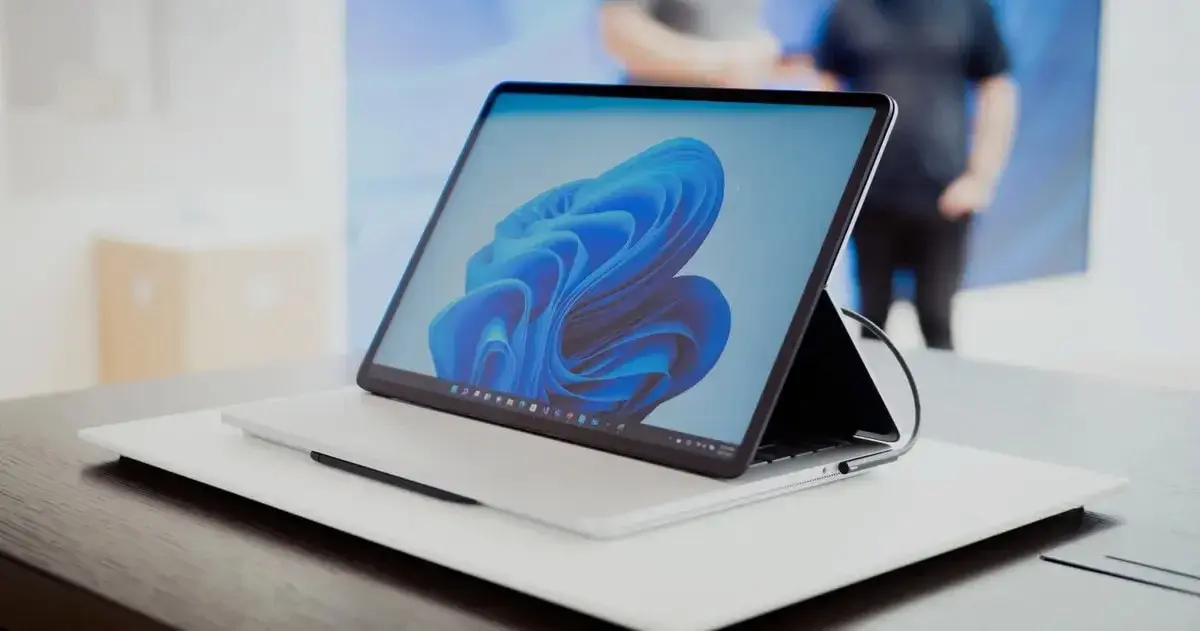
The tablet mode in Windows 11 makes the most sense on 2-in-1 laptops, convertible devices, and tablets with detachable keyboards. On these types of devices, the system is designed to switch from "laptop" to "tablet" almost seamlessly , synchronized with the hardware.
On a typical convertible laptop, when you fold the keyboard back until only the screen is visible, Windows interprets the device as being used as a tablet . The same thing happens when you physically detach the keyboard from a Surface or similar device: the interface switches to touch mode, icons become larger, the taskbar is optimized, and the on-screen keyboard automatically appears.
In the case of many 2-in-1 systems from manufacturers like Dell, HP, or Lenovo, the behavior is very similar: the device informs Windows of the change in state (laptop/tablet), and the system adjusts the interface automatically. It's an automatic process that, when well supported by the drivers, works quite smoothly and predictably.
This design has an important consequence: in Windows 11, there is no official option to force the system into tablet mode if the hardware doesn't indicate that it's in that state. Similarly, you can't completely disable touch functionality without resorting to unsupported workarounds or hardware modifications (such as always keeping a keyboard connected).
On devices without a touchscreen or on traditional desktop towers, this logic simply doesn't activate. Windows 11 understands that there's no point in entering a finger-friendly mode in these cases, and in practice, it always maintains the classic desktop experience.
How tablet mode was managed in Windows 10 (and why it still matters)
Although the focus is now on Windows 11, it's still helpful to understand how tablet mode worked in Windows 10, especially if you're coming from there and wondering why you no longer see the same options . In the previous version, everything was accessed through the Action Center.
In Windows 10, clicking the Action Center icon, located next to the date and time in the taskbar, opened a side panel with quick access tools. Among these buttons was "Tablet mode ," which you could manually toggle on or off with a single tap.
When the mode was disabled, the icon appeared unhighlighted, and the first time you removed it, it might even display text like "Disabled." If you enabled it, the button would highlight and display "On," clearly indicating that the system had switched to this touch experience. Ultimately, it was a feature you could control whenever you wanted.
If the icon wasn't showing up in the Action Center, you could add it. Simply go to Settings > System > Notifications & actions, and from there modify the quick actions to include the shortcut to "Tablet mode." It even allowed you to rearrange the icons to your liking , making the tablet mode icon more easily accessible.
This approach provides ample context for users arriving in Windows 11 expecting to find the same button. The reality is that the logic is now more rigid and relies on hardware input, so many of those manual customizations are no longer available in the same way.
Touch customization options in Windows 11
Although Windows 11 has removed the classic "Tablet mode" switch, it does offer several options to fine-tune the touch experience when the system detects that you're using the screen as your primary input method. These options are mainly found in the Personalization and Time & Language sections.
In the Settings > Personalization > Taskbar section, you'll find a block dedicated to "Taskbar behaviors ." There you can enable an option to optimize the taskbar for touch interactions, which may involve more spaced icons and a more comfortable feel for your fingers.
In this same section you also have the option to automatically hide the taskbar when working with foreground windows, which is very useful if you are on a small device and want to use every millimeter of screen for content and applications.
On the other hand, if you go to Settings > Time & Language > Typing, you'll find the "Touch keyboard" section . From there, you can decide when you want the virtual keyboard to appear on screen: whenever there's no physical keyboard, only when you touch a text field, or even force other behaviors that fit your workflow.
In Settings > System > Display, under "Scale and layout," you'll find the menu where you adjust the screen orientation (landscape, portrait, and their inverted variations) and other options for changing brightness and contrast in Windows . In this same area, you can also disable automatic rotation , a very useful feature if you frequently move your device but don't want the interface to be constantly rotating.
Common problems with tablet mode and limitations in Windows 11
It's not all advantages. Some users of devices like the Surface Pro or similar convertibles find that the interface switches to a "tablet-style" mode even though they're still using an external mouse and keyboard. This can be annoying, especially if performance seems to worsen or applications behave differently.
A typical example is someone who detaches the keyboard cover from a Surface, leaves it connected to an external monitor, and works with a wireless keyboard and mouse. For Windows, this device has a touchscreen and doesn't detect a physical keyboard attached , so it displays the touchscreen interface even though you're essentially working on a desktop computer.
Some users report that, in addition to the visual change, they notice the system feels somewhat slower or less responsive to mouse clicks when it enters this finger-optimized mode. While this shouldn't happen in theory, in practice it may be due to drivers that aren't fully optimized or hardware that isn't completely supported by Windows 11.
On certain older or convertible laptops not certified for Windows 11, the problem stems from the manufacturer not providing specific drivers for this version . Without these drivers, the system may incorrectly interpret the device's mode or react slowly when switching between laptop and tablet modes.
In these cases, the best option is often to check the manufacturer's support pages (HP, Dell, Lenovo, etc.) to see if there's an updated driver package or specific recommendation for Windows 11. It can also be helpful to keep the keyboard connected when you want to prevent the touch interface from activating automatically , although this is more of a workaround than an elegant solution.
If you've already edited the Windows registry to try to disable tablet mode and the values appear correct (for example, 0) but the behavior persists, you're most likely encountering a design limitation of Windows 11: the system no longer allows you to manage the touch experience solely through registry values as it did before.
Ultimately, the key to a smooth Windows 11 tablet experience lies in having well-supported hardware and up-to-date drivers , along with a little patience to adjust the taskbar, touch keyboard, and screen rotation options to suit your everyday workflow.
With all this in mind, it's clear that the so-called tablet mode in Windows 11 is still very much present, even though it's no longer an obvious switch. It's now an intelligent layer that activates when the system understands you're using the computer as a tablet, adjusting icons, gestures, the touch keyboard, and orientation to make the experience more comfortable. However, it can also cause friction when the hardware or drivers aren't up to par, or when you need more manual control over how the interface behaves.
