- Windows wallpapers can be static or animated, with formats and resolutions optimized for PCs and, in some cases, also for mobile devices.
- Choosing the right resolution (Full HD, QHD, 4K) and format (JPG, PNG, WebP) ensures a sharp image without distortion or loss of quality.
- Many wallpapers are subject to copyright, so it's key to respect creator credits and use images responsibly.
- Windows offers simple options to customize your desktop background to suit your tastes without compromising system performance.
If you spend many hours in front of your computer, you know that a good wallpaper in Windows makes all the difference . It's not just about aesthetics: it influences how you perceive your workspace, your concentration, and even your desire to use your PC. Changing your wallpaper is one of the easiest and quickest ways to personalize Windows to your liking.
In the world of Windows wallpapers, there's much more than just static images: from classic high-resolution backgrounds to animated wallpapers designed for PCs and, in some cases, also adaptable to mobile devices. Let's review the types of wallpapers you can use, what you should consider when choosing them, how to take advantage of Windows' customization options, and the role of copyright and crediting the creators.
What is a wallpaper in Windows and why does it matter?
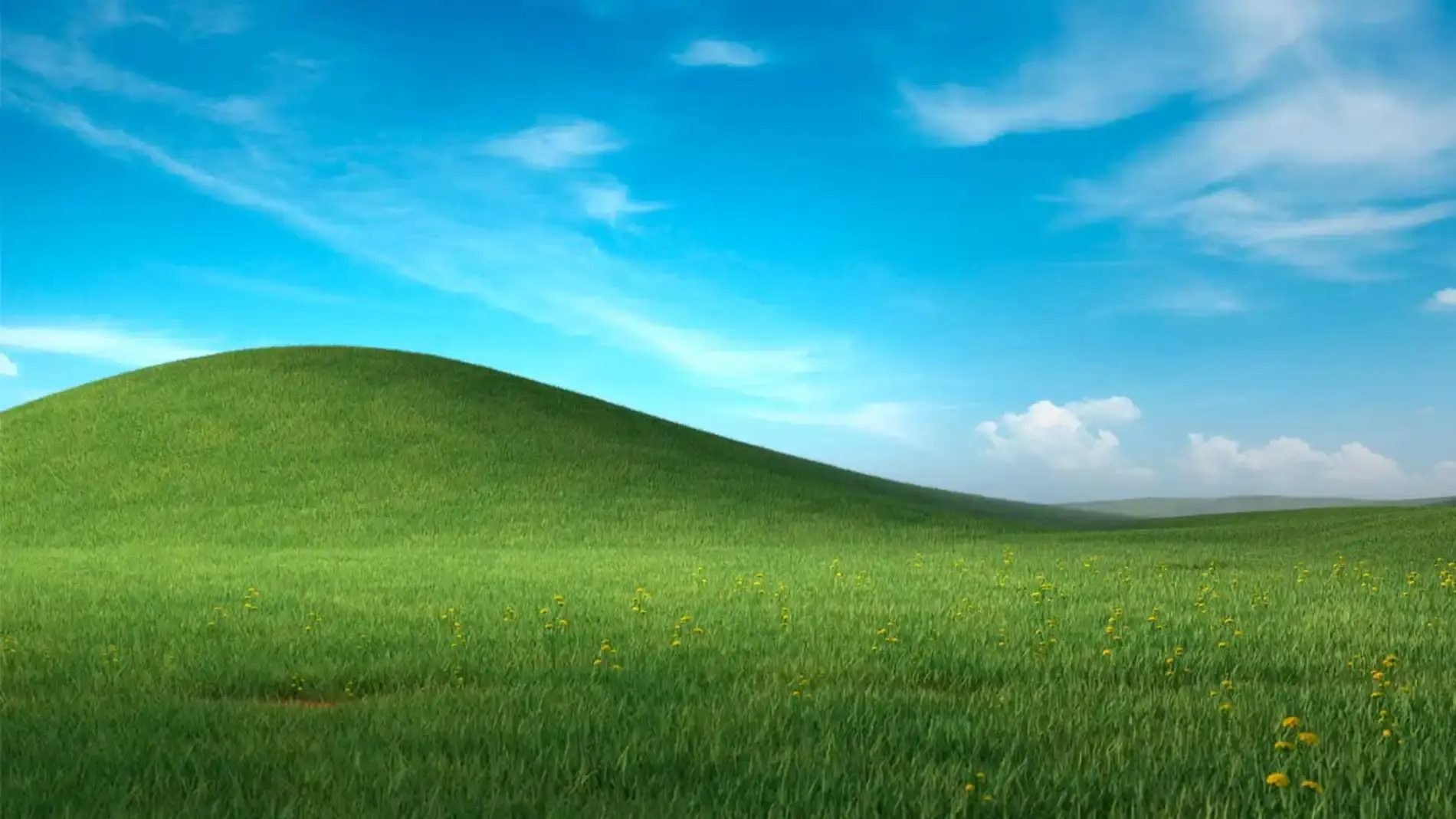
In Windows, the wallpaper is the image you see behind the icons and windows on your desktop . Although it seems very basic, it's linked to the user experience: a suitable background can make everything look cleaner, more professional, or more creative, depending on what you're looking for.
By default, Windows includes a selection of its own backgrounds, such as Bliss Hill from Windows XP , typically featuring landscapes, abstract tones, and soft colors. However, many users prefer to go further and install custom backgrounds in high resolution, 4K, or even animated versions to give their desktop a more personal and eye-catching look.
Modern wallpapers are typically designed for widescreen displays and high resolutions, so they look sharp on both Full HD monitors and 4K screens . In this context, words like "4K," "Neon," "Planet," or "Astronaut" frequently appear associated with very popular and visually spectacular wallpapers.
Besides its aesthetic appeal, a well-chosen desktop background helps maintain visual order . A cluttered design can make icons difficult to find, making it hard to locate programs or folders, while a background with clean areas and contrasting colors makes organizing your desktop much easier.
Static backgrounds vs. animated backgrounds in Windows
Traditionally, Windows wallpapers have been static images in formats like JPG, PNG, or WebP . They are lightweight, easy to configure, and compatible with any modern version of the system. They consume very few resources and are well-suited for everyday use.
In recent years, moving wallpapers have become increasingly popular . These animated backgrounds can include neon effects, space scenes with planets, floating astronauts, or abstract patterns that subtly shift. This type of wallpaper is usually designed primarily for PCs, although in many cases there are adapted or scaled versions available for mobile devices.
When you see descriptions like "Animated wallpaper, this image format is suitable for PC, some images adaptable for mobile," it means that the file is optimized for computers (by resolution, format, or performance), but may have variations prepared for smartphone screens.
These animated wallpapers are very eye-catching, especially when they include neon-like lighting effects, futuristic settings, or science fiction scenes with planets in 4K . It's not uncommon to find references and hashtags like #Astronaut, #Neon, #Planet, or even creator names (for example, #ANDRESSAN) associated with these compositions.
Keep in mind that, unlike a static image, an animated background can consume more system resources (CPU, GPU, and battery on laptops). Therefore, it's recommended to use them primarily on powerful desktop computers or laptops plugged into a power outlet, avoiding excessive use if your PC is already struggling to perform.
Recommended formats and resolutions for wallpapers in Windows
The format and resolution of the wallpaper are key to ensuring the image looks good and doesn't appear distorted. In terms of formats, the most common on Windows are JPG and PNG, in addition to the increasingly popular WebP, which offers a good balance between quality and file size. 4K wallpapers are usually available in these same formats.
Regarding resolution, ideally the background image should match or exceed the resolution of your monitor. For a modern desktop PC, 1920×1080 (Full HD), 2560×1440 (QHD), or 3840×2160 (4K) are standard . Using smaller images can cause them to appear blurry or pixelated when Windows adjusts them to full screen.
The system itself offers options such as "Fill," "Fit," "Expand," "Tile," and "Center" to control how the image fits the desktop. For high-resolution panoramic backgrounds, most users choose "Fill" or "Expand" to cover the entire screen without borders . If the image has a vertical aspect ratio (for example, designed for mobile devices), it will often display with sidebars when used on a horizontal monitor.
When we talk about 4K wallpapers with labels like "Neon" or "Planet," we're usually referring to highly detailed images with vibrant colors and strong contrasts . These creations look especially stunning on high-definition screens, where every subtle lighting effect and texture is clearly visible.
In the case of animated wallpapers, resolution is also crucial. A 4K animated wallpaper is spectacular, but it can demand more resources from your graphics card . If your PC is struggling, it's usually better to use intermediate resolutions or performance-optimized versions.
Recommended wallpapers for PC and mobile: compatibility and adaptation
Many creators indicate that certain wallpapers are “recommended for use on PC or mobile.” This means they have taken into account the typical aspect ratios and resolutions of each device . A widescreen image fits very well on a desktop monitor, but may not look as good on a vertical smartphone screen.
For PCs, the priority is usually to take advantage of the monitor's full width, especially on widescreen displays. That's why recommended desktop wallpapers are typically horizontal with high resolution , ideal for showcasing complex scenes like an astronaut floating in space or a futuristic neon composition.
In the case of mobile devices, some artists adapt these same creations by cropping or readjusting the scene so that it looks good in portrait format. Thus, a central part of the image (for example, the astronaut or the main planet) is positioned so that it is centered on the phone screen , without losing the key elements.
When it says that “some images are mobile-friendly,” it usually means there’s a specific version designed for smartphones or that the cropping done by the device itself is acceptable. However, the result will always be better if you download a version specifically designed for portrait mode.
If you want to use the same background on your PC and mobile device, the most practical solution is to look for wallpapers that the creator has offered in various sizes or aspect ratios . This way, you maintain a consistent aesthetic across devices, but each one has the image optimized for its screen.
Credits, copyright and responsible use of wallpapers
When downloading a wallpaper from the internet, it's important to keep in mind that not all images are free to use . Many wallpapers, especially the more elaborate ones (like space-themed wallpapers with astronauts, neon lights, and planets in 4K), are copyrighted and belong to specific artists.
It's common to find notes like: "Image credits to the respective authors; image subject to copyright." This means that, while you can use the background on your PC or mobile device for personal use , you are not allowed to resell it, redistribute it as your own, modify it for commercial purposes, or use it in public projects without express authorization.
Many creators sign their work with recognizable tags or names (for example, #ANDRESSAN or similar as a digital signature ) and add hashtags like #Astronaut, #Neon, #Planet, or #4K so users can easily find their work. Respecting these credits is a basic way to acknowledge their work.
If you want to share a wallpaper with others, it's best to send the link to the creator's official website or the platform where it was published, rather than forwarding the file directly. This way, you better respect the terms of use set by the author.
If you're unsure about the rights to an image, it's best to choose stock photo libraries that offer clear licenses (whether for personal or commercial use, or under specific attribution requirements). This will help you avoid legal issues and, at the same time, support those who create this type of visual content.
How to set a wallpaper in Windows
Setting a wallpaper in Windows is a simple process, but it's helpful to know the options well to make the most of them. First, you need to have the image (or animated file, if it's a moving background) saved on your PC in an easily accessible folder, such as Pictures or Downloads.
In modern versions like Windows 10 or 11, you can right-click on the Desktop and choose the "Personalize" option to directly access the background section . From there, the system lets you select between "Picture," "Solid color," or "Slideshow" (a folder with several photos that will rotate). If you choose "Picture," you just need to find the file and apply it.
If you'd prefer to change your background even faster, simply right-click on the image in File Explorer and select "Set as desktop background ." In a few seconds, your new wallpaper will be applied to your entire screen.
Windows also lets you adjust how the image is displayed: you can choose from options like “Fill”, “Fit”, “Expand”, “Tile”, “Center” , and even choose whether the same image is displayed on all monitors when you have a multi-display setup.
For moving backgrounds, the operating system doesn't include a universal manager by default, so third-party programs are usually used to assign videos, animations, or interactive scenes as backgrounds. In these cases, it's important to review the performance settings and limit resource usage if you notice your computer slowing down.
Tips for choosing the best Windows wallpaper for you
Choosing a wallpaper might seem trivial, but if you spend a lot of time in front of your computer, it's worth taking a moment to consider it. The first thing to think about is how you primarily use your computer: if you use it for work or study, a background that's too flashy with neon lights or overly elaborate scenes can be distracting . In these cases, something softer, with neutral colors or calming landscapes, usually works better.
If, on the other hand, your PC is primarily for leisure, gaming, or creative work, you might prefer a more striking wallpaper: an astronaut floating among planets, futuristic effects, science fiction scenes with neon lights , or abstract compositions that take full advantage of 4K resolution. You can also follow guides to make Windows more beautiful and minimalist.
It's also important to consider the position and number of icons on your desktop. If you have a lot of shortcuts, it's best to choose a background with clean areas where the icons can be clearly seen . Too much visual detail behind the icon text can make everything look cluttered.
Don't forget the technical aspect: if you notice your PC slowing down or the fan running at high speed when using animated backgrounds, the wisest course of action is to revert to a static, high-resolution wallpaper . You'll still have a polished look without compromising performance.
Finally, try to refresh your background from time to time. Changing the image every so often helps prevent the Windows interface from becoming monotonous , and you can also adapt the background to the season, your current projects, or simply your mood.
Throughout this guide, it becomes clear that a Windows wallpaper is much more than just a simple image: it combines aesthetics, convenience, performance, and respect for copyright. Understanding the differences between static and animated wallpapers, recommended resolutions, PC and mobile compatibility, and the importance of crediting creators makes it much easier to choose a wallpaper that suits your needs and enjoy an attractive, functional, and fully personalized desktop.
