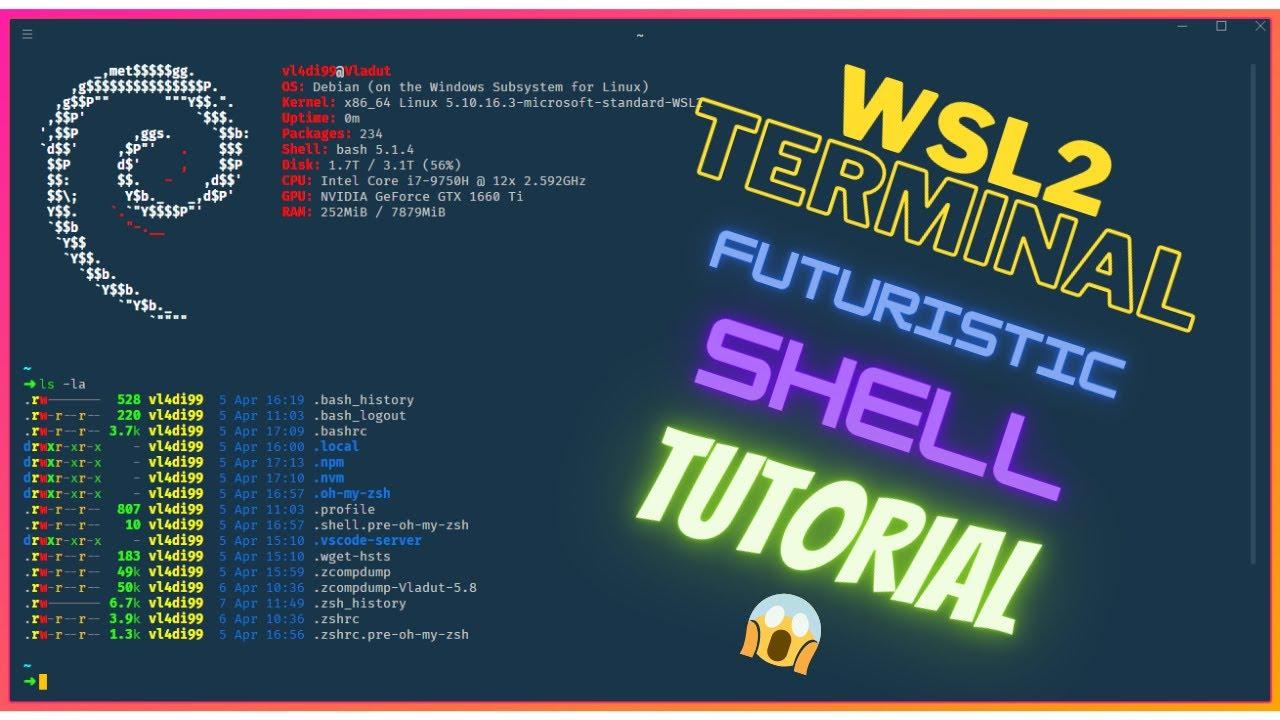
- WSL2 allows you to use a complete Linux system within Windows and combine it with Zsh to create a powerful and modern terminal.
- Windows Terminal, Nerd Fonts, and Oh My Zsh enhance the visual and functional experience with custom themes, icons, plugins, and aliases.
- Bootstrap scripts, dotfiles, and Dev Containers make it easy to automate and version the environment for an entire development team.
- Integration with VS Code and tools such as NVM, Conda, BAT, LSD, or FZF creates a solid and reproducible workflow.
If you develop in Do you use Node.js or Python on Windows and want the convenience of Linux? Without abandoning your games, your usual tools, or your workflow, WSL2 and Zsh are probably the combo you've been looking for. Having a real Linux distro, with a souped-up terminal and everything perfectly automated, means setting up a development environment is no longer an ordeal of hours spent copying commands.
In this guide you will see, with considerable care and detail, How to fully automate a WSL2 environment with Zsh and Oh My ZshHow to integrate it with Windows Terminal and Visual Studio Code, and how to package it into scripts and dotfiles so you (or anyone on your team) can replicate the same setup in minutes. The idea is for you to spend less time wrestling with configuration and more time coding to your heart's content.
What is WSL2 and why is it worth using with Zsh?
WSL (Windows Subsystem for Linux) is the layer that allows Linux to run within Windows without heavyweight virtual machines or dual booting. With WSL2, Microsoft takes it a step further: it runs a full Linux kernel using Hyper-V, with very low resource consumption and performance very close to a native installation.
Thanks to this you can install distributions such as Ubuntu, Debian, Kali, or Alpine directly from the Microsoft Store or with PowerShell commands, and enjoy a Linux file system, apt packages, development tools, and of course, advanced shells like zsh to Oh my zsh and its plugins.
For many years, Programming from Windows was unattractiveWithout bash, with an awkward file system and fewer native developer tools, most people ended up migrating to Linux or macOS. With WSL2, this changes radically: you stay on Windows, but You work as if you were on a Linux distro, with the possibility of automating almost the entire configuration process.
The beauty of combining WSL2 with Zsh is that Zsh offers a terminal experience far superior to the classic bashAdvanced autocomplete, suggestions, themes, Git integration, NVM plugins, aliases, syntax highlighting, and much more that, once you try it, is hard to leave behind.
Install and prepare WSL2 on Windows 10 or 11
Before we delve into fine-tuning automation, You need WSL2 enabled and a Linux distro installed.The process today is much simpler than in the early versions, and almost everything can be done with a single command.
En Recent Windows 10 (version 2004 or higher) or Windows 11Simply open PowerShell as administrator (search for it in the Start menu, right-click, "Run as administrator") and launch:
wsl --install
This command is responsible for enable the necessary optional features, download the linux kernel, establish WSL2 as the default version and install by default Ubuntu as a distribution. When the process is complete, the system will ask you to restart your computer to apply the changes.
If you prefer a different distribution, you can specify it in the command itself, for example to install Debian:
wsl --install -d Debian
At any time you can Check the status of installed distributions and their versions with:
wsl -l -v
And if you want to switch distros or clean up one you no longer use, you have options like List the distributions available online or remove a specific installation:
wsl -l -o
wsl --unregister Ubuntu-20.04
When you first launch your distribution, a text-based wizard will appear asking you to Create a UNIX user and their passwordThat will be your main user within WSL, with their typical HOME in /home/tuusuarioAnd it's important that you write down your username and password because you'll use those for administrative tasks. sudo.
Configure Windows Terminal to work with WSL2
Once you have WSL2 up and running, the next logical step is Improve the command-line experience in Windows using Windows TerminalThis application supports tabs, panels, themes, transparencies, profiles per distro, fonts with icons, and much more.
Install Windows Terminal from the Microsoft Store And when you open it, you'll see that it usually displays a PowerShell or CMD profile by default. From the tab dropdown arrow, you can choose your WSL distribution (Ubuntu, Debian, etc.) and open it in a new tab.
For Ubuntu or whatever distro you use in WSL will always open by default.You can edit the settings. Windows Terminal saves its settings in a JSON file, accessible from the settings menu. Locate the field "defaultProfile" and put the Ubuntu profile GUID (you'll see it in the list) profiles) as a value.
In addition to that, you can Customize color themes and add acrylic transparency to give it a more modern touch. For example, in the part of "defaults" For the profiles, you can define something like this:
"defaults": {
  "useAcrylic": true,
  "acrylicOpacity": 0.4
}
If you'd like to take things a step further with the colors, you can add a custom scheme in the section "schemes" from the JSON, defining background colors, foreground colors, and the basic terminal palette. A typical example would be something like a solarized theme, to which you can then associate a WSL profile using the property "colorScheme" : "wsl" in the corresponding profile.
Install and automate Zsh + Oh My Zsh in WSL2
With the WSL and Windows Terminal base ready, it's time to add some meat to the shell. Zsh is a much more powerful alternative to bashand combined with Oh my zsh It becomes a Swiss Army knife for working with Git, Node, Python and virtually anything in the terminal.
In your WSL distro (for example, Ubuntu), start with Update the repositories and install the minimum necessary packages:
sudo apt update
sudo apt install git zsh -y
Then install Oh My Zsh using the official script, taking advantage of curl to download the installer and run it directly:
sh -c "$(curl -fsSL https://raw.githubusercontent.com/ohmyzsh/ohmyzsh/master/tools/install.sh)"
During installation you will be asked if you want Set Zsh as the default shellTell him yes. If you ever need to do it by hand, you can use:
chsh -s /bin/zsh
When finished, a configuration file will be generated in your HOME directory called ~/.zshrcwhere everything is controlled: plugins, theme, aliases, environment, routes…
A very popular theme for Oh My Zsh is agnoster, focused on displaying Git information clearly. To activate it, edit the file ~/.zshrc with your preferred editor (for example vi ~/.zshrc o nano ~/.zshrc) and make sure the subject line looks like this:
ZSH_THEME="agnoster"
It is also recommended that, in both bash and Zsh, force the shell to start in your Linux HOME directory (not in the Windows user folder), since WSL works much better within the distro's native file system. Simply add the following to the end of ~/.zshrc a simple line:
cd ~
Nerd Fonts and Powerline: icons and aesthetics in the terminal
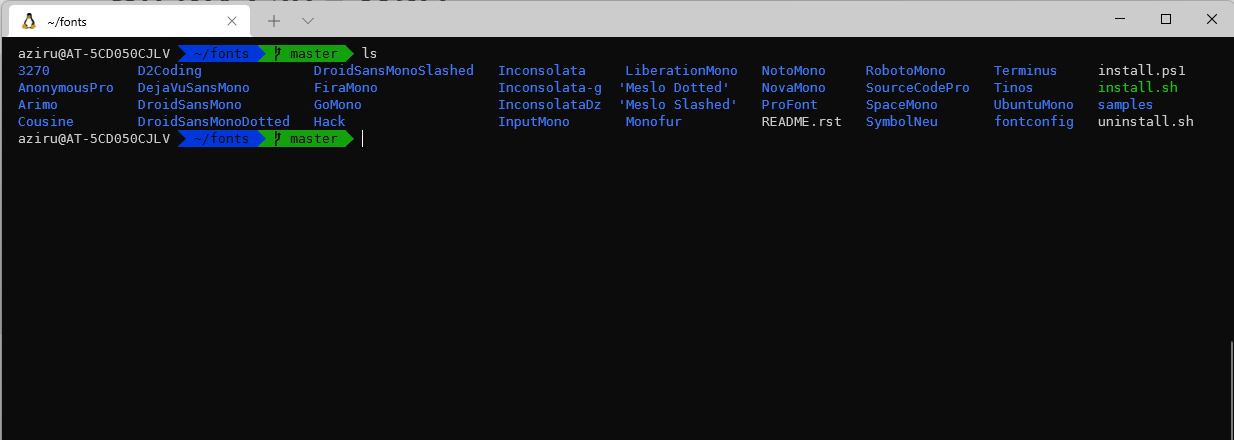
In order for the Zsh and Oh My Zsh tracks to look as intended, You need a font that supports special icons and symbols. (These are called Nerd Fonts or Powerline fonts). If you don't, you'll see strange squares or broken characters in more advanced prompts.
You have two popular options: install a classic Powerline power supply package or opt for a specific Nerd Font like MesloLGS NF o Hack Nerd FontA quick method is to clone the Powerline font repository from PowerShell in Windows, first navigating to an empty folder:
git clone https://github.com/powerline/fonts.git
cd fonts
.\install.ps1
The installation script will automatically add a number of fonts to the system. Then, from the Windows Terminal settings, Select one of the installed fonts For the WSL profile, for example:
"fontFace": "DejaVu Sans Mono for Powerline"
If you prefer something even more modern, you can download a specific Nerd Font (like MesloLGS NF Regular.ttf) from the Nerd Fonts website, install it on Windows by double-clicking and selecting "Install", and then choose it as the font in the Windows Terminal profile.
In the case of using advanced themes such as Powerlevel10kIt's highly recommended to use Nerd Fonts. To install this theme, you can do the following within your WSL user account:
git clone --depth=1 https://github.com/romkatv/powerlevel10k.git ~/powerlevel10k
echo 'source ~/powerlevel10k/powerlevel10k.zsh-theme' >> ~/.zshrc
After reloading Zsh (zsh or close and open the terminal), a guided wizard will be launched (p10k configure) to customize the prompt to your liking, generating a file ~/.p10k.zsh with all the settings.
Useful plugins for Zsh: instant productivity
One of the great advantages of Oh My Zsh is that It allows you to add plugins very easily. to improve the work experience. Some of the most commonly used in WSL2 development environments are the following.
The plugin git It is enabled by default and is responsible for displaying Which branch are you on, if you have pending changes, if there are any uncommitted changes?…all directly in the prompt. It's perfect for keeping track of your repository's status while browsing.
Another classic is zsh-autosuggestions, which suggests commands in gray based on your history, so you can accept the suggestion with a keystroke and Avoid writing the same long combinations over and over again. To install it:
git clone https://github.com/zsh-users/zsh-autosuggestions ~/.zsh/zsh-autosuggestions
It is also highly recommended zsh-syntax-highlightingwhich colors the commands according to whether they are spelled correctly, whether the files you are pointing to exist, etc., helping you to detect syntax errors before pressing Enter:
git clone https://github.com/zsh-users/zsh-syntax-highlighting.git ~/.zsh/zsh-syntax-highlighting
Activate these plugins, add the following to the end of your ~/.zshrc something like:
source ~/.zsh/zsh-autosuggestions/zsh-autosuggestions.zsh
source ~/.zsh/zsh-syntax-highlighting/zsh-syntax-highlighting.zsh
Another very practical extra is the Oh My Zsh sudo pluginwhich allows you, for example, to press a combination of keys to quickly add “sudo” before the last command It's running. You can download it like this:
mkdir -p ~/.zsh/sudo-plugin && cd ~/.zsh/sudo-plugin
wget https://raw.githubusercontent.com/ohmyzsh/ohmyzsh/master/plugins/sudo/sudo.plugin.zsh
And activate it by adding it to your ~/.zshrc:
source ~/.zsh/sudo-plugin/sudo.plugin.zsh
Enhanced command-line tools (BAT, LSD, FZF, HTTPie)
Since you're tweaking the terminal, it's worth installing some modern alternatives to classic utilities , the cat o lsas well as search tools and user-friendly HTTP clients.
BAT It's a "pro" version of cat, with syntax highlighting, numbering, Git integration…Ideal for reading code files directly in the terminal. You can install it by downloading the corresponding package from GitHub (adapting it to your architecture):
wget https://github.com/sharkdp/bat/releases/download/v0.20.0/bat_0.20.0_amd64.deb
sudo dpkg -i bat_0.20.0_amd64.deb
To integrate it into your workflow, you can create aliases in ~/.zshrc so when writing cat I actually called BAT, but retained shortcuts to the traditional utility:
alias cat='/bin/bat'
alias catn='/bin/cat'
alias catnl='/bin/bat --paging=never'
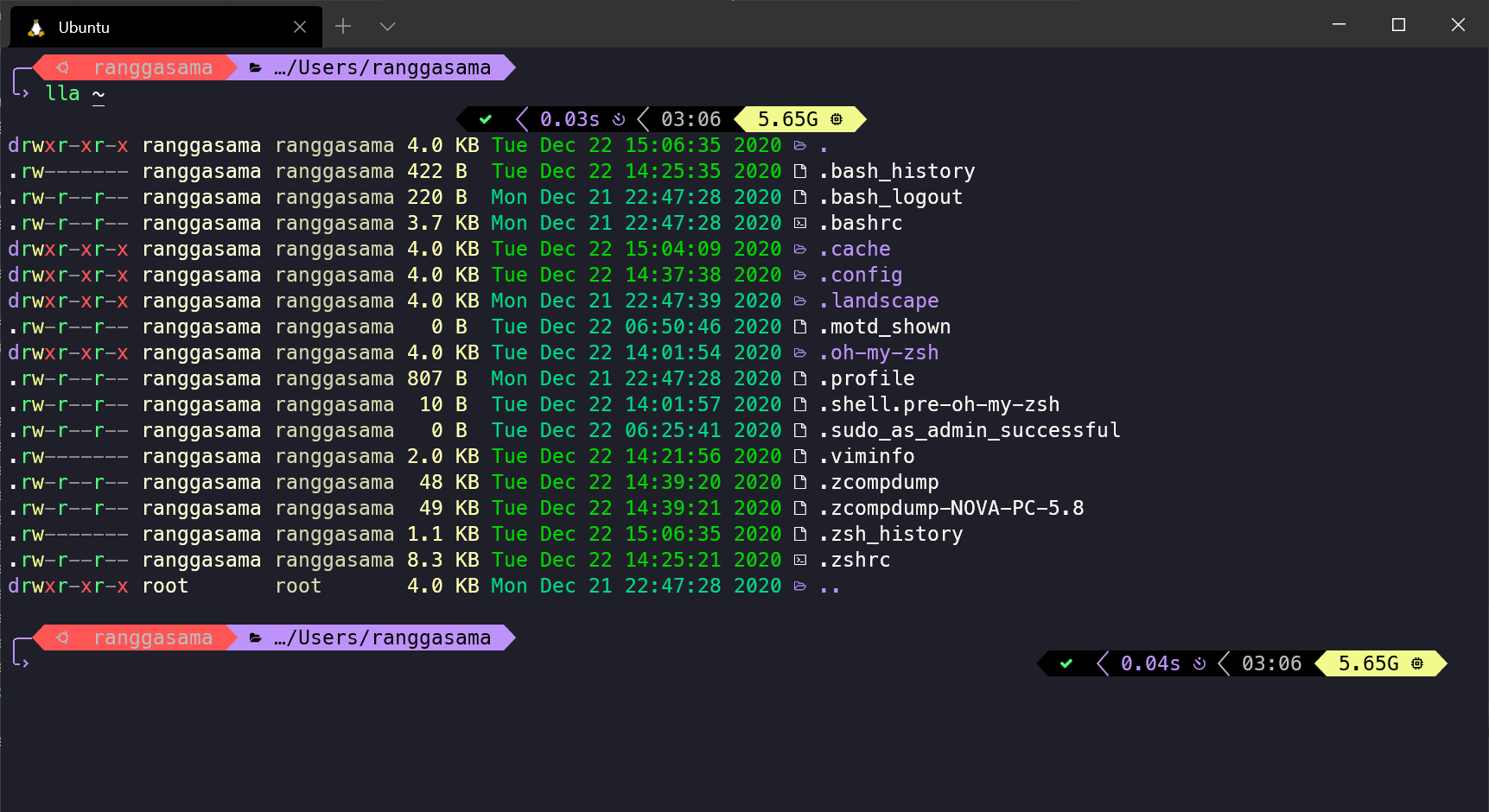
For its part, LSD replaces ls to colors, icons, and a much more legible outputIt is installed similarly to BAT:
wget https://github.com/Peltoche/lsd/releases/download/0.21.0/lsd_0.21.0_amd64.deb
sudo dpkg -i lsd_0.21.0_amd64.deb
Then you can redefine common aliases to sort directories, show details, hide them, etc., for example:
alias ll='lsd -lh --group-dirs=first'
alias la='lsd -a --group-dirs=first'
alias l='lsd --group-dirs=first'
alias lla='lsd -lha --group-dirs=first'
alias ls='lsd --group-dirs=first'
For interactive searches within the terminal, FZF It is almost essential: launches an incremental search engine which integrates with history, paths, and other commands. It is installed by cloning its repository and running the installation script:
git clone --depth 1 https://github.com/junegunn/fzf.git ~/.fzf
~/.fzf/install
The installer will add to your ~/.zshrc el source corresponding (something like [ -f ~/.fzf.zsh ] && source ~/.fzf.zsh) so that everything is ready. It is activated with shortcuts like CTRL+T.
Finally, if you work with APIs, HTTPie It offers a much more comfortable experience than curl, with colored output and highly readable syntaxYou can install it by adding its repository and using apt:
curl -SsL https://packages.httpie.io/deb/KEY.gpg | apt-key add -
curl -SsL -o /etc/apt/sources.list.d/httpie.list https://packages.httpie.io/deb/httpie.list
apt update
apt install httpie
apt upgrade httpie
Node.js, NVM, Python and other tools in WSL2
One of the main reasons for setting up this whole operation is to be able to to have a robust environment for Node.js, Python, and other technologieswith simple and reproducible version management. This is where it comes into play NVM for Node and tools like Conda for Python.
In the case of Node, the ideal is to use NVM (Node Version Manager)which allows you to install multiple versions and switch between them with a couple of commands. From your WSL2, you can install NVM with:
curl -o- https://raw.githubusercontent.com/nvm-sh/nvm/v0.39.1/install.sh | zsh
Next, install Node (the current stable version or a specific one):
nvm install node
nvm install 18.17.0
If you want to check that everything is in order, you have the typical version verification commands at hand, which should return valid values:
node --version
npm --version
With Zsh, NVM sometimes doesn't load automatically when you open the terminal. You can fix this in two ways: manually adding the necessary variables to ~/.zshrc or using the plugin zsh-nvm from Oh My Zsh. The manual variant might look something like this:
export NVM_DIR=~/.nvm
[ -s "$NVM_DIR/nvm.sh" ] && . "$NVM_DIR/nvm.sh"
If you choose the plugin, open ~/.zshrc, locate the plugins line (for example plugins=(git)) and adds zsh-nvm Add it to the list. After saving and restarting the terminal, NVM should load without issue.
For Python, a very powerful option is Conda (or Miniconda), which allows create isolated environments, manage dependencies, and handle Python versions without having to deal with the global system. There are automated scripts that, within a WSL configuration repository, install Conda, GPU drivers, and other components almost transparently.
Automate configuration with scripts, dotfiles, and Dev Containers
So far we've seen how to configure everything "manually," but the key to a good work environment, especially in teams, lies in automate onboarding and version the configurationWSL2 is perfect for this because it allows you to package everything from installation to shell customization.
A very common approach is to have a bootstrap script (for example install.sh o setup.sh) in a team repository that performs, sequentially, tasks such as:
- Check prerequisites (Windows version, active WSL2, presence of Docker Desktop if necessary, etc.).
- Install or update the WSL distroBasic packages, Zsh, Oh My Zsh, NVM, Conda, etc.
- Clone and apply dotfiles (
.zshrc,.bashrc,.gitconfig, theme files, shared aliases…). - Install project stack tools (Node, Python, databases, specific CLIs).
- Configure validation scripts , the
make check-envto verify that everything is correct.
These scripts must be idempotentThat is, they should be able to be run multiple times without breaking anything, and it's advisable to document all environment variables in a file like .env.example so that each person can customize their environment without touching the main script.
Another very powerful layer is the VS Code Dev Containers (.devcontainerThey consist of declarative descriptions of the environment (Dockerfile, VS Code configuration, extensions, ports, etc.) that allow each project has its own development containerCombined with WSL2, thanks to the extension Remote – WSLYou can open a repository in a Linux container within WSL and ensure that everyone has the same versions and tools.
In parallel, maintain a repository of versioned dotfiles (for example, on GitHub) helps share and synchronize shell configurations, aliases, themes, and programs across multiple computers or even across different machines belonging to the same developer. Tools such as chezmoi or simple symbolic copy scripts are often used for that.
Integrating WSL2 and Zsh with Visual Studio Code
The experience is greatly improved if you integrate this entire environment with a lightweight but very capable editor like Visual Studio Code. The idea is that VS Code works directly against the WSL file systemavoiding performance and permission issues.
First, install VS Code on Windows from its official website. Then, from within the editor itself, open the Extensions tab (shortcut) Ctrl+Shift+X) and search for and install the extension “Remote – WSL”This extension allows you to open folders and projects located on your Linux distro, with all the logic running within WSL.
Once installed, you can launch the following command from your Ubuntu terminal:
code .
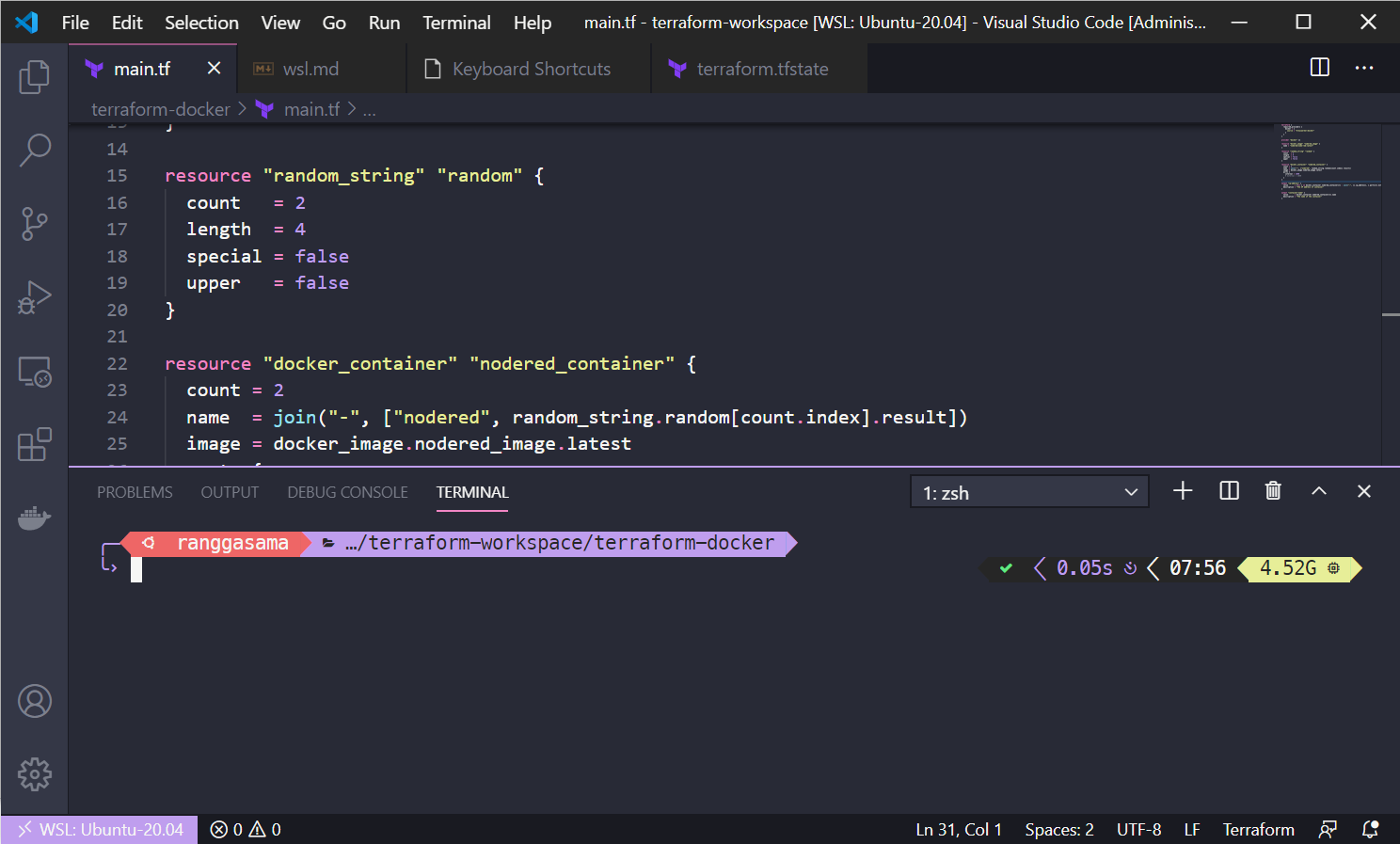
This will open VS Code, connected to the WSL environment and with full access to the tools you have installed there. To complete the visual integration, you can Configure the VS Code integrated terminal to use the same Nerd Font you selected in Windows Terminal, so that the icons also look good:
{
  "terminal.integrated.fontFamily": "DejaVu Sans Mono for Powerline"
}
In the File settings.json In VS Code you can also set the default Windows terminal to be your Ubuntu in WSL, by configuring a profile like this:
"terminal.integrated.profiles.windows": {
  "Ubuntu (WSL)": {
    "path": "C:\\Windows\\System32\\wsl.exe",
    "args": ["-d", "Ubuntu"]
  }
},
"terminal.integrated.defaultProfile.windows": "Ubuntu (WSL)"
And while you're at it, you can take the opportunity to activate automatic formatting on saving, coloring of parentheses pairs and other small improvements that make day-to-day life more enjoyable in the editor.
Automated scripts and complete WSL2 configuration repositories
Although you can set up your own scripting infrastructure, there is also the option of rely on pre-built repositories that automate much of the workSome focus on Linux guides, scripts for installing terminal utilities (Oh My Zsh, plugins, themes), Conda, GPU drivers, and other essential components of a data science or web development environment.
The idea behind these repositories is clear: A single command executes a Bash script It updates the distro, installs curl and Node.js when necessary, takes care of NVM, downloads fonts like Nerd Fonts, configures Zsh with a theme and a reasonable set of plugins and aliases, and leaves your terminal ready to use.
During the execution of these scripts you will see that, at several points, you will be asked your administrator password due to the use of sudoThis is completely normal, as packages are installed, system paths are modified, and files are copied to protected locations.
In some cases, they will ask you to choose the specific version of tools like BAT or LSD (for example bat_0.25.0_amd64.deb o lsd_1.1.5_amd64.deb), which depends both on the version available on GitHub and on your machine's architecture (the usual thing nowadays is amd64Make sure to select the correct one to avoid incompatible package errors.
The result of this type of script is an environment in which Zsh already has a file .zshrc very completeWith a theme, plugins, aliases for cat/ls, Gitmoji integration for commits with icons when you're short on inspiration, syntax highlighting, Oh My Zsh autocomplete, and other goodies. Wow, it's one of those terminals you'll want to keep on your screen all day.
To complete the customization, you can even Adjust the themes to show only the username (and hide the hostname) directly modifying specific theme files, such as agnoster.zsh-theme in the route ~/.oh-my-zsh/themes, changing the corresponding line to something like this:
prompt_segment green black "%(!.%{%F{yellow}%}.)%n"
With all this, what you achieve is that Any developer on the team can clone the configuration repository, run a command, and have the same environment in just a few minutes. than the rest: same shell, same theme, same versions of base tools and same terminal behavior, without trips of "it works on my PC" or "I don't remember what I installed that day".
Ultimately, setting up and automating a WSL2 and Zsh environment involves combining several pieces: a Linux base within Windows, a well-configured terminal like Windows Terminal, a souped-up shell with Oh My Zsh and its plugins, modern tools like BAT, LSD, or FZF, version control with NVM or Conda, integration with VS Code via Remote-WSL, and scripts and dotfiles that allow you to reliably replicate all of this. If you dedicate some time to fine-tuning it, you'll have an ecosystem where going from scratch to comfortably programming takes minutes instead of entire afternoons manually reinstalling things.
Table of Contents
- What is WSL2 and why is it worth using with Zsh?
- Install and prepare WSL2 on Windows 10 or 11
- Configure Windows Terminal to work with WSL2
- Install and automate Zsh + Oh My Zsh in WSL2
- Nerd Fonts and Powerline: icons and aesthetics in the terminal
- Useful plugins for Zsh: instant productivity
- Enhanced command-line tools (BAT, LSD, FZF, HTTPie)
- Node.js, NVM, Python and other tools in WSL2
- Automate configuration with scripts, dotfiles, and Dev Containers
- Integrating WSL2 and Zsh with Visual Studio Code
- Automated scripts and complete WSL2 configuration repositories