- Learn the structure, syntax, and key commands to create robust and portable Bash scripts.
- Master variables, arrays, conditionals, loops, functions, I/O, and cron to automate real-world tasks.
- Apply good debugging practices and use internal variables and external tools like ShellCheck.
- Integrate Bash frameworks and utility collections to add GUI, concurrency, and advanced features to your scripts.
If you work with Linux daily - whether managing serverstinkering with containers or developing applications - mastering bash-scripting It's probably the skill that will save you the most time. With a few text files and some imagination, you can automate everything from backups to complex deployments, including routine tasks you currently do manually without realizing it.
In this guide we will see, calmly but in depth, how to use bash scripts and utility collections to take your "four random commands" scripts to truly professional tools. We'll start with shell basics, cover essential commands, control structures, functions, arrays, debugging, cron... and also some function repositories and GUI in Bash that take your scripts to another level.
What is Bash and why is it so useful for automation?

Bash (Bourne Again Shell) is the most widespread command interpreter in Unix-like systems: the vast majority of Linux distributions include it as their default shell, and you can also find it in macOS or in Windows via WSL or Git Bash-type terminals. It is, at the same time, a interactive interface or with a scripting language.
When you open a terminal, Bash shows you a prompt where you can write commands. Each command typically follows the structure command argumentsEverything you know how to do "by hand" in the terminal can be put into a text file to be executed in bulk.
Un bash script It's simply a plain text file containing a list of commands that the shell executes one after another. That's the magic: instead of typing 10 commands every day, you save them, give them execution permissions, and launch them in a single step. Furthermore, you can add variables, conditionals, loops, and functions to make decisions, repeat tasks, and encapsulate logic.
Furthermore, Bash follows the classic Unix philosophy: many small tools that do one thing very well and are combine with pipesWith a single script you can chain find, grep, sed, awk, tar and gzip, ssh, scp and any other system utility to create very powerful administration and maintenance processes.
Basic concepts of shell and scripting in Bash
To fully understand Bash scripting, two ideas need to be separated: the shell and the own scriptingThe shell is the program that interprets the commands, and scripting is the process of grouping those commands into an executable file.
A typical script always begins with a special line called shebangThat first line tells the system which interpreter to use to execute the file. You'll usually see something like this:
#!/bin/bash
You can also use #! / usr / bin / env bash so that the system looks for Bash in the PATH. This provides more flexibility if the path to the executable is not exactly /bin/bash, which sometimes happens in more exotic environments.
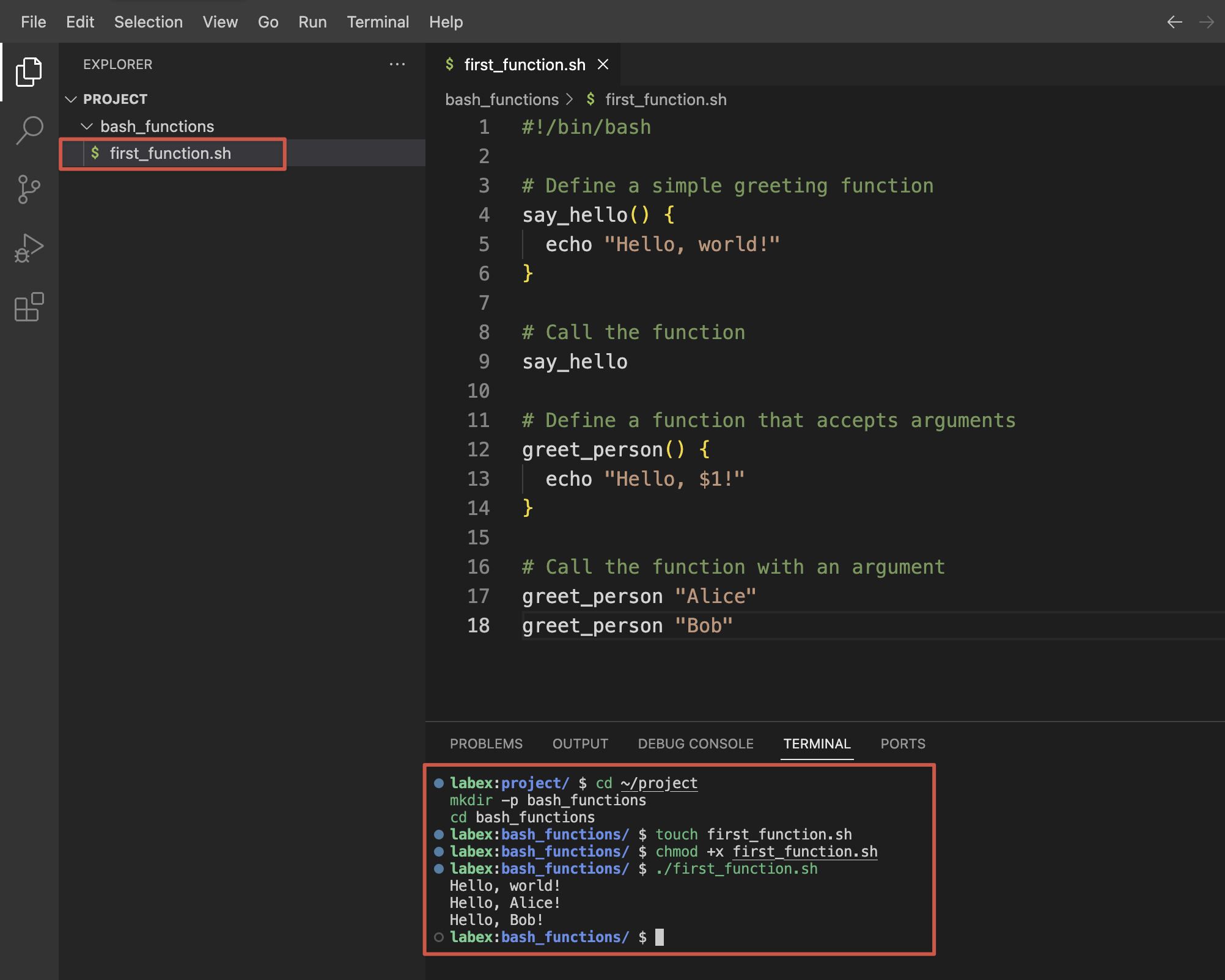
Scripts are generally saved with the extension . . Sh (for clarity, not because it's mandatory) and you must give them execution permission with chmod +x script_name.shFrom there, you can launch them with ./script_name.sh or by calling bash directly:
bash nombre_script.sh
./nombre_script.sh
It is also important to understand the concepts of stdin, stdout, and stderrStandard input (keyboard, or whatever you redirect it to), standard output (screen), and error output. Knowing how to redirect and combine these streams is key to writing clean, easy-to-debug scripts.
Real advantages of using Bash scripts in your daily life
Using Bash for automation isn't just a quirk of old-school administrators; it has very clear advantages. With a single file, you can package long command sequences and run them as many times as you want, consistently and without mistakes.
The first big gain is the automationInstead of manually repeating steps every time you deploy an app or create a backup, you write everything in a script and run it when needed (or schedule it with cron). Less manual work, fewer silly mistakes.
Another important advantage is the portabilityAs long as the commands you use are available, your script will work on any Linux distribution, macOS, or even Windows with a Bash environment. This makes many tasks easy to migrate between environments.
The scripts are also very transparentUltimately, they're just plain text. Anyone can open them, see what they do, and adjust them. You don't need to compile anything or decrypt binaries. And if you combine them with Git, you have versioning and change auditing for free.
Finally, learning Bash is reasonably easy. If you know how to navigate the terminal and have a basic understanding of programming (variables, if statements, loops), you'll get up to speed quickly. And the return on that time investment is enormous in terms of productivity.
Creation and basic structure of a Bash script
Creating your first script is almost trivial, but it's best to do it right from the start. A minimal Bash script skeleton would include a shebang, informative comments, the script body, and controlled exit.
The usual way to start is with:
#!/bin/bash
# Descripción: pequeño script de ejemplo
echo "Hola, mundo"
Although it might seem trivial, it's always a good idea to document at the beginning what the script does, what parameters it expects, and a quick usage example. This information can be added with... comments, which in Bash begin with # and the interpreter completely ignores it.
After the header, you write the logic: variable definition, input reading, command calls, functions, loops, conditionals…everything you need to automate the task at hand.
Another important detail is to end the script by returning a consistent exit code with exit NThe code 0 means success, and any other value indicates an error. This value can be checked externally with $?, which allows you to chain scripts and react to failures.
Comments, variables, and data types in Bash
The comments They're your friends: they help explain what a part of the script does, why a decision was made, or what the heck that strange loop is going to do in six months when you've forgotten all about it. Like in many languages, in Bash they start with # and they reach the end of the line.
As for the variablesBash is extremely permissive: there are no formal types, everything is a string, and the shell decides whether to interpret something as a number when you ask it to. To assign numbers, you use name=value without spaces around the equals sign:
pais="España"
numero=42
To read the contents of a variable, you precede it with $: For example, $countryIf you want greater clarity or to concatenate complex texts, it is preferable to use ${country} to define it well.
You have to be careful with the quotation marksWith double quotes, Bash interprets variables and some special sequences ("$var", "\n"). With single quotation marks, all content is treated as literal text: '$var' It is printed as is, without expanding.
Also exist special variables to handle arguments and context: $# (number of arguments), $0 (script name), $1, $2… (positional arguments), $? (exit code of the last command), $$ (PID of the process), among many others that should be located.
Input and output in Bash scripts
A useful script rarely exists in isolation: it usually requests data from the user, reads from files, processes logs, or writes results to disk. For that, you need to have a good grasp of scripting. read, echo and redirects.
The simplest way to read something the user writes is with read:
echo "Introduce tu nombre:"
read nombre
echo "Hola, $nombre"
To output text to standard output we use threw out o printfEcho is simpler and faster to type, printf gives you a full control of the format (alignments, decimals, etc.). You can also redirect any output with > (overwrite) or >> (add at the end) to a file.
For example, to save a "Hello world" to a file:
echo "Hola mundo" > hola.txt
Or to add lines without deleting the previous ones:
echo "Otra línea" >> hola.txt
If you want to separate normal outputs from errors, remember that stdout is the descriptor 1 y stderr is the 2You can send them to different files or even delete them. / Dev / null If you're not interested:
comando 1>salida.txt 2>errores.txt
comando >/dev/null 2>&1
Essential Bash commands for scripting
Every Bash script relies on a set of basic commands system. You already use many of them daily, but it's important to be clear about their syntax when putting them in scripts: one misplaced space or a strange path and half your process will crash.
To navigate the system you have pwd (displays the current directory) and cd (change folder). To list contents, ls with its thousand options. Creating directories is done with mkdir, delete files with rm (very carefully) and move/copy with mv y cp.
Typical text inspection commands are cat (displays files), tac (the other way around), head, tailand filtering tools such as grep, thirst y awkThey are the basis for creating scripts that analyze logs, apply bulk replacements, or extract specific data.
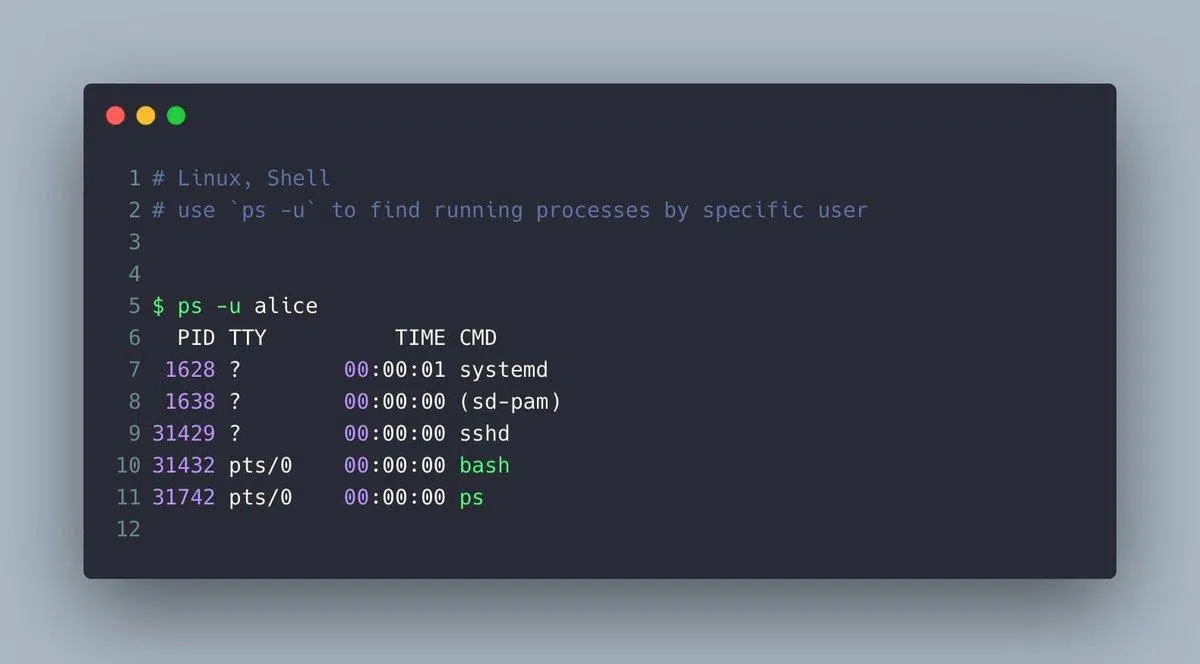
At a system level, it is worth knowing ps y top for processes, kill In conclusion, df y du for disk space, and systemctl to manage services on systems with systemd. All these commands are naturally integrated within scripts.
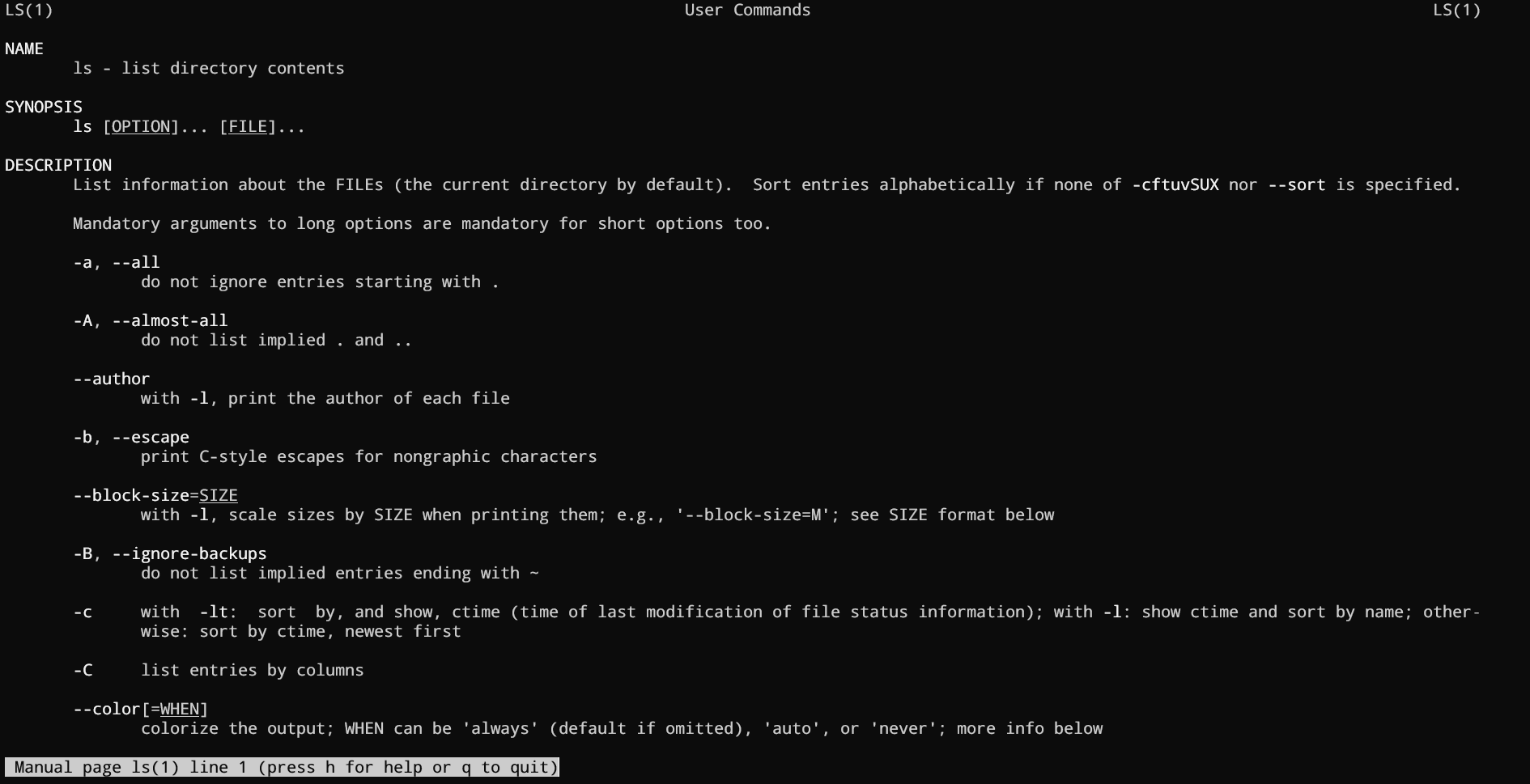
Finally, don't forget the CommissionThe manual. Almost any question about options and the behavior of a command is answered with man commandBeing able to read a manual page fluently is half the battle for becoming an administrator.
Control structures: conditionals and loops
As your scripts grow a bit, you'll need them to make decisions and repeat actions. That's where the control structures: if/else, case, while, until and for.
The classic conditional in Bash uses if together with o ] to evaluate conditions. For example, to check if a number is greater than 10:
read num
if ]; then
  echo "El número es mayor a 10"
else
  echo "El número es menor o igual a 10"
fi
The syntax ] It is more modern and safer than and allows for more convenient logical operators and improved string handling. For several predefined cases, CASE It is very readable, especially when you have multiple expected values:
read n
case $n in
  101)  echo "Primer número" ;;
  510)  echo "Segundo número" ;;
  999)  echo "Tercer número" ;;
  *)    echo "Sin coincidencias" ;;
esac
In the loops section, while Repeat as long as a condition is met, until does the exact opposite (repeats until the condition is true) and for It's used to iterate over lists, arrays, or numeric ranges. For example, a for loop to iterate over days of the week:
for dia in Lunes Martes Miércoles Jueves Viernes Sábado Domingo; do
  echo "Día: $dia"
done
And a typical while loop with an internal counter:
i=0
while ]; do
  echo $i
  ((i++))
done
Functions in Bash: reusing logic without going crazy
The features Bash allows you to group commands and reuse them as many times as you want, making your script much cleaner and more manageable. Beyond a certain size, if you don't use functions, you end up with a monster that's difficult to maintain.
They can be declared in two equivalent ways:
hola() {
  echo "Hola desde una función"
}

function hola2 {
  echo "Hola también"
}
To invoke them, simply write their name on a line as if they were any other command. They don't execute just because they are defined, so don't forget to call them from within the script body.
The functions receive positional parameters exactly the same as the script: inside the function you use $1, $2, $#etc. You can return a numeric code with return N (intended to indicate success or failure) and global variables to return richer results such as strings or arrays.
Additionally, you can mark variables as local within a function so that they don't "contaminate" the rest of the script. This is highly recommended to avoid accidentally overwriting global values.
Arrays and text handling in Bash
Although Bash is not a language designed for complex calculations, it does handle arrays and string operations Sufficient for many automation tasks. Knowing how to use them greatly expands what you can do with just a few commands.
A simple array is defined as follows:
frutas=(Pera Manzana Plátano)You access individual items with ${fruits}You get them all with ${fruits}, the number of elements with ${#fruits} and the indices used with ${!fruits}The latter is useful when there are "gaps" in the array and you want to iterate only over valid positions.
To iterate through the entire system, you can use a for loop on the indices:
for i in ${!frutas}; do
  echo "frutas = ${frutas}"
done
Regarding strings, Bash supports quite a few integrated operations: length (${#cad}), substrings (${cad:N:M}), substitutions (${cad/ant/nuevo}, ${cad//ant/nuevo}), prefix and suffix clippings (${cad#texto}, ${cad%texto}), etc. These tools avoid using sed or awk for simple tasks.
For more serious text manipulation – for example, large logs or tabular data – these tools come into play grep, sed, awk, cut and company, which you can chain together in pipes or integrate directly into Bash functions.
Permissions, execution, and cron: from standalone script to scheduled task
Once you have your script done, you need to make it executable and decide how you're going to launch it. The typical step is to apply:
chmod +x mi_script.sh
From there, you can run it with ./my_script.sh if you are in the same directory, or by referencing its absolute path: /full/path/my_script.shAnother option is to invoke it through bash my_script.sh without giving it execution permissions, although this is not the most common practice in production environments.
When do you want the script to run? periodically (daily, weekly, every 5 minutes, etc.) enters the scene cron. With crontab -e You edit the user's task table and can define things like:
0 0 * * *   /ruta/backup.sh
*/5 * * * * /ruta/monitor.sh
The first line runs a script at midnight every day; the second, every 5 minutes. The fields indicate minute, hour, day of the month, month, and day of the week, in that order. Crontab -l You see what you already have programmed.
If something goes wrong, the wisest thing to do is to look at the system logsIn Debian/Ubuntu, cron messages are usually logged in / var / log / syslogReviewing them will tell you if the job ran, if it crashed due to permissions, or if it didn't even launch.
Debugging, best practices, and special variables in Bash
Debugging Bash scripts has its tricks because, by default, the shell continues executing even if a command fails. To bring order to the process, it's advisable to enable a strict mode and use the debugging options that Bash offers.
Place something like this at the beginning of the script:
set -euo pipefail
set -x
makes the script stop at the first error (-e), treat undefined variables as failure (-u), detect errors in pipelines (pipefail) and display each expanded command before executing it (-xDuring development this is pure gold; in production you might prefer to activate -x only in specific sections.
In addition to BASH_REMATCH (very useful with regular expressions), Bash has internal variables such as BASH_SUBSHELL (current subshell level), BASH_ENV (file that is loaded when starting a subshell), BASH_EXECUTION_STRING (command that is being executed) or BASH_VERSION (performer's version). They all help you to adapt the script's behavior Depending on the environment, debug rare problems or ensure compatibility.
As additional good practices, it is recommended to use descriptive variable namesAvoid reserved words, document functions, always validate user input, and check the exit codes of critical commands (backups, deletions, bulk moves).
And don't forget external tools like ShellcheckIt analyzes your scripts and alerts you to subtle errors, bad practices, and dangerous constructs. Integrating it into your editor or CI/CD pipeline is an easy way to improve the quality of your scripts.
Collections of Bash utilities and GUIs for your scripts
In addition to what Bash includes by default, there are frameworks and function collections very powerful tools hosted on GitHub that you can "plug into" your own scripts using sourceThis allows you to incorporate utilities in seconds that would otherwise take you a long time to develop.
An example is BashmaticIt's a framework with hundreds of features that facilitate everything from output formatting and logging to concurrent task execution, configuration management, and interaction with external services. It's very much geared towards providing clear feedback to the developer while the script is running, which is appreciated when your processes last minutes or hours.
To run tasks in parallel, projects such as bash-concurrent They provide a ready-to-use function that launches multiple jobs simultaneously and displays ordered output as they complete. This is ideal for scripts that need to process many independent elements (multiple servers, files, etc.).
If you need lightweight graphical interfaces built on top of Bash, there are projects like EasyBashGUI o Script-Dialog which generate GUI or TUI dialogs depending on what you have installed: kdialog, zenity, whiptail, dialog… In this way, the same script can work well whether you launch it from a graphical environment or from a pure terminal.
The general idea with these libraries is always the same: you download or clone the repository, and in your script you add a line like source /path/to/utilities.shFrom then on, all the functions defined in that file become available in your script, as if they were your own.
Ultimately, mastering Bash scripting and knowing some third-party utilities gives you a huge toolbox To automate Linux (and similar environments) without wasting time reinventing the wheel. From small personal scripts to critical system administration processes, the combination of well-known commands, clear control structures, good debugging practices, and external libraries makes Bash a key component of any serious technical workflow.

Table of Contents
- What is Bash and why is it so useful for automation?
- Basic concepts of shell and scripting in Bash
- Real advantages of using Bash scripts in your daily life
- Creation and basic structure of a Bash script
- Comments, variables, and data types in Bash
- Input and output in Bash scripts
- Essential Bash commands for scripting
- Control structures: conditionals and loops
- Functions in Bash: reusing logic without going crazy
- Arrays and text handling in Bash
- Permissions, execution, and cron: from standalone script to scheduled task
- Debugging, best practices, and special variables in Bash
- Collections of Bash utilities and GUIs for your scripts