- Managing global and individual privacy switches in system settings.
- Differentiation of permissions between Microsoft Store applications and desktop software.
- Reinstalling drivers from Device Manager in case of persistent failures.
- Checking volume levels and selecting the correct input device.

Have you ever been in the middle of an important meeting or recording a podcast and suddenly your microphone stops working without warning? It's a fairly common problem that often leaves us stumped, especially when the hardware seems to be in perfect working order but the system simply refuses to pick up sound.
Most of the time, this issue isn't a hardware problem; rather, Windows has restricted privacy permissions , either after an automatic system update or due to an accidental setting. Therefore, we'll see how to fix this problem step by step so you can quickly regain your voice on your computer.
How to enable the microphone in Windows 11
If you're using the latest version of the operating system, the process is quite intuitive. First, open the Settings menu by pressing the Windows key + I or clicking the gear icon in the Start menu. Once there, go to the Privacy and Security section in the left column and look for the App Permissions section.
When you access the Microphone settings, you'll see a general switch. If this switch is off, no program will be able to hear you , regardless of its individual settings. Once global access is enabled, you can scroll down to manage specific permissions for each application, ensuring that the ones you need (such as browsers or recording apps) have their switches turned on.
A crucial detail is to not forget the option to allow desktop applications to access the microphone . Many professional programs or communication tools don't come from the Microsoft Store, so if this switch is disabled, they will remain muted even if the general permission is enabled.

Steps to activate sound in Windows 10
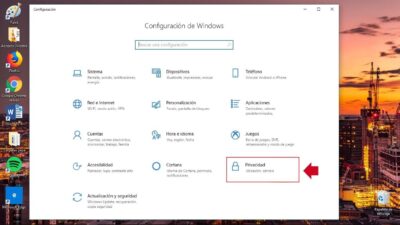
In Windows 10, the path changes slightly, although the logic is the same. You need to go to Settings and then directly to Privacy . In the left panel, look for the Microphone category within the application permissions.
First, check that microphone access on your device is enabled. If the toggle is off, tap "Change" to turn it on. Next, make sure the " Allow apps to access the microphone" option is also turned on.
Just like in version 11, Windows 10 makes a clear distinction between Microsoft Store apps and traditional desktop software (such as Zoom, Discord, or Teams). It's essential to scroll to the bottom of the page and enable access for these desktop applications to prevent further sound issues.
Advanced solutions when permissions are not enough
Sometimes, even with everything enabled, the system still doesn't detect an audio signal. This can happen after a cumulative update that leaves the driver "stuck." In these cases, the most effective solution is to reinstall the driver from Device Manager , which you can access by right-clicking the Start button.
Within the Audio Inputs and Outputs category , locate your microphone, right-click, and select "Uninstall device." Don't worry, as restarting your computer will allow Windows to detect the hardware and automatically reinstall a generic driver, which usually resolves communication conflicts.
Another possibility is that the problem is simply with the volume settings. Right-click the speaker icon in the taskbar and go to Sound settings . Here you can verify that the correct microphone is selected as the input device and, by going to the Sound Control Panel, check the "Recording" tab to ensure that the recording levels are not muted or too low.

Specific case: Configuration in Microsoft Teams
If the problem persists only in Teams, the app likely has its own conflict. First, verify that the Windows Teams privacy settings show the permission as enabled . Then, open the app, click on your profile picture, and go to Settings > Devices.
From the Microphone dropdown menu, manually select the device you want to use. A very useful tool here is the Make a test call option , which allows you to confirm in real time whether the audio is being captured correctly before joining a live meeting.
Having full control over privacy switches, properly managing system drivers, and verifying that the input device is suitable ensures that audio works regardless of whether you use Windows 10 or 11, thus avoiding annoying silences in your video calls or recordings.
