- Windows Explorer is a critical process that manages the visual interface, taskbar, and start menu.
- The crashes are usually caused by corrupted system files, outdated video drivers, or conflicts after updates.
- There are built-in tools such as SFC, DISM, and Memory Diagnostic to repair errors without reinstalling the system.
- System security can restrict functions such as previewing downloaded files to prevent credential theft.

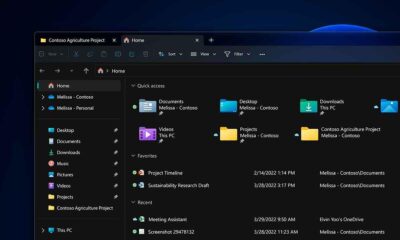
Nothing is more infuriating than working hard and then, suddenly, Windows File Explorer decides to crash. It's a frustrating situation because this process is at the heart of our daily navigation; if it fails, we're practically left in the dark, unable to access our folders, documents, or even the taskbar.
To solve this headache, it's essential to understand that crashes don't happen randomly. They can range from temporary system errors to conflicts with the graphics card driver or corrupted files. In the following lines, we'll break down all the possible ways to get your PC running smoothly and prevent it from happening again.
Quick steps to unlock the system

Sometimes a major overhaul isn't necessary. If your file explorer is stuck, the quickest solution is to restart the process from Task Manager. Simply right-click the Start button, locate the process called "Windows Explorer," and click Restart. This will refresh the interface and, in most cases, immediately resolve the issue of your unresponsive file explorer.
Deep file and system repair
When the problem is recurring, it's likely that a system file is malfunctioning. Windows provides powerful tools for this. You can use Command Prompt (CMD) as administrator and run the command DISM.exe /Online /Cleanup-Image /restorehealth , which cleans and repairs the system image.

In addition to the above, it is highly recommended to spend the System File Checker typing sfc /scannowThis tool scans the entire disk for damaged parts and replaces them automatically. If you still notice that your PC is slow or freezes, you can try... CHKDSK to analyze whether the hard drive has physical or logical errors that are causing the browser to freeze.
Memory and driver optimization

If you often have a thousand folders open at once, you might be running out of RAM. To rule out a hardware problem, you can run the Memory Diagnostic Tool typing mdsched in the Run dialog box. If the RAM fails, the browser will be the first to suffer.
Another critical point is the GPU. Since the browser is a visual interface, an outdated video driver can cause black screens or unexpected crashes. Keeping drivers up to date, either by downloading them from the manufacturer's website or using automatic update tools, is vital for stability.

Cache management and updates
Accumulated junk files also take their toll. The file explorer saves a history and cached data that, if corrupted, can cause crashes. You can clear this by going to File Explorer Options and clicking the Clear History button on the General tab.
On the other hand, Windows Update is a double-edged sword. Sometimes an update fixes the problem, but other times it's the cause. If you notice that everything started going wrong after a patch, try uninstalling the recent update from your Windows Update history to return to a stable state.
Security and access restrictions

There are cases where the "blocking" isn't a bug, but a security measure. Microsoft has implemented restrictions on previewing files downloaded from the internet to prevent the theft of NTLM credentials. If you can't see the preview of a PDF or image, it's likely that the system has flagged it as a risk. To fix this temporarily, you need to go to the file's properties and check the " Unblock" box.

If you want to block access to specific folders for other users, you can adjust security permissions . By right-clicking on the folder and going to the Security tab, you can deny access to standard users so that only the administrator has full control.
Advanced threat protection
To prevent malware from causing instability, it's essential to configure Smart App Control and reputation-based protection. These Windows Security tools filter suspicious applications and block dangerous downloads that could compromise browser integrity.
We offer features like SmartScreen for Microsoft Edge and blocking potentially unwanted applications (PUAs). These security layers prevent junk software from slowing down your computer or causing those annoying micro-stutters where the taskbar disappears and the screen goes black for a few seconds.

To improve your experience, remember that you can customize how the file explorer opens. If you prefer it to open in This PC instead of the Explorer Start menu, you can change this in the folder options. Additionally, enabling file name extensions and hidden items will give you much more precise control over your data, and you can take advantage of keyboard shortcuts for the file explorer.
If the native file explorer continues to give you problems despite everything, there are open-source alternatives like the Files app , which offers a more modern and, sometimes, more stable interface than Microsoft's default tool.
Keeping your system up to date, cleaning temporary files, and running Windows repair commands is usually the winning formula for eliminating browser crashes. Combining this with good security permission management and video driver maintenance will restore the smooth performance needed to work without constant interruptions.
