- Mastery of essential combinations for managing folders and files in Explorer.
- Use of advanced system features to improve multitasking and desktop organization.
- Implementation of accessibility and screen capture tools to optimize workflow.

If you spend several hours in front of a computer, whether studying for an exam or working in an office, you know that the mouse sometimes falls short. Keyboard shortcuts are those digital superpowers that allow you to perform actions in the blink of an eye, avoiding unnecessary clicks and making everything run much more smoothly.
It's not just about shaving a few seconds off here and there, but about improving ergonomics and preventing hand fatigue. In this article, we'll break down all the possible combinations so you can amaze your colleagues with your system speed, focusing especially on File Explorer.

Mastering File Explorer
To get started, the most basic thing to do is open the tool with Win + E. Once inside, if you need a new window, Ctrl + N is your best friend. If you've lost your way in the folder path, you can jump directly to the address bar by pressing Alt + D , while to quickly find a specific file you can activate the search box with Ctrl + E or Ctrl + F.
Organization is key, so remember that Ctrl + Shift + N instantly creates a new folder. To navigate through your folder history, use Alt + Left Arrow to go back or Alt + Right Arrow to go forward. If you want to see what's inside a file without opening it, the preview pane is activated with Alt + P , and for technical details, Alt + Shift + P.
When managing items, F2 is the magic key for renaming files. If you need to know the size or format of a folder, Alt + Enter will open its properties directly. To move up one level in the folder hierarchy, use Alt + Up Arrow , and don't forget that F5 refreshes the window if something is missing.

File Management and Quick Editing
Anyone who uses Windows knows the dynamic trio: Ctrl+C to copy, Ctrl+X to cut, and Ctrl+V to paste. But there's more; if you've made a mistake, Ctrl+Z undoes it, and Ctrl+Y redoes the action. To select absolutely all the contents of a folder, Ctrl+A is the fastest option.
When we talk about deleting, we have two options. The normal one is to press Delete , which sends the file to the Recycle Bin. But if you want it to disappear permanently, use Shift + Delete . To open the context menu of any item without using the right mouse button, you can use Shift + F10.
If you work with large volumes of data, such as in a DAM system, it's useful to know that you can filter by extension by typing *.jpg or *.png in the search bar. Additionally, Windows allows you to rename multiple files at once by selecting them and pressing F2, which adds a very handy automatic sequential numbering system.
General System Shortcuts and Multitasking
To navigate the system, the Windows key is key. Win + D hides everything and shows you the desktop, while Win + L instantly locks the session (ideal when you get up from your chair). If you need to configure your computer, Win + I opens the Settings panel, and Win + R opens the Run dialog box.
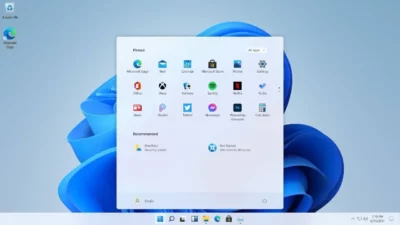
Window management is where you really save time. You can maximize the active window with Win + Up Arrow or minimize it with Win + Down Arrow . If you want to arrange your screen in two columns, use Win + Left or Right Arrow to snap the application to one side. For those using multiple monitors, Win + Shift + Arrow keys moves the window from one screen to another.
For advanced productivity, Win + Tab opens Task View, allowing you to manage virtual desktops. You can create a new one with Win + Ctrl + D and switch between them using Win + Ctrl + Arrow keys . If the system freezes or you need to force-close something, Ctrl + Shift + Esc takes you directly to Task Manager.
Special Tools and Accessibility
Windows has some very interesting features that few people take advantage of. For example, Win + V opens the clipboard history, allowing you to paste things you copied a while ago. For the more creative or social users, Win + Period (.) or Win + Semicolon (;) open the emoji and symbol panel.
If you need to capture the screen, forget about simply pressing the Print Screen key. Win + Shift + S opens the Snipping Tool to select an exact area, while Win + Print Screen saves the entire capture directly to the Pictures folder. To record the screen as a video, Win + Alt + R is the quickest way.
In the accessibility settings, Narrator is activated with Win + Ctrl + Enter and voice dictation with Win + H. If you have vision problems, Magnifier is controlled with Win + Plus sign (+) to zoom in and Win + Minus sign (-) to zoom out. To quickly change the keyboard language, simply press Win + Spacebar.
Mastering these keyboard shortcuts transforms how you interact with your computer, making folder navigation and window management a smooth and natural process. By integrating these routines into your daily life, you gain mental and technical agility that drastically reduces the time spent on basic administrative tasks within the operating system.
