- Access gesture settings through the system's Bluetooth and Devices menu.
- Customization of advanced actions for swipes and multi-finger taps.
- Methods for resolving technical faults by updating drivers and resetting settings.
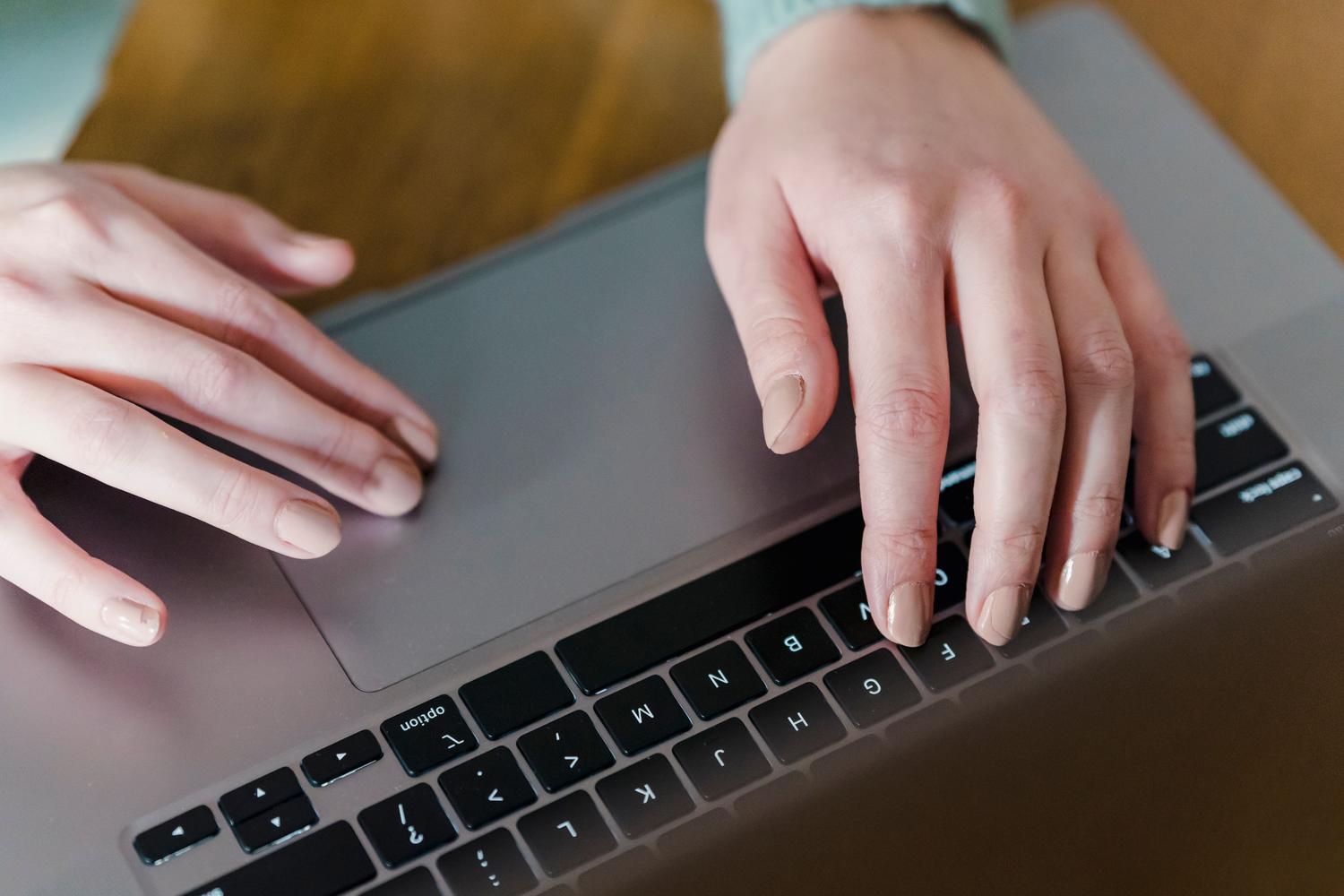
If you use a laptop, you already know that the touchpad can be your best friend for navigating the system without always having to rely on a mouse. Windows 11 has come with a series of super useful touch shortcuts which allow you to do a lot of things simply by sliding a few fingers, making the experience much smoother, almost as if you were handling a tablet or a modern smartphone.
The truth is that many people overlook these functions or, worse yet, find that The gestures stop responding Suddenly. To take full advantage of this potential, a precision touchpad is essential, as some of these features might not be available if the hardware is older. In the following lines, we'll see how to fine-tune them and what to do if the system becomes unreliable.
How to activate and customize gestures

To start playing with your fingers, the first thing to do is access the heart of the settings. Right-click the Start button and follow this path: Settings > Bluetooth & devices > TouchpadOnce there, you'll see that you can activate or deactivate basic gestures and delve into deeper sections for three- and four-finger movements.
Within the gesture options, Windows lets you choose what happens when you move your fingers in different directions. For example, you can configure it so that swiping three fingers upwards opens the... multitasking viewor that when you lower them, the desktop is clear of windows. If you prefer something more specific, you can choose to control the volume and audio playbackassigning the vertical axis to sound and the horizontal axis to jump between songs.
In addition to swipes, there are taps. By touching the panel with three or four fingers simultaneously, you can trigger actions like opening the notification centerYou can launch the system search or even simulate the middle mouse button. If you delve into the advanced settings, the options expand even further, allowing you to program custom shortcuts or functions like snapping windows to the sides of the screen.
Guide to available gestures: Touchpad vs Touchscreen
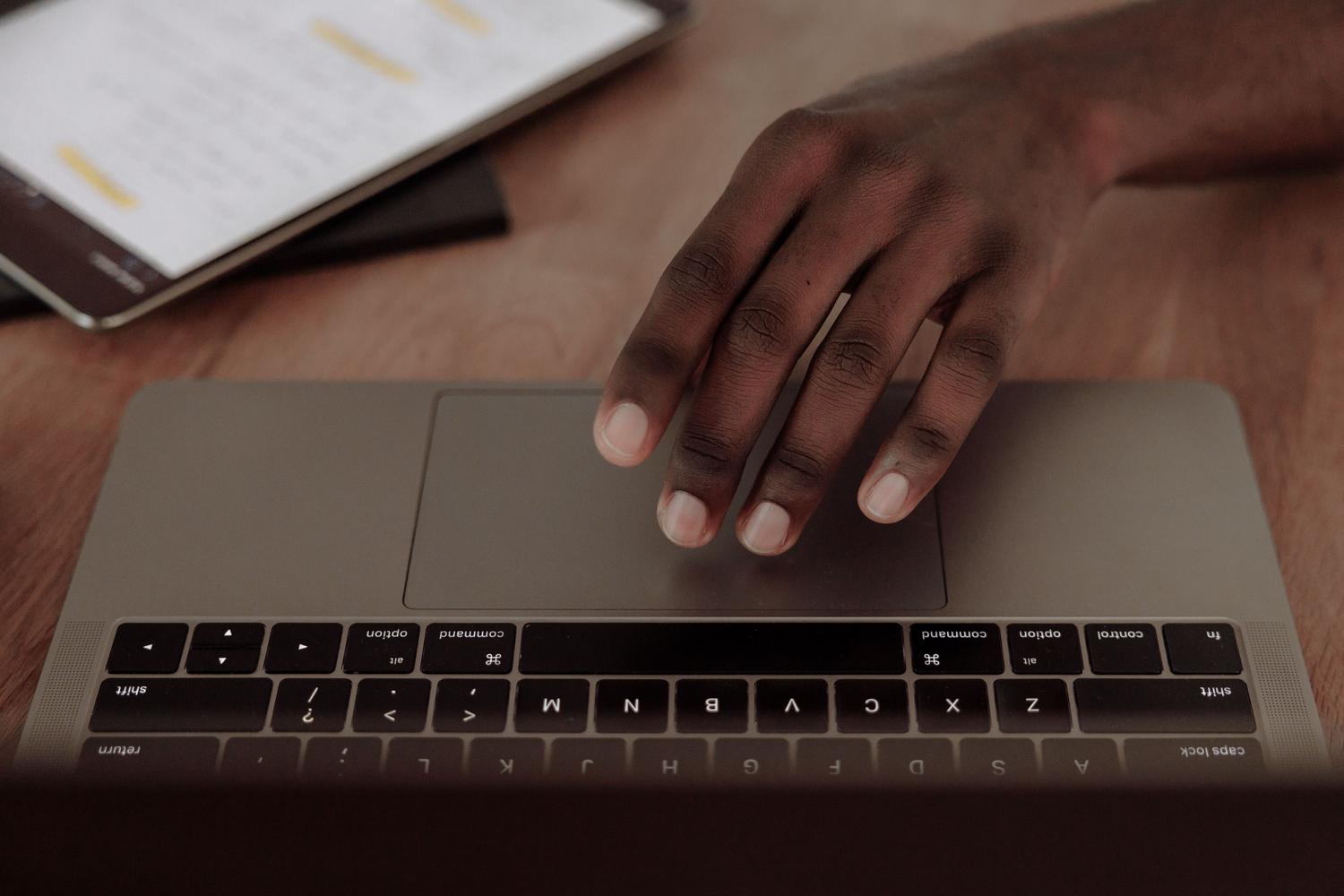
Although they look very similar, there are slight differences depending on whether you use your finger on the glass or the touchpad. Here's the detailed breakdown:
- Simple selection: In both cases, a single touch is enough to choose an item.
- Scrolling and Zooming: Using two fingers you can navigate web pages or pinch to zoom in and out on images.
- Right click: On a touchscreen you must hold down the object, while on a touchpad you simply need to press with two fingers or tap the bottom right corner.
- Three-finger gestures: Swiping up shows all windows, swiping down hides everything to show the desktop, and swiping sideways allows you to... switch between open apps.
- Four-finger gestures: These are usually used mainly to jump between different virtual desktops that you have created.
For those with touchscreens, there are also edge gestures. Swiping from the right usually opens notifications, and swiping from the left lets you view the... system widgets, something that is not available in the same way on the touchpad.
What to do when gestures don't work?
Sometimes, Windows decides it doesn't want to recognize your fingers, and gestures stop responding. This can happen for a thousand reasons, from an outdated driver to a setting that has changed on its own. The first and simplest thing to do is Restart your computerIt seems silly, but it clears processes that might be blocking the hardware.
If restarting doesn't work, the problem is likely with the drivers. You can go to Device Manager (by typing) devmgmt.msc in the Run command), find the section for mice and other scoring devices, and select Update DriverIf that fails, an effective technique is to completely uninstall the device and restart the PC so that Windows can remove it. automatically reinstall from scratch.
There are other, more technical solutions if the problem persists:
- Problem solver: Run command
msdt.exe -id DeviceDiagnosticso that the system can automatically search for hardware failures. - Software interference: If you've recently installed any programs, try removing them, as some third-party apps create conflicts with the native Windows gestures.
- Factory reset: In the Bluetooth and devices settings, there is a button for reset touch panel to their default values, eliminating any manual configuration errors.
In extreme cases, where even after reinstalling drivers the system only recognizes one finger, it may be necessary to use a system restore point to return to a time when everything was working properly or contact the laptop manufacturer's support directly.
Mastering these touch tools transforms the way you work, enabling much more agile and personalized navigation. From simply activating them in the settings menu to resolving driver conflicts, ensuring your precision touchpad is properly optimized guarantees a smooth and uninterrupted workflow.