- The system allows you to organize from two to six windows simultaneously through intelligent docking.
- There are multiple methods for allocating space, including manual dragging, keyboard shortcuts, and visual menus.
- The Snap Layouts functionality in Windows 11 offers superior flexibility for managing the workspace.
- It is possible to customize the docking behavior and manage multiple monitors independently.
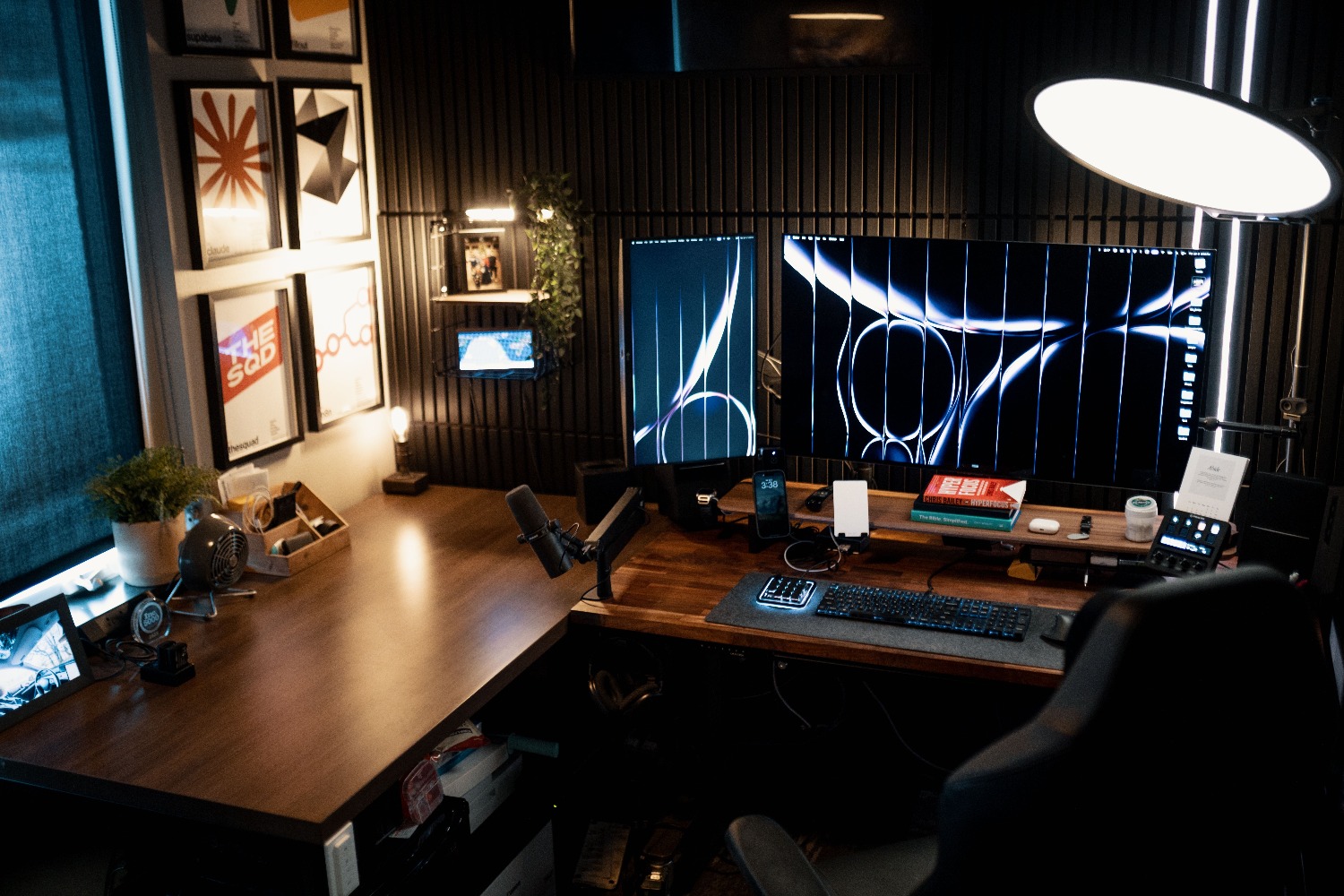
I'm sure it's happened to you a thousand times: you're trying to write a report while browsing a website, and when you switch windows, you lose track of what you were doing. The truth is, managing multiple applications at once can be a real headache if you don't know how to take advantage of the built-in desktop organization tools in Windows.
Fortunately, both Windows 10 and Windows 11 have features designed precisely to prevent you from frantically switching between tabs. Thanks to tools like Snap Assist and Snap Layouts , you can divide your monitor into multiple sections, allowing you to compare data or follow a tutorial while taking notes without taking your eyes off the screen.
The classic method: Drag and drop

If you don't want to complicate things with complicated commands, the most intuitive way to organize your workspace is simply by using your mouse. To do this, just click on the top bar of the window you want to move and drag it to the left or right edge of your monitor. As soon as you see a transparent box appear, release the button and the window will automatically adjust to fit exactly half of the screen.
The best part is that, once the first window is in place, the system activates Snap Assist, which shows you thumbnails of the other open applications . Simply click on the one you want to place in the remaining space to complete the split. If you need one app to be more prominent than another, you can drag the central dividing line to the sides to adjust the width of each panel to your liking.
Master the keyboard to go faster

If you're the type who prefers to keep your keyboard glued to maintain your rhythm, there are some shortcuts that are a real lifesaver. You don't need to be a computer expert; simply hold down the Windows key and use the arrow keys . If you press the right arrow, the window will snap to that side, and if you use the left arrow, it will snap to the opposite side.
In addition, you have other very useful commands: the up arrow maximizes the window, and the down arrow minimizes or restores it. For those who need even more organization, Windows allows you to create independent virtual desktops . Pressing Windows + Ctrl + D will create a new workspace, and you can switch between them using Windows + Ctrl and the arrow keys, which is ideal for separating work from leisure.
What's new in Windows 11: Snap Layouts
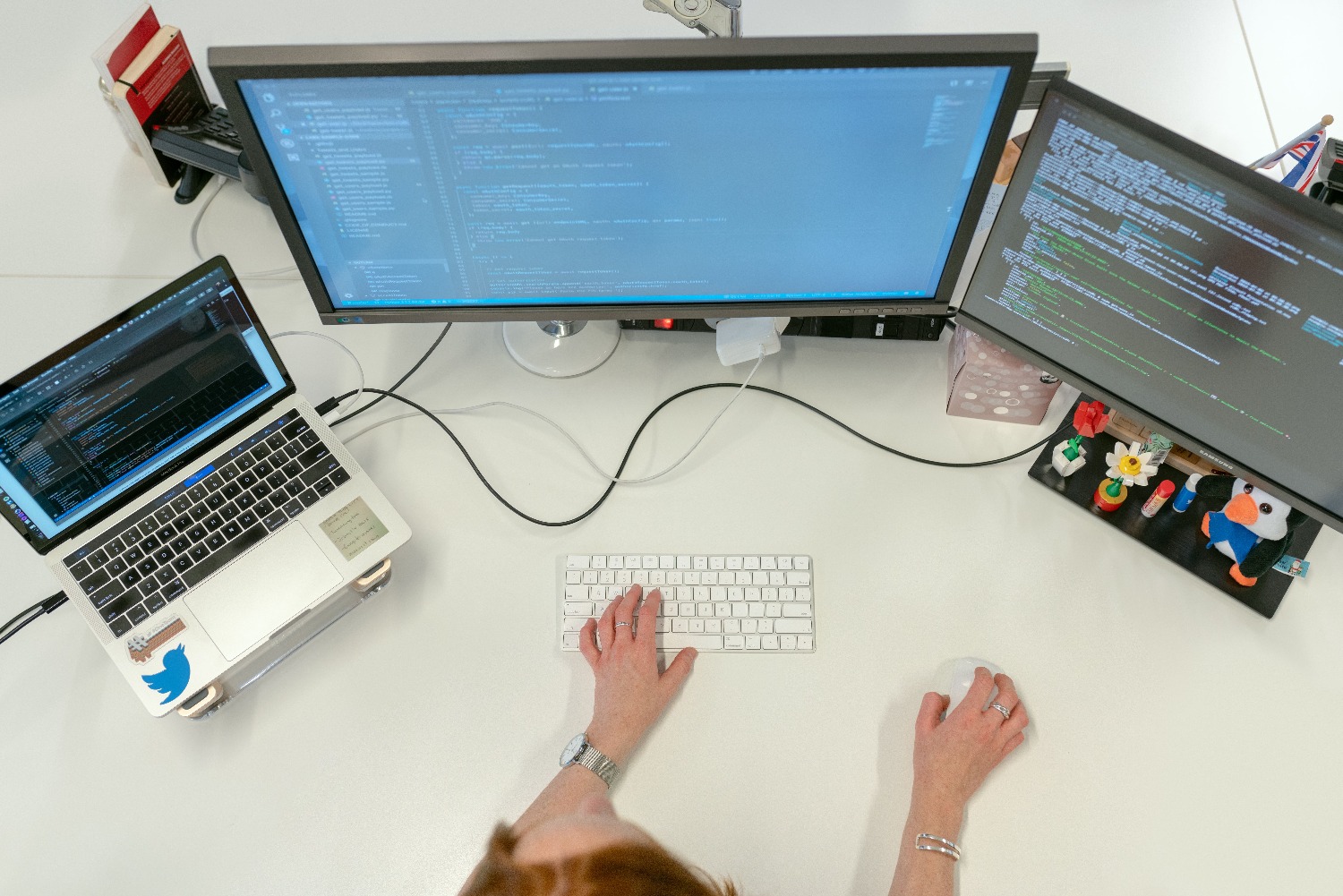
If you're lucky enough to be using Windows 11, you have access to a much more powerful tool called Snap Layouts. This feature lets you arrange up to six windows simultaneously , depending on your screen resolution. It's perfect for complex situations, like being on a video call while consulting an Excel spreadsheet and writing a Word document at the same time.
To activate these layouts, simply hover your cursor over the maximize button (the small square in the upper right corner) or press the Windows key + Z. A menu with different grids will appear; just choose the section where you want your current window to be located and then fill the remaining spaces with the other apps you need.
Advanced Configuration and Troubleshooting
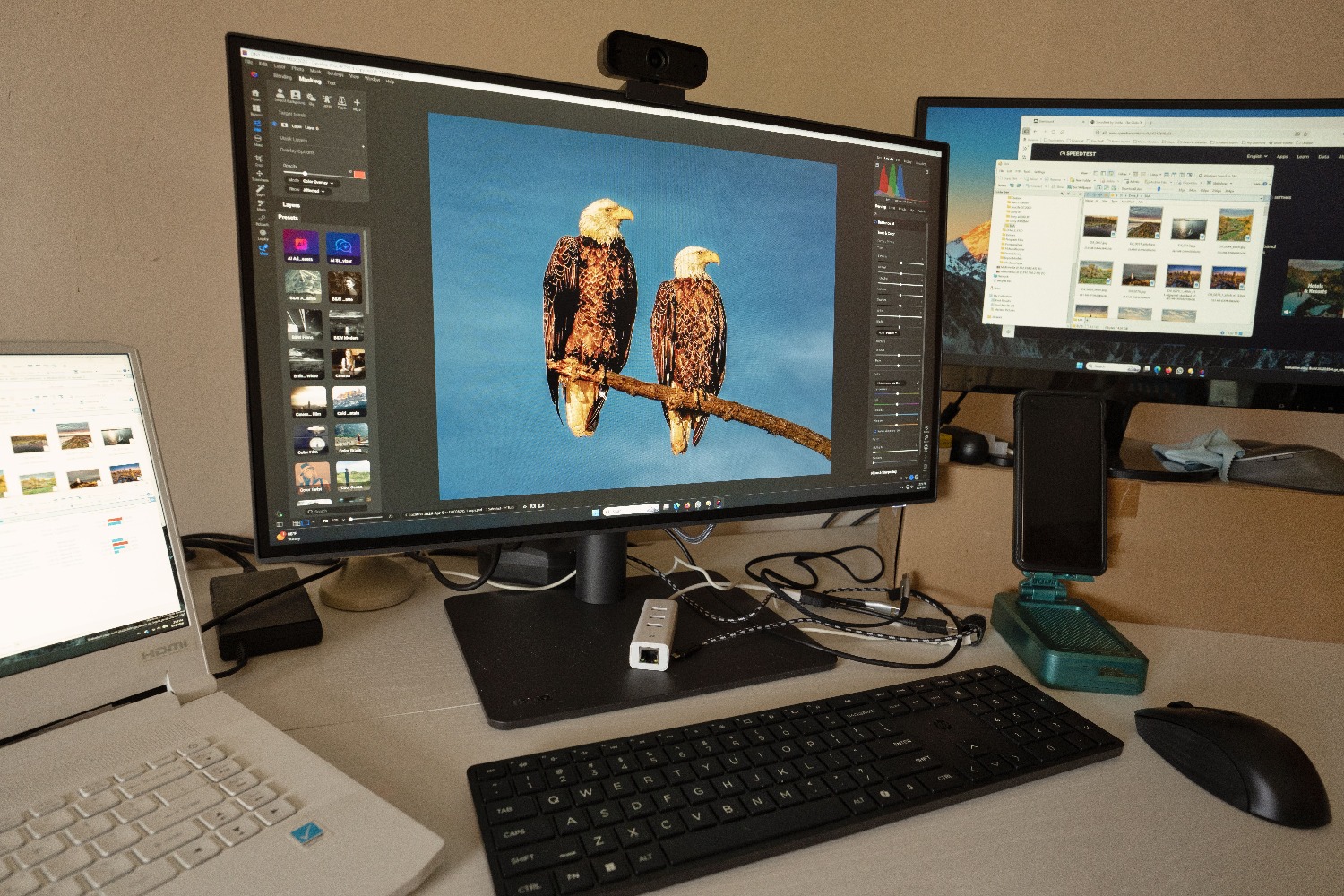
Sometimes, for some reason, these functions stop working. If you find that you can't snap windows, the first thing to check is that the option is enabled in Settings > System > Multitasking , making sure the Snap windows switch is turned on. From there, you can also customize whether you want the system to suggest layouts when you drag windows or if you prefer them to snap automatically.
In more persistent cases, the problem could stem from outdated video drivers or a very old version of Windows. I recommend going to Device Manager and updating your graphics card driver. Also, keep in mind that some very old applications aren't compatible with docking, so if a particular app isn't moving, it's likely a software limitation rather than a problem with your computer.
Multi-monitor management
If you work with more than one screen, your workflow can be dramatically improved. Each monitor behaves like an independent workspace , meaning you can apply Snap Assist to each one separately. To configure it, right-click on the desktop and go to Display settings , where you can adjust the virtual position of your monitors.
This allows you to freely drag windows from one monitor to another and dock them to the edges of each screen , maximizing productivity. If you frequently move between different workstations or connect your laptop to external monitors, taking a few minutes to adjust this layout will save you a lot of time in the long run.
Mastering window organization through drag and drop, keyboard shortcuts, and Windows 11's smart layouts lets you optimize your workspace and avoid the fatigue of constantly switching between applications. Whether you're manually adjusting panels, configuring multitasking in the system, or managing multiple monitors, these tools transform how you interact with your PC for greater everyday efficiency.
FAQ
How do I enable split-screen if it's not working?
You need to go into the Settings menu, go to System, select Multitasking and verify that the Dock windows option is enabled.
What is the difference between Snap Assist and Snap Layouts?
Snap Assist is the general function of snapping windows by dragging them to the edges, while Snap Layouts is a visual menu exclusive to Windows 11 that offers predefined templates.
Can the screen be split into more than two parts?
Yes, it is possible to arrange from three to six windows simultaneously, especially by using Snap Layouts in Windows 11 or by dragging windows to the corners.
What keyboard shortcut is used to move a window to the right?
To move the active window to the right side of the screen, you must hold down the Windows key and press the right arrow key on the keyboard.
How can I create a different virtual desktop?
You can create a new, independent workspace by pressing the Windows + Ctrl + D key combination.
Why can't some apps dock?
Some older third-party programs are not compatible with Windows docking features, preventing them from automatically adjusting to the screen.
How do I adjust the size of already split windows?
Simply place your cursor over the dividing line that separates the two applications and drag it to the left or right.
