- LibreELEC is a lightweight Linux-based operating system designed exclusively to run the Kodi media center.
- The installation is done using a USB drive or SD card, allowing the system to boot without the need for Windows.
- Performance relies primarily on the processor's hardware acceleration to support modern codecs and 4K resolution.
- The device can be managed remotely via SSH, SAMBA, or a web interface from any browser.
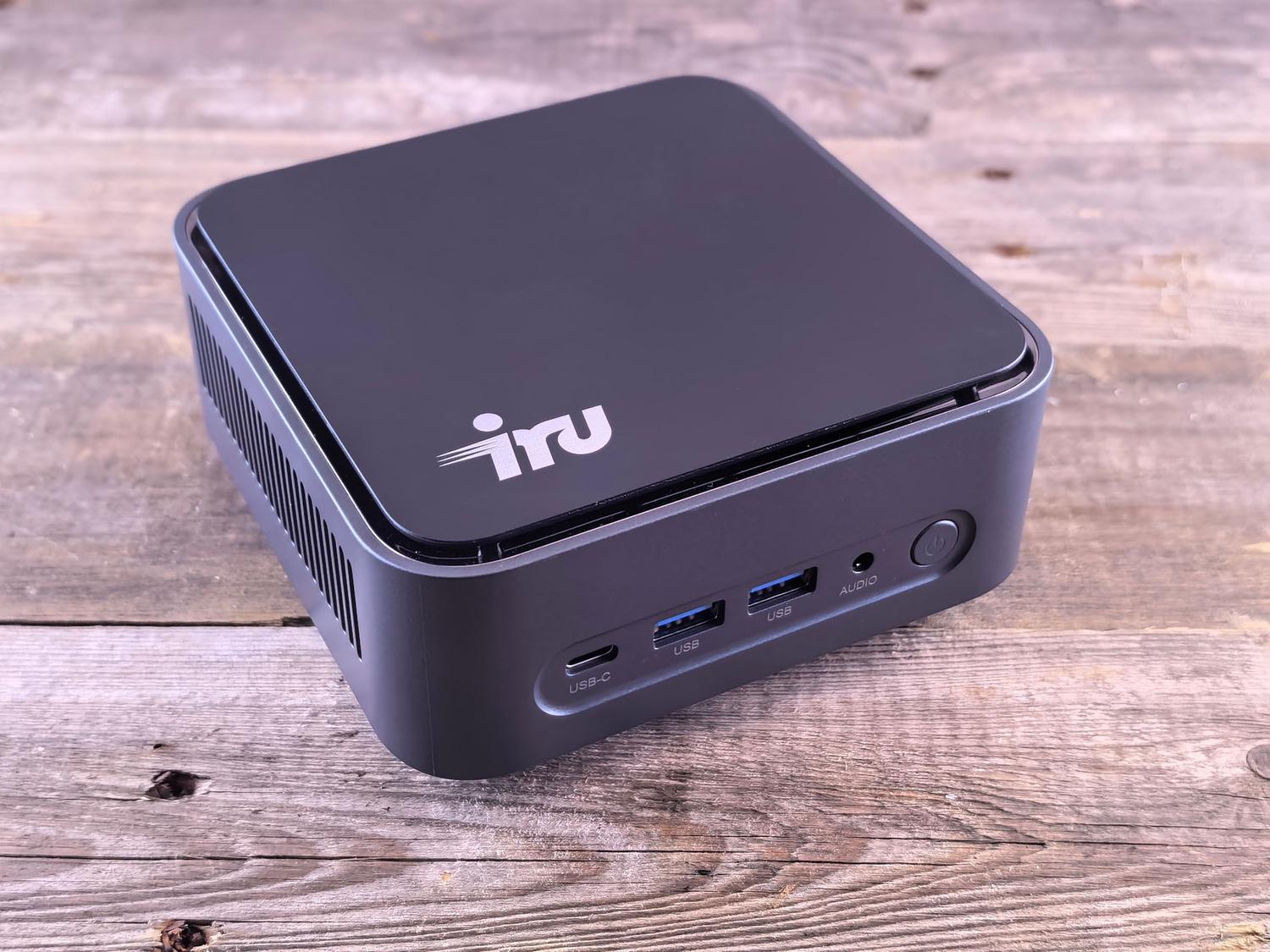
If you're tired of your Firestick running slowly or the system freezing right in the middle of the best scene of a movie, building your own rig with LibreELEC and a mini PC is probably the best decision you can make. It's an ideal solution for those looking for a dedicated, lightning-fast device, stripping away all the bloat of a conventional operating system to focus solely on multimedia playback.
Unlike installing Kodi on Windows, which consumes unnecessary resources in the background, LibreELEC is a minimalist Linux distribution that pushes your hardware to its limits. Essentially, it transforms any compatible computer into a powerful entertainment device , capable of handling high resolutions and HDR10 if the processor is up to par, eliminating constant crashes.
What hardware do I need for smooth performance?
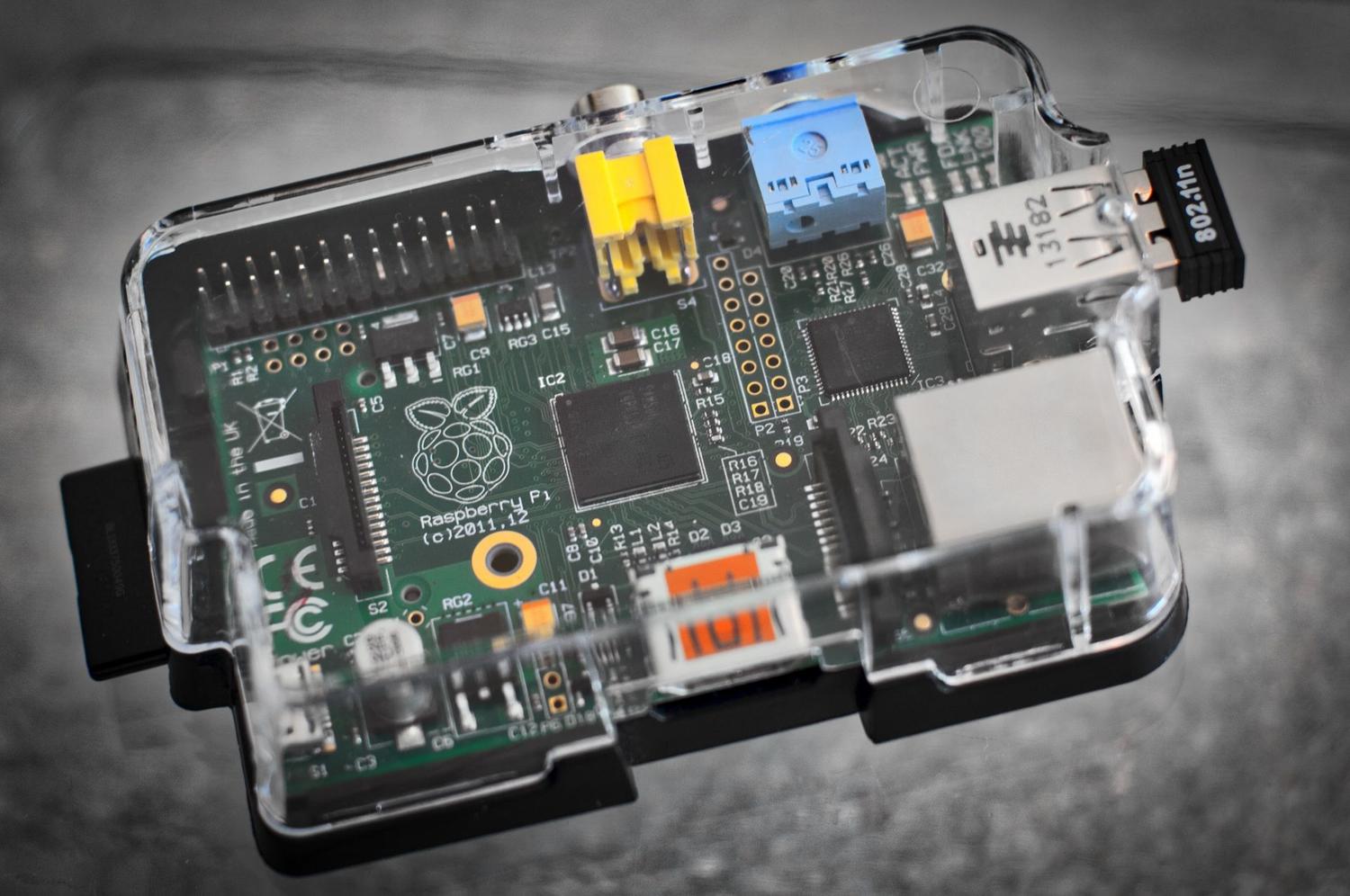
For those looking to play 4K content at 60 fps with HDR10, you don't need to spend a fortune, but not just any old thing will do either. A system based on an Intel i3 with 4 GB of RAM is more than enough, as this system is extremely efficient and can even run with just 1 GB of memory. What's truly critical is that the processor has the necessary hardware acceleration for modern codecs; if the chip is too old, the video could inevitably stutter.
Regarding storage, while it's possible to boot from a USB drive, installing the system on an SSD significantly improves interface responsiveness. For those who prefer using a Raspberry Pi, it's essential to choose a Class 10 or UHS-I microSD card, preferably 64 GB or larger, to avoid bottlenecks when reading large files.
Step-by-step installation process
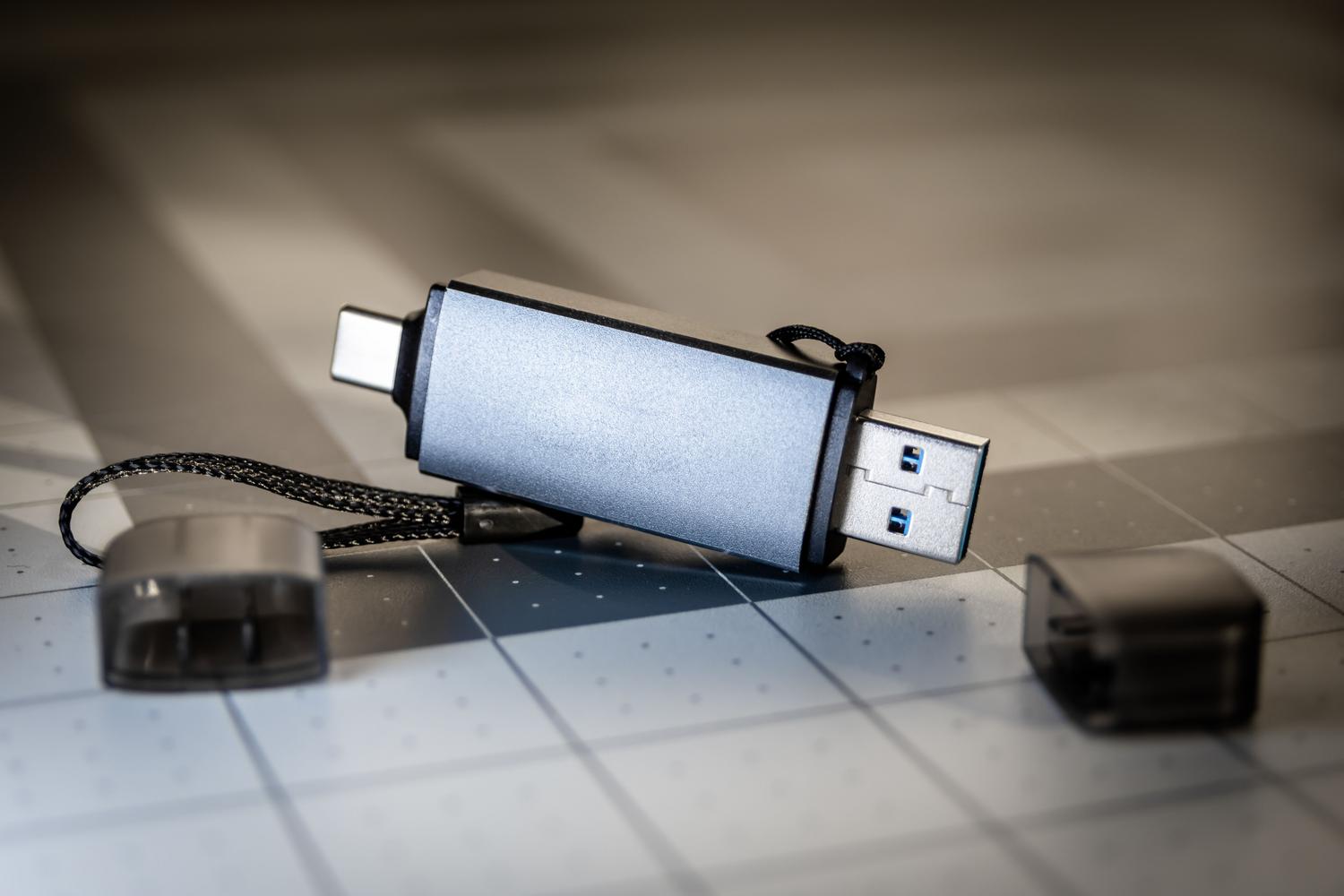
To begin, we need to download USB-SD Creator from the official LibreELEC website. This program simplifies the entire process: we select our computer's architecture (AMD, Intel, or Nvidia), download the latest image, and write it to a USB drive or SD card. If you prefer to do it manually in Windows, you can use tools like Win32 Disk Imager after extracting the .img image.
Once the drive is prepared, we must connect the USB to the mini PC and enter the BIOS or boot menu to prioritize booting from the external device. Here we have two options: if we want to test the system without deleting anything, we boot into live mode ; but if we want the system to reside permanently on the PC's hard drive, we must use the run command to begin the final installation.
System control and advanced configuration
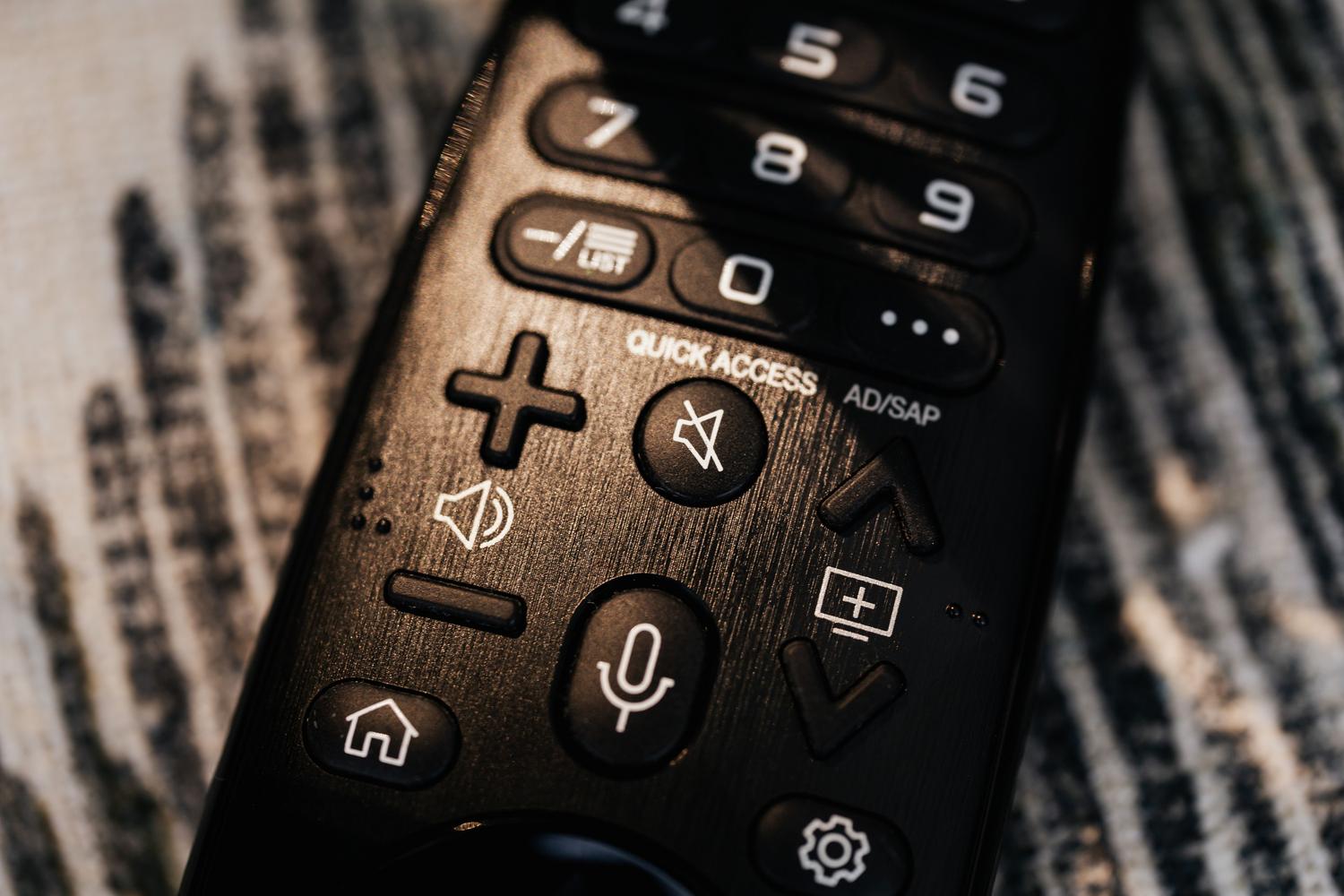
Using Kodi from the couch with a keyboard and mouse is cumbersome. The best option is to get a compatible USB dongle remote or a wireless remote. To configure the system, once it's up and running, it's essential to adjust the time zone and language in the Interface > Regional menu, as it usually defaults to English.
For the more technically inclined, LibreELEC offers three very useful remote management methods. First, the web interface , accessible via the device's IP address and port 8080. Second, the SAMBA protocol , which allows you to drag and drop movies or photos from a Windows or Ubuntu PC directly into the player's folders. And third, the SSH connection , which grants full terminal access via the root account (whose default password is 'libreelec', although changing it for security is recommended).
Enhancing Kodi with Add-ons
To make the media center truly useful, you need to install add-ons. First, go to Settings > System > Add-ons and enable the " Unknown sources " option . From there, you can add external repositories using the file explorer. Some of the most popular are the Alfa Addon for TV shows and movies, and the Luar Addon , which acts as a catalog for easily installing other add-ons.
It is also highly recommended to install a VPN manager to protect your privacy and encrypt your traffic, especially when using streaming services. To do this, you can download the desired add-on's .zip file and load it via USB or SSH, then configure the token for your chosen VPN provider.
Special cases: Dual Boot with Windows
If you don't want to completely abandon Windows, it's possible to create a dual boot system , although it requires some technical knowledge. The process involves first installing LibreELEC, resizing its partition using a tool like GParted Live to free up space, and then installing Windows on that NTFS partition. To manage the boot process, you use software called EasyBCD , which allows you to create a menu where you choose which operating system to boot when you turn on your PC.
Having a LibreELEC-based system transforms any forgotten computer into an entertainment hub capable of handling massive content libraries with astonishing fluidity. From choosing modest yet efficient hardware to customization through add-ons and remote management via SSH, this setup eliminates dependence on heavyweight operating systems and provides an optimized user experience for the living room.